Looking for a simple and powerful media player for your Android phone? PLAYit is one of the most popular video and music players available today. It supports a wide range of video formats, provides HD playback, offers subtitle support, and includes useful features like background audio playback, floating window mode, and file management—all in one application.
Installing PLAYit is quick and beginner-friendly, but following the correct installation process ensures the app works smoothly from the start. Whether you're installing PLAYit for the first time or helping someone else set it up, this guide walks you through every step in detail.
In this complete PLAYit installation guide for Android, you'll learn how to download the app safely, install it correctly, grant the required permissions, and verify that everything is working properly before moving on to setup and customization.
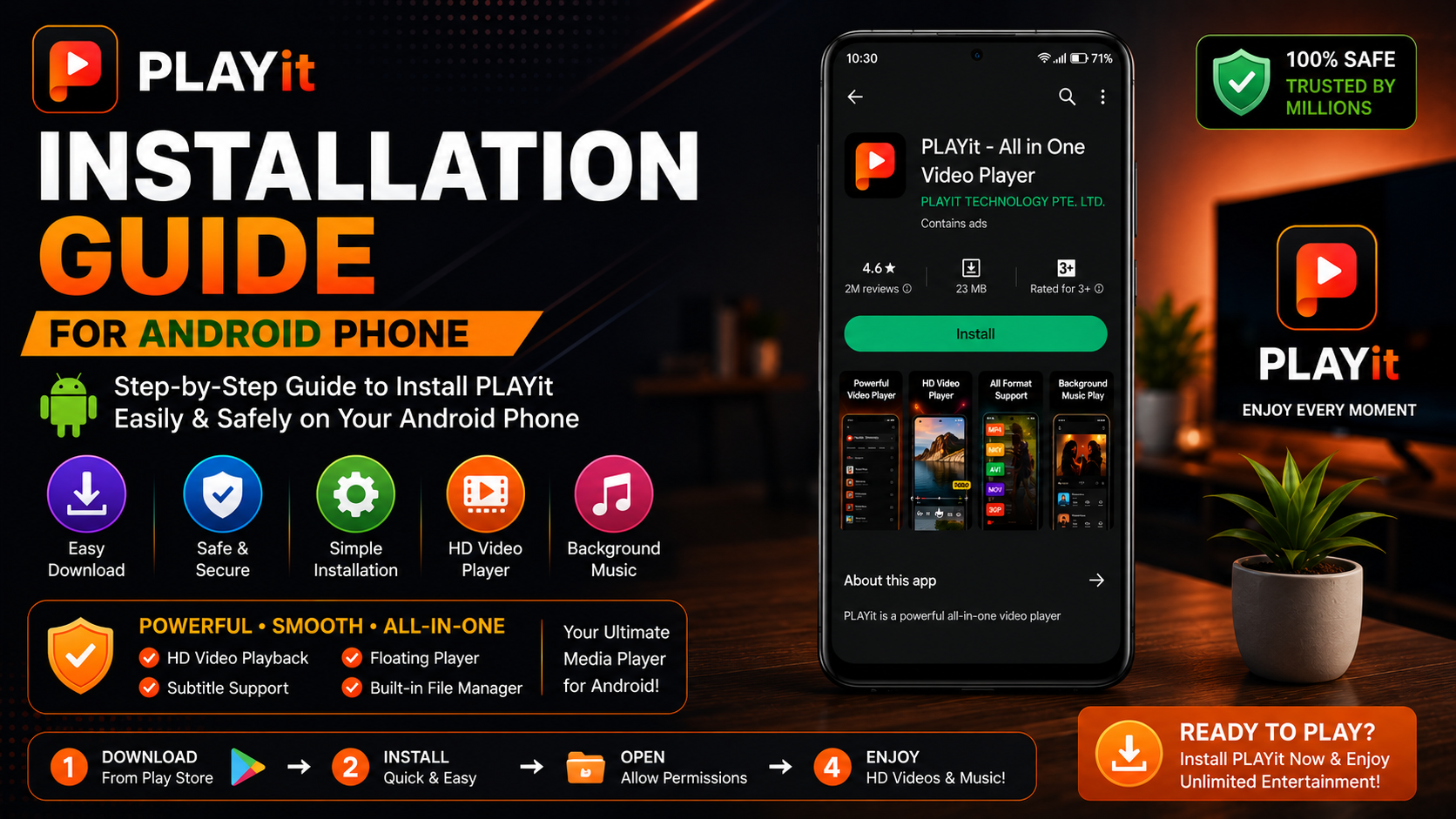
Why Choose PLAYit?
PLAYit has become a favorite media player among Android users because it combines powerful playback capabilities with an easy-to-use interface.
Some of its key advantages include:
Supports multiple video and audio formats HD and Full HD playback Subtitle support Floating video player Background audio playback Built-in file manager Simple and beginner-friendly interface Regular updates and performance improvements
Whether you're watching movies, listening to music, or playing personal videos, PLAYit provides a smooth media experience.
What You'll Learn
| Topic | What You'll Learn |
|---|---|
| Download PLAYit | Safe installation process |
| Install the App | Step-by-step guide |
| Grant Permissions | Required Android permissions |
| First Launch | Initial setup |
| Verify Installation | Ensure everything works |
| Common Installation Issues | Simple fixes |
| Best Practices | Smooth installation experience |
Before You Begin
Before installing PLAYit, ensure your Android phone meets a few basic requirements.
Recommended Checklist
Stable internet connection Google Play Store installed Enough available storage Updated Android version Active Google account
Meeting these requirements helps avoid installation problems.
Step 1: Open Google Play Store
Unlock your Android phone and open the Google Play Store.
The Play Store is the safest place to install official Android applications.
Avoid downloading PLAYit from unknown third-party websites, as unofficial versions may be outdated or unsafe.
Step 2: Search for PLAYit
Tap the search bar at the top of the Play Store.
Type:
PLAYit
Locate the official PLAYit application in the search results.
Before installing, verify:
Correct app name Official developer Good ratings Large number of downloads
This helps ensure you're installing the authentic application.
Step 3: Tap Install
Once you've found the official app:
Tap Install.
Google Play will automatically:
Download the application Verify compatibility Install the necessary files Prepare the app for first launch
The installation time depends on your internet speed.
Step 4: Wait for Installation to Finish
Do not interrupt the installation.
Avoid:
Closing Play Store Turning off Wi-Fi Restarting the phone
Wait until the install button changes to open.
This confirms PLAYit has been installed successfully.
Step 5: Open PLAYit
Tap Open.
Alternatively, locate the PLAYit icon on your Android home screen or app drawer.
The application will begin its first launch.
Step 6: Allow Required Permissions
During the first launch, Android may request several permissions.
Typical permissions include the following:
Storage access Media access Photos and videos
Granting these permissions allows PLAYit to detect and play your local media files.
Without storage permission, your videos and music may not appear inside the app.
Step 7: Let PLAYit Scan Your Media
After permissions are granted, PLAYit automatically scans your phone for supported media files.
Depending on your storage size, this process may take a few moments.
When complete, your videos, music, and other supported files will be displayed inside the application.
Step 8: Verify Installation
Play one video to confirm everything is working properly.
Check the following:
Video plays smoothly Audio works correctly Playback controls respond Full-screen mode functions No unexpected errors appear
If all checks pass, PLAYit has been installed successfully.
Installation Checklist
| Installation Step | Status |
|---|---|
| Google Play Store Opened | ✓ |
| Official PLAYit Located | ✓ |
| Install Completed | ✓ |
| Permissions Granted | ✓ |
| App Opened Successfully | ✓ |
| Media Scanned | ✓ |
| Video Playback Tested | ✓ |
Common Installation Problems
Although installation is usually straightforward, you may occasionally encounter issues.
PLAYit Won't Download
Possible causes:
Weak internet connection Low device storage Play Store problems
Solutions:
Restart Wi-Fi Free storage space Restart the Play Store Reboot your phone
App Won't Install
Possible causes:
Android compatibility issues Interrupted download Insufficient storage
Solutions:
Update Android Delete unnecessary files Download again Restart the device
Videos Don't Appear
If PLAYit installs successfully but doesn't show your videos:
Check Android permissions.
Go to:
Settings → Apps → PLAYit → Permissions
Ensure storage or media access is enabled.
App Closes Immediately
Try:
Restarting your phone Updating PLAYit Updating Android Closing background apps
Most startup issues disappear after a restart.
Tips for a Smooth Installation
For the best installation experience:
Use the official Google Play Store. Keep your internet connection stable. Ensure enough free storage before downloading. Grant permissions during the first launch. Test video playback immediately after installation.
These simple steps help avoid common setup issues.
Why Installing from Google Play Matters
Using the Google Play Store provides several advantages:
Official app version Automatic updates Better security Verified downloads Improved compatibility
Installing from trusted sources helps protect your device and ensures a smoother experience.
What's Next?
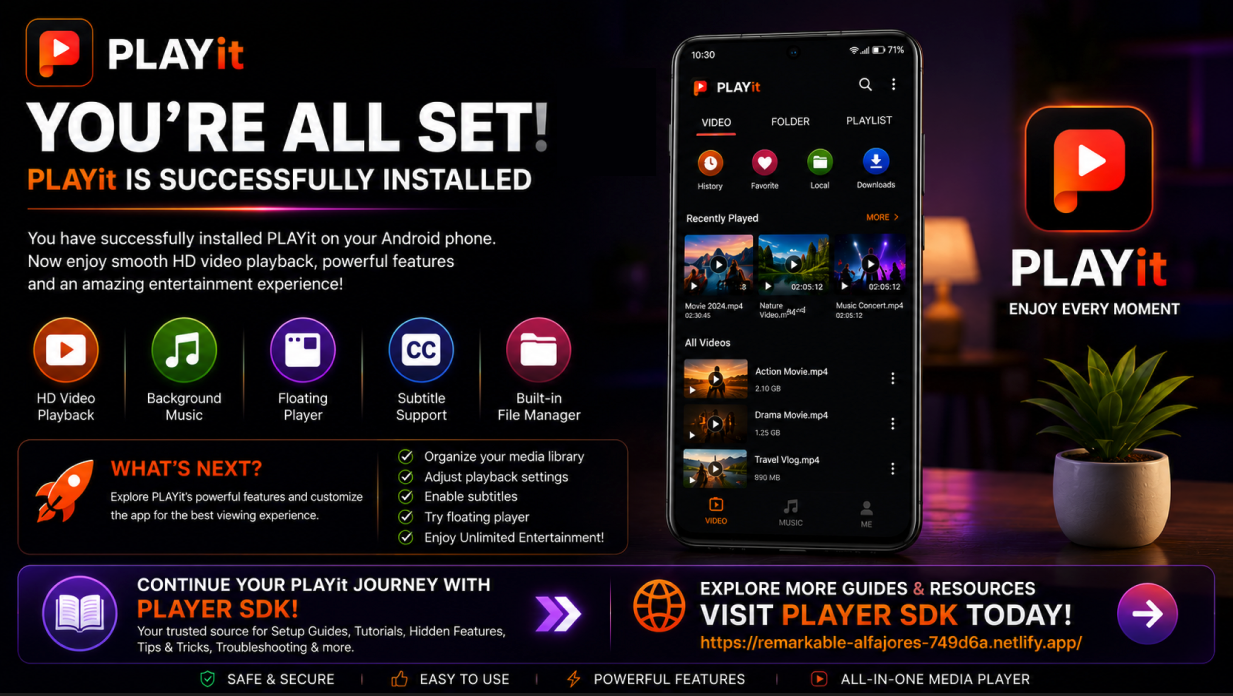
Congratulations! PLAYit is now installed on your Android phone.
The next step is learning how to configure the app for the best viewing experience.
Continue with:
PLAYit Setup Guide
You'll learn how to customize playback settings, organize your media library, adjust subtitles, personalize the interface, and optimize PLAYit for everyday use.
Final Thoughts
Installing PLAYit on your Android phone is quick, simple, and only takes a few minutes. By following the correct installation process, granting the necessary permissions, and testing playback after installation, you'll ensure the app is ready to deliver a smooth media experience from day one.
Whether you're watching HD videos, listening to music, or organizing your personal media collection, PLAYit provides an excellent balance of performance, ease of use, and powerful playback features.
Frequently Asked Questions (FAQs)
1) Is PLAYit free to install?
Yes. PLAYit is free to download and install from the Google Play Store.
2) Why should I install PLAYit from Google Play?
The Play Store provides the official version, automatic updates, and better security than third-party websites.
3) Why can't PLAYit find my videos?
Check that you've granted storage or media permissions in your Android settings.
4) Does PLAYit support HD videos?
Yes. PLAYit supports HD and full HD playback for compatible video files.
5) How long does installation take?
Most installations are completed within a few minutes, depending on your internet connection and device performance.
6) What should I read after this installation guide?
The next recommended article is the PLAYit Setup Guide, where you'll learn how to configure the app for the best playback experience.
Continue Learning with Player SDK
Your PLAYit installation is complete—now take your media experience to the next level with the Player SDK. Discover Setup Guides, Beginner Tutorials, Troubleshooting, Tips & Tricks, Hidden Features, Supported Device Guides, and complete media player resources designed for Android users.
Whether you're just getting started or want to master every feature of PLAYit, Player SDK provides step-by-step guides to help you get the most out of your media player.
