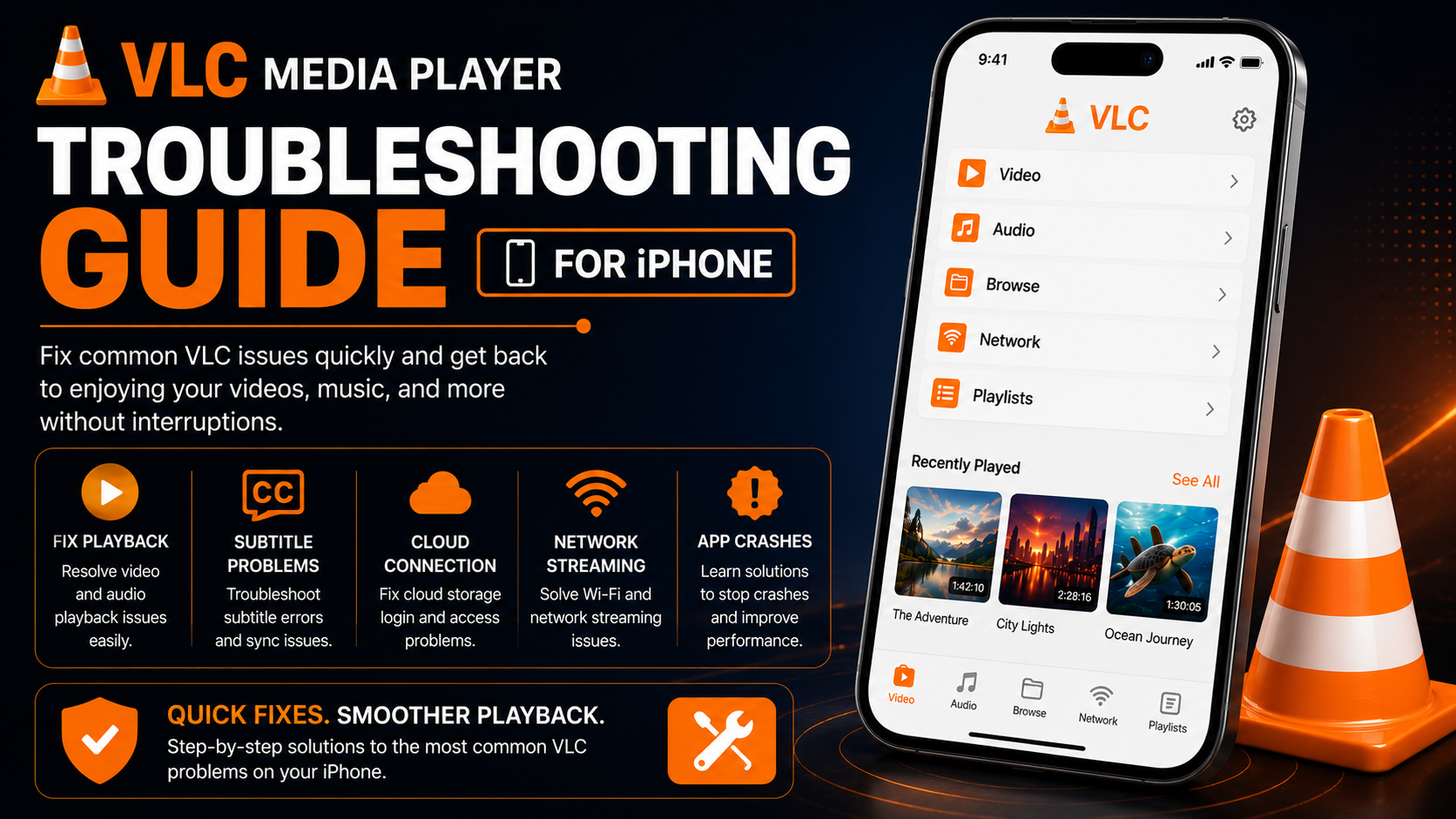
VLC Media Player is one of the most reliable media players available for iPhone, offering support for numerous video and audio formats, subtitle compatibility, cloud storage integration, local network streaming, and high-quality playback. While the app is known for its stability, users may occasionally experience issues such as videos not playing, subtitle errors, cloud storage connection problems, network streaming failures, or unexpected app crashes.
Fortunately, most of these issues are easy to fix without uninstalling the application. In many cases, a few simple adjustments to your iPhone settings or VLC configuration are enough to restore normal performance.
This complete VLC Media Player Troubleshooting Guide for iPhone covers the most common problems users encounter and provides practical solutions to help you get VLC running smoothly again.
Why Learn VLC Troubleshooting?
Even the best applications can occasionally run into problems due to software updates, storage limitations, permissions, or network connectivity. Understanding basic troubleshooting techniques allows you to solve issues quickly instead of searching for complicated solutions every time something goes wrong.
Learning how to troubleshoot VLC helps you:
- Fix playback problems faster
- Improve app performance
- Resolve subtitle issues
- Restore cloud storage access
- Solve network streaming problems
- Prevent frequent crashes
- Reduce interruptions during playback
- Enjoy a smoother media experience
Knowing these solutions can save you time and frustration.
Common VLC Issues Covered
| Problem | Solution |
|---|---|
| VLC won't open | Restart iPhone and update VLC |
| Videos won't play | Verify file compatibility and permissions |
| No audio | Check volume and audio output |
| Subtitles missing | Review subtitle settings |
| Cloud storage not connecting | Reconnect your account |
| Network streaming issues | Check Wi-Fi connection |
| App crashes | Update VLC and restart device |
| Slow performance | Free storage and close background apps |
Problem 1: VLC Won't Open
Sometimes VLC refuses to launch after tapping the app icon.
This usually happens because of a temporary software issue rather than a problem with the application itself.
Begin by closing VLC completely from the App Switcher.
Restart your iPhone and try opening the application again.
If the problem continues, check the App Store for available updates.
Running the latest version often resolves startup issues.
Problem 2: Videos Won't Play
One of the most common issues is opening a video that refuses to start.
Possible reasons include:
- Damaged media files
- Unsupported formats
- Incomplete file transfers
- Permission restrictions
Test another video stored in a different location.
If other videos play normally, the original file is likely corrupted.
Also verify VLC has permission to access your files by visiting:
Settings > VLC
Problem 3: No Audio During Playback
Sometimes the video appears correctly, but no sound is heard.
Before assuming VLC is the problem, check your iPhone's volume.
Also verify:
- Silent Mode
- Bluetooth headphones
- Connected speakers
- AirPlay devices
Try another video to determine whether the issue affects one file or every file.
Restarting VLC usually restores normal playback.
Problem 4: Subtitle Files Don't Appear
Subtitles are one of VLC's strongest features, but occasionally they may not display correctly.
Possible causes include:
- Unsupported subtitle format
- Incorrect subtitle file
- Subtitle disabled during playback
- Synchronization settings
Open the subtitle controls during playback and confirm subtitles are enabled.
If necessary, test another subtitle file to rule out file corruption.
Problem 5: Cloud Storage Doesn't Connect
Many users connect VLC with cloud services such as:
- iCloud Drive
- Google Drive
- Dropbox
- OneDrive
If your cloud storage fails to appear:
Disconnect the account.
Restart VLC.
Reconnect the storage provider.
Also confirm that your internet connection is stable.
Most connection problems disappear after reconnecting the account.
Problem 6: Network Streaming Stops Working
VLC supports streaming from local network devices including computers and NAS storage.
If network media suddenly disappears:
Check that:
- Your iPhone is connected to Wi-Fi.
- Both devices use the same network.
- The server is powered on.
- Network sharing remains enabled.
Restarting both devices often restores the connection.
Problem 7: Wi-Fi Sharing Doesn't Work
Wireless file transfer is convenient but occasionally fails.
Verify:
- Both devices share the same Wi-Fi network.
- Firewall settings aren't blocking access.
- VLC's Wi-Fi Sharing feature is enabled.
Refreshing the connection normally resolves transfer issues.
Problem 8: VLC Crashes Frequently
Unexpected crashes may occur after iOS updates or app updates.
Try these solutions:
Restart your iPhone.
Update VLC.
Close unused background apps.
Ensure enough free storage remains available.
If crashes continue after updating both iOS and VLC, restarting the device usually resolves temporary conflicts.
Problem 9: Playback Freezes
If videos pause unexpectedly or freeze:
Possible causes include:
- Damaged media
- Low storage
- Background applications
- Temporary software conflicts
Close unused apps before watching long videos.
Freeing storage often improves playback stability.
Problem 10: Audio and Video Out of Sync
Sometimes sound doesn't match the picture.
Test another video first.
If only one video is affected, the file itself may have synchronization issues.
If every video behaves similarly:
Restart VLC.
Restart your iPhone.
Install any available updates.
Problem 11: VLC Doesn't Find Imported Files
After importing videos, they sometimes fail to appear inside VLC.
Check that:
- Import completed successfully.
- Files weren't moved afterward.
- VLC has permission to access storage.
Refreshing the Browse section usually updates the media library.
Problem 12: VLC Feels Slow
Performance problems usually result from the device rather than VLC.
Improve performance by:
Removing unnecessary files.
Closing unused applications.
Restarting your iPhone occasionally.
Keeping enough free storage available.
A well-maintained iPhone helps VLC perform much better.
Problem 13: Downloads Fail
If importing files from cloud storage or transferring media doesn't complete successfully:
Check:
- Internet connection
- Available storage
- Cloud account authentication
Retry the transfer after reconnecting to Wi-Fi.
Problem 14: App Store Won't Update VLC
If VLC refuses to update:
Restart the App Store.
Reconnect to Wi-Fi.
Restart your iPhone.
Attempt the update again.
Most update failures are temporary.
Quick Troubleshooting Checklist
| Issue | Recommended Fix |
|---|---|
| VLC won't open | Restart iPhone |
| Videos won't play | Test another file |
| No audio | Check volume and Bluetooth |
| Missing subtitles | Enable subtitles |
| Cloud storage problems | Reconnect account |
| Network streaming fails | Verify Wi-Fi |
| App crashes | Update VLC |
| Slow performance | Free device storage |
Best Practices to Prevent Problems
Many VLC issues can be avoided through regular maintenance.
Keep VLC updated from the App Store whenever new versions become available. Maintain sufficient free storage on your iPhone, organize your media into dedicated folders, and periodically restart your device to refresh background processes.
If you use cloud storage or local network streaming regularly, verify those connections occasionally to ensure they continue working correctly.
Simple maintenance helps prevent many common problems before they occur.
Common Mistakes Users Make
Several everyday habits can lead to unnecessary troubleshooting.
Examples include:
- Ignoring App Store updates
- Filling device storage completely
- Importing damaged media files
- Forgetting storage permissions
- Never restarting the device
- Disconnecting cloud accounts unexpectedly
Avoiding these mistakes greatly improves VLC's reliability.
Why Troubleshooting Skills Matter
Understanding how VLC works makes solving problems much easier.
Instead of immediately reinstalling the application whenever something goes wrong, you'll know how to identify whether the issue involves permissions, storage, cloud services, network connections, or a particular media file.
Most problems can be solved in just a few minutes using the techniques described in this guide.
What's Next?
Now that you know how to solve common VLC problems, you're ready to improve your overall experience even further.
Continue with the:VLC Media Player Tips & Tricks Guide for iPhone
You'll discover useful techniques for organizing media, improving playback, customizing subtitles, managing your library more efficiently, and getting even more from VLC.
Final Thoughts
VLC Media Player is one of the most stable media players available for iPhone, but occasional issues are normal for any application. Fortunately, most playback problems, subtitle errors, network issues, and cloud storage connection failures can be resolved quickly without reinstalling the app.
By following the troubleshooting techniques in this guide and keeping VLC updated, you'll enjoy smoother playback, improved reliability, and a better overall media experience.
Frequently Asked Questions (FAQs)
1) Why won't VLC open on my iPhone?
Restart your iPhone, update VLC through the App Store, and ensure your iOS version is compatible.
2) Why can't VLC play my video?
The file may be corrupted, unsupported, or inaccessible due to permission settings. Test another video to identify the cause.
3) Why are subtitles missing?
Check that subtitles are enabled during playback and verify the subtitle file is supported.
4) Why won't VLC connect to cloud storage?
Reconnect your cloud account, verify your internet connection, and restart VLC.
5) Does restarting the iPhone really help?
Yes. Restarting clears temporary system processes and often resolves app performance issues.
6) What should I read after this Troubleshooting Guide?
The next recommended article is the VLC Media Player Tips & Tricks Guide for iPhone, where you'll discover practical ways to improve navigation, organize your media library, and enhance your overall VLC experience.
Continue Learning with Player SDK
Take your VLC Media Player knowledge even further with Player SDK, your trusted destination for Installation Guides, Setup Guides, Beginner Guides, Troubleshooting, Tips & Tricks, Hidden Features, Supported Device Tutorials, and complete media player resources.
Whether you're using VLC on an iPhone, iPad, Android phone, or desktop computer, Player SDK provides detailed, step-by-step tutorials to help you get the best possible media experience.
