VLC Media Player is one of the most reliable media players for Android, but as with any program, sometimes users may face problems with playback, subtitles, network streaming, audio syncing, or bugs with the media library. Luckily, most of these issues can be rectified in a couple of minutes, and you won’t have to reinstall the program.
This comprehensive troubleshooting guide covers the most common VLC Media Player problems and their solutions. Whether VLC isn't detecting your videos, keeps crashing, experiences lag during playback, or fails to connect to network media, this guide provides practical fixes that work for most Android devices.
By following these troubleshooting steps, you'll be able to restore smooth playback and continue enjoying your favorite videos and music without interruption.
Why Does VLC Media Player Experience Issues?
Although VLC supports almost every media format, problems can sometimes occur due to outdated software, incorrect permissions, damaged media files, unsupported network configurations, insufficient storage, or device-specific limitations.
The good news is that these issues are rarely permanent. Most can be fixed by adjusting a few settings or performing simple maintenance within the app.
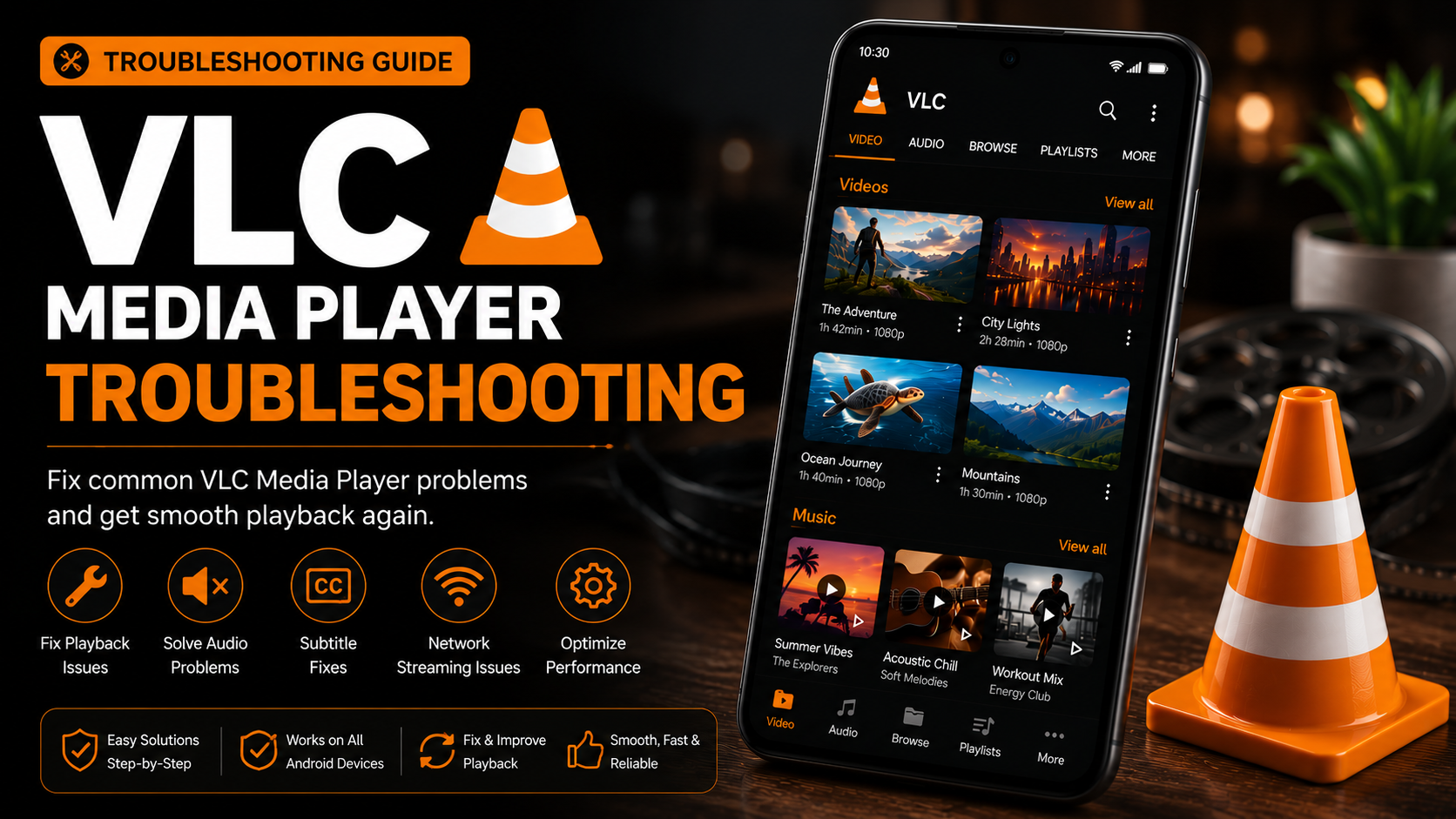
Common VLC Problems Covered in This Guide
| Feature | Description |
|---|---|
| VLC won't open | Restart device and update VLC |
| Videos not showing | Refresh media library and check permissions |
| No sound | Verify audio settings and volume |
| Video lagging | Enable hardware acceleration |
| Subtitles not loading | Check subtitle format and encoding |
| Playback crashes | Clear cache and update the app |
| Network streaming issues | Verify network connection and server settings |
| Slow performance | Optimize VLC settings and free device storage |
VLC Media Player Troubleshooting Steps
Solution 1: Restart VLC Media Player
Many temporary issues occur because the application has been running in the background for an extended period.
Completely close VLC from your recent apps list and reopen it.
If the issue continues, restart your Android device before launching VLC again.
This simple step often resolves minor glitches related to playback, media scanning, and application responsiveness.
Solution 2: Verify Storage Permissions
Without storage permission, VLC cannot detect your local videos and music.
Go to:
Android Settings → Apps → VLC → Permissions
Ensure that access to photos, videos, audio files, or storage is enabled.
After granting permission, reopen VLC and allow the media library to scan again.
Solution 3: Refresh the Media Library
Sometimes newly downloaded videos don't appear immediately.
Open VLC and navigate to the media library.
Refresh the library or restart the application so VLC can perform a new scan.
If necessary, manually browse to the folder using the Browse tab.
Solution 4: Update VLC Media Player
Running an outdated version of VLC can cause compatibility issues with newer Android versions and media formats.
Visit the Google Play Store and check whether an update is available.
Installing the latest version provides bug fixes, performance improvements, security updates, and support for newer codecs.
Solution 5: Enable Hardware Acceleration
Video lag, frame drops, or choppy playback often occur when hardware acceleration is disabled.
Open:
More → Settings → Video
Enable Hardware Acceleration.
This allows your device's processor to decode supported video formats more efficiently, improving both playback performance and battery life.
Solution 6: Fix Audio Problems
If videos play without sound, first verify your device volume.
Next, check VLC's audio settings.
Disconnect and reconnect Bluetooth devices if you're using wireless headphones or speakers.
Also verify that the video file itself contains a valid audio track.
Testing another video helps determine whether the issue is with VLC or the media file.
Solution 7: Resolve Subtitle Issues
If subtitles don't appear:
Confirm the subtitle file has the correct extension, such as SRT.
Ensure the subtitle filename matches the video filename whenever possible.
Load subtitles manually using the Subtitle menu during playback.
If characters appear incorrectly, adjust subtitle encoding in VLC settings.
Solution 8: Check Network Streaming
Users streaming videos from SMB, FTP, DLNA, NFS, SFTP, or WebDAV servers should verify:
Both devices are connected to the same network.
The server is online.
Network credentials are correct.
The shared folder permissions allow media access.
A stable Wi-Fi connection significantly improves streaming performance.
Solution 9: Clear VLC Cache
Cached data may occasionally cause unexpected behavior.
Go to Android Settings.
Open Apps.
Select VLC.
Choose Storage.
Clear Cache.
Avoid clearing app data unless necessary, as this may reset preferences and media history.
Solution 10: Free Device Storage
Low storage space can affect VLC performance.
Delete unnecessary downloads, duplicate videos, temporary files, or unused applications.
Maintaining adequate free storage helps Android manage media playback more efficiently.
Solution 11: Test Another Media File
If only one video fails to play, the issue may not be VLC.
The media file itself could be corrupted or incomplete.
Try opening another video in VLC.
If other files work normally, download the problematic file again or obtain a different copy.
Solution 12: Reinstall VLC Media Player
If none of the previous solutions resolve the issue, reinstalling VLC often fixes persistent application problems.
Uninstall VLC from your device.
Download the latest official version from the Google Play Store.
Grant permissions again and allow the media library to scan.
This provides a clean installation with the latest fixes.
Advanced Troubleshooting Tips
Experienced users can improve VLC performance by adjusting additional settings.
Disable unnecessary background applications before playing high-resolution videos.
Keep Android updated to the latest available version.
Avoid using battery optimization modes while streaming long videos.
If you're playing 4K content, ensure your device hardware supports smooth decoding.
Users with network storage devices should connect through a stable 5 GHz Wi-Fi network whenever possible for consistent streaming performance.
Troubleshooting Checklist
| Feature | Description |
|---|---|
| VLC Updated | Yes |
| Storage Permission Granted | Yes |
| Hardware Acceleration Enabled | Yes |
| Device Restarted | Yes |
| Cache Cleared | Yes |
| Network Stable | Yes |
| Subtitle File Valid | Yes |
| Media File Working | Yes |
| Free Storage Available | Yes |
| Latest Android Version | Recommended |
Best Practices to Prevent VLC Issues
Most playback problems can be avoided with a few simple habits.
Always install updates from the official Google Play Store.
Keep sufficient free storage on your Android device.
Avoid downloading damaged or incomplete media files.
Organize your videos and music into properly named folders for easier library management.
Regularly restart VLC after making major setting changes.
Use reliable Wi-Fi when streaming media over your local network.
These practices help ensure VLC continues performing at its best.
Why VLC Remains a Reliable Media Player
Despite occasional issues, VLC continues to be one of the most dependable media players available.
Its extensive codec support, open-source development, regular updates, subtitle compatibility, advanced playback controls, and network streaming capabilities make it a preferred choice for millions of users worldwide.
Most problems users encounter are easily resolved through simple troubleshooting steps rather than requiring complex technical knowledge.
Once properly configured and maintained, VLC delivers excellent performance across a wide variety of Android devices.
Final Thoughts
Experiencing occasional playback problems doesn't mean there's something wrong with VLC Media Player. In most cases, issues such as missing videos, audio errors, subtitle problems, lagging playback, or network streaming failures can be resolved quickly by following the troubleshooting methods outlined in this guide.
By keeping VLC updated, granting the correct permissions, enabling hardware acceleration, maintaining sufficient device storage, and using properly formatted media files, you can enjoy a smooth and reliable multimedia experience with minimal interruptions.
Whenever new issues arise, use this troubleshooting guide as your first resource before reinstalling the application or replacing your media player.
Frequently Asked Questions (FAQs)
1) Why is VLC Media Player not showing my videos?
This usually happens because storage permission has not been granted or the media library needs to be refreshed. Verify permissions and restart the media scan.
2) Why does VLC have no sound?
Check your device volume, Bluetooth connection, and VLC audio settings, and verify the video file contains an audio track.
3) How do I stop VLC from lagging?
Enable hardware acceleration, close background apps, free device storage, and keep VLC updated to the latest version.
4) Why are subtitles not appearing?
Ensure the subtitle file is supported, correctly named, and loaded manually if necessary. Also check subtitle encoding settings.
5) Can VLC stream files from my computer?
Yes. VLC supports SMB, FTP, SFTP, DLNA/UPnP, NFS, and WebDAV for network streaming.
6) Is reinstalling VLC safe?
Yes. Reinstalling the latest official version can resolve persistent issues, although your app preferences may be reset.
Continue Learning with Player SDK
Need more help with VLC Media Player? Player SDK is your trusted destination for the best media player installation guides, setup tutorials, beginner guides, troubleshooting resources, feature walkthroughs, supported device guides, and the latest streaming tips all in one place.
Whether you're using VLC on Android, Android TV, Fire TV, Windows, macOS, or other supported devices, you'll find expert tutorials and step-by-step guides to help you solve problems and get the best performance from your media player.
