VLC Media Player is widely recognized as one of the best media players for Android because of its exceptional compatibility, lightweight design, and advanced playback capabilities. While most users simply use VLC to play videos and music, the application offers many hidden features that can significantly improve your viewing and listening experience.
From gesture controls and subtitle synchronization to network streaming, playback speed adjustments, and hardware acceleration, VLC includes numerous tools that many users never discover. Learning these tips and tricks can help you save time, improve playback quality, organize your media more efficiently, and unlock features that make VLC even more powerful.
Whether you're a beginner or an experienced Android user, this guide will walk you through the best VLC Media Player tips and tricks that will help you get the most out of your media player.
Why Learn VLC Tips & Tricks?
VLC works great right after installation, but exploring its advanced features allows you to customize playback, improve performance, and access tools that many users overlook.
By understanding these hidden capabilities, you can enjoy smoother playback, better subtitle management, easier file organization, and a more personalized multimedia experience.
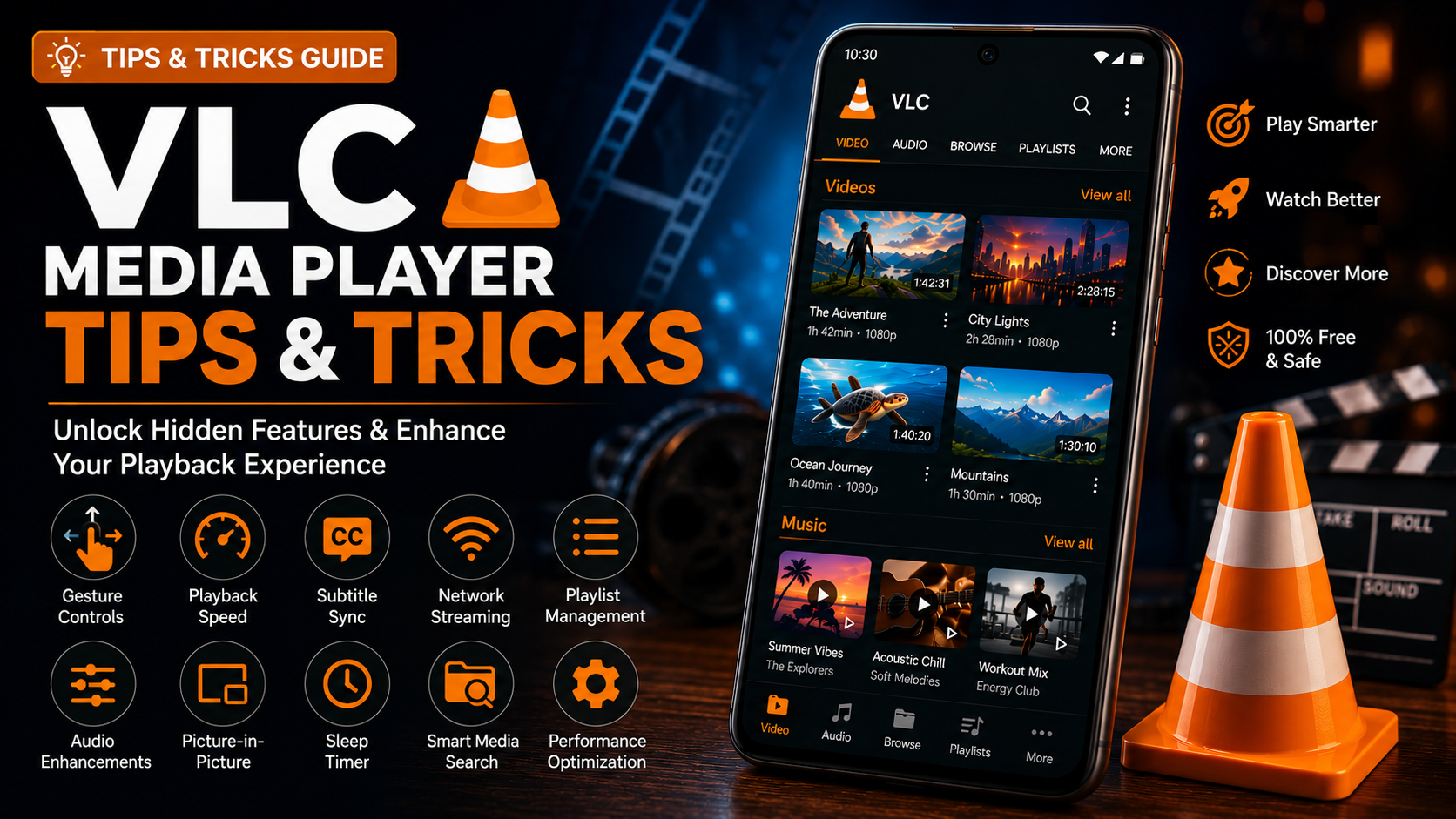
What You'll Learn
| Feature | Description |
|---|---|
| Gesture Controls | Faster playback navigation |
| Playback Speed | Watch videos at your preferred speed |
| Subtitle Sync | Fix subtitle timing instantly |
| Hardware Acceleration | Improve playback performance |
| Network Streaming | Stream media without downloading |
| Playlist Management | Organize favorite content |
| Sleep Timer | Automatically stop playback |
| Picture-in-Picture | Continue watching while multitasking |
Best VLC Media Player Tips & Tricks
Tip 1: Use Gesture Controls
While playing a video, swipe directly on the screen to control playback.
Swipe up or down on the left side to adjust brightness.
Swipe up or down on the right side to change volume.
Swipe horizontally to seek forward or backward.
These gestures eliminate the need to constantly use playback buttons.
Tip 2: Change Playback Speed
Watching educational videos, podcasts, or lengthy tutorials?
Tap the More (⋮) menu while playing a video.
Select Playback Speed.
Choose a speed ranging from slower playback to faster viewing.
This feature is ideal for lectures, online courses, and long videos.
Tip 3: Synchronize Subtitles
Sometimes subtitles appear too early or too late. Instead of searching for another subtitle file, VLC lets you adjust subtitle timing during playback. Open subtitle controls. Increase or decrease subtitle delay until dialogue matches perfectly. This works without permanently modifying the subtitle file.
Tip 4: Enable Hardware Acceleration
Hardware acceleration allows your Android device to decode videos more efficiently.
Navigate to:
More → Settings → Video → Hardware Acceleration
Keeping this option enabled improves playback quality, reduces battery usage, and minimizes lag when watching HD or 4K videos.
Tip 5: Stream Media from Your Network
VLC supports network protocols, including:
SMB
FTP
SFTP
DLNA
NFS
WebDAV
Open the Browse tab.
Connect to your shared server.
Stream videos directly without copying them to your phone.
This feature is especially useful for users with home media servers or NAS devices.
Tip 6: Create Playlists
Instead of searching for the same files repeatedly, create custom playlists.
Organize content into categories such as:
Movies
TV Shows
Music
Workout Songs
Educational Videos
Travel Videos
Playlists make large media collections easier to manage.
Tip 7: Resume Playback Automatically
One of VLC's most convenient features is playback resume. If you stop watching halfway through a movie, VLC remembers your progress. The next time you open the same file, playback continues from where you left off. Perfect for long movies and TV series.
Tip 8: Use Picture-in-Picture Mode
Need to reply to messages while watching a video?
Enable Picture-in-Picture mode.
The video continues playing inside a floating window while you use other applications.
This feature makes multitasking much easier.
Tip 9: Search Your Media Instantly
Instead of manually browsing folders, use VLC's built-in search feature. Type the movie name, artist, album, or file name. Results appear instantly. This becomes incredibly useful when your media library grows.
Tip 10: Organize Your Media Library
Well-organized folders improve VLC's automatic media scanning. Store videos, movies, TV shows, and music in clearly named folders. This helps VLC categorize files correctly and makes browsing much faster.
Tip 11: Customize Subtitle Appearance
Reading subtitles on smaller screens can sometimes be difficult.
VLC allows you to change the following:
Subtitle size
Text color
Background
Position
Encoding
These settings improve readability and accessibility.
Tip 12: Keep VLC Updated
Video formats continue evolving. Updating VLC ensures compatibility with newer codecs, bug fixes, performance improvements, and security updates. Always install updates from the Google Play Store.
Pro Tips for Better Performance
Experienced VLC users follow several simple habits to maximize performance. Close unnecessary background applications before playing large HD or 4K videos. Maintain sufficient free storage on your Android device. Use a stable Wi-Fi connection for network streaming. Keep hardware acceleration enabled whenever possible. Regularly update both VLC and Android for the latest optimizations. These small improvements contribute to a noticeably smoother playback experience.
Hidden Features Many Users Miss
| Feature | Description |
|---|---|
| Playback Resume | Continue where you stopped |
| Gesture Controls | Faster navigation |
| Subtitle Delay | Fix subtitle timing instantly |
| Audio Delay | Synchronize sound with video |
| Equalizer | Improve music quality |
| Sleep Timer | Automatically stop playback |
| Network Streaming | Access media servers |
| Picture-in-Picture | Watch while multitasking |
| Playback Speed | Learn faster from tutorials |
| Playlist Support | Organize media efficiently |
Common Mistakes to Avoid
Many users install VLC but never explore its settings.
As a result, they miss useful features like gesture controls, subtitle customization, hardware acceleration, and network streaming.
Another mistake is downloading unofficial versions of VLC from third-party websites instead of using the official Google Play Store release.
Users should also avoid disabling permissions that VLC requires to access local media files.
Spending just a few minutes exploring VLC's settings unlocks features that significantly improve the overall user experience.
Why VLC Is Still One of the Best Media Players
VLC remains one of the most trusted media players because it balances simplicity with powerful functionality.
It supports nearly every video and audio format, offers advanced playback controls, network streaming, subtitle management, playlist creation, gesture controls, and extensive customization—all without advertisements or subscription fees.
Whether you're watching movies, listening to music, or streaming from a home server, VLC provides a reliable and consistent multimedia experience across Android devices.
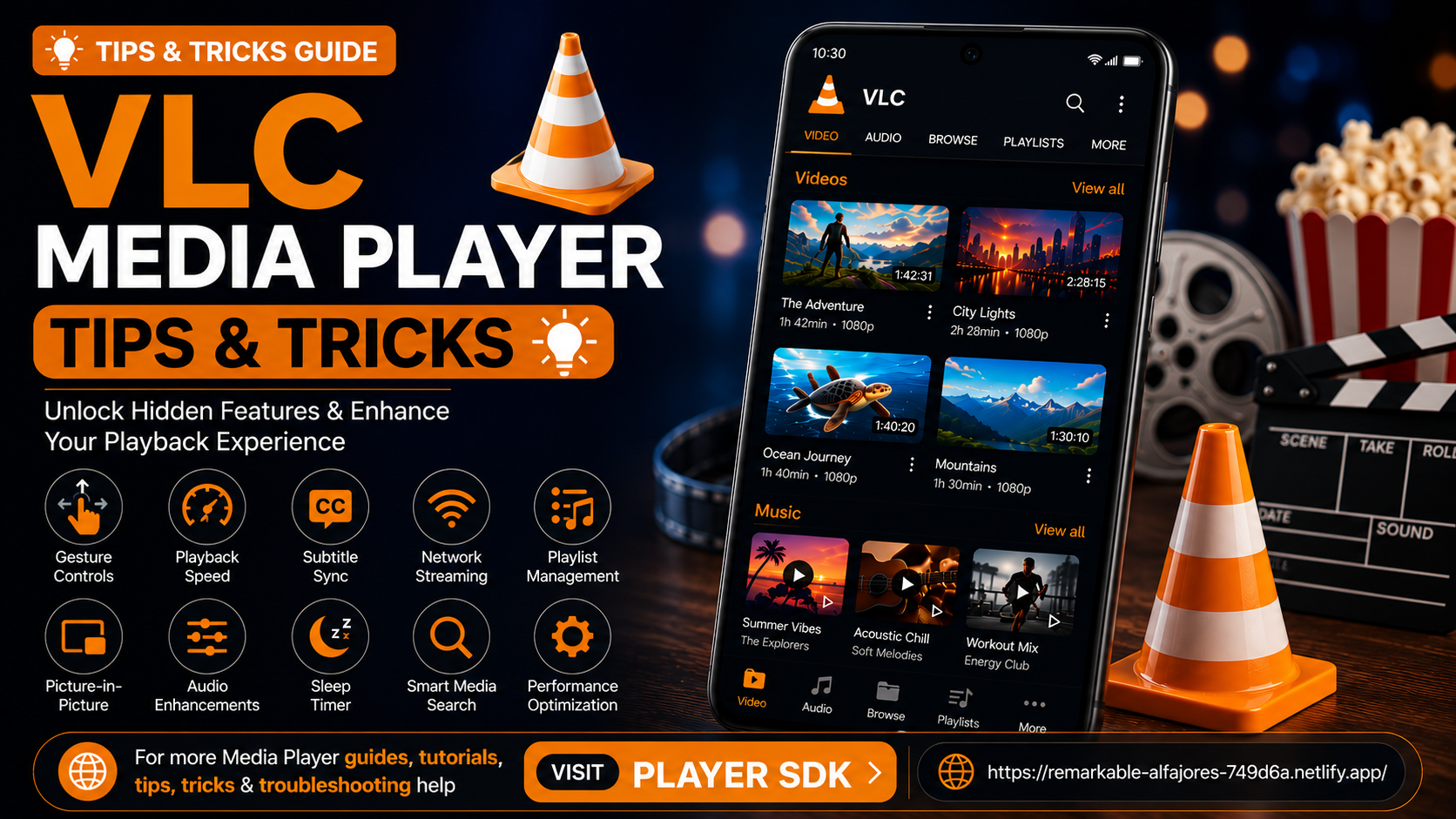
Final Thoughts
VLC Media Player includes far more than basic video playback. By learning these tips and tricks, you can unlock advanced features that improve performance, simplify navigation, and personalize your viewing experience.
From gesture controls and playback speed adjustments to subtitle synchronization and network streaming, these features help you get the maximum value from one of the world's most popular media players.
The more you explore VLC's capabilities, the more efficient and enjoyable your multimedia experience becomes.
Frequently Asked Questions (FAQs)
1) Are VLC Media Player tips useful for beginners?
Yes. Most of these tips are beginner-friendly and help users learn features that make everyday media playback easier and more efficient.
2) Does VLC support Picture-in-Picture mode?
Yes. On supported Android devices, VLC allows videos to continue playing in a floating window while using other apps.
3) Can I speed up or slow down videos?
Yes. VLC includes adjustable playback speed controls for videos and audio.
4) Is hardware acceleration recommended?
Yes. Hardware acceleration improves playback performance, especially for HD and 4K videos, while reducing battery consumption.
5) Can VLC stream media from my home network?
Yes. VLC supports SMB, FTP, SFTP, DLNA/UPnP, NFS, and WebDAV network streaming.
6) Does VLC remember where I stopped watching?
Yes. VLC can resume playback from the last watched position for supported media files.
Continue Learning with Player SDK
Want to discover even more ways to improve your media playback experience? Player SDK is your trusted destination for the best Media Player installation guides, setup tutorials, beginner guides, tips & tricks, troubleshooting resources, feature walkthroughs, supported device guides, and the latest streaming insights—all in one place.
Whether you're using VLC Media Player on Android, Android TV, Fire TV, Windows, macOS, or other supported platforms, you'll find expert tutorials and practical guides to help you unlock every feature and get the best performance from your media player.
