VLC Media Player is one of the most trusted media players available for iPhone users. While many people install VLC simply to watch videos or listen to music, the application offers much more than basic media playback. With support for multiple file formats, cloud storage integration, subtitle customization, local network streaming, wireless file sharing, and an intuitive interface, VLC can become your complete multimedia hub when used effectively.
Most users only scratch the surface of what VLC can do. Learning a few practical tips and tricks can help you organize your media more efficiently, improve playback quality, simplify navigation, and enhance your overall viewing experience. The best part is that these improvements don't require advanced technical knowledge.
This complete VLC Media Player Tips & Tricks Guide for iPhone shares practical techniques that every iPhone user should know. Whether you're new to VLC or have been using it for years, these tips will help you enjoy a smoother and more organized media experience.
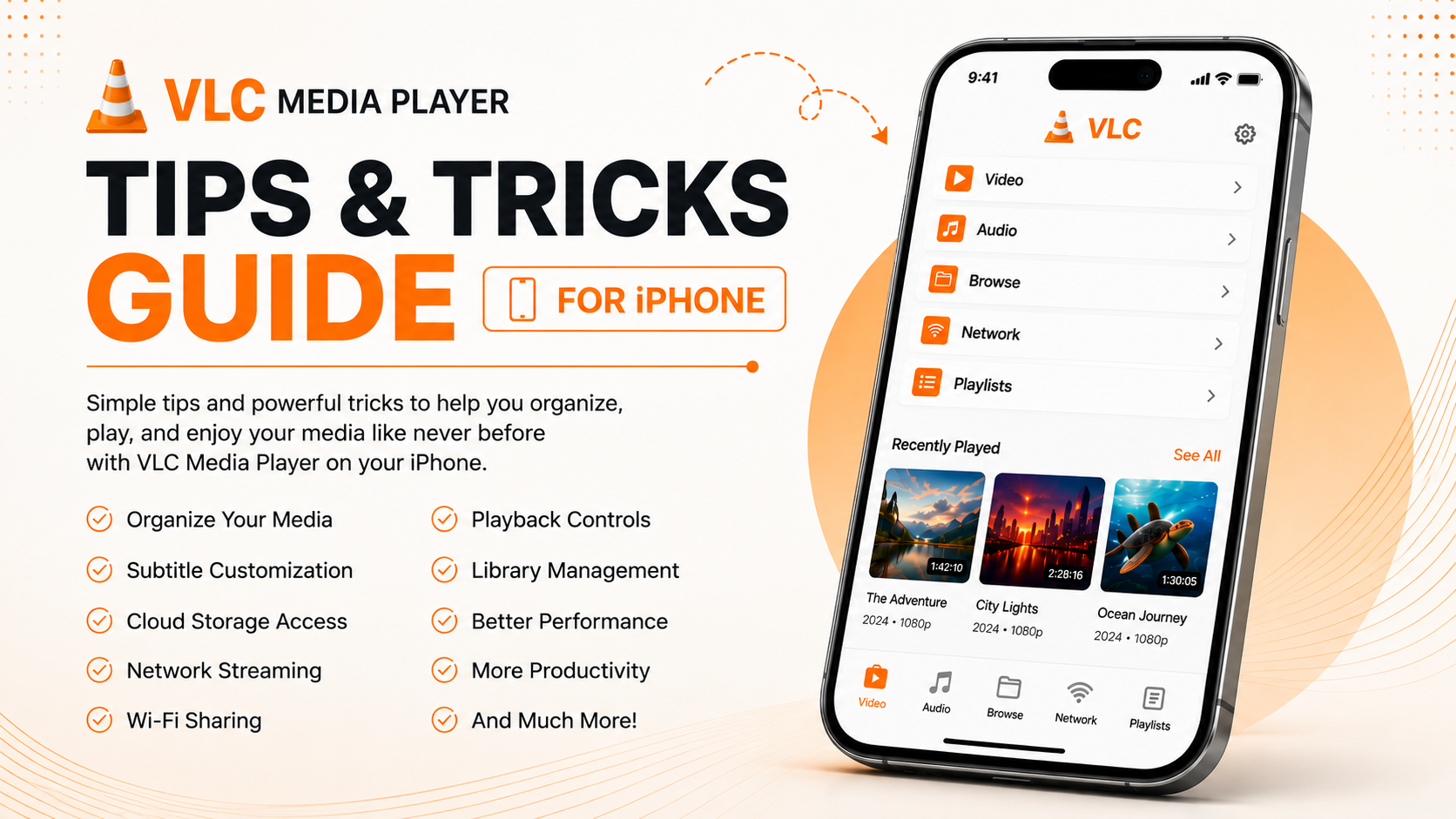
Why Learn VLC Tips & Tricks?
Many people use VLC only for basic video playback, missing out on several features that improve everyday usability. Small adjustments and good habits can make the app faster, easier to navigate, and more enjoyable to use.
By applying a few simple tips, you can:
- Improve playback performance
- Organize your media library more efficiently
- Access videos faster
- Make subtitles easier to read
- Simplify file management
- Improve cloud storage access
- Enjoy smoother streaming
- Save time every day
Learning these techniques allows you to get much more value from VLC without changing the way you normally use your iPhone.
What You'll Learn
| Category | Benefit |
|---|---|
| Organizing Media | Keep your library clean |
| Playback Controls | Improve video viewing |
| Subtitle Settings | Better readability |
| Cloud Storage | Access files easily |
| Network Streaming | Watch media from other devices |
| Wi-Fi Sharing | Transfer files faster |
| Library Management | Browse content efficiently |
Tip 1: Organize Your Media Before Importing
One of the biggest mistakes beginners make is importing every file into one location.
Instead, organize your media into folders before opening VLC.
Examples include:
- Movies
- TV Shows
- Family Videos
- Travel Videos
- Tutorials
- Music
- Downloads
A structured library makes browsing much faster and prevents unnecessary clutter as your collection grows.
Tip 2: Explore the Browse Section
The Browse section is much more than a simple file manager.
It allows you to access media stored across multiple locations including your iPhone, cloud storage accounts, and imported folders.
Spend time becoming familiar with Browse so you always know where your files are located.
This saves considerable time when searching for specific videos.
Tip 3: Customize Subtitle Settings
Many users watch movies with subtitles but never adjust their appearance.
VLC allows subtitle customization for greater comfort.
Depending on the media, you can modify:
- Font size
- Position
- Text appearance
- Background
- Synchronization
Well-configured subtitles reduce eye strain and improve readability during long viewing sessions.
Tip 4: Keep VLC Updated
VideoLAN regularly improves VLC through App Store updates.
New releases often include:
- Better compatibility
- Improved playback
- Performance optimizations
- Bug fixes
- Security improvements
Installing updates ensures you always benefit from the latest improvements.
Tip 5: Use Cloud Storage Efficiently
Instead of filling your iPhone with large video files, connect your preferred cloud storage service.
VLC supports multiple providers, allowing you to browse and play files directly.
This keeps your local storage available while maintaining easy access to your media library.
Tip 6: Learn Playback Controls
Most users only use Play and Pause.
However, VLC offers additional playback controls that make watching videos much more comfortable.
Become familiar with:
- Full Screen
- Seek Forward
- Seek Backward
- Playback Timeline
- Volume Adjustment
- Brightness Control
Mastering these controls improves your viewing experience every day.
Tip 7: Explore Network Streaming
One of VLC's most powerful capabilities is local network streaming.
Instead of copying every movie onto your iPhone, stream compatible media directly from your home computer or NAS device.
This is especially useful for users with large video collections.
Tip 8: Use Wi-Fi Sharing
Wireless file transfer is one of VLC's most convenient features.
Instead of connecting your iPhone with a cable every time you want to transfer videos, use Wi-Fi Sharing on the same network.
Large movie files become much easier to import.
Tip 9: Keep Your Library Organized
As your media collection grows, regularly remove videos you no longer watch.
Maintaining an organized library makes browsing faster while reducing unnecessary clutter.
A clean library improves your overall experience.
Tip 10: Test Playback After Updates
Whenever VLC receives a major update, play a few videos to verify everything still works correctly.
Check:
- Video quality
- Audio synchronization
- Subtitle display
- Playback controls
Testing early helps identify issues before you need the application.
Tip 11: Explore Audio Features
VLC isn't only a video player.
It also handles:
- Music
- Podcasts
- Audiobooks
- Local audio files
Keeping both audio and video inside one application simplifies your media management.
Tip 12: Learn Keyboard Shortcuts on Connected Devices
If you occasionally use VLC with external keyboards or connected devices, becoming familiar with available controls improves productivity.
Although many iPhone users rely on touch gestures, external accessories can make navigation even easier.
Tip 13: Restart VLC Occasionally
After long viewing sessions, closing and reopening VLC refreshes temporary processes.
While the app is generally stable, occasional restarts help maintain consistent performance.
Tip 14: Maintain Free Storage
Even though VLC performs efficiently, your iPhone also needs sufficient free storage.
Delete:
- Old downloads
- Duplicate videos
- Unused applications
- Temporary files
Keeping available storage improves both iOS and VLC performance.
Tip 15: Explore Settings Gradually
Instead of changing every option immediately, explore one settings section at a time.
This helps you understand how each feature affects your viewing experience while avoiding unnecessary confusion.
Quick Tips Checklist
| Tip | Benefit |
|---|---|
| Organize folders | Faster browsing |
| Update VLC | Better performance |
| Customize subtitles | Comfortable viewing |
| Connect cloud storage | Save local storage |
| Use network streaming | Access large libraries |
| Try Wi-Fi Sharing | Faster transfers |
| Test playback | Verify performance |
| Keep storage free | Smooth operation |
Best Practices for Everyday Use
The best VLC experience comes from building a few simple habits. Keep your media organized, update the application regularly through the App Store, and periodically remove files you no longer need. If you use cloud storage frequently, review connected accounts to ensure they're working correctly. Testing playback after major updates also helps identify problems early.
These habits require very little effort but significantly improve long-term performance and organization.
Common Mistakes to Avoid
Many users unknowingly reduce VLC's effectiveness by making avoidable mistakes.
Examples include:
- Importing everything into one folder
- Ignoring subtitle customization
- Never updating VLC
- Filling iPhone storage completely
- Forgetting cloud storage integration
- Never exploring network streaming
Avoiding these habits allows VLC to perform at its best.
Why These Tips Matter
VLC is designed to be simple enough for beginners while offering powerful features for experienced users. Learning practical techniques such as organizing your media, customizing subtitles, exploring cloud storage, and using Wi-Fi Sharing helps you enjoy a smoother and more efficient media experience.
Rather than treating VLC as a basic video player, these tips allow you to unlock much more of its everyday potential.
What's Next?
Now that you've learned practical ways to improve your VLC experience, it's time to explore some of the application's lesser-known capabilities.
Continue with the:VLC Media Player Hidden Features Guide for iPhone
You'll discover useful built-in tools, advanced playback options, interface improvements, and other features that many users never notice.
Final Thoughts
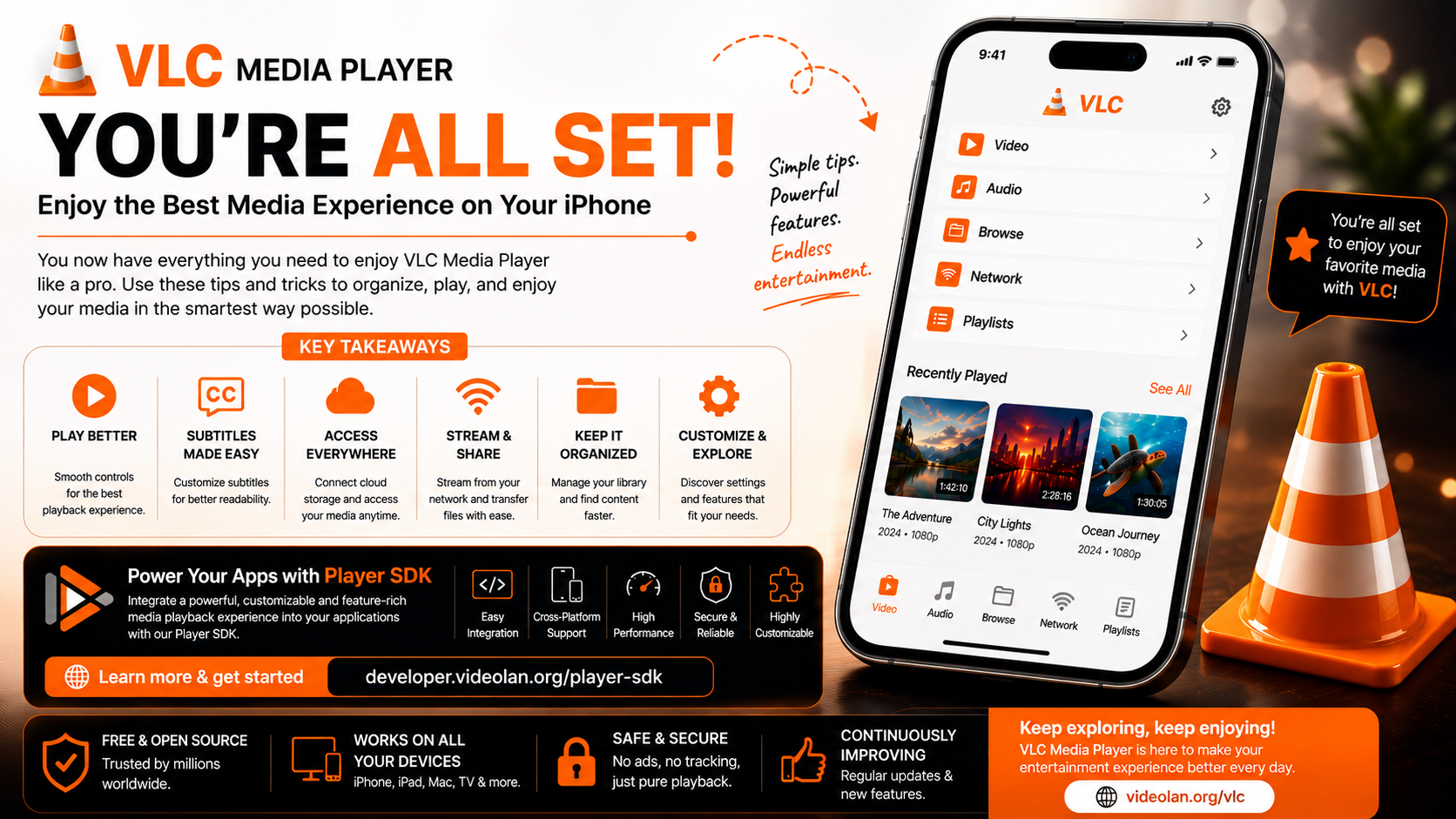
VLC Media Player offers far more than simple video playback. With cloud storage integration, subtitle customization, network streaming, wireless file sharing, and excellent media organization, it provides one of the most complete multimedia experiences available for iPhone users.
By applying the tips in this guide, you'll enjoy faster navigation, smoother playback, and a better organized media library while making full use of everything VLC has to offer.
Frequently Asked Questions (FAQs)
1) Are these tips suitable for beginners?
Yes. Every tip in this guide is designed for both new and experienced VLC users.
2) Does VLC support cloud storage?
Yes. VLC works with several cloud storage providers, allowing you to browse and play files directly.
3) Can I improve subtitle readability?
Absolutely. VLC provides multiple subtitle customization options including font size, position, and synchronization.
4) Does VLC support network streaming?
Yes. VLC can stream compatible media from computers, NAS devices, and other supported network storage.
5) Why should I organize my media folders?
Organized folders make browsing faster and simplify long-term media management.
6) What should I read after this Tips & Tricks Guide?
The next recommended article is the VLC Media Player Hidden Features Guide for iPhone, where you'll discover additional tools and capabilities that many users overlook.
Continue Learning with Player SDK
Take your VLC Media Player experience even further with Player SDK, your trusted destination for Installation Guides, Setup Guides, Beginner Guides, Troubleshooting, Tips & Tricks, Hidden Features, Supported Device Tutorials, and complete media player resources.
Whether you're using VLC on an iPhone, iPad, Android phone, or desktop computer, Player SDK provides easy-to-follow, step-by-step tutorials that help you unlock every feature and enjoy the best possible media experience.
