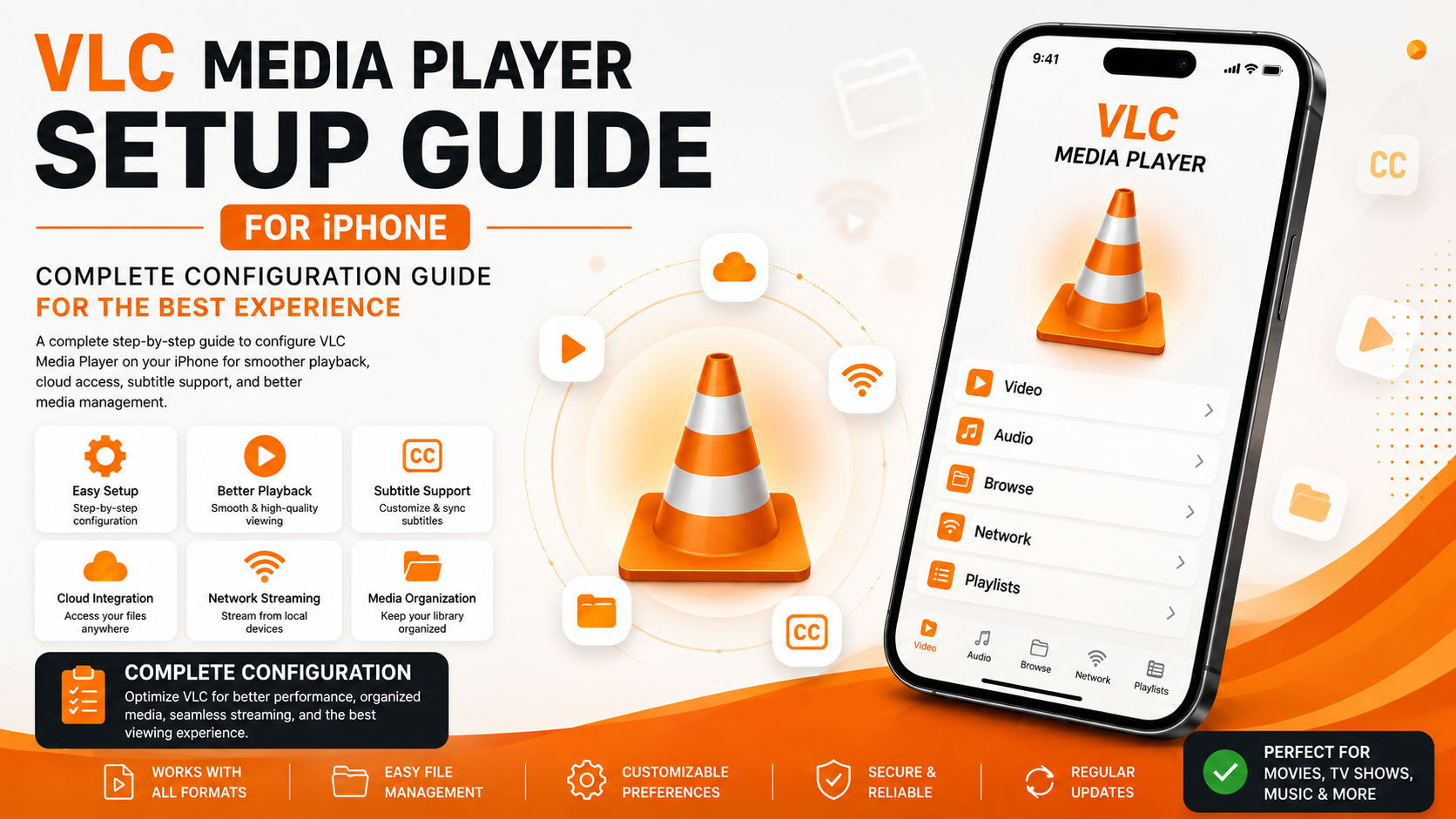
After installing VLC Media Player on your iPhone, the next important step is setting it up correctly. While VLC works immediately after installation, spending a few minutes configuring the app can greatly improve your viewing experience. Proper setup ensures smoother playback, better subtitle support, organized media management, seamless cloud integration, and easier navigation.
Unlike Apple's default media player, VLC offers a variety of customization options that allow you to tailor the app to your preferences. Whether you're watching HD movies, personal videos, TV shows, or listening to music, a well-configured VLC installation makes everyday usage more enjoyable.
This complete VLC Media Player Setup Guide for iPhone walks you through every important setting, helping you optimize VLC for reliable performance and an excellent media experience.
Why Set Up VLC Properly?
Many users install VLC and immediately start watching videos without exploring its settings. While this works, taking a few minutes to configure the app helps unlock its full potential.
A proper setup provides:
- Better playback performance
- Easier media organization
- Improved subtitle experience
- Faster navigation
- Convenient cloud storage access
- Reliable local network streaming
- Personalized viewing preferences
- Smoother everyday use
The setup process only takes a few minutes but improves your experience every time you use the app.
What You'll Configure
| Setup section | Purpose |
|---|---|
| Permissions | Allow VLC to access media files |
| Media Library | Organize videos and audio |
| Playback Settings | Improve viewing experience |
| Subtitle Options | Customize subtitle appearance |
| Network Services | Connect local and cloud storage |
| File Sharing | Import media easily |
| Interface | Learn navigation and controls |
Step 1: Open VLC for the First Time
Launch VLC from your Home Screen.
After opening the app, spend a few moments exploring the main navigation before changing any settings.
Depending on your version, you'll see sections such as:
- Video
- Audio
- Browse
- Network
- Playlists
Understanding the layout makes future navigation much easier.
Step 2: Verify App Permissions
VLC requires access to your media to function properly.
Open:
iPhone Settings > VLC
Confirm the appropriate permissions have been enabled.
These typically include:
- Photos
- Videos
- Local Files
- Network Access
Without these permissions, VLC may not be able to locate your media library.
Step 3: Organize Your Media
Keeping your files organized before importing them into VLC saves time later.
Consider creating folders such as:
- Movies
- TV Shows
- Family Videos
- Travel Videos
- Music
- Tutorials
- Downloads
An organized library makes browsing much faster.
Step 4: Import Your Content
VLC offers multiple methods for importing media.
You can access files from:
- Files app
- iCloud Drive
- Google Drive
- Dropbox
- OneDrive
- AirDrop
- Local Wi-Fi Sharing
- Local Network Storage
This flexibility allows you to access your media wherever it's stored.
Step 5: Test Video Playback
Before importing your entire library, test a single video.
Verify that:
- Video plays smoothly
- Audio is synchronized
- Playback controls respond correctly
- Full-screen mode functions properly
- Screen rotation works as expected
A quick test confirms your setup is working correctly.
Step 6: Configure Subtitle Preferences
If you frequently watch movies or international content, subtitles play an important role.
Explore VLC's subtitle options and adjust them according to your preferences.
You can typically customize:
- Font size
- Position
- Color
- Background
- Synchronization
Comfortable subtitles make long viewing sessions much easier.
Step 7: Explore Network Features
One of VLC's biggest strengths is its network capabilities.
From the Network section, you can connect to compatible services and browse media stored on other devices.
Examples include:
- SMB shares
- FTP servers
- UPnP/DLNA devices
- Local computers
- NAS storage
This allows you to stream media without copying files directly to your iPhone.
Step 8: Connect Cloud Storage
VLC supports several popular cloud storage providers.
Connecting your cloud accounts allows you to browse and open files directly inside the app.
Supported services may include:
- iCloud Drive
- Google Drive
- Dropbox
- OneDrive
- Box
This keeps your media accessible while saving local storage space.
Step 9: Learn Playback Controls
Spend a few minutes becoming familiar with VLC's playback interface.
Useful controls include:
- Play
- Pause
- Seek Forward
- Seek Backward
- Volume
- Brightness
- Full Screen
- Playback Progress
Understanding these controls improves everyday usability.
Step 10: Explore the Audio Section
VLC is also an excellent music player.
Browse the Audio section and organize music into playlists if desired.
Whether you're listening to podcasts, audiobooks, or songs, VLC handles local audio files with ease.
Step 11: Configure File Sharing
One of VLC's most convenient features is wireless file transfer.
Using Wi-Fi Sharing, you can move media from your computer to your iPhone without connecting a cable.
This is especially useful for large video collections.
Step 12: Keep VLC Updated
VideoLAN frequently releases updates to improve:
- Playback stability
- Device compatibility
- Security
- Performance
- Overall reliability
Visit the App Store regularly to install the latest version.
Setup Checklist
| Task | Status |
|---|---|
| Open VLC | ✓ |
| Grant Permissions | ✓ |
| Organize Media | ✓ |
| Import Files | ✓ |
| Test Playback | ✓ |
| Configure Subtitles | ✓ |
| Connect Cloud Storage | ✓ |
| Explore Network Features | ✓ |
Best Practices After Setup
Once VLC is configured, maintain an organized media library by storing videos in clearly named folders and keeping cloud storage synchronized if you use it regularly. Review your playback and subtitle preferences occasionally, especially after app updates, to ensure they still match your viewing habits.
A well-maintained setup saves time and provides a more enjoyable media experience every day.
Common Setup Issues
Some users experience minor issues during the initial configuration.
Typical problems include:
- Media not appearing in the library
- Missing permissions
- Cloud storage connection issues
- Network devices not detected
- Subtitle files not loading
Most of these can be resolved by checking permissions, confirming network connectivity, or refreshing the media library after importing files.
Why a Proper VLC Setup Matters
A properly configured VLC installation transforms the app from a basic video player into a complete multimedia hub. With support for cloud storage, local network streaming, subtitle customization, and multiple file formats, VLC offers significantly more flexibility than many built-in media players.
Taking a few extra minutes to personalize the app results in smoother playback, faster navigation, and a better overall viewing experience.
What's Next?
Now that VLC is fully configured on your iPhone, you're ready to become more comfortable using it every day.
Your next recommended article is:VLC Media Player Beginner's Guide for iPhone
You'll learn how to navigate the interface confidently, manage your media library, understand playback controls, and make the most of VLC's everyday features.
Final Thoughts
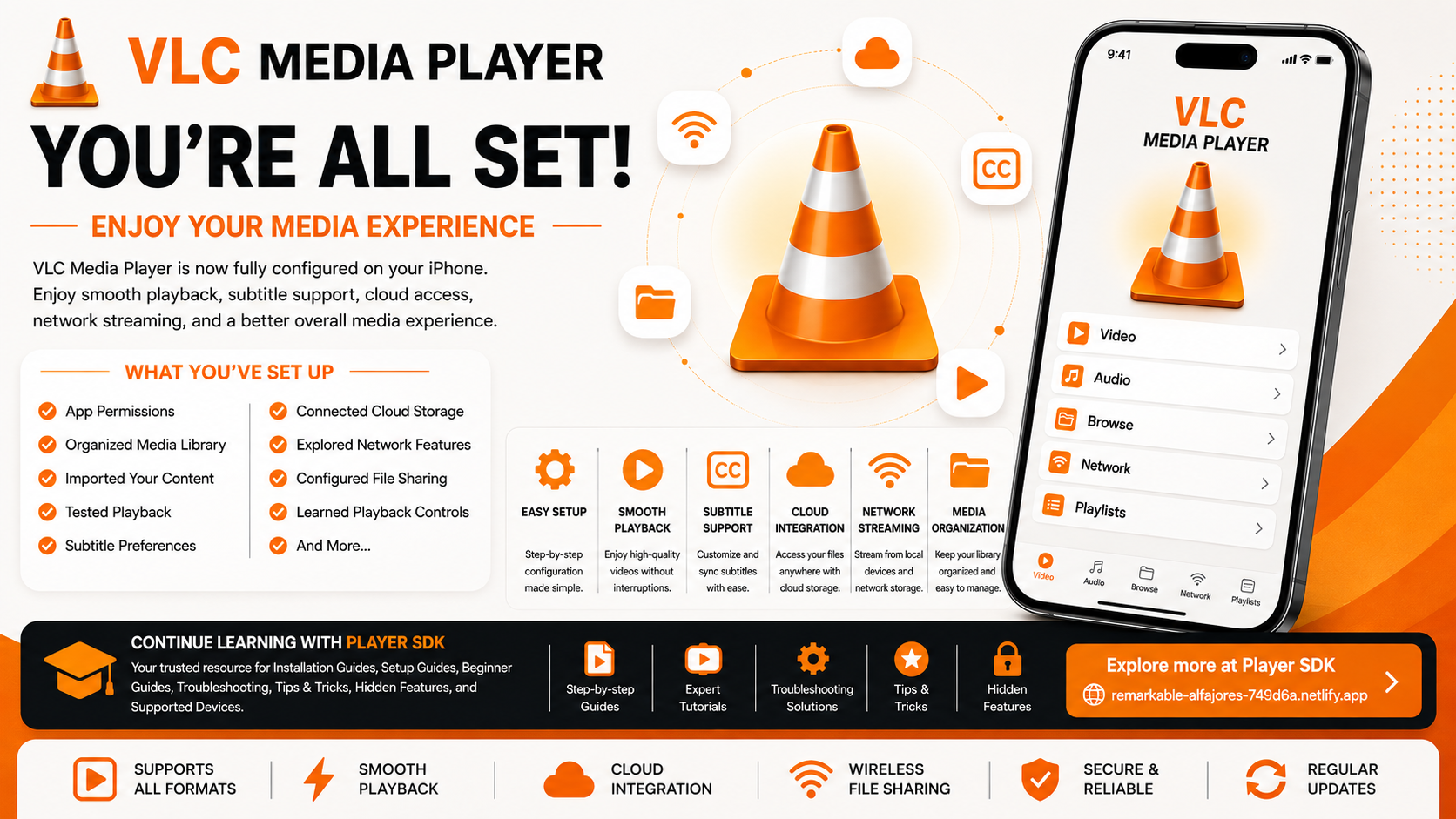
Setting up VLC Media Player correctly on your iPhone is the key to unlocking its full capabilities. From organizing your media and connecting cloud storage to customizing subtitles and testing playback, every small adjustment contributes to a better user experience.
Whether you're watching movies during travel, streaming media from your home network, or simply managing your personal video collection, VLC provides a powerful and reliable platform for all your media needs.
Frequently Asked Questions (FAQs)
1) Do I need to configure VLC after installing it?
While VLC works immediately after installation, configuring permissions, media organization, subtitle settings, and cloud storage improves the overall experience.
2) Can VLC access cloud storage on iPhone?
Yes. VLC supports several cloud storage providers, allowing you to browse and play files directly from your connected accounts.
3) Why can't VLC find my videos?
This usually happens if media permissions haven't been granted or the files haven't been imported into the app correctly.
4) Does VLC support local network streaming?
Yes. VLC can connect to compatible local network devices using supported protocols, making it easy to stream media stored on other devices.
5) Should I update VLC regularly?
Absolutely. Updates improve stability, compatibility, security, and overall performance.
6) What should I read after this Setup Guide?
The next recommended article is the VLC Media Player Beginner's Guide for iPhone, where you'll learn how to use VLC confidently and explore its everyday features.
Continue Learning with Player SDK
Take your VLC experience even further with Player SDK, your trusted resource for Installation Guides, Setup Guides, Beginner Guides, Troubleshooting, Tips & Tricks, Hidden Features, Supported Device Tutorials, and complete media player resources.
Whether you're using VLC on an iPhone, iPad, Android phone, or desktop computer, Player SDK provides step-by-step guides that help you enjoy the best possible media experience.
