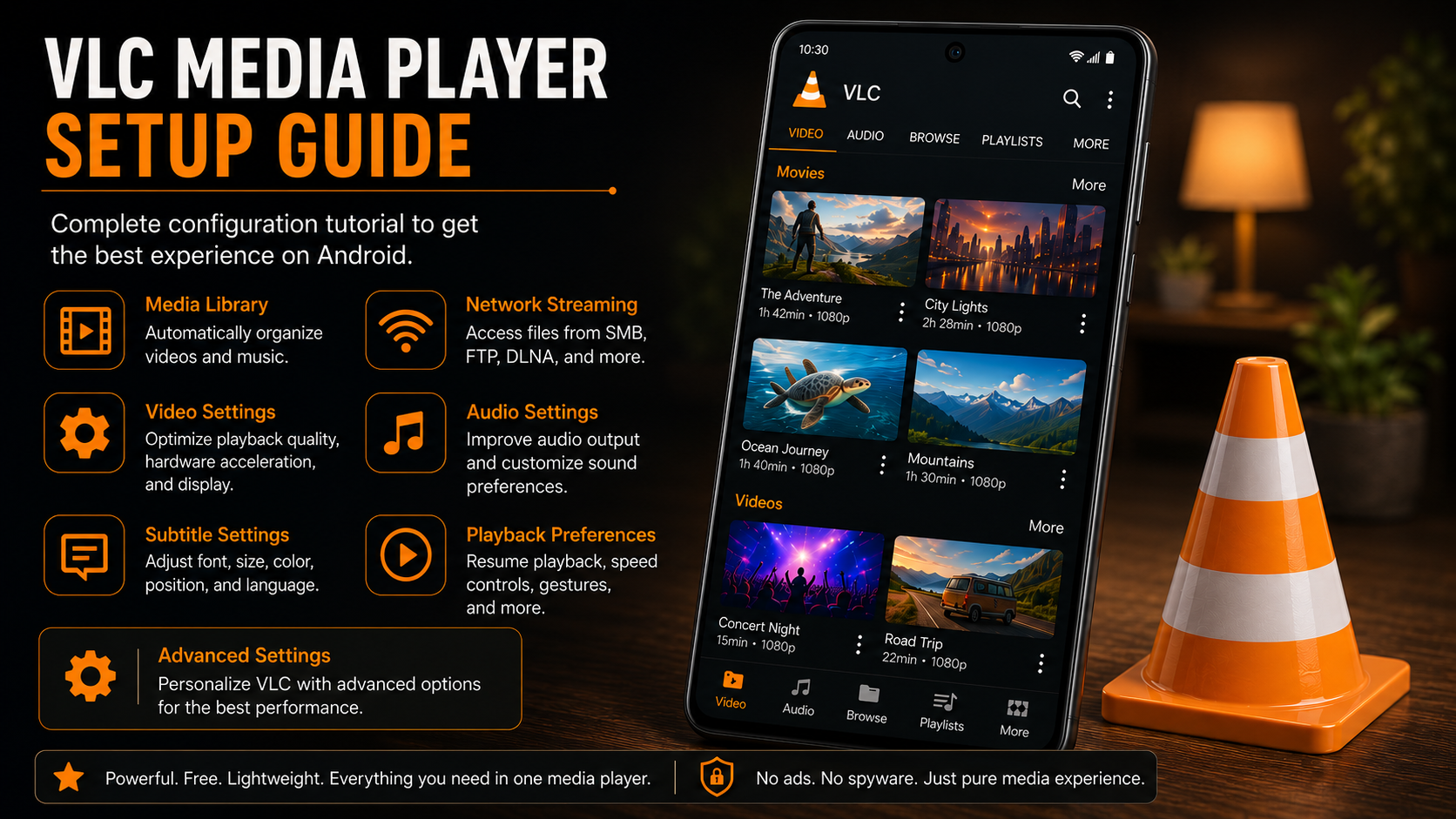
Installing VLC Media Player is only the first step toward enjoying a seamless multimedia experience. To get the best performance, it's important to configure the app properly. VLC offers a wide range of customization options that allow you to optimize video playback, improve audio quality, manage subtitles, organize your media library, and even stream content from your local network.
Whether you're a casual viewer or someone who watches movies regularly, spending a few minutes setting up VLC can significantly improve your experience. This guide walks you through the complete setup process on Android, helping you configure VLC for smooth playback, better organization, and maximum compatibility.
By the end of this guide, your VLC Media Player will be fully configured and ready to handle almost every media format with ease.
Why Set Up VLC Media Player?
VLC works well immediately after installation, but its true power comes from its customization options. Proper setup ensures that your media library is organized, videos play smoothly, subtitles display correctly, and network streaming works without interruptions.
A well-configured VLC installation also helps reduce playback issues, improves battery efficiency through hardware acceleration, and makes navigating your media collection much easier.
What You'll Configure During Setup
| Setup Area | Purpose |
|---|---|
| Media Library | Automatically organize videos and music |
| Network Browsing | Access shared folders and media servers |
| Video Settings | Optimize playback quality and performance |
| Audio Settings | Improve sound output and playback behavior |
| Subtitle Settings | Customize subtitle appearance and language |
| Playback Preferences | Resume playback, playback speed, and gestures |
| Advanced Settings | Personalize the VLC experience |
How to Set Up VLC Media Player on Android
Step 1: Open VLC Media Player
Launch VLC Media Player from your Android phone's home screen or app drawer. If you've just completed the installation, the app will open directly from the Google Play Store. Otherwise, simply tap the VLC icon to start configuring the application.
This opens the main interface where you'll find tabs such as Video, Audio, Browse, Playlists, and More.
Step 2: Allow Media Library Scan
When VLC opens for the first time, it scans your device to locate videos, music, and other supported media files. Allow the scan to complete without interruption.
Depending on the amount of media stored on your device, the scan may take a few seconds or a few minutes. Once finished, VLC automatically organizes your content into easy-to-browse categories.
Step 3: Enable Network Browsing
If you store media on a NAS, computer, or shared folder, VLC can access it directly. Open the Browse tab and explore supported network protocols such as SMB, FTP, SFTP, DLNA/UPnP, NFS, and WebDAV.
After connecting to your preferred network source, VLC can stream videos and music without copying them to your phone. This feature is especially useful for users with home media servers.
Step 4: Configure Video Settings
Open the More tab and navigate to Settings > Video. Here you can customize several playback options, including hardware acceleration, screen orientation, picture-in-picture behavior, video output, and display preferences.
Keeping hardware acceleration enabled generally provides smoother playback and lower battery consumption. If you encounter playback issues with certain videos, VLC also allows you to modify hardware decoding options.
Step 5: Configure Audio Settings
Go to Settings > Audio. VLC provides several audio-related options, including headset detection, replay gain, audio focus management, preferred audio output, and digital audio settings.
These controls help improve the listening experience while ensuring music and video playback behave consistently across different devices. Users who frequently connect Bluetooth speakers or headphones may find these settings particularly useful.
Step 6: Customize Subtitle Settings
Navigate to Settings > Subtitles. Here you can configure subtitle language, font size, text color, background opacity, encoding, and subtitle positioning.
Adjusting these settings improves readability, especially when watching movies on smaller smartphone displays. If you regularly watch foreign-language content, selecting your preferred subtitle language saves time in future playback sessions.
Step 7: Set Playback Preferences
Open Settings > Playback. Playback preferences include resume playback, playback speed controls, seek interval customization, gesture controls, sleep timer options, and background playback behavior.
Enabling resume playback allows VLC to remember where you stopped watching, making it easier to continue long movies or TV shows later. These options help personalize VLC according to your viewing habits.
Step 8: Explore Advanced Settings
Finally, review the remaining settings available under the More menu. Advanced options include interface customization, privacy controls, media library management, application behavior, notification preferences, and additional playback settings.
While many of these options are optional, spending a few minutes exploring them helps you discover features that best match your usage. Once complete, your VLC Media Player is fully configured and ready for everyday use.
Recommended VLC Settings
Although VLC works well with default settings, the following configuration provides an excellent balance between performance and usability.
| Setting | Recommended Value |
|---|---|
| Hardware Acceleration | Enabled |
| Resume Playback | Enabled |
| Background Playback | Enabled |
| Automatic Media Scan | Enabled |
| Subtitle Language | Preferred Language |
| Screen Orientation | Auto |
| Playback Speed | Normal (1x) |
| Audio Focus | Enabled |
| Gesture Controls | Enabled |
| Network Browsing | Enabled if required |
Benefits of Proper VLC Configuration
Configuring VLC correctly improves more than just playback quality. Your media library becomes easier to navigate, subtitles load more consistently, streaming over your local network becomes faster, and videos consume less battery thanks to optimized decoding.
Users who frequently watch HD or 4K content also benefit from smoother playback when hardware acceleration is configured correctly. Because VLC supports such a wide variety of media formats, spending a few minutes adjusting its settings provides long-term improvements every time you use the application.
Common Setup Tips
If your media files don't appear immediately after setup, refresh the media library or restart VLC after granting storage permission. Users who stream content over Wi-Fi should ensure both the Android device and the media server are connected to the same local network for the best performance.
Subtitle synchronization can easily be adjusted during playback if subtitles appear too early or too late. Keeping VLC updated through the Google Play Store also ensures the latest codec improvements, security updates, and new features.
Why VLC Remains One of the Best Android Media Players
VLC has earned its reputation because it combines simplicity with advanced functionality. Unlike many media players, VLC does not require additional codec downloads and supports nearly every commonly used multimedia format.
Its clean interface makes everyday playback easy for beginners, while advanced settings provide experienced users with extensive customization options. Network streaming, subtitle management, playlist organization, gesture controls, playback speed adjustments, and hardware acceleration all come together inside one lightweight application.
Final Thoughts
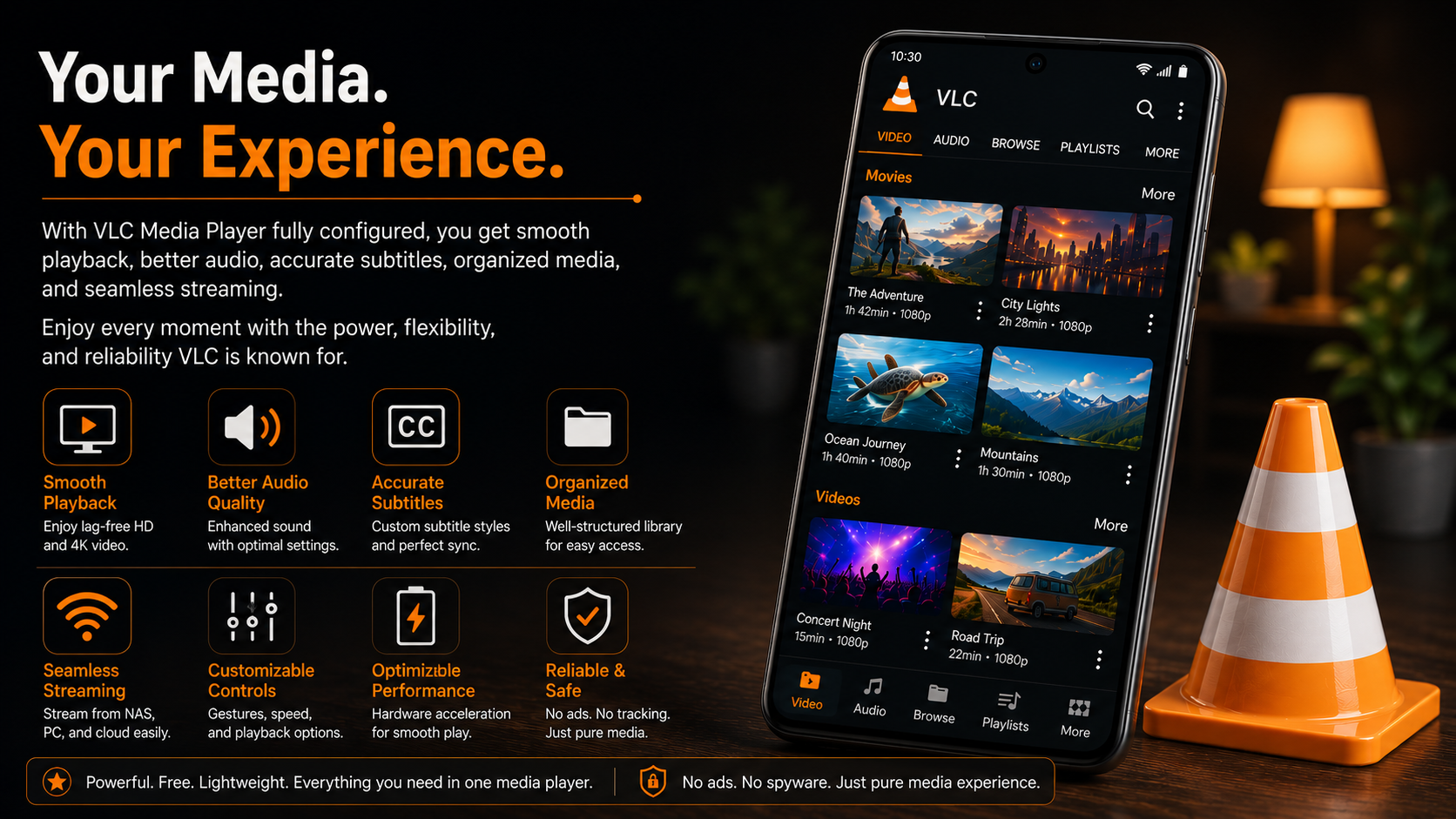
A properly configured VLC Media Player provides a significantly better multimedia experience than relying on default settings alone. By completing the setup process outlined in this guide, you'll enjoy smoother playback, improved audio quality, better subtitle support, organized media libraries, and seamless access to local network streaming.
The flexibility offered by VLC makes it suitable for casual users as well as advanced users who want complete control over how their media is played. Once configured, VLC requires very little maintenance and continues to deliver consistent performance across a wide range of media formats.
Taking a few minutes to personalize your settings today ensures a better viewing and listening experience every time you open the app.
Frequently Asked Questions
1) Do I need to configure VLC after installing it?
No, VLC works immediately after installation, but configuring the settings improves performance, playback quality, and overall usability.
2) Should hardware acceleration be enabled?
Yes. Hardware acceleration is recommended for most Android devices because it provides smoother playback and reduces battery usage.
3) Can I change subtitle appearance later?
Yes. Subtitle language, font size, color, and positioning can be modified at any time through the subtitle settings.
4) Does VLC support streaming from a home server?
Yes. VLC supports SMB, FTP, SFTP, DLNA/UPnP, NFS, and WebDAV for streaming media across your local network.
Ready to Personalize Your VLC Experience?
Now that your setup is complete, you're ready to enjoy everything VLC Media Player has to offer. From smooth HD playback and advanced subtitle support to network streaming and customizable playback controls, VLC is designed to deliver a powerful multimedia experience on Android.
Looking for the best media player guides? Visit Player SDK for step-by-step installation guides, setup tutorials, beginner guides, troubleshooting tips, and everything you need to get the most out of your favorite media players.
