Watching videos on an iPhone is easy, but finding a media player that supports multiple file formats, subtitle files, network streaming, and seamless playback can make your experience even better. That's where VLC Media Player for iPhone stands out.
Developed by the VideoLAN project, VLC Media Player is a free, open-source media player trusted by millions of users worldwide. Unlike many default media players, VLC supports a wide range of video and audio formats, subtitle files, cloud storage services, local network streaming, and wireless file transfers—all within a clean, user-friendly interface.
Whether you want to watch downloaded movies, play personal videos, stream content from your local network, or organize your media collection, VLC is one of the best choices available for iOS.
In this complete VLC Media Player Installation Guide for iPhone, you'll learn how to install the app from the App Store, complete the initial setup, grant the necessary permissions, and prepare VLC for smooth everyday use.
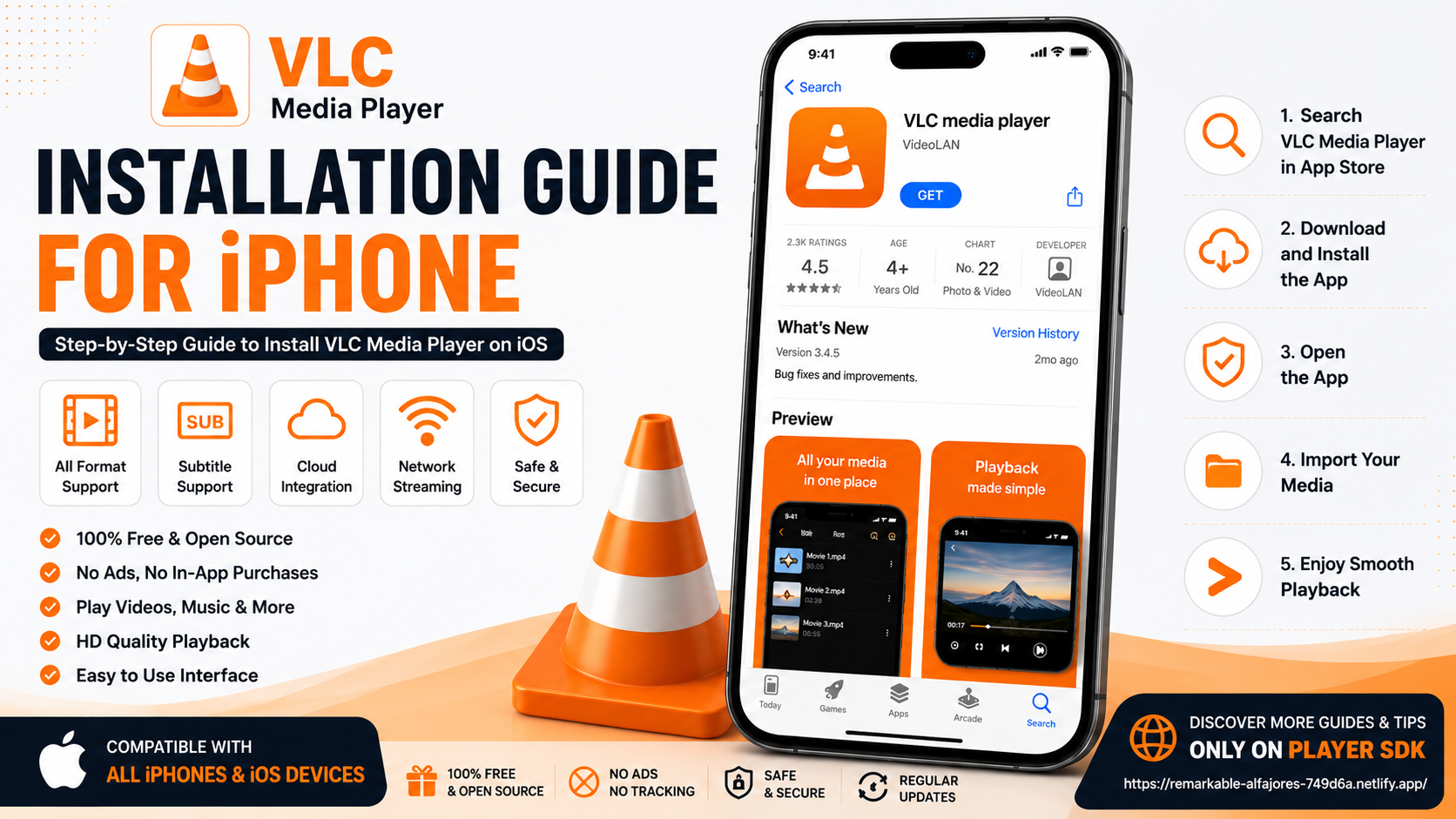
Why Choose VLC Media Player on iPhone?
While Apple's built-in media player handles common video and audio formats effectively, VLC Media Player offers far greater flexibility for users who work with a wider range of media files. It supports numerous video and audio formats without requiring additional codecs and is completely free to use with no advertisements. VLC also includes advanced features such as subtitle support, local network streaming, cloud storage integration, wireless file transfer, and smooth HD video playback. Combined with its simple, user-friendly interface and regular updates, VLC delivers a reliable and feature-rich media experience, making it an excellent choice for both casual viewers and users with extensive media libraries.
What You'll Learn in This Guide
| Section | Description |
|---|---|
| Requirements | What you need before installing VLC |
| Download Process | Install VLC from the App Store |
| Initial Setup | Configure the app after installation |
| Permissions | Allow access to media and files |
| Interface Overview | Learn the main navigation |
| First Playback | Test VLC with your first video |
| Best Practices | Tips for a smooth experience |
Before Installing VLC
Before downloading VLC Media Player on your iPhone, it's important to ensure your device is properly prepared for a smooth installation. Make sure you have a compatible iPhone running the latest available version of iOS for the best performance and compatibility. You'll also need a stable Wi-Fi or mobile data connection, sufficient free storage space to accommodate the app, and an active Apple ID signed in to the App Store. Taking a few moments to check these requirements beforehand can help prevent download interruptions and ensure the installation process completes without any issues.
Step 1: Open the App Store
Unlock your iPhone and open the App Store.
Tap the Search tab at the bottom of the screen.
Type:
VLC Media Player
Locate the official application published by VideoLAN.
Always verify the publisher to ensure you're downloading the authentic version.
Step 2: Download VLC Media Player
Tap the Get button.
Depending on your iPhone settings, you may be asked to authenticate using:
- Face ID
- Touch ID
- Apple ID password
The download will begin automatically.
Installation usually completes within a few moments, depending on your internet speed.
Step 3: Launch VLC
Once installation is complete:
Tap Open.or locate the VLC icon on your Home Screen.
When launched for the first time, VLC prepares its media library and displays the main interface.
Step 4: Allow Required Permissions
During the first launch, VLC may request permission to access certain areas of your device.
These permissions may include:
- Photos
- Videos
- Local Files
- Network Access
Granting these permissions allows VLC to discover and play your media correctly.
If permissions are denied initially, they can always be enabled later through:
Settings > VLC
Step 5: Explore the Main Interface
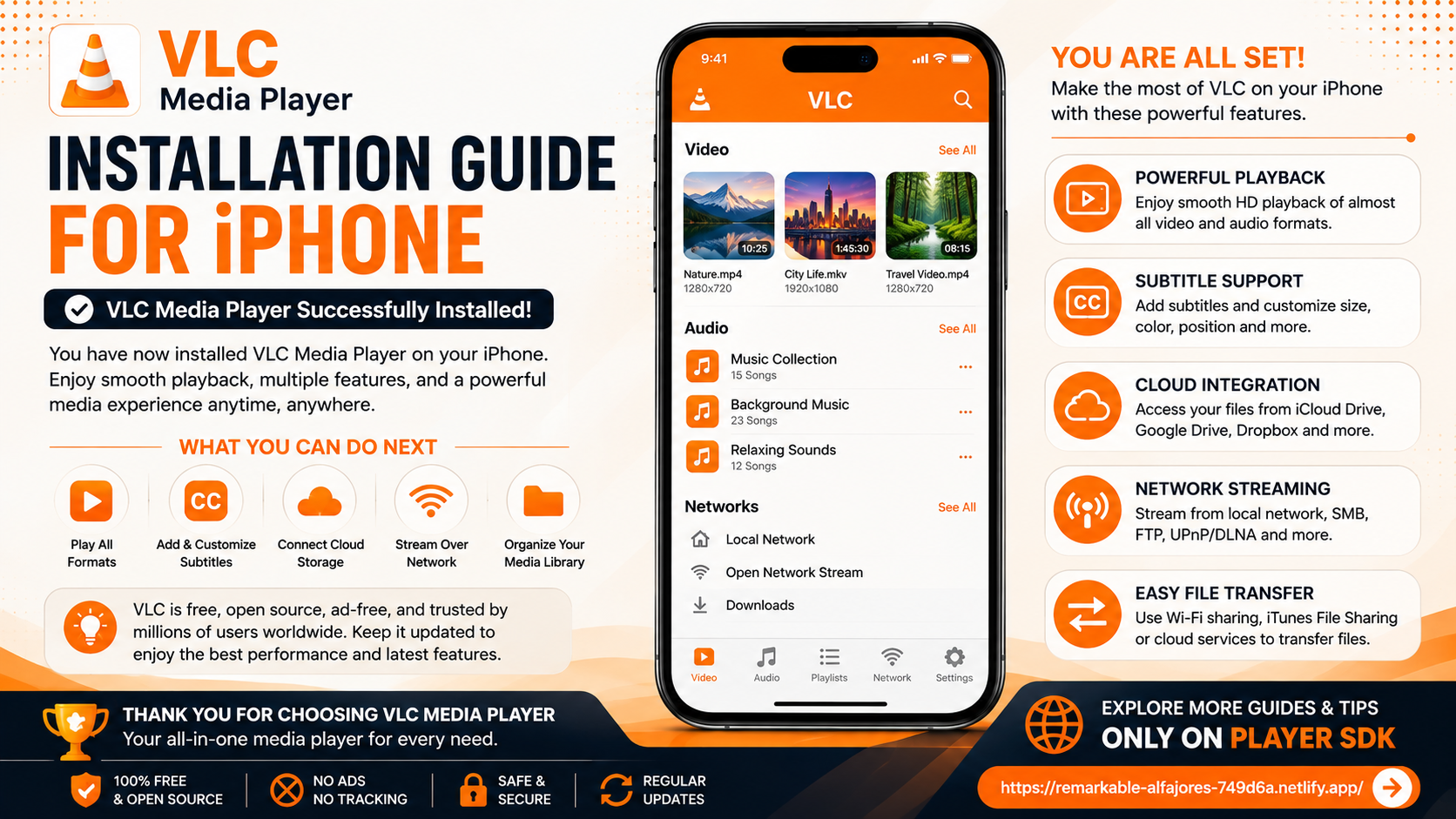
VLC uses a clean interface that is easy to navigate.
Depending on your version, you may find sections such as:
- Video Library
- Audio Library
- Network
- Browse
- Playlists
Spend a few minutes exploring these areas before importing your media.
Step 6: Import Your Media
There are several ways to add content to VLC.
Common options include:
- Files app
- Photos app
- AirDrop
- iCloud Drive
- Google Drive
- Dropbox
- OneDrive
- Wi-Fi Sharing
- Local Network
Having multiple import options makes VLC extremely flexible.
Step 7: Test Video Playback
After importing your first video:
Open it inside VLC.
Verify:
- Smooth playback
- Correct audio
- Subtitle compatibility (if available)
- Full-screen playback
- Playback controls
Testing ensures everything is working correctly before adding more media.
Step 8: Explore Network Features
One of VLC's strongest features is its network support.
You can connect to:
- Local Network Storage
- SMB Servers
- FTP Servers
- UPnP/DLNA Devices
- Cloud Storage Services
This allows you to access videos without copying everything onto your iPhone.
Step 9: Configure Playback Preferences
Visit VLC Settings to personalize your experience.
You may configure options such as:
- Subtitle appearance
- Playback behavior
- Background playback
- Network preferences
- Interface language
These settings help tailor VLC to your personal preferences.
Step 10: Keep VLC Updated
VideoLAN regularly releases updates that improve:
- Performance
- Stability
- Compatibility
- Security
- New features
Visit the App Store periodically and install the latest updates to keep VLC running at its best.
Quick Installation Checklist
| Task | Completed |
|---|---|
| Download VLC from App Store | ✓ |
| Launch VLC | ✓ |
| Grant Permissions | ✓ |
| Import First Video | ✓ |
| Test Playback | ✓ |
| Explore Interface | ✓ |
| Configure Settings | ✓ |
| Check for Updates | ✓ |
Best Practices After Installation
Once VLC is installed, spend a few minutes organizing your media library for easier browsing. Keep your videos in well-structured folders, enable only the permissions you need, and regularly update the application through the App Store. If you frequently use cloud storage or network streaming, configure those services early to simplify future access.
Developing these habits ensures a smoother and more enjoyable media experience on your iPhone.
Common Installation Issues
Although VLC installs smoothly for most users, you may occasionally encounter installation issues. Common problems include App Store download failures, insufficient storage space, slow internet connections, Apple ID authentication errors, or network interruptions during the download process. Fortunately, most of these issues are easy to fix. Restarting the App Store, reconnecting to a stable Wi-Fi network, freeing up storage space, or simply restarting your iPhone can usually resolve the problem and allow the installation to complete successfully.
Why VLC Is One of the Best Media Players for iPhone
VLC has earned its reputation by combining simplicity with powerful features. Unlike many media players, it supports a broad range of formats without requiring additional codecs. Its ability to stream from local networks, access cloud storage, display subtitles, and transfer files wirelessly makes it an excellent all-in-one solution for iPhone users.
Whether you're watching personal videos, downloaded movies, or streaming content from another device, VLC provides a reliable and polished playback experience.
What's Next?
Congratulations! VLC Media Player is now installed and ready to use on your iPhone.
Your next step is to continue with the:VLC Media Player Setup Guide for iPhone
You'll learn how to configure playback settings, organize your media library, customize subtitles, connect cloud storage, and optimize VLC for everyday use.
Final Thoughts
Installing VLC Media Player on an iPhone is a straightforward process, but taking the time to complete the initial setup correctly ensures a much better experience. By granting the necessary permissions, testing playback, exploring the interface, and configuring your preferred settings, you'll be ready to enjoy one of the most versatile media players available on iOS.
Whether you're watching HD movies, listening to music, or streaming files from your network, VLC offers the flexibility and reliability that many iPhone users look for in a modern media player.
Frequently Asked Questions (FAQs)
1) Is VLC Media Player free for iPhone?
Yes. VLC Media Player is completely free to download and use on iOS.
2) Where should I download VLC?
Download the official VLC Media Player from Apple's App Store and ensure the publisher is VideoLAN.
3) Does VLC support subtitles on iPhone?
Yes. VLC supports many subtitle formats and provides options to customize their appearance.
4) Can VLC access cloud storage?
Yes. VLC can connect to several cloud storage providers, allowing you to stream or open files directly.
5) Does VLC support local network streaming?
Yes. VLC supports local network protocols such as SMB, FTP, and UPnP/DLNA, making it easy to access media stored on other devices.
6) What should I read after this Installation Guide?
The next recommended article is the VLC Media Player Setup Guide for iPhone, where you'll learn how to personalize VLC, organize your media, configure playback settings, and make the most of its features.
Continue Learning with Player SDK
Continue exploring Player SDK, your trusted destination for VLC Installation Guides, Setup Guides, Beginner Tutorials, Troubleshooting, Tips & Tricks, Hidden Features, Supported Device Guides, and complete media player resources.
Whether you're using VLC on an iPhone, Android phone, tablet, or desktop, Player SDK provides easy-to-follow guides that help you enjoy the best possible media experience.
