Watching videos and listening to music on your Android device should be simple, smooth, and hassle-free. However, many default media players fail to support certain video or audio formats, forcing users to install additional codecs or multiple applications. This is where VLC Media Player becomes one of the most trusted choices.Developed by VideoLAN, VLC Media Player is a free, open-source multimedia player that supports hundreds of video and audio formats without requiring extra codec packs. Whether you want to play HD movies, 4K videos, music files, subtitles, or even stream media over your local network, VLC offers a powerful yet user-friendly experience.If you're installing VLC for the first time, this guide will walk you through the complete installation process on an Android phone. By the end of this tutorial, you'll have VLC installed, configured, and ready to play your favorite media files.
Why Choose VLC Media Player?
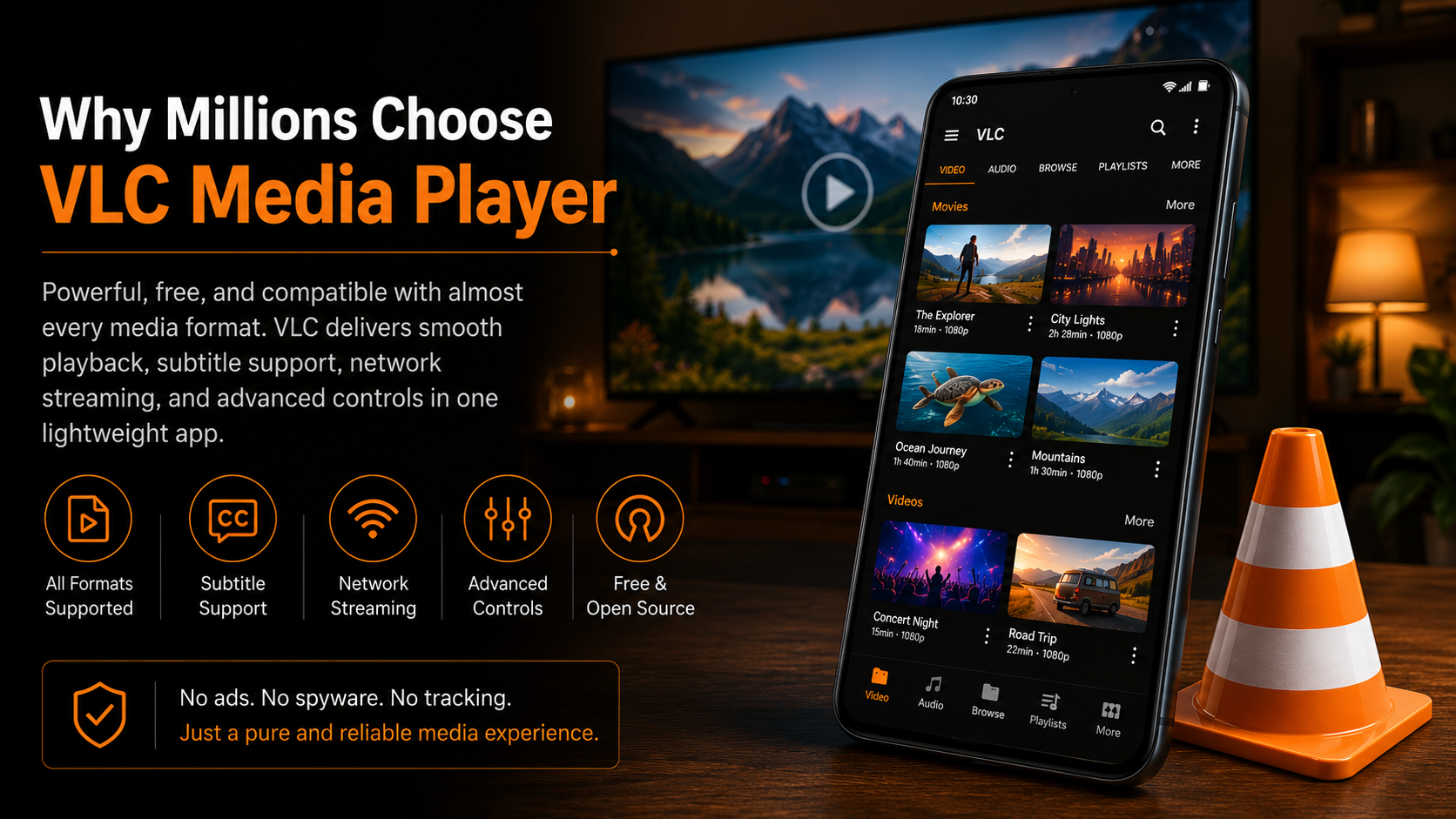
VLC Media Player has remained one of the most popular media players for years because of its excellent compatibility and reliability. Unlike many media players, VLC can play almost every commonly used video and audio format without additional downloads. It also includes advanced playback controls, subtitle support, network streaming, playlist management, and hardware acceleration.Its lightweight design and ad-free experience make it suitable for both casual users and advanced users who need more control over their media playback.
VLC Media Player Features Overview
| Feature | Description | |
|---|---|---|
| Supported Formats | Plays MP4, MKV, AVI, MOV, FLV, MP3, AAC, FLAC, WAV, and many more. | |
| Subtitle Support | Load external subtitles or download subtitles directly (when available). | |
| Network Streaming | Supports SMB, FTP, SFTP, DLNA, NFS, WebDAV, and UPnP. | |
| Playback Controls | Adjust playback speed, brightness, audio delay, subtitle delay, and aspect ratio. | |
| Playlist Support | Create and manage playlists for both videos and music. | |
| Hardware Acceleration | Improves playback performance for HD and 4K videos. | |
| Completely Free | No subscription fees and no hidden charges. |
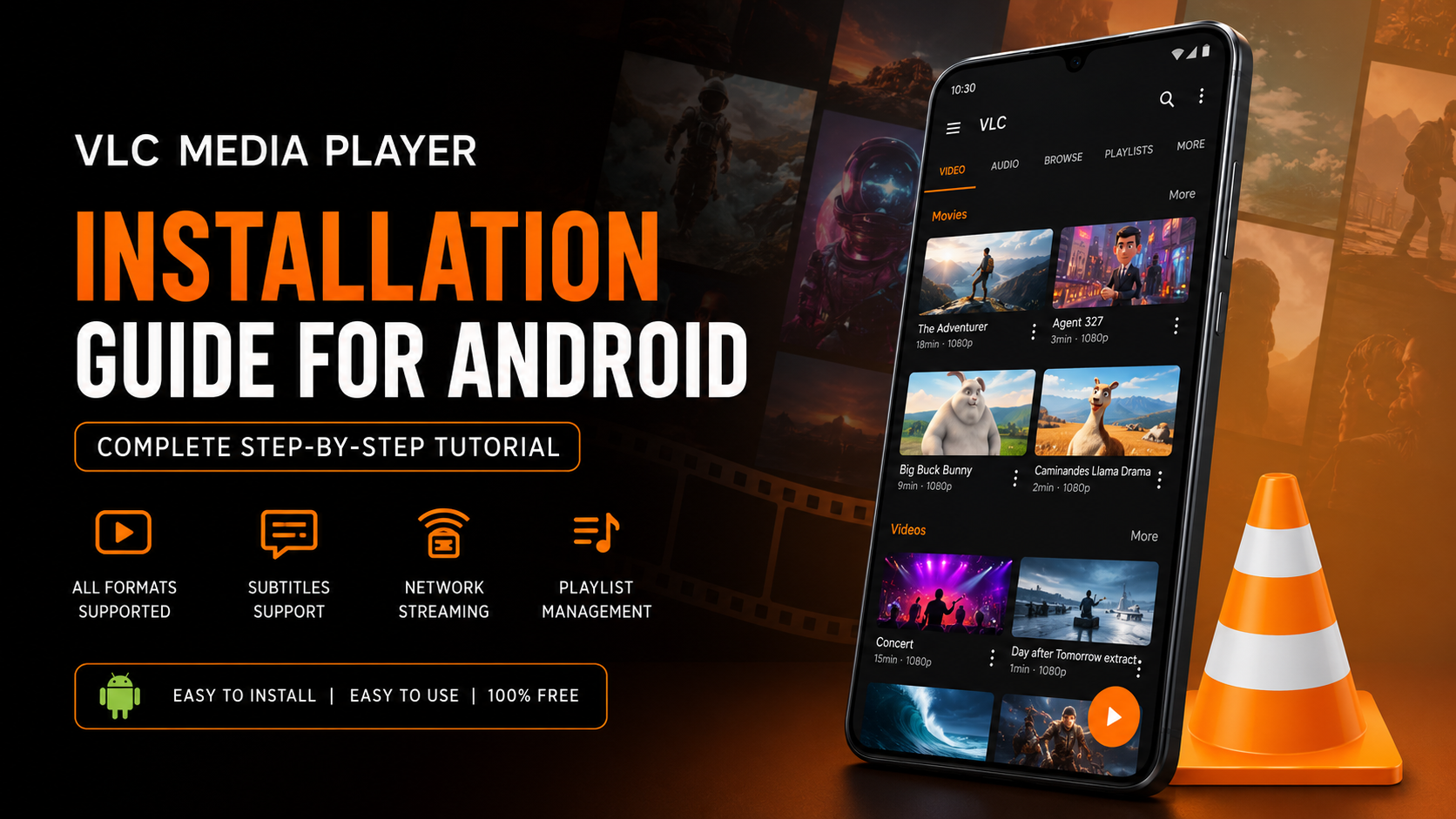
How to Install VLC Media Player on Android
Installing VLC takes only a few minutes. Follow the steps below carefully.
Step 1: Open Google Play Store
Unlock your Android phone and open the Google Play Store. The Play Store is the official marketplace where Android applications can be downloaded securely.Using the official store ensures that you're installing the latest and safest version of VLC Media Player.
Step 2: Search for VLC
Tap the search bar at the top of the Play Store and type VLC Media Player or VLC for Android.The search results will display several applications, so make sure you're selecting the correct one.
Step 3: Select the Official VLC App
Choose the official VLC application developed by VideoLAN.Always verify the developer name before downloading any application. Installing the official version ensures you receive regular updates, bug fixes, and security improvements.
Step 4: Tap Install
Press the Install button.Android will automatically begin downloading and installing VLC Media Player on your device.The installation speed depends on your internet connection, but it usually takes less than a minute.
Step 5: Open VLC
Once installation is complete, tap Open.You can also launch VLC later from your home screen or app drawer.The first launch initializes the application and prepares it for media scanning.
Step 6: Grant Permissions
The first time VLC opens, Android will ask for permission to access your photos, videos, and audio files.Allow these permissions so VLC can scan your storage and automatically organize your media library.Without storage permission, VLC cannot display your local videos or music files.
Step 7: Start Using VLC
After permission is granted, VLC automatically scans your internal storage and SD card.Within a few moments, your available videos and audio files will appear inside the media library.No manual import process is required.
Step 8: Play Videos and Music
Open the Video or Audio tab and browse your available media.Simply tap any file to begin playback instantly.VLC supports nearly every popular video and audio format without requiring additional codec downloads.
Step 9: Open Local Files
If your files are stored inside a specific folder, open the Browse tab.Navigate through internal storage, SD card, downloads, movies, or any custom folder to locate your media.This option is particularly useful if VLC doesn't automatically index newly copied files.
Step 10: Stream Network Media
One of VLC's most powerful features is network streaming.Open the Browse tab and choose a network protocol such as SMB, FTP, SFTP, DLNA, NFS, or WebDAV.Connect to your home server, NAS device, or shared computer folder to stream media directly over your local network without copying files onto your phone.
Step 11: Add Subtitles
While watching a movie, tap the subtitle icon.You can select an existing subtitle file stored on your device or download subtitles directly when supported.VLC synchronizes subtitles with the video and also allows subtitle delay adjustments for perfect timing.
Step 12: Adjust Playback Settings
During playback, tap the More (⋮) menu.From here you can customize playback speed, subtitle delay, audio delay, equalizer, aspect ratio, brightness, sleep timer, and screen orientation.These controls allow you to personalize your viewing experience according to your preferences.
What You Can Do After Installation
Once VLC is installed, you gain access to numerous powerful features that extend beyond simple video playback.
| Task | What You Can Do | |
|---|---|---|
| Watch Movies | Play HD, Full HD, and 4K videos smoothly. | |
| Listen to Music | Organize songs, albums, artists, and playlists. | |
| Stream Content | Connect to NAS drives, PCs, or media servers over your local network. | |
| Watch with Subtitles | Load external subtitle files and adjust synchronization. | |
| Create Playlists | Save your favorite videos and songs into custom playlists. | |
| Customize Playback | Modify playback speed, brightness, equalizer, and aspect ratio. | |
| Browse Storage | Access Internal Storage, SD Card, Downloads, and folders. | |
| Play Multiple Formats | Open almost every popular multimedia format without extra codecs. |
Common Installation Tips
If VLC doesn't detect your media immediately after installation, verify that storage permission has been granted. Restarting the application or refreshing the media library usually resolves the issue.Always download VLC from the official Google Play Store instead of unofficial APK websites to ensure you receive genuine updates and enhanced security.Keeping VLC updated also provides improved codec compatibility, performance enhancements, and new features over time.
Final Thoughts
VLC Media Player remains one of the most reliable media players available for Android users. Its ability to support nearly every media format, combined with advanced playback controls, subtitle support, and network streaming capabilities, makes it an excellent choice for both beginners and experienced users.By following the twelve installation steps covered in this guide, you'll have VLC installed correctly and ready to play local files, stream media across your network, manage playlists, and enjoy a seamless multimedia experience without needing additional codec packs.Whether you're watching movies, listening to music, or streaming content from your home server, VLC delivers a fast, stable, and feature-rich experience that continues to make it one of the best Android media players available today.
Frequently Asked Questions
1) Is VLC Media Player free for Android?
Yes. VLC Media Player is completely free and open source, with no subscription fees or hidden costs.
2) Does VLC support all video formats?
VLC supports almost all popular video and audio formats, including MP4, MKV, AVI, MOV, FLV, MP3, AAC, FLAC, WAV, and many others.
3) Can VLC stream videos from a local network?
Yes. VLC supports streaming through SMB, FTP, SFTP, DLNA, NFS, WebDAV, and other network protocols.
4) Can I add subtitles in VLC?
Yes. VLC allows you to load subtitle files manually or download subtitles for supported content.
Ready to Get Started?
Install VLC Media Player today and enjoy smooth video playback, powerful media management, subtitle support, network streaming, and advanced playback controls—all from one free application. Follow the installation steps in this guide, and you'll be ready to experience one of the world's most trusted media players on your Android device in just a few minutes.If you'd like to learn more about VLC Media Player, including its setup process, beginner tips, advanced features, supported devices, and troubleshooting guides, explore our complete VLC Media Player resource center here: Player SDK
