Most Android users install VLC Media Player simply to watch videos or listen to music, but very few realize just how many powerful features are built into the app. Beyond basic playback, VLC includes advanced tools such as gesture controls, subtitle synchronization, playback speed adjustments, Picture-in-Picture mode, network streaming, playlist management, hardware acceleration, sleep timers, and much more.
Many of these features remain hidden because they're tucked away inside menus or settings that users rarely explore. Learning about these hidden capabilities can dramatically improve your multimedia experience while helping you get much more value from one of the world's most popular media players.
In this guide, we'll uncover the best hidden features in VLC Media Player for Android, explain how to use them, and show why they make VLC one of the most versatile media players available today.
Why Explore VLC Hidden Features?
VLC is designed to work well out of the box, but its advanced capabilities allow you to customize playback, improve video quality, enhance audio, organize your media library, and streamline everyday use.
Whether you're watching movies, streaming content from a home server, or listening to music, these hidden features can save time and make playback smoother and more enjoyable.
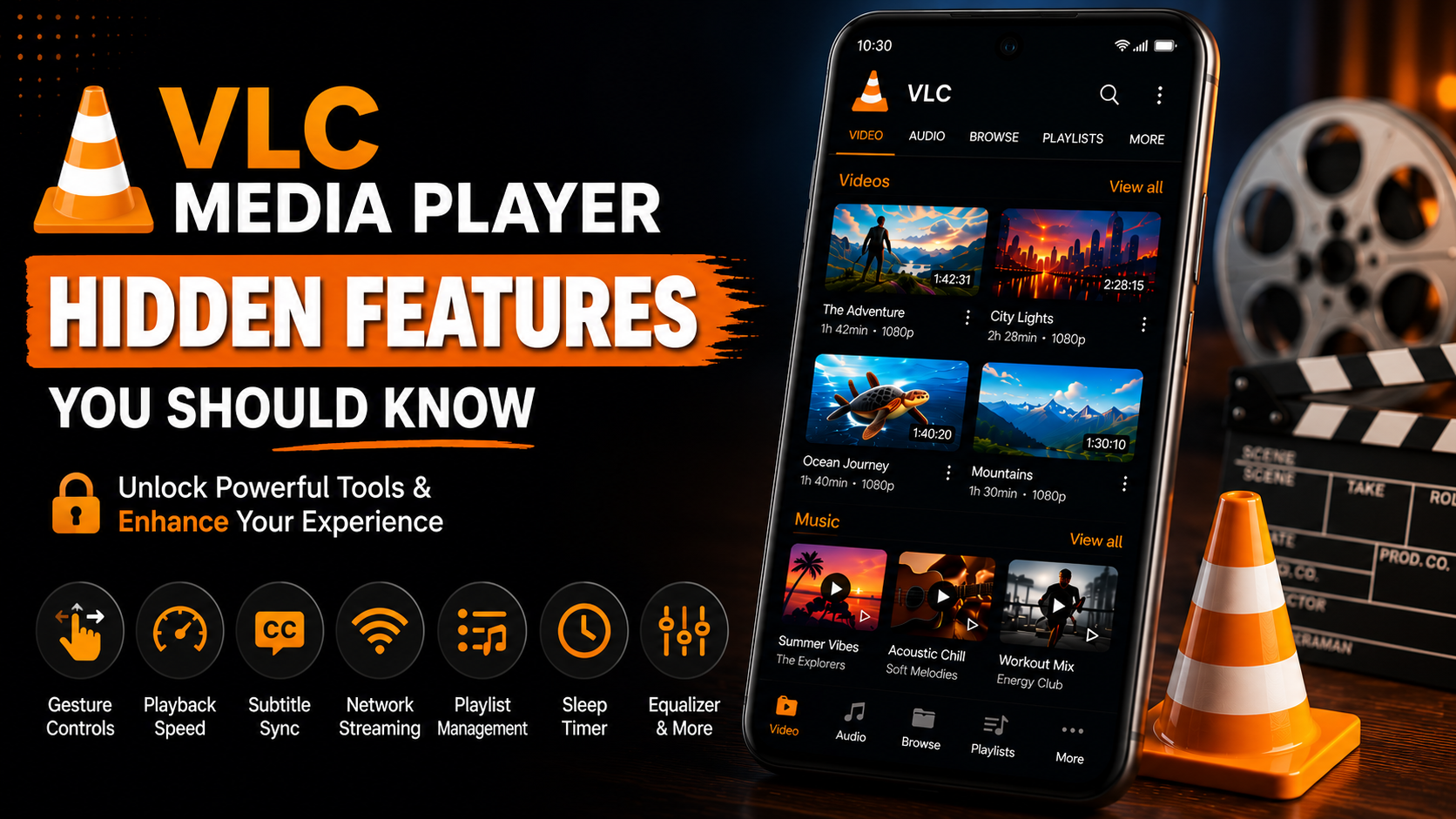
What You'll Discover
| Feature | Description |
|---|---|
| Gesture Controls | Quickly adjust brightness, volume, and seek |
| Playback Speed | Watch videos faster or slower |
| Subtitle Synchronization | Fix subtitle timing instantly |
| Hardware Acceleration | Improve playback performance |
| Picture-in-Picture | Multitask while watching videos |
| Network Streaming | Stream media without downloading |
| Sleep Timer | Automatically stop playback |
| Equalizer | Enhance audio quality |
Best Hidden Features in VLC Media Player
1. Gesture Controls for Faster Playback
One of VLC's most useful hidden features is gesture-based navigation. Instead of using on-screen buttons, simply swipe directly on the video. Swipe vertically on the left side to adjust screen brightness. Swipe vertically on the right side to change volume. Swipe horizontally to seek forward or backward. This makes watching videos much more convenient, especially on larger smartphones.
2. Change Playback Speed
Watching tutorials, lectures, or long movies?
VLC lets you adjust playback speed without affecting video quality. Open the playback menu while watching a video. Choose your preferred playback speed. Slow down difficult educational content or speed through long videos. This feature is perfect for students, professionals, and podcast listeners.
3. Subtitle Synchronization
Downloaded subtitles don't always match perfectly. Instead of searching for another subtitle file, VLC allows real-time subtitle synchronization. Increase or decrease subtitle delay until dialogue matches perfectly. No editing software is required.
4. Audio Synchronization
Sometimes Bluetooth devices or certain video files create audio delays. VLC includes built-in audio synchronization controls. Adjust audio timing during playback until voices match the video perfectly. This hidden feature is extremely helpful when using external speakers or wireless headphones.
5. Hardware Acceleration
Many users never enable hardware acceleration even though it dramatically improves playback.
Navigate to:
More → Settings → Video
Enable Hardware Acceleration.
Benefits include:
Smoother HD playback
Better 4K performance
Reduced battery consumption
Less processor usage
6. Picture-in-Picture Mode
Need to answer a message while watching a video?
VLC supports Android Picture-in-Picture mode. Your video continues playing inside a floating window while you use other apps. This feature is excellent for multitasking.
7. Network Streaming
Most users don't realize VLC can stream videos directly from home servers.
Supported protocols include:
SMB
FTP
SFTP
DLNA/UPnP
NFS
WebDAV
You can watch movies stored on your computer or NAS without copying them to your phone.
8. Automatic Playback Resume
If you stop watching halfway through a movie, VLC remembers exactly where you left off. The next time you open the file, playback continues from the previous position. This saves time and eliminates manual searching.
9. Sleep Timer
Watching videos before bed?
Set a sleep timer. Playback automatically stops after the selected time. This prevents videos from playing all night and helps conserve battery life.
10. Built-in Equalizer
Music lovers often overlook VLC's built-in equalizer. Customize bass, treble, vocal enhancement, and sound presets. Different music genres sound better with different equalizer settings.
11. Create Smart Playlists
Instead of browsing folders repeatedly, organize media into playlists.
Create separate playlists for:
Movies
TV Shows
Music
Podcasts
Workout Tracks
Educational Videos
Travel Videos
Well-organized playlists make everyday playback much faster.
12. Search Your Entire Library
As your media collection grows, manually browsing becomes difficult.
Use VLC's search feature.
Instantly locate:
Movies
Songs
Albums
Artists
Folders
Playlists
This hidden feature saves significant time.
13. Browse Hidden Storage Locations
The Browse tab provides access to storage locations that many users overlook.
You can access:
Internal Storage
SD Cards
Downloads
USB Storage
Cloud Storage
Shared Folders
Network Servers
This provides complete control over your media files.
14. Customize Subtitle Appearance
Reading subtitles becomes easier after adjusting:
Font size
Text color
Background
Position
Encoding
Language preference
These options improve readability on every screen size.
15. Background Audio Playback
Close your screen while continuing to listen.
This is especially useful for:
Podcasts
Interviews
Music
Lectures
Audiobooks
Battery consumption is reduced while playback continues.
Advanced Hidden Features
Experienced VLC users often take advantage of several additional capabilities. The app supports hardware decoding for improved performance, automatic media library scanning, custom playback controls, playback history, media sorting options, network authentication, and advanced subtitle encoding. These features allow VLC to handle both everyday media playback and more advanced streaming scenarios with ease.
Hidden Features at a Glance
| Feature | Description |
|---|---|
| Gesture Controls | Faster navigation |
| Playback Resume | Continue where you stopped |
| Picture-in-Picture | Multitasking |
| Equalizer | Better audio quality |
| Subtitle Sync | Perfect subtitle timing |
| Audio Sync | Fix delayed sound |
| Sleep Timer | Automatic playback stop |
| Playback Speed | Learn faster from videos |
| Network Streaming | Stream without downloads |
| Hardware Acceleration | Better performance |
Tips for Unlocking the Best VLC Experience
To make the most of VLC's hidden features, spend a few minutes exploring the More menu and Settings section. Enable hardware acceleration for smoother playback, keep the app updated through the Google Play Store, and organize your media into clearly named folders for easier browsing.
If you regularly watch movies with subtitles, customize subtitle appearance and enable playback resume. Users who stream content from a home network should configure network browsing and ensure both devices are connected to the same Wi-Fi network for the best performance.
These simple adjustments can transform VLC from a basic media player into a feature-rich multimedia hub.
Why VLC Continues to Stand Out
VLC remains one of the most trusted media players because it combines simplicity with powerful functionality. Unlike many alternatives, it supports nearly every popular video and audio format without additional codecs, offers advanced playback controls, network streaming, subtitle management, playlist organization, and extensive customization—all without advertisements or subscription fees.
Its hidden features are what truly set it apart, giving users the flexibility to tailor playback to their preferences while maintaining reliable performance across a wide range of Android devices.
Final Thoughts
VLC Media Player is far more than a simple video player. Hidden beneath its clean interface are powerful tools that can improve playback quality, simplify navigation, enhance audio, and provide a more personalized viewing experience.
By exploring these hidden features, you'll unlock capabilities that many users never discover—from gesture controls and subtitle synchronization to picture-in-picture mode and network streaming. Whether you're a casual viewer or a power user, these features help you get the most out of VLC every day.
Frequently Asked Questions (FAQs)
1) What are the best hidden features in VLC Media Player?
Some of the most useful hidden features include gesture controls, playback speed adjustment, subtitle synchronization, hardware acceleration, picture-in-picture mode, sleep timer, equalizer, and network streaming.
2) Does VLC support Picture-in-Picture mode on Android?
Yes. On supported Android devices, VLC can continue playing videos in a floating window while you use other applications.
3) Can I adjust subtitle timing in VLC?
Yes. VLC allows you to synchronize subtitles during playback without modifying the subtitle file.
4) Is hardware acceleration safe to enable?
Yes. Hardware acceleration is recommended for most devices because it improves playback performance and reduces battery usage.
5) Can VLC stream videos from my computer?
Yes. VLC supports SMB, FTP, SFTP, DLNA/UPnP, NFS, and WebDAV for streaming content from local network devices.
6) Does VLC remember my playback position?
Yes. VLC can automatically resume playback from where you previously stopped watching.
Continue Learning with Player SDK
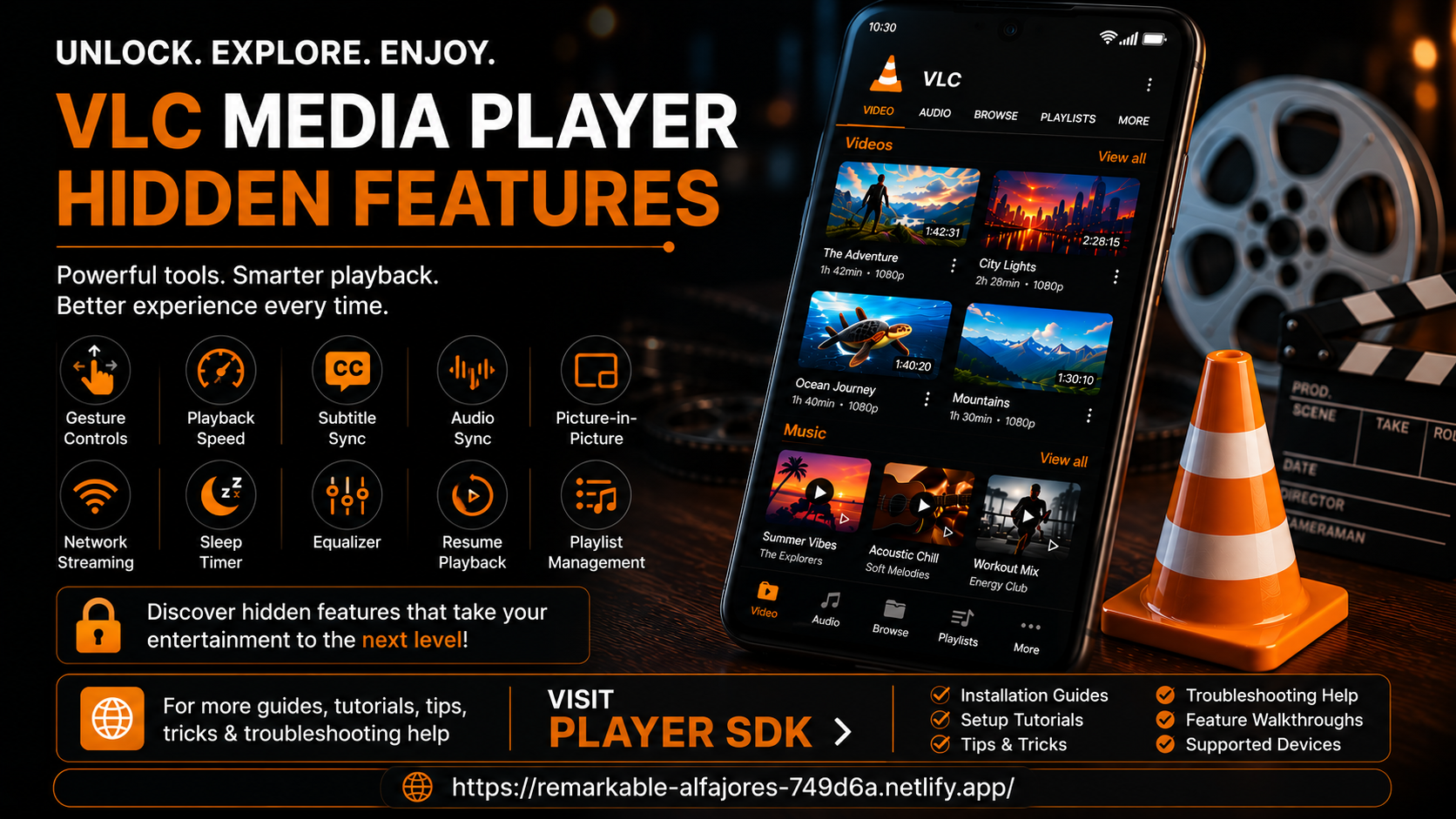
Looking to unlock even more from VLC Media Player? Player SDK is your go-to destination for the best media player installation guides, setup tutorials, beginner guides, hidden features, tips & tricks, troubleshooting articles, supported device guides, and streaming resources all in one place.
Whether you're using VLC on Android, Android TV, Fire TV, Windows, macOS, or other supported platforms, you'll find expert tutorials and practical walkthroughs to help you master every feature and optimize your media playback experience.
