Most iPhone users install VLC Media Player to watch videos or play music, but few realize just how many useful features are built into the app. Beyond its simple interface lies a collection of powerful tools that can improve your viewing experience, simplify file management, and make media playback far more convenient.
Unlike many default media players, VLC is designed to handle much more than local video playback. It supports cloud storage integration, local network streaming, wireless file sharing, advanced subtitle controls, playback customization, and several productivity features that many users never explore.
If you've already completed the Installation Guide, Setup Guide, Beginner Guide, Troubleshooting Guide, and Tips & Tricks Guide, this article is the perfect next step. Here you'll discover the lesser-known capabilities that make VLC one of the best media players available for iPhone.
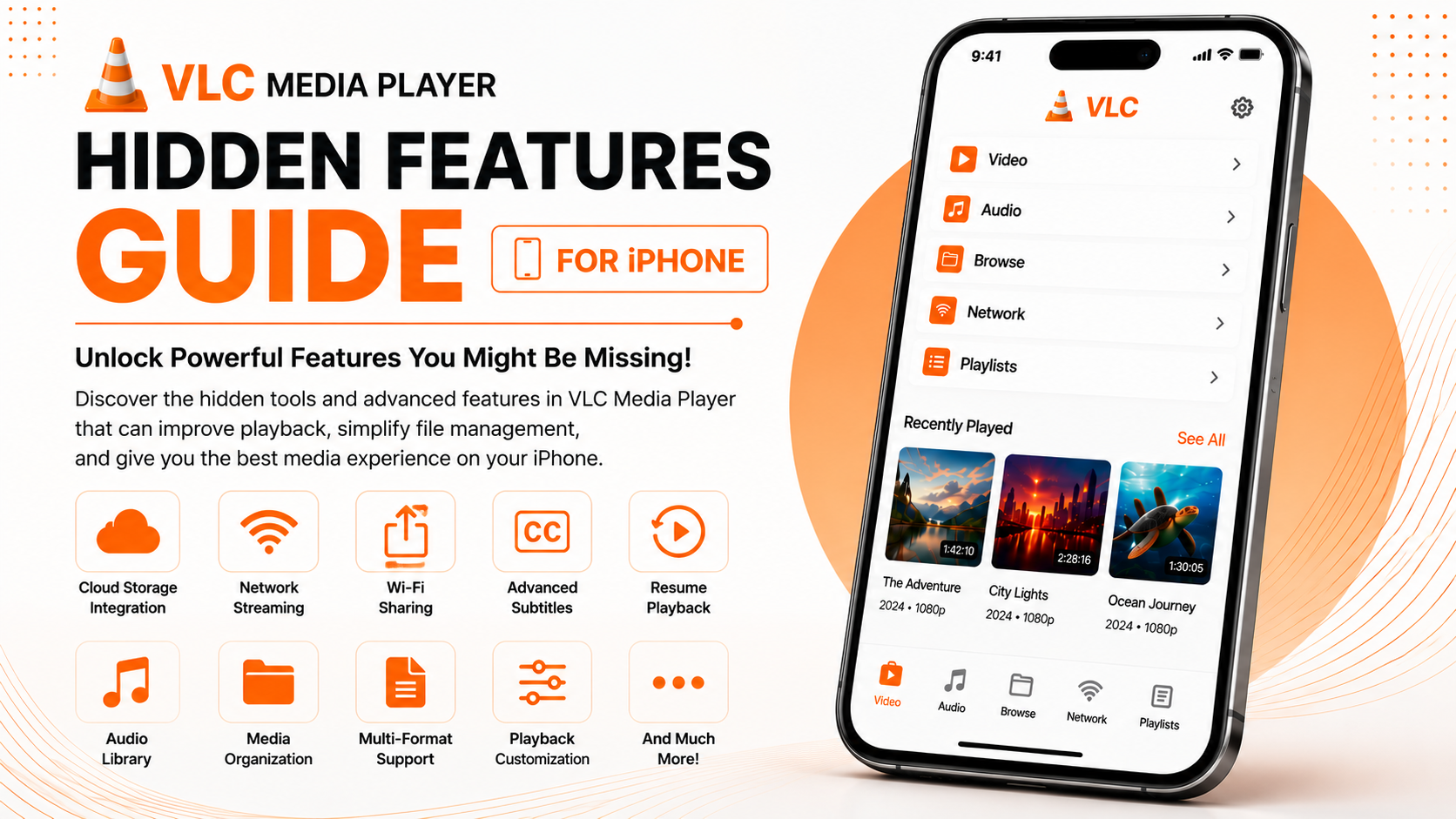
This complete VLC Media Player Hidden Features Guide for iPhone highlights the most useful built-in features that many users overlook while explaining how they improve your everyday media experience.
Why Explore VLC's Hidden Features?
Many people use VLC only to open video files. While that works perfectly, the application includes several advanced capabilities that make watching movies, organizing media, and accessing content much easier.
Learning these hidden features allows you to:
- Improve media organization
- Access files more efficiently
- Customize playback
- Enjoy better subtitle support
- Save iPhone storage
- Stream media across your network
- Transfer files wirelessly
- Make VLC your complete media hub
Most of these features require little or no setup and can significantly improve your daily experience.
Hidden Features You'll Discover
| Feature | Benefit |
|---|---|
| Cloud Storage Integration | Access media without filling device storage |
| Local Network Streaming | Watch files from other devices |
| Wi-Fi Sharing | Transfer videos wirelessly |
| Subtitle Customization | Improve reading comfort |
| Playback Resume | Continue videos where you stopped |
| Audio Library | Manage music and podcasts |
| Media Organization | Faster browsing |
| Multi-format Support | Play numerous file types |
Hidden Feature 1: Resume Playback Automatically
One of VLC's most useful features is its ability to remember where you stopped watching a video.
Instead of manually searching for your previous position, VLC often resumes playback from the last watched point.
This is especially useful when watching:
- Movies
- Long tutorials
- Online courses
- Documentaries
- TV episodes
The feature saves time and creates a much smoother viewing experience.
Hidden Feature 2: Cloud Storage Integration
Many iPhone users don't realize that VLC can connect directly to cloud storage services.
Supported services may include:
- iCloud Drive
- Google Drive
- Dropbox
- OneDrive
- Box
Instead of downloading every movie onto your iPhone, you can browse supported cloud folders directly inside VLC.
This helps conserve local storage while keeping your media easily accessible.
Hidden Feature 3: Network Streaming
Another overlooked feature is VLC's ability to stream media stored elsewhere on your home network.
Instead of copying large files onto your iPhone, VLC can access compatible devices connected to the same Wi-Fi network.
Examples include:
- Home computers
- NAS storage
- SMB servers
- FTP servers
- UPnP/DLNA devices
For users with large movie libraries, this feature becomes incredibly valuable.
Hidden Feature 4: Wi-Fi Sharing
Many people still transfer videos using cables.
VLC provides a much easier solution.
Wi-Fi Sharing allows wireless file transfers between your computer and iPhone using the same local network.
This makes importing movies and personal videos much faster and more convenient.
Hidden Feature 5: Advanced Subtitle Controls
Most users know VLC supports subtitles.
Fewer realize how much customization is available.
You can typically adjust:
- Font size
- Position
- Synchronization
- Appearance
- Background
These adjustments make subtitles significantly easier to read during long viewing sessions.
Hidden Feature 6: Wide Format Compatibility
Unlike many media players that support only a limited number of file types, VLC is designed to open numerous video and audio formats.
Instead of installing multiple applications, VLC handles most commonly used media files from one place.
This simplifies media management considerably.
Hidden Feature 7: Powerful Browse Section
The Browse section acts as a central hub for accessing media stored across different locations.
Instead of searching manually through multiple apps, VLC lets you access:
- Local storage
- Imported files
- Cloud storage
- Shared folders
- Network devices
Learning how Browse works dramatically improves navigation.
Hidden Feature 8: Audio Player Capabilities
Although VLC is widely recognized as a video player, it also performs exceptionally well as a music player.
The Audio section supports:
- Music
- Podcasts
- Audiobooks
- Downloaded audio files
- Playlists
This allows you to manage both video and audio content from a single application.
Hidden Feature 9: Organized Media Library
As your collection grows, VLC automatically helps organize available media.
Combined with properly named folders, your library becomes much easier to browse.
Keeping related content together saves time whenever you're looking for a particular video.
Hidden Feature 10: Playback Controls
VLC includes several playback controls that many users rarely explore.
Useful features include:
- Playback timeline
- Full-screen mode
- Brightness adjustment
- Volume adjustment
- Seek controls
Learning these controls creates a more comfortable viewing experience.
Hidden Feature 11: Local File Management
VLC isn't only a player.
It also serves as a convenient way to browse and organize media already stored on your iPhone.
Keeping videos organized inside folders improves navigation and reduces unnecessary searching.
Hidden Feature 12: Reliable HD Playback
VLC is optimized for smooth HD playback across supported iPhone models.
Combined with regular App Store updates and sufficient free storage, VLC provides consistent playback quality even with larger video files.
Hidden Feature 13: Regular Performance Improvements
VideoLAN frequently updates VLC.
Each update may include:
- Improved compatibility
- Playback enhancements
- Stability improvements
- Bug fixes
- Security updates
Keeping VLC current ensures you benefit from ongoing improvements.
Hidden Feature 14: Simple Yet Powerful Interface
One reason VLC remains popular is its balance between simplicity and functionality.
The interface stays clean enough for beginners while still offering powerful features for experienced users.
Exploring every section gradually helps uncover capabilities that many users overlook.
Hidden Feature 15: One App for Your Entire Media Library
Instead of switching between multiple media players, cloud storage apps, and file managers, VLC brings everything together into one convenient application.
For many users, this becomes the biggest hidden advantage of all.
Hidden Features Checklist
| Feature | Description |
|---|---|
| Resume Playback | Continue videos easily |
| Cloud Storage | Save device storage |
| Network Streaming | Watch media from other devices |
| Wi-Fi Sharing | Wireless transfers |
| Subtitle Controls | Better readability |
| Browse Section | Faster navigation |
| Audio Library | Manage music |
| Multi-format Support | One app for all media |
Best Practices for Unlocking VLC's Full Potential
The easiest way to benefit from VLC's advanced features is by exploring the application gradually. Keep your media organized into clearly named folders, connect your preferred cloud storage services, and periodically review the available settings after updates. Maintaining free storage on your iPhone and updating VLC regularly also ensures smooth playback and long-term stability.
These simple habits help you make full use of everything VLC offers without making the application feel complicated.
Common Mistakes to Avoid
Many users never discover VLC's additional capabilities because they focus only on opening videos.
Some common mistakes include:
- Never exploring the Browse section
- Ignoring cloud storage integration
- Forgetting Wi-Fi Sharing
- Not customizing subtitles
- Skipping App Store updates
- Leaving media unorganized
Avoiding these habits allows you to enjoy VLC much more effectively.
Why These Hidden Features Matter
VLC has earned its reputation by offering far more than basic media playback. Features such as cloud integration, local network streaming, advanced subtitle controls, playback resume, Wi-Fi Sharing, and wide format compatibility transform it into a complete multimedia solution for iPhone users.
Once you begin using these capabilities regularly, you'll likely find yourself relying on VLC for nearly all of your personal media needs.
Final Thoughts
Most iPhone users only experience a small portion of what VLC Media Player can do. By exploring its hidden features, you'll discover a much more capable application that goes beyond simply playing videos.
Whether you're organizing a growing media library, streaming movies from another device, transferring files wirelessly, or customizing subtitles for greater comfort, VLC provides a powerful and flexible experience that continues to improve with every update.
Frequently Asked Questions (FAQs)
1) Does VLC have features beyond playing videos?
Yes. VLC includes cloud storage integration, network streaming, Wi-Fi Sharing, subtitle customization, playback resume, music playback, and much more.
2) Can VLC stream media from my computer?
Yes. VLC supports compatible local network protocols, allowing you to stream media from computers and other supported devices.
3) Does VLC automatically remember where I stopped watching?
Yes. VLC can resume many videos from your previous playback position.
4) Is Wi-Fi Sharing available on iPhone?
Yes. VLC includes wireless file transfer capabilities over the same local Wi-Fi network.
5) Why should I connect cloud storage?
Cloud integration saves local storage while allowing direct access to supported media files.
6) What should I read after this Hidden Features Guide?
You've now completed the complete VLC Media Player learning series. Continue exploring additional media player tutorials, comparisons, and device-specific guides available on Player SDK.
Continue Learning with Player SDK
Congratulations on completing the VLC Media Player learning series! Continue expanding your knowledge with Player SDK, your trusted source for Installation Guides, Setup Guides, Beginner Guides, Troubleshooting, Tips & Tricks, Hidden Features, Supported Device Tutorials, and complete media player resources.
Whether you're using VLC on an iPhone, iPad, Android device, or desktop computer, Player SDK provides step-by-step tutorials that help you unlock every feature and enjoy the best possible media experience.
