If you've recently installed and configured VLC Media Player on your iPhone, congratulations! You're now using one of the most versatile media players available for iOS. Unlike Apple's default video player, VLC supports numerous video and audio formats, subtitle files, cloud storage services, wireless file transfers, and local network streaming—all within a clean and easy-to-use interface.
However, if you're opening VLC for the first time, you may wonder where to begin. The app includes several useful features that aren't immediately obvious, and learning the basics can significantly improve your overall experience. Understanding how VLC organizes media, manages playback, and connects with cloud storage will help you get the most from the application.
This complete VLC Media Player Beginner's Guide for iPhone explains everything new users need to know. By the end of this guide, you'll feel confident navigating the interface, importing media, using playback controls, managing your library, and enjoying all the essential features VLC has to offer.
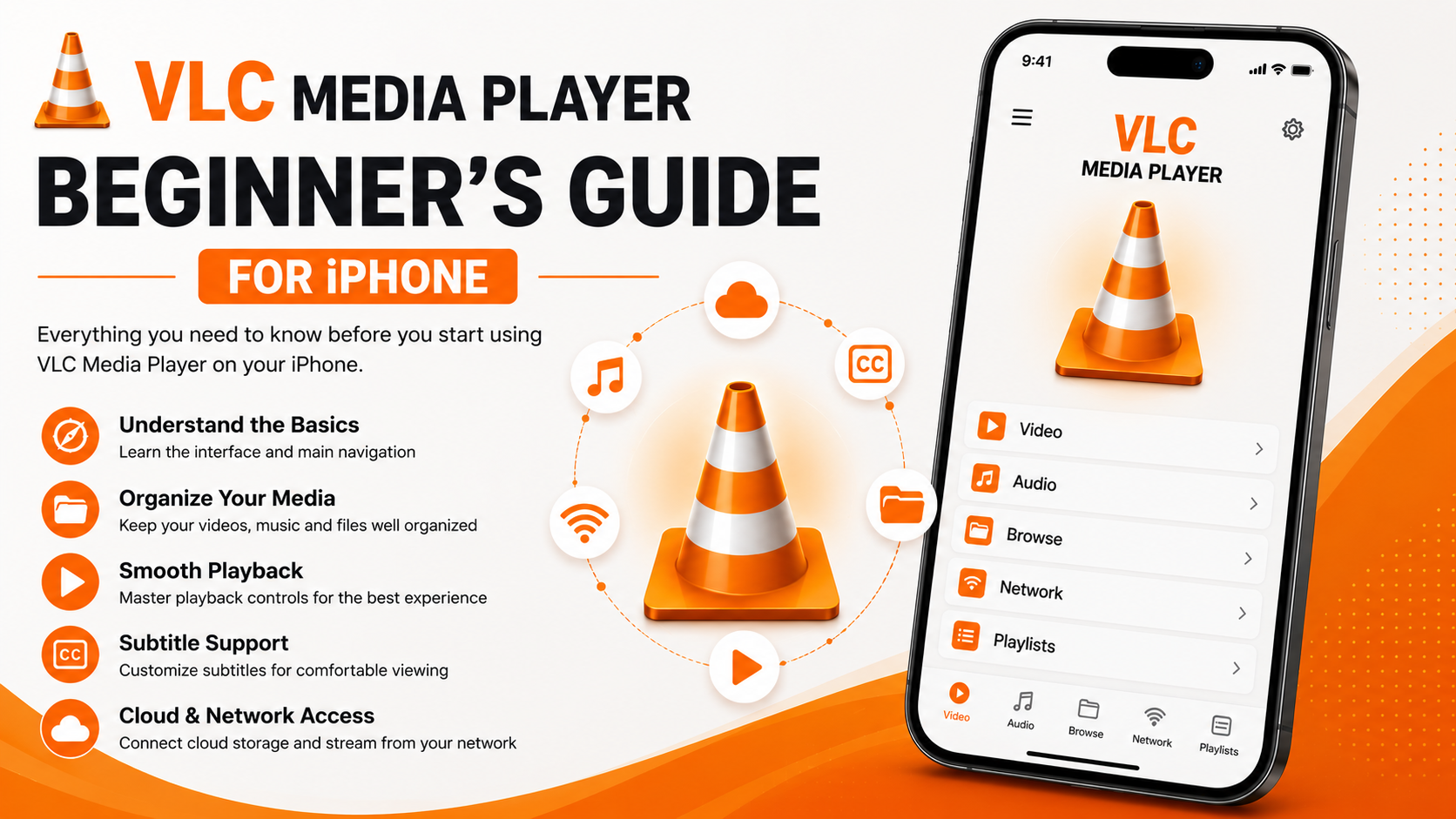
Why Learn VLC Before Using It?
Many users install VLC and immediately begin watching videos without taking time to understand its interface or capabilities. Although the app works perfectly right after installation, learning the basics makes daily use far more enjoyable.
Understanding VLC helps you:
- Navigate the interface more efficiently
- Organize your videos and music properly
- Enjoy smoother playback
- Customize subtitles for comfortable viewing
- Access cloud storage services easily
- Stream media from your local network
- Save time when browsing your library
- Make better use of VLC's powerful features
Investing a few minutes in learning VLC can greatly improve your media experience.
What You'll Learn
| Topic | Description |
|---|---|
| VLC Interface | Understand the main navigation and layout |
| Media Library | Learn how VLC organizes your files |
| Playback Controls | Master essential viewing controls |
| Importing Files | Add media from multiple sources |
| Subtitle Support | Customize subtitle settings |
| Audio Features | Explore VLC's music playback capabilities |
| Network Streaming | Access content from local devices |
| Cloud Storage | Connect and browse cloud services |
What Is VLC Media Player?
VLC Media Player is a free, open-source multimedia application developed by the VideoLAN project. It has earned a strong reputation for supporting a wide range of video and audio formats without requiring additional codecs or plugins.
On the iPhone, VLC serves as more than just a video player. It allows users to organize personal media, stream content from network devices, connect cloud storage accounts, transfer files wirelessly, and enjoy high-quality playback from a single application.
Whether you're watching movies during travel, reviewing personal recordings, or listening to music, VLC offers a reliable and flexible solution.
Understanding the VLC Home Screen
The first thing you'll notice after launching VLC is its clean and organized interface.
Depending on your app version, the navigation usually includes sections such as:
- Video
- Audio
- Browse
- Network
- Playlists
Each section is designed to keep different types of media organized.
Spend a few minutes exploring the interface before importing your media. Familiarity with the layout makes future navigation much easier.
Learn the Main Navigation
Navigation is one of the first things every beginner should understand.
The Video section displays your available videos.
The Audio section contains music, podcasts, and other audio files.
The Browse tab helps locate media stored on your device or cloud services.
The Network section connects VLC with compatible network storage.
Playlists allow you to organize frequently watched videos or music collections.
Knowing where each section is located saves time every day.
Import Your First Video
Before adding your complete media library, start with one video.
Open the Browse section and locate a video stored on your iPhone or connected storage service.
Play the video and become familiar with the playback interface.
Verify:
- Video quality
- Audio synchronization
- Full-screen viewing
- Playback controls
- Screen rotation
Testing playback early confirms that everything is working correctly.
Learn Basic Playback Controls
VLC's playback controls are simple yet powerful.
During playback you'll commonly use:
- Play
- Pause
- Seek Forward
- Seek Backward
- Playback Timeline
- Full Screen
- Volume Control
- Brightness Adjustment
The more familiar you become with these controls, the easier everyday viewing becomes.
Organize Your Media Library
As your collection grows, keeping everything organized becomes increasingly important.
Instead of storing every file together, create separate folders such as:
- Movies
- TV Shows
- Family Videos
- Travel Videos
- Music
- Downloads
- Educational Videos
Organized folders help VLC display your content more efficiently while making it easier to find specific media later.
Learn How to Import Media
One reason VLC is so popular is its flexibility.
You aren't limited to files stored directly on your iPhone.
VLC allows media imports from several locations including:
- Files app
- iCloud Drive
- Google Drive
- Dropbox
- OneDrive
- AirDrop
- Wi-Fi Sharing
- Local Network Storage
Having multiple import options allows you to manage media in whatever way best suits your workflow.
Understand Subtitle Support
If you regularly watch movies, international content, or educational videos, subtitles become an essential feature.
VLC offers excellent subtitle compatibility.
You can typically customize:
- Font size
- Subtitle position
- Text appearance
- Synchronization
- Background
Comfortable subtitle settings improve long viewing sessions and make content easier to follow.
Explore Audio Playback
Although VLC is best known as a video player, it's equally capable as an audio player.
The Audio section supports:
- Music collections
- Podcasts
- Audiobooks
- Personal recordings
- Playlists
Keeping both video and music in one application simplifies media management on your iPhone.
Learn About Cloud Storage
Many iPhone users prefer storing videos in cloud services rather than filling device storage.
Fortunately, VLC integrates with several cloud providers.
After connecting your preferred service, you can browse and play supported files directly inside VLC without manually moving them to your device.
Cloud integration helps save storage space while keeping your content easily accessible.
Explore Network Streaming
Another powerful beginner-friendly feature is VLC's network support.
Instead of copying every movie onto your iPhone, VLC allows access to compatible media stored elsewhere.
Supported sources may include:
- Home computers
- NAS storage
- SMB servers
- FTP servers
- UPnP/DLNA devices
Network streaming makes VLC especially useful for users with large media collections.
Try Wi-Fi Sharing
One of VLC's most convenient features is Wi-Fi Sharing.
Instead of connecting your iPhone with a USB cable, VLC lets you transfer files wirelessly over the same local network.
This feature is especially helpful when importing large movie collections from your computer.
Explore Playlists
Playlists are useful for organizing frequently watched content.
You might create separate playlists for:
- Movies
- Travel Videos
- Workout Music
- Podcasts
- Educational Courses
Keeping related content together improves navigation and saves time.
Learn the Browse Section
The Browse section serves as VLC's central file manager.
It allows access to:
- Local files
- Imported media
- Cloud storage
- Connected folders
- Downloaded videos
Understanding Browse makes locating media significantly faster.
Keep VLC Updated
VideoLAN regularly improves VLC through App Store updates.
These updates often provide:
- Better playback stability
- Improved compatibility
- Enhanced performance
- Security improvements
- Bug fixes
Keeping VLC updated ensures the best possible experience.
Beginner Checklist
| Task | Status |
|---|---|
| Install VLC | ✓ |
| Complete Setup | ✓ |
| Import First Video | ✓ |
| Learn Navigation | ✓ |
| Test Playback | ✓ |
| Explore Audio | ✓ |
| Connect Cloud Storage | ✓ |
| Try Network Streaming | ✓ |
Best Practices for Everyday Use
After becoming familiar with VLC, develop a few simple habits. Organize your media into dedicated folders before importing files, update VLC regularly through the App Store, and periodically review subtitle preferences to ensure they remain comfortable for your viewing style.
If you frequently use cloud storage or local network streaming, keep those connections organized and accessible. Maintaining an organized media library makes daily use significantly more enjoyable.
Common Beginner Mistakes
Many new users overlook several useful features during their first few days.
Avoid these common mistakes:
- Ignoring subtitle settings
- Never exploring the Browse section
- Forgetting cloud storage integration
- Leaving media in random folders
- Skipping App Store updates
- Not testing playback after importing files
Avoiding these habits creates a smoother experience from the beginning.
Why VLC Is Perfect for Beginners
Despite offering powerful features like network streaming, wireless file transfers, and cloud integration, VLC remains remarkably easy to learn.
Its clean interface, extensive file compatibility, reliable playback engine, and straightforward organization make it an ideal media player for beginners and experienced users alike.
Whether you're watching downloaded movies, streaming media across your home network, or managing a growing collection of personal videos, VLC provides flexibility without unnecessary complexity.
What's Next?
Now that you've learned the fundamentals of VLC Media Player, the next step is understanding how to solve common issues that may occasionally arise.
Continue with the:VLC Media Player Troubleshooting Guide for iPhone
You'll learn how to fix playback problems, subtitle issues, cloud storage errors, network connection problems, and other common situations to keep VLC running smoothly.
Final Thoughts
Learning the basics of VLC Media Player is the best way to enjoy everything the application offers. By understanding the interface, organizing your media library, exploring playback controls, using subtitles effectively, and taking advantage of cloud storage and network streaming, you'll quickly become comfortable using VLC every day.
Whether you're watching movies during travel, listening to music, or managing personal videos, VLC provides one of the most complete media experiences available for iPhone users.
Frequently Asked Questions (FAQs)
1) Is VLC Media Player suitable for beginners?
Yes. VLC has a clean interface that's easy to learn while still providing advanced features for users who need them.
2) Can VLC play both videos and music?
Absolutely. VLC supports a wide range of video and audio formats in one application.
3) Does VLC support subtitles on iPhone?
Yes. VLC supports both embedded and external subtitle files with customizable display settings.
4) Can I use VLC with cloud storage?
Yes. VLC works with several popular cloud storage services, allowing you to browse and play files directly.
5) Does VLC support local network streaming?
Yes. VLC can stream media from compatible network devices using supported protocols such as SMB and UPnP/DLNA.
6) What should I read after this Beginner's Guide?
The next recommended article is the VLC Media Player Troubleshooting Guide for iPhone, where you'll learn how to resolve common playback issues and optimize VLC for long-term performance.
Continue Learning with Player SDK
Take your VLC Media Player experience even further with Player SDK, your trusted resource for Installation Guides, Setup Guides, Beginner Tutorials, Troubleshooting Guides, Tips & Tricks, Hidden Features, Supported Device Tutorials, and complete media player resources.
Whether you're using VLC on an iPhone, iPad, Android phone, or desktop computer, Player SDK provides step-by-step guides to help you unlock every feature and enjoy the best possible media experience.
