Watching videos and listening to music on your Android device should be simple, enjoyable, and free from compatibility issues. Whether you've just installed VLC Media Player or you're using it for the first time, learning the basics can help you make the most of its powerful features.
VLC Media Player is one of the world's most trusted multimedia players, known for supporting almost every popular video and audio format without requiring additional codecs. Beyond basic playback, VLC offers playlist management, subtitle support, gesture controls, playback customization, network streaming, and an organized media library—all within a clean and user-friendly interface.
This beginner guide is designed specifically for new users who want to understand how VLC works, explore its interface, and start using its essential features confidently. By the end of this guide, you'll know how to navigate the app, organize your media, create playlists, search for files, and customize your playback experience.
Why Choose VLC Media Player?
For many Android users, finding a reliable media player can be challenging. Some apps support only limited file formats, while others display intrusive advertisements or require paid subscriptions for advanced features.
VLC Media Player eliminates these problems by offering a completely free, open-source solution that combines powerful playback capabilities with an intuitive interface.
Whether you're watching movies, listening to music, playing high-resolution videos, or streaming content from your local network, VLC provides a smooth and reliable experience.
What You'll Learn in This Beginner Guide
| Feature | Description |
|---|---|
| Home Screen | Understand the VLC interface |
| Video Library | Browse and play videos |
| Audio Library | Organize music files |
| Browse Section | Access folders and storage |
| Search Feature | Find media instantly |
| Playlists | Organize favorite media |
| More Menu | Access settings and tools |
| Navigation | Move confidently throughout VLC |
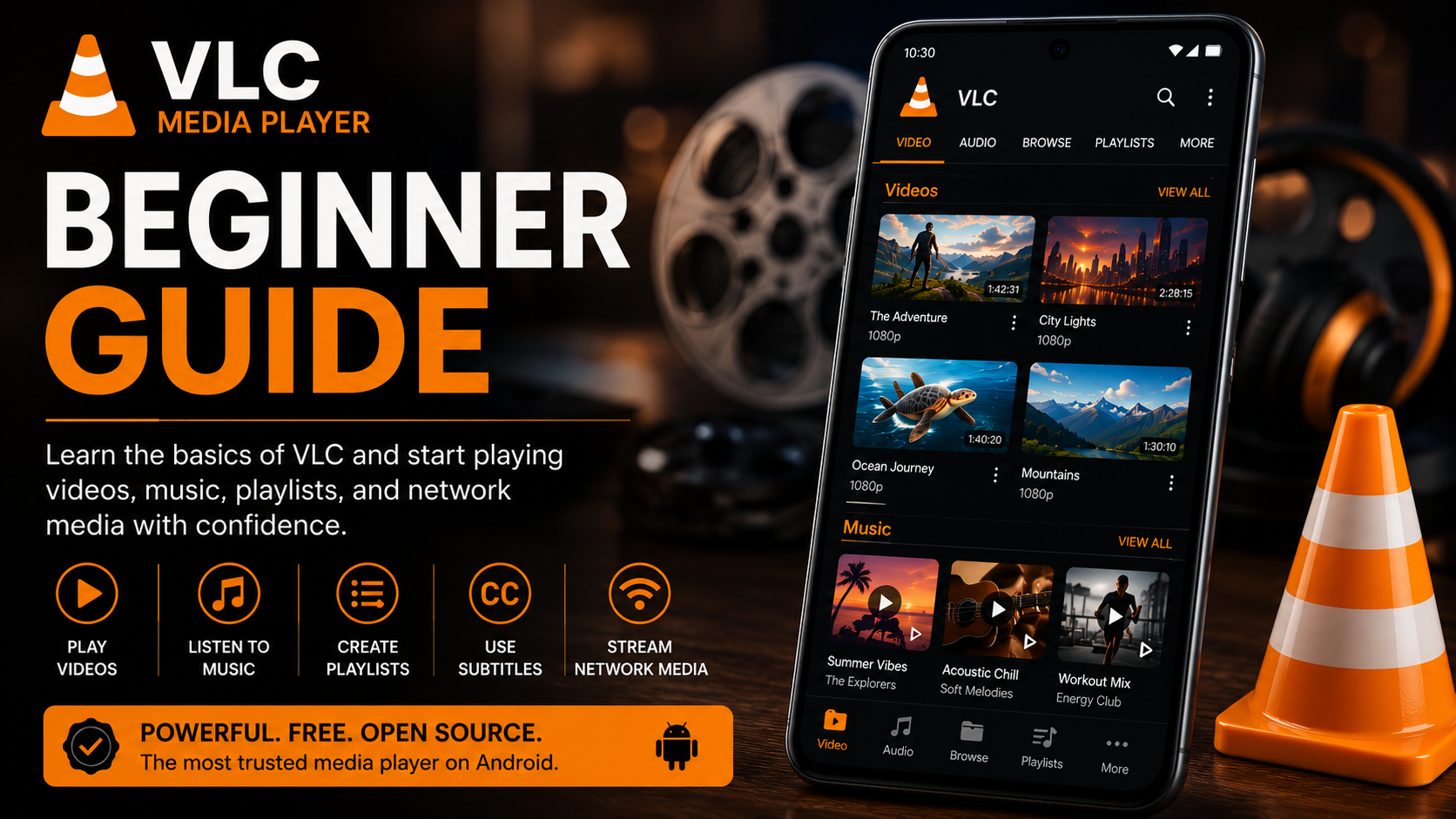
VLC Media Player Home Screen Overview
When you open VLC Media Player, you'll notice a clean interface divided into several main sections.
The Video tab displays all videos detected on your device.
The Audio tab organizes songs, albums, artists, and playlists.
The Browse tab allows you to manually navigate folders, SD cards, downloads, and network locations.
The Playlists section stores your custom collections.
The More menu provides access to settings and additional features.
Understanding these five sections makes navigating VLC much easier.
VLC Media Player Beginner Guide
Step 1: Open VLC media player.
Launch VLC Media Player from your Android phone.
Once opened, the application automatically displays your available media and the primary navigation tabs.
Take a moment to familiarize yourself with the interface before exploring individual features.
Step 2: Explore the Home Screen
The home screen serves as the central hub for all your media.
Across the top or bottom navigation bar, you'll find sections including Video, Audio, Browse, Playlists, and More.
Each section is designed for a specific purpose, making it easy to locate videos, songs, folders, and settings.
Step 3: Browse Your Videos
Open the Video tab.
Here you'll find every video VLC has detected on your device.
Videos are displayed with thumbnails, file names, and duration, allowing you to quickly identify what you want to watch.
Simply tap any video to begin playback instantly.
Step 4: Browse Your Music
Switch to the Audio tab. Instead of displaying raw files, VLC organizes your music by songs, albums, artists, genres, and playlists. This organized layout makes large music collections much easier to browse. Tap any song to begin listening.
Step 5: Use the Browse Tab
Sometimes your media isn't automatically displayed in the library.
In these situations, open the Browse tab.
From here you can manually access the following:
Internal Storage
SD Card
Downloads
Movies Folder
Music Folder
USB Storage (supported devices)
Network Locations
The Browse tab gives you complete control over your files.
Step 6: Search for Media
Instead of scrolling through hundreds of files, use the Search icon. Simply type the name of a movie, TV show, song, or folder. VLC instantly filters the results, making large media collections much easier to manage.
Step 7: Create a Playlist
If you regularly watch the same videos or listen to favorite songs, playlists help keep everything organized. Select your preferred media files and add them to a playlist. You can create multiple playlists for movies, music, workouts, travel, education, or any category you prefer. Playlists save time and improve media organization.
Step 8: Open the more menu
The More section contains additional features and customization options.
Here you'll find:
Settings
Equalizer
Media Library Management
Playback Preferences
Application Information
Privacy Options
Network Settings
Spend a few minutes exploring this section to discover VLC's advanced capabilities.
Helpful Tips for New VLC Users
As you become more familiar with VLC, you'll notice several features that make everyday media playback easier. Gesture controls allow you to adjust brightness, volume, and playback position directly on the screen while watching videos. Playback automatically resumes where you previously stopped, making it convenient to continue watching longer movies. Subtitle support lets you load external subtitle files for international content. Network browsing allows you to stream videos from computers, NAS devices, and media servers without transferring files to your phone. These beginner-friendly features help VLC stand out from many standard media players.
Beginner-Friendly VLC Features
| Feature | Description |
|---|---|
| Supports Almost Every Format | No extra codec downloads required |
| Automatic Media Library | Organizes videos and music automatically |
| Subtitle Support | Watch movies with external subtitles |
| Playlist Management | Keep favorite media organized |
| Search Function | Quickly locate videos and songs |
| Network Streaming | Play media directly from shared folders |
| Gesture Controls | Adjust volume, brightness, and seek easily |
| Hardware Acceleration | Smooth HD and 4K playback |
| Completely Free | No subscriptions or hidden costs |
Common Beginner Mistakes to Avoid
Many first-time users accidentally deny storage permissions during installation. Without storage access, VLC cannot detect local videos and music.
Another common mistake is downloading unofficial versions of VLC from third-party websites. Always install the official application from the Google Play Store to ensure security, updates, and full functionality.
Some users also overlook the Browse tab, assuming missing files cannot be accessed. In reality, the Browse section provides direct access to folders that may not appear immediately in the media library.
Exploring the Settings menu is also worthwhile, as many useful features such as playback resume, subtitle customization, and gesture controls can be enabled or adjusted there.
Why Beginners Love VLC
One reason VLC remains so popular is its simplicity.
Unlike many media players, VLC doesn't overwhelm new users with complicated menus while still offering advanced features for experienced users.
Everything is organized logically, making it easy to learn.
Its compatibility with nearly every multimedia format also removes the frustration of unsupported files.
Whether you're watching downloaded movies, listening to music, streaming from your local network, or organizing your media library, VLC provides a smooth experience without advertisements or unnecessary distractions.
As you continue using VLC, you'll gradually discover even more features that make it one of the most versatile media players available for Android.
Final Thoughts
VLC Media Player is much more than a basic video player. It combines powerful playback capabilities, excellent file compatibility, intuitive navigation, and advanced customization into one lightweight application that's easy for beginners to learn.
By following the steps in this beginner guide, you've learned how to navigate the interface, browse your videos and music, search for media, create playlists, and access VLC's most useful settings. These essential skills will help you get comfortable with the app and make everyday media playback more enjoyable.
As you continue exploring VLC, you'll discover even more features such as subtitle synchronization, network streaming, gesture controls, playback speed adjustments, and advanced audio settings that make it one of the best media players available for Android users.
Frequently Asked Questions (FAQs)
1) Is VLC Media Player good for beginners?
Yes. VLC has a clean and intuitive interface that makes it easy for first-time users while still offering advanced features for experienced users.
2) Does VLC support all video formats?
VLC supports almost every popular video and audio format, including MP4, MKV, AVI, MOV, FLV, MP3, AAC, FLAC, WAV, and many more.
3) Can I create playlists in VLC?
Yes. VLC allows you to create and manage custom playlists for both videos and music.
4) Does VLC require an internet connection?
No. VLC works perfectly offline for local media playback. An internet connection is only needed for downloading the app, streaming online content, or accessing network media.
5) Can VLC play subtitles?
Yes. You can load external subtitle files or use built-in subtitle options when available.
6) Is VLC Media Player free?
Yes. VLC Media Player is completely free, open source, and does not require any subscription or license fee.
Continue Learning with Player SDK
Ready to get even more out of VLC Media Player? Player SDK is your trusted destination for the best Media Player installation guides, setup tutorials, beginner guides, feature walkthroughs, supported device guides, troubleshooting articles, and the latest streaming resources—all in one place.
Whether you're using VLC on Android, Android TV, Fire TV, Windows, macOS, or other supported devices, you'll find step-by-step tutorials and expert tips to help you make the most of your media player.
