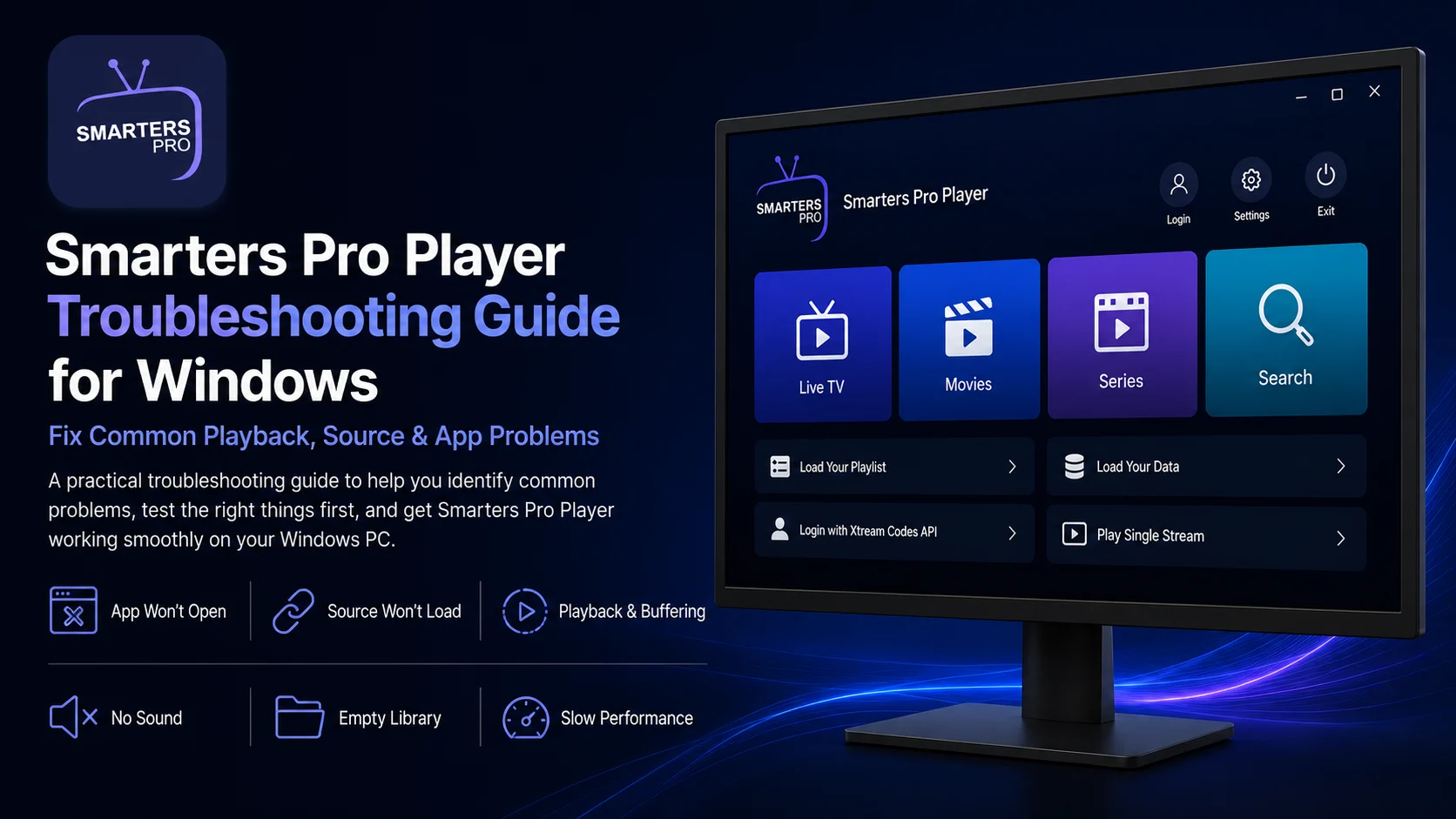
Using Smarters Pro Player on a Windows PC or laptop is usually straightforward once the application and your compatible media source are configured correctly. However, problems can occasionally appear during everyday use, including a source that refuses to load, buffering, failed playback, missing media, audio problems, slow performance, or an application that will not open.
The most effective way to troubleshoot Smarters Pro Player is to understand that several components are involved. The Windows application provides the player environment, your connected source supplies the available media, your network transfers that media, and Windows controls system-level functions such as audio output, storage, and display behavior.
Current official Smarters products are positioned as standalone media players for user-managed media and support standard playlist formats such as M3U and JSON. Smarters explicitly states that it does not provide, host, sell, or promote channels or streaming services.
This complete Smarters Pro Player Troubleshooting Guide for Windows explains how to identify common problems without unnecessarily deleting a working source or reinstalling the application.
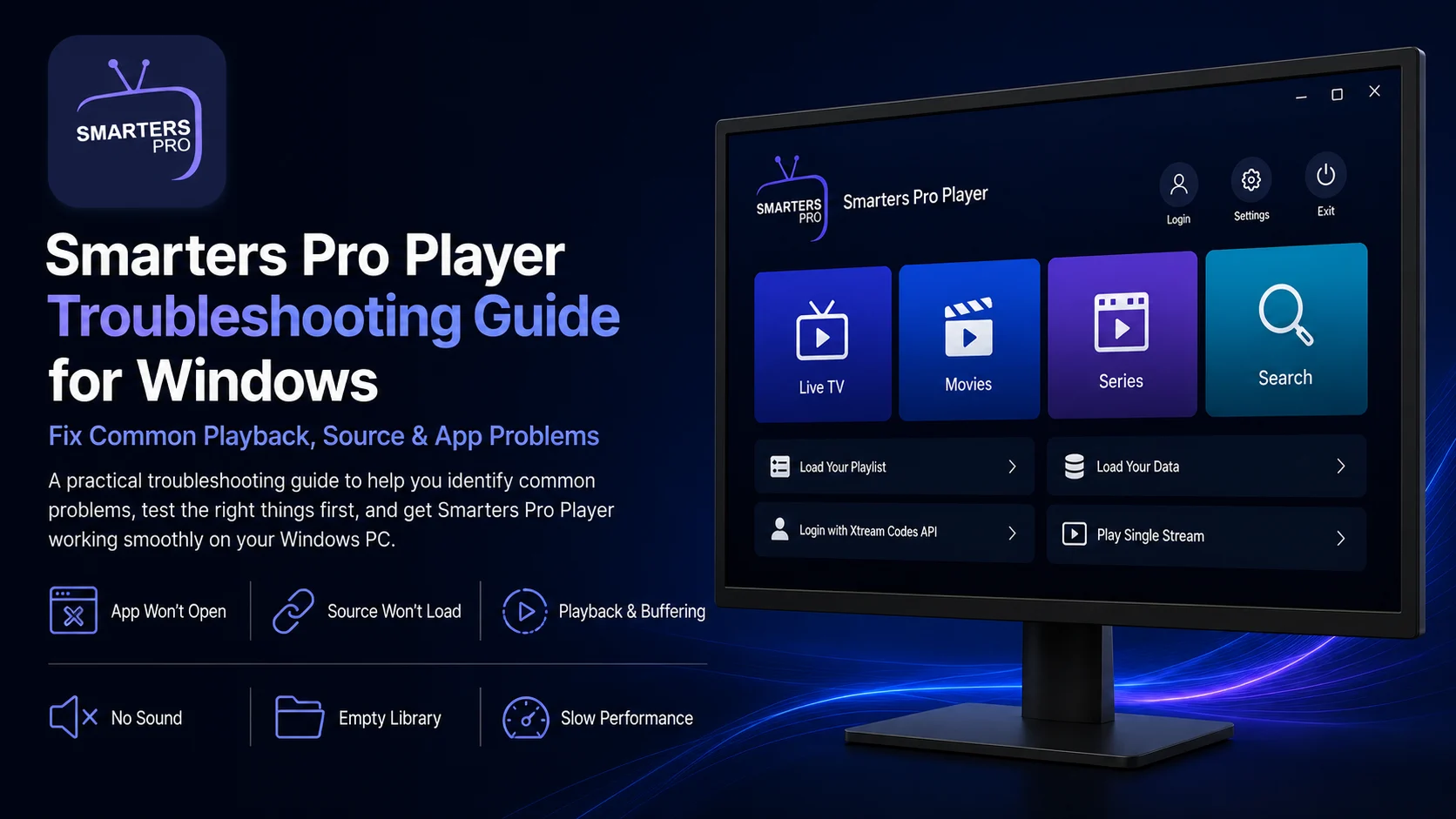
Why Smarters Pro Player Troubleshooting Should Be Systematic
A single failed stream does not automatically mean the Windows application is broken.
Imagine that Smarters Pro Player opens normally, your complete library appears, and several media items work while one refuses to play. In that situation, the failed media item is a more logical place to investigate than the complete installation.
Similarly, if the application opens but your source never loads, playback settings are unlikely to be the first thing you should change.
Good troubleshooting means identifying whether the problem is related to the Windows app, connected source, individual media item, network, or Windows itself.
Following the same testing sequence each time saves time and protects a configuration that may already be functioning correctly.
Common Smarters Pro Player Windows Problems
| Problerm | Best First Check |
|---|---|
| App will not open | Restart the app and Windows |
| Source will not load | App will not open Restart the app and Windows Source will not load Verify connection or playlist details One stream fails Test several other media items Everything buffers Check the Windows internet connection No sound Check Windows audio output Library is empty Confirm the correct source is connected App feels slow Allow loading to finish and restart Video will not play Test another item and source Program information is missing Check source-provided guide data |
| One stream fails | Test several other media items |
| Everything buffers | Check the Windows internet connection |
| No sound | Check Windows audio output |
| Library is empty | Confirm the correct source is connected |
| App feels slow | Allow loading to finish and restart |
| Video will not play | Test another item and source |
| Program information is missing | Check source-provided guide data |
Problem 1: Smarters Pro Player Will Not Open
If Smarters Pro Player refuses to launch on Windows, start with the simplest fix.
Close the application completely and try opening it again from the Windows Start menu.
If it still does not open, restart your PC.
A restart can clear temporary Windows processes that may be interfering with the application.
If you recently updated or reinstalled the program, make sure the installation completed correctly.
You should also check whether Windows security has blocked or quarantined part of the application.
Do not disable Microsoft Defender simply to force the application to run. Instead, verify that your installation came from the intended trusted Smarters source before investigating any security warning.
Problem 2: Your Playlist or Source Will Not Load
If Smarters Pro Player opens correctly but your media source does not load, review the information you entered.
For a playlist-based source, check the complete URL.
Current official Smarters products support M3U, JSON, and other standard playlist formats, although the exact connection methods and labels available in the Windows version can vary by build.
A missing character, incomplete URL, or accidental space can prevent a valid source from connecting.
If your Windows version uses an account or API-style login, carefully verify the server information, username, password, and other required fields.
Do not reinstall the application before confirming that the connection details are correct.
Problem 3: The Library Loads but One Stream Does Not Play
This is one of the easiest situations to diagnose.
Test several other media items.
If they play normally, your player, source connection, and network are probably still working.
The original stream may simply be unavailable.
Individual media items can fail independently, so deleting your complete source because one item stops working usually creates more work without solving the actual problem.
Wait and test that media again later if necessary.
Problem 4: Nothing in the Library Plays
If the media library appears but every stream fails, expand your testing.
Start with your internet connection.
Open a browser and verify that your Windows PC can reach other internet-based services.
Then test multiple media categories if your source provides them.
If everything fails simultaneously, restart Smarters Pro Player.
If you have more than one authorized source configured and your build supports switching between them, try another known-working source.
A second working source is useful evidence that the Windows player itself is functioning.
Problem 5: Smarters Pro Player Keeps Buffering
Buffering is often blamed on the player, but network or source conditions can be equally important.
Test several different media items.
If every stream buffers, check the Windows network connection.
If you use Wi-Fi, look at signal strength and consider whether other devices on the same network are performing large downloads, cloud backups, gaming, or high-quality streaming.
For a desktop PC, Ethernet can provide a more consistent connection when available.
If only one stream buffers while several others work smoothly, the individual media source may be responsible.
Avoid changing multiple player settings until you have completed these checks.
Problem 6: Video Plays but There Is No Sound
Windows audio routing is one of the first things to check when video works but sound does not.
Click the speaker icon in the Windows taskbar.
Make sure the system is not muted and confirm that the correct output device is selected.
Windows may be sending sound to Bluetooth headphones, an HDMI monitor, USB speakers, or another connected device.
Next, test another media item.
If other media has normal sound, the issue may involve the individual stream rather than Windows or Smarters Pro Player.
Restarting the current playback can also resolve temporary audio problems.
Problem 7: Smarters Pro Player Shows an Empty Library
An empty player does not necessarily mean the program is broken.
Current official Smarters products are standalone media players and require users to add and manage their own media rather than providing built-in channels or streaming services.
First check whether the correct source or profile is active.
If you recently removed or changed a playlist, make sure the expected source has actually been added.
Then verify its connection details and allow enough time for the library to populate.
Repeatedly reinstalling the Windows application will not populate an inactive or incorrectly configured source.
Problem 8: Movies or On-Demand Media Will Not Play
Smarters products support live streaming and video-on-demand playback as part of their broader media-player capabilities.
If one movie or on-demand title fails, test another.
If several other titles work, the problem is probably isolated to the failed item.
If all on-demand media fails while Live TV continues working, you have learned something useful: the player can still play media, but one part of the connected library may be experiencing a problem.
Do not reset the entire application until you have compared several different media items.
Problem 9: Series Episodes Are Missing or Failing
If your connected source provides series, individual episodes can behave differently.
First confirm that the series title itself loads.
Then test more than one episode.
If Season 1 Episode 1 fails while several other episodes work normally, the entire source does not need to be removed.
Missing seasons, incorrect episode numbering, or unavailable episodes can originate from the information supplied by the connected source.
The player can only display compatible information that it receives.
Problem 10: Program Guide Information Is Missing
Some Windows configurations may display guide or program information when compatible data is supplied through the connected source.
If video playback works but guide information does not appear, treat those as separate issues.
A working stream does not guarantee that program information is available.
Give the guide time to load and check multiple channels.
If the issue affects only certain entries, the source may not provide complete information for those items.
Do not change video playback settings simply because program data is missing.
Problem 11: Smarters Pro Player Feels Slow
If the application feels sluggish, first determine whether it is actually frozen or still processing a large media library.
Sources containing substantial amounts of media can require more time to load.
Allow the process to finish.
If the app remains slow afterward, close it and reopen it.
Restart Windows if necessary.
Also check available storage and system resource usage.
A PC with extremely low free storage or many heavy applications running simultaneously can feel slower in general.
Close unnecessary background programs and test Smarters Pro Player again.
Problem 12: Full-Screen Playback Is Not Working Correctly
If playback works but full-screen mode behaves strangely, the playlist is probably not the first place to troubleshoot.
Exit full screen and reopen it.
If you use multiple monitors, move Smarters Pro Player to your preferred display before entering full-screen mode.
Windows display scaling or resolution settings can also affect how applications appear.
If the stream itself remains stable, keep the media source unchanged while investigating the Windows display environment.
This prevents an unrelated screen problem from turning into an unnecessary source configuration problem.
Problem 13: Playback Problems Started After Switching Networks
Moving a laptop between different Wi-Fi networks can affect active streaming.
If playback stops after the network changes, allow Windows to fully establish the new connection.
Then restart the affected media item.
If the source itself needs a network connection to load information, you may also need to wait briefly for the library to reconnect.
For longer sessions, avoid frequently switching networks when possible.
A stable connection provides a much easier environment for both streaming and troubleshooting.
Problem 14: One Source Works but Another Does Not
If your Windows build allows multiple profiles or sources, this situation provides valuable diagnostic information.
Suppose Source A does not load, while Source B works normally.
That tells you the application can still open, Windows has connectivity, and Smarters Pro Player can successfully communicate with another source.
Focus your attention on Source A.
Review its playlist URL or account information and verify that the external source remains available.
Do not modify Source B just because another configuration is failing.
Problem 15: Problems Started After a Windows Update
Windows updates can occasionally change device drivers, network behavior, display settings, or audio routing.
If Smarters Pro Player behaves differently immediately after a system update, restart the PC first.
Check whether your internet connection and audio output still work normally.
Then launch Smarters Pro Player and test several familiar media items.
Do not immediately delete your source.
If the library still loads, your basic configuration may remain intact even though another part of the Windows environment has changed.
When Should You Reinstall Smarters Pro Player?
Reinstallation should normally be a later troubleshooting step.
Consider reinstalling when the application itself repeatedly refuses to launch, crashes before reaching its interface, or remains unusable after restarting both the player and Windows.
Before uninstalling, securely save any legitimate connection information you will need to configure again.
Reinstallation cannot fix an inactive external source, incorrect login credentials, one failed stream, incomplete program information, or a weak internet connection.
Use it only when the Windows application itself appears to be the most likely cause.
Best Practices to Prevent Smarters Pro Player Problems
Keep your Windows installation and source configuration simple.
Use a stable connection, keep reasonable free storage available, and avoid changing multiple player settings simultaneously.
Protect playlist URLs, usernames, passwords, and other source information from being exposed in screenshots or public discussions.
When a media item fails, test several others first.
When an entire library fails, verify the source.
When everything buffers, check the network.
Current official Smarters products emphasize user-managed, legally acquired media, so maintaining accurate and secure source information is an important part of using the player responsibly.
Common Troubleshooting Mistakes
The biggest mistake is treating every playback failure as an application problem.
Users may reinstall Smarters Pro Player because one stream is unavailable, delete a correctly configured playlist because of temporary buffering, or change player settings when Windows is sending audio to the wrong device.
Another mistake is changing several things simultaneously.
Use a simple sequence instead: check the app, check the library, test several media items, check the network, and then investigate Windows settings.
That process makes the real cause much easier to identify.
Why Understanding Smarters Pro Player Troubleshooting Matters
A working Windows media setup depends on more than one component.
The player handles playback, the source provides the library, your network transfers media, and Windows controls the computer environment.
Once you understand those separate roles, troubleshooting becomes much more predictable.
You can solve a Windows audio problem without touching the source, investigate a failed stream without reinstalling the application, and recognize when a buffering problem is more likely network-related.
That protects your working configuration and saves time.
What's Next?
Now that you know how to diagnose common Smarters Pro Player Windows problems, the next step is improving your everyday workflow.
Continue with the:
Smarters Pro Player Tips & Tricks Guide for Windows
The next guide will focus on practical ways to improve navigation, organize your source, use Windows playback more efficiently, manage longer viewing sessions, and get more from the player without unnecessarily changing a stable configuration.
Final Thoughts
Troubleshooting Smarters Pro Player on Windows becomes much easier when you work methodically.
If the application will not open, investigate the Windows app. If the library will not load, check your source information. If one media item fails, test several others. If everything buffers, inspect the network. If the video works without audio, check Windows sound output.
Most importantly, remember that current official Smarters products are standalone players for user-managed media rather than providers of built-in channels or streaming services.
Start with the smallest reasonable fix and preserve a configuration that already works.
That approach keeps Smarters Pro Player easier to maintain and gets you back to normal Windows viewing much faster.
Frequently Asked Questions (FAQs)
1) Why is my source not loading in Smarters Pro Player on Windows?
Check the complete playlist or account information for mistakes, confirm your Windows PC has internet access, and verify that the external source remains available.
2) Why does Smarters Pro Player keep buffering?
Test several different media items. If everything buffers, check your Wi-Fi or Ethernet connection. If only one stream is affected, the individual media source may be responsible.
3) Why does video play without sound?
Check the Windows volume and make sure the correct audio device is selected. Sound may be routed to Bluetooth headphones, HDMI, a monitor, or another output.
4) Why is Smarters Pro Player showing an empty library?
Confirm that your correct source is connected and active. Smarters is a standalone media player and does not automatically provide a media library.
5) Should I reinstall Smarters Pro Player when one stream fails?
Usually not. Test several other media items first. If they work, your Windows application and overall source connection are likely still functioning.
6) Why is the Windows application running slowly?
Allow large libraries to finish loading, restart the application, check available Windows storage, and close unnecessary background programs before considering reinstallation.
7) What should I read after this troubleshooting guide?
Continue with the Smarters Pro Player Tips & Tricks Guide for Windows to learn practical ways to improve navigation, source organization, Windows playback, and everyday media viewing.
Continue Learning with Player SDK
Continue your Smarters Pro Player journey with Player SDK, your resource for installation guides, setup guides, beginner guides, troubleshooting, tips & tricks, hidden features, and device-specific media player tutorials.
Now that you know how to diagnose common Windows problems, continue with the Smarters Pro Player Tips & Tricks Guide for Windows to improve your everyday workflow, manage the player more efficiently, and get more from your Windows viewing experience.
