Once Smarters Pro Player is installed and configured on your Windows PC or laptop, a few practical habits can make everyday viewing faster, cleaner, and easier to manage.
The current Smarters ecosystem describes Smarters Pro as a cross-platform media player that supports M3U, JSON, and other standard playlist formats, personally owned media from local and remote sources, live streaming, video-on-demand, audio playback, high-quality playback, and personalized settings. Windows is also listed among its supported platforms.
However, getting the best experience does not mean changing every setting as soon as you open the application. A better approach is to keep a working configuration stable while improving how you organize sources, use Windows display and audio controls, manage large libraries, test streams, and maintain your network.
It is also important to remember that Smarters is a standalone player. Current official listings state that the application does not provide, host, sell, or promote media content, TV channels, or streaming services. Users add and manage their own legally acquired media.
This complete Smarters Pro Player Tips & Tricks Guide for Windows focuses on practical ways to improve everyday navigation, playback, source management, Windows performance, and troubleshooting without making your setup unnecessarily complicated.
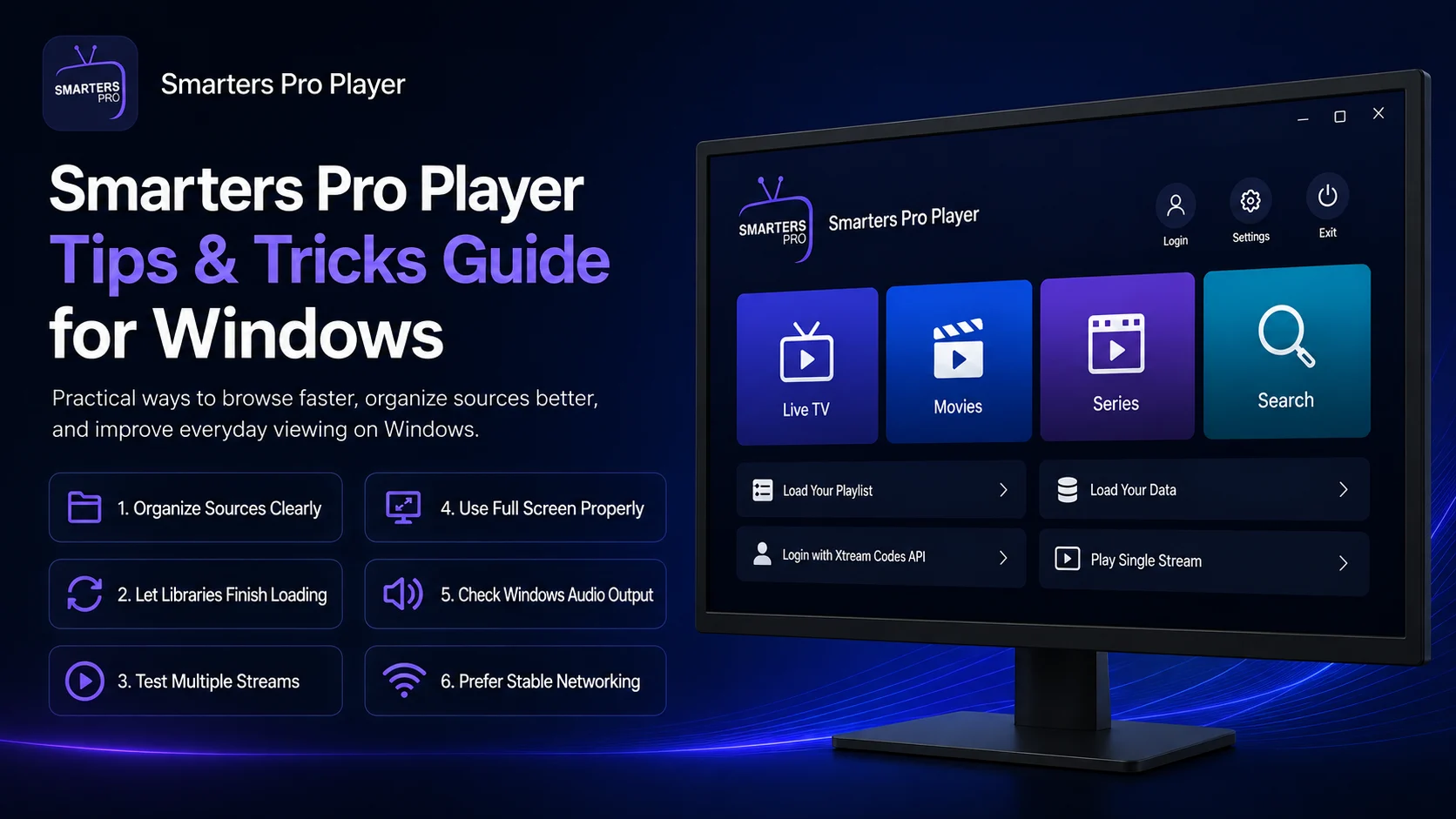
Why Use Smarters Pro Player Tips & Tricks?
A Windows media setup can become complicated when your source contains a large amount of live TV, movies, series, video-on-demand, or other media.
Instead of repeatedly navigating through everything manually, you can improve the experience by keeping sources organized, using a stable network, taking advantage of the larger Windows display, managing audio output correctly, and developing a simple testing routine.
Good usage habits also prevent unnecessary troubleshooting.
If one stream fails, for example, testing several others before changing your entire source can quickly tell you whether the issue is isolated or affects the complete setup.
The objective is simple: spend less time fixing or organizing the player and more time using it.
Quick Smarters Pro Player Windows Tips
| Tip | Main Benifit |
|---|---|
| Organize Sources Clearly | Makes profiles easier to identify |
| Let Libraries Finish Loading | Prevents unnecessary restarts |
| Test Multiple Streams | Helps identify isolated media problems |
| Use Full Screen Properly | Improves desktop viewing |
| Check Windows Audio Output | Prevents sound-routing confusion |
| Prefer Stable Networking | Reduces buffering and interruptions |
| Keep Credentials Private | Protects source information |
| Maintain a Stable Baseline | Makes future troubleshooting easier |
Tip 1: Let the Library Finish Loading Before Browsing
One of the easiest ways to create unnecessary frustration is to start opening sections while a large library is still being processed.
If your connected source contains substantial amounts of live TV, movies, series, or other media information, give Smarters Pro Player enough time to populate the interface.
Repeatedly closing and reopening the application can interrupt your own workflow and make a normal loading period seem like a player problem.
Wait until the main areas appear properly, then begin browsing.
This is especially helpful immediately after adding or refreshing a large source.
Tip 2: Give Every Source a Clear Name
If your Windows build allows more than one playlist, account, or profile, use descriptive names.
Avoid generic labels such as “User 1,” “Playlist 2,” or “New Source” when you can use something that immediately tells you which source you are opening.
Clear naming becomes particularly useful later when troubleshooting.
If one source stops loading while another continues working normally, you can identify the affected configuration instantly.
This simple organizational habit saves time and reduces the chance of accidentally editing or removing the wrong profile.
Tip 3: Keep One Known-Working Source as Your Baseline
Even if you eventually use multiple authorized sources, keep one configuration that you know works reliably.
A stable source gives you a comparison point.
If another configuration suddenly stops working, switch back to the reliable source and test it.
If the known-working source still loads and plays correctly, your Windows application and network may still be functioning normally.
This is far more useful than immediately reinstalling Smarters Pro Player whenever one source experiences a problem.
Tip 4: Test Several Media Items Before Changing Anything
When one channel, movie, episode, or other stream stops working, test a few more items first.
If several alternatives work normally, the original item may simply be unavailable.
Do not delete an entire playlist because of one failed stream.
This testing habit applies across live TV, movies, series, and other source-provided media.
The more consistently you use this approach, the easier it becomes to separate individual media problems from player-wide issues.
Tip 5: Use the Windows Full-Screen Experience Properly
A desktop or laptop screen is one of the main advantages of using Smarters Pro Player on Windows.
Once playback is working correctly, use the available full-screen mode for a cleaner viewing experience.
If you use multiple monitors, move Smarters Pro Player onto the screen you want before entering full-screen mode.
This can prevent confusion about where the video appears.
If full-screen behavior is unusual but the stream itself continues to play, investigate Windows display behavior before changing the playlist or source configuration.
Tip 6: Check Display Scaling if the Interface Looks Wrong
Windows display scaling can affect how applications appear, particularly on high-resolution laptops and monitors.
If text, buttons, or the player window seem unusually large or small, review your Windows display settings.
Do not immediately assume Smarters Pro Player has a broken interface.
Scaling behavior can vary depending on your monitor resolution and Windows configuration.
If the player remains functional, adjust Windows display settings carefully and test again.
A display problem and a media-source problem are completely separate issues.
Tip 7: Check Windows Audio Output Before Player Settings
If video works but there is no sound, your first check should usually be Windows rather than your media source.
Open the Windows sound controls and confirm the correct output device.
Sound can easily be routed to Bluetooth headphones, an HDMI-connected display, USB speakers, or another device that is not currently obvious.
Then test another media item.
If audio works elsewhere, the original stream may have an isolated audio problem.
Checking Windows first can save you from unnecessarily changing the complete player configuration.
Tip 8: Use a Stable Network for Longer Viewing Sessions
Streaming relies on continuous data delivery.
For a desktop PC, Ethernet can provide a particularly stable connection when it is available. Wi-Fi can also work well, but signal strength and network congestion matter.
If several streams begin buffering, test your internet connection before changing Smarters Pro Player settings.
Other devices on the same network may be performing large downloads, cloud backups, gaming, or high-quality streaming.
If only one item buffers while everything else works smoothly, the individual media source may be the more likely cause.
Tip 9: Avoid Network Switching During Playback
Laptop users may sometimes move between Wi-Fi networks during an active session.
Doing this while media is playing can interrupt the connection.
If you switch networks, allow Windows to fully connect to the new network before restarting playback.
For longer sessions, use one reliable network whenever possible.
A stable network makes it much easier to determine whether a playback issue is coming from the player, source, or connection.
Tip 10: Use Local and Remote Media Appropriately
Current official Smarters listings describe support for personally owned media from both local storage and remote sources.
These two workflows behave differently.
Local files depend primarily on Windows storage, file accessibility, and the media itself. Remote media additionally depends on your network and the external source remaining available.
Recognizing this distinction can speed up troubleshooting.
If a local file plays correctly while remote content fails, your player may still be functioning normally and the network or remote source deserves more attention.
Tip 11: Keep Enough Free Storage on Windows
Even if most of your viewing is streamed rather than downloaded, Windows still benefits from reasonable free storage.
The operating system uses disk space for temporary files, updates, application caches, and general system activity.
A nearly full system drive can make the complete PC feel slower.
Periodically remove unnecessary downloads, outdated installers, temporary files, and other items you no longer need.
You do not need huge amounts of free space specifically for Smarters Pro Player, but keeping Windows healthy benefits every application.
Tip 12: Close Heavy Background Applications
If playback becomes less responsive while several demanding applications are running, close programs you do not currently need.
Video editing software, large browser sessions, games, virtual machines, and other resource-heavy applications can consume memory and processing capacity.
This is particularly relevant on older or lower-powered PCs.
Test Smarters Pro Player again after reducing unnecessary background activity.
If the player becomes smoother, the issue may have been general system load rather than the media source.
Tip 13: Do Not Change Every Playback Setting
Current official Smarters products advertise a personalized experience with customizable settings, but customization works best when you start from a configuration that already functions correctly.
Change one setting at a time.
Then test a familiar media item.
If the change improves your experience, keep it. If playback becomes worse, reverse it.
Making several changes simultaneously creates confusion because you no longer know which adjustment caused the difference.
A working default configuration is valuable.
Tip 14: Restart Before Reinstalling
If Smarters Pro Player suddenly feels slow, freezes, or behaves differently, close the application and reopen it.
If that does not help, restart Windows.
Temporary software or system issues can often be resolved without reinstalling anything.
Reinstallation should come later, after checking the application, source, network, Windows environment, and available updates.
Remember that reinstalling the player cannot fix an unavailable external stream or incorrect source credentials.
Tip 15: Protect Playlist and Account Information
Playlist URLs, usernames, passwords, server details, and similar information should be treated as private credentials.
Do not post screenshots showing them publicly.
If you need assistance, crop or hide sensitive areas first.
Some playlist URLs can contain account information directly inside the address, so even a seemingly harmless screenshot can expose access details.
Current official Smarters descriptions emphasize that users manage their own media and sources, making secure source management an important part of the overall experience.
Tip 16: Keep the Player and Windows Updated
Software compatibility can change over time.
Keep Windows reasonably current and use trusted official Smarters distribution sources when updating or reinstalling the player.
After a Windows update, test your usual media before changing any Smarters settings.
If sound, display, or networking behaves differently after a system update, investigate the relevant Windows control first.
Avoid rebuilding your source simply because the computer environment changed.
Tip 17: Use a Simple Three-Step Test When Something Fails
A simple routine can make troubleshooting much faster.
First, confirm that Smarters Pro Player opens.
Second, confirm that the connected library loads.
Third, test several different media items.
If the app will not open, focus on Windows or the installation. If the app opens but the library does not load, investigate the source and network. If the library loads but one stream fails, investigate that media item.
This habit is much more efficient than randomly changing settings.
Tip 18: Remember What Smarters Actually Controls
Current official Smarters listings describe the product as a standalone media player that supports user-managed local and remote media, standard playlist formats, live streaming, VOD, audio playback, and personalized settings. It does not provide the channels or streaming services itself.
That means many things visible inside the player can depend on your connected source.
Media availability, category names, titles, and other library information can differ between sources.
Understanding that separation prevents you from blaming the Windows player for every missing or unavailable item.
Best Practices for Everyday Windows Use
Keep your configuration organized and predictable.
Use clear names for sources, maintain one known-working configuration, and allow large libraries enough time to load.
Use Windows full-screen, display, audio, and networking controls appropriately rather than assuming every issue belongs inside Smarters Pro Player.
Protect your source credentials and only use media that you are authorized to access.
Most importantly, preserve a configuration that already works instead of constantly changing settings.
Common Smarters Pro Player Usage Mistakes
A frequent mistake is deleting a source because one stream stops working.
Another is changing multiple player settings when the actual problem comes from weak Wi-Fi or incorrect Windows audio output.
Users can also make troubleshooting harder by keeping several similarly named sources or by reinstalling the application before trying a simple restart.
The best Windows workflow is stable, organized, and easy to test.
Why These Tips Matter
Smarters Pro Player works best when the player, Windows environment, media source, and network are treated as separate components.
The current Smarters ecosystem supports a broad range of media workflows, including standard playlist formats, local and remote media, live streaming, VOD, audio playback, and cross-platform usage, including Windows.
Using simple Windows habits around organization, networking, audio, display settings, and troubleshooting can make everyday viewing significantly easier.
You do not need constant configuration changes to improve the experience.
Often, the smallest adjustment is the most useful one.
What’s Next?
Now that you know how to make Smarters Pro Player more efficient for everyday Windows use, continue with the:
Smarters Pro Player Hidden Features Guide for Windows
The next guide will explore additional capabilities and lesser-used areas of the Smarters experience without simply repeating the practical techniques covered here.
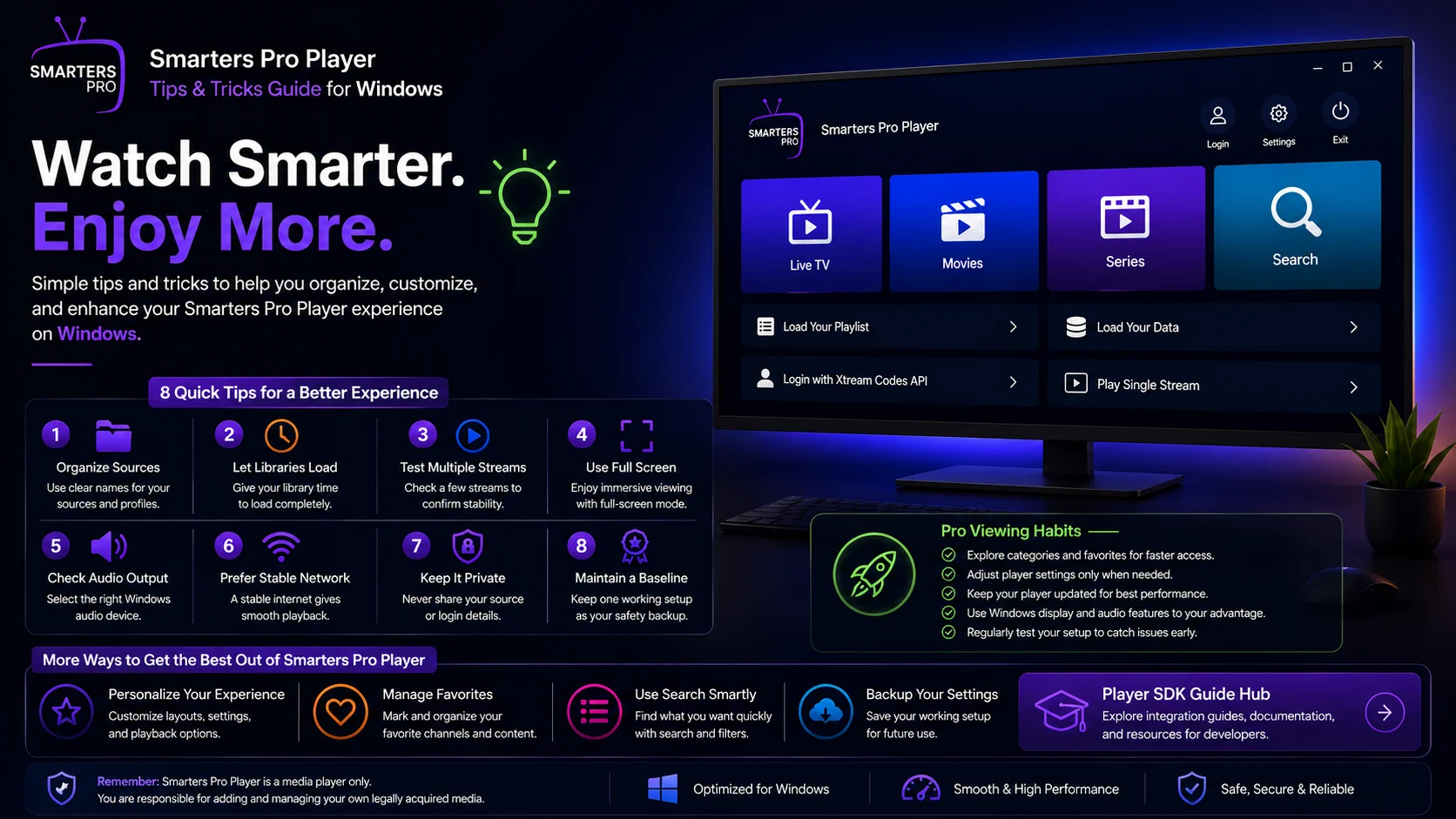
Final Thoughts
Getting more from Smarters Pro Player on Windows is mainly about maintaining a reliable workflow.
Allow your source to load fully, organize profiles clearly, test several media items whenever one fails, and use Windows audio and display controls correctly.
Prefer a stable network for longer sessions, keep enough free storage available, and avoid running unnecessary resource-heavy applications while viewing.
Most importantly, remember that Smarters is the media player rather than the content provider. Current official Smarters listings state that users add and manage their own legally acquired media.
Keep your working setup simple and secure, and make changes gradually.
That approach makes Smarters Pro Player easier to navigate, easier to troubleshoot, and more comfortable for everyday Windows viewing.
Frequently Asked Questions (FAQs)
1) How can I make Smarters Pro Player run better on Windows?
Keep Windows reasonably updated, maintain free storage, close unnecessary heavy background applications, use a stable network, and avoid changing multiple player settings at the same time.
2) How can I reduce buffering?
Test several streams and check your network. If every item buffers, investigate Wi-Fi or Ethernet performance. If one stream is affected while others work normally, the individual source item may be responsible.
3) Why does Smarters Pro Player have no sound?
Check the Windows volume and active audio output first. Sound may be routed to Bluetooth headphones, HDMI, a monitor, or another connected device.
4) Does Smarters support local media?
Current official Smarters listings state that the player supports personally owned media from local storage as well as remote sources.
5) What playlist formats does Smarters support?
Current official listings mention M3U, JSON, and other standard playlist formats. Available connection options in a particular Windows build can vary.
6) Should I reinstall the player when one stream stops working?
Usually not. Test several other media items first. If they work normally, your player and overall source configuration may still be functioning correctly.
7) Does Smarters provide its own channels or streaming services?
No. Current official Smarters listings describe it as a standalone media player. Users add and manage their own legally acquired media.
8) What should I read after this Tips & Tricks Guide?
Continue with the Smarters Pro Player Hidden Features Guide for Windows to explore more of the player’s capabilities and understand additional areas worth examining.
Continue Learning with Player SDK
Continue your Smarters Pro Player journey with Player SDK, your resource for installation guides, setup guides, beginner guides, troubleshooting, tips & tricks, hidden features, and device-specific media player tutorials.
Now that you have improved your everyday Windows workflow, continue with the Smarters Pro Player Hidden Features Guide for Windows to explore more capabilities and get even more from your desktop media-player experience.
