After installing Smarters Pro Player on your Windows PC or laptop, the next step is to configure the player with your own compatible media source. Installation only gives you the application; setup is what connects the player to the live TV, movies, series, video-on-demand, or other media available through your source.
The wider Smarters ecosystem currently positions its applications as standalone media players. Current official Smarters listings state that users add and manage their own legally acquired media and that Smarters does not provide, host, sell, or promote channels or streaming services. Current Smarters players also support common playlist formats such as M3U and JSON, although the exact connection options displayed can vary by platform and application version.
For the classic Smarters Pro Player Windows experience, users may encounter playlist-based setup as well as account/API-based login options. Because the Windows interface can differ between builds, follow the labels displayed by the version installed on your computer rather than expecting every screen to look identical to an older tutorial.
This complete Smarters Pro Player Setup Guide for Windows explains how to add your compatible source, load your media library, test playback, review the main sections, and create a stable configuration for everyday desktop viewing.
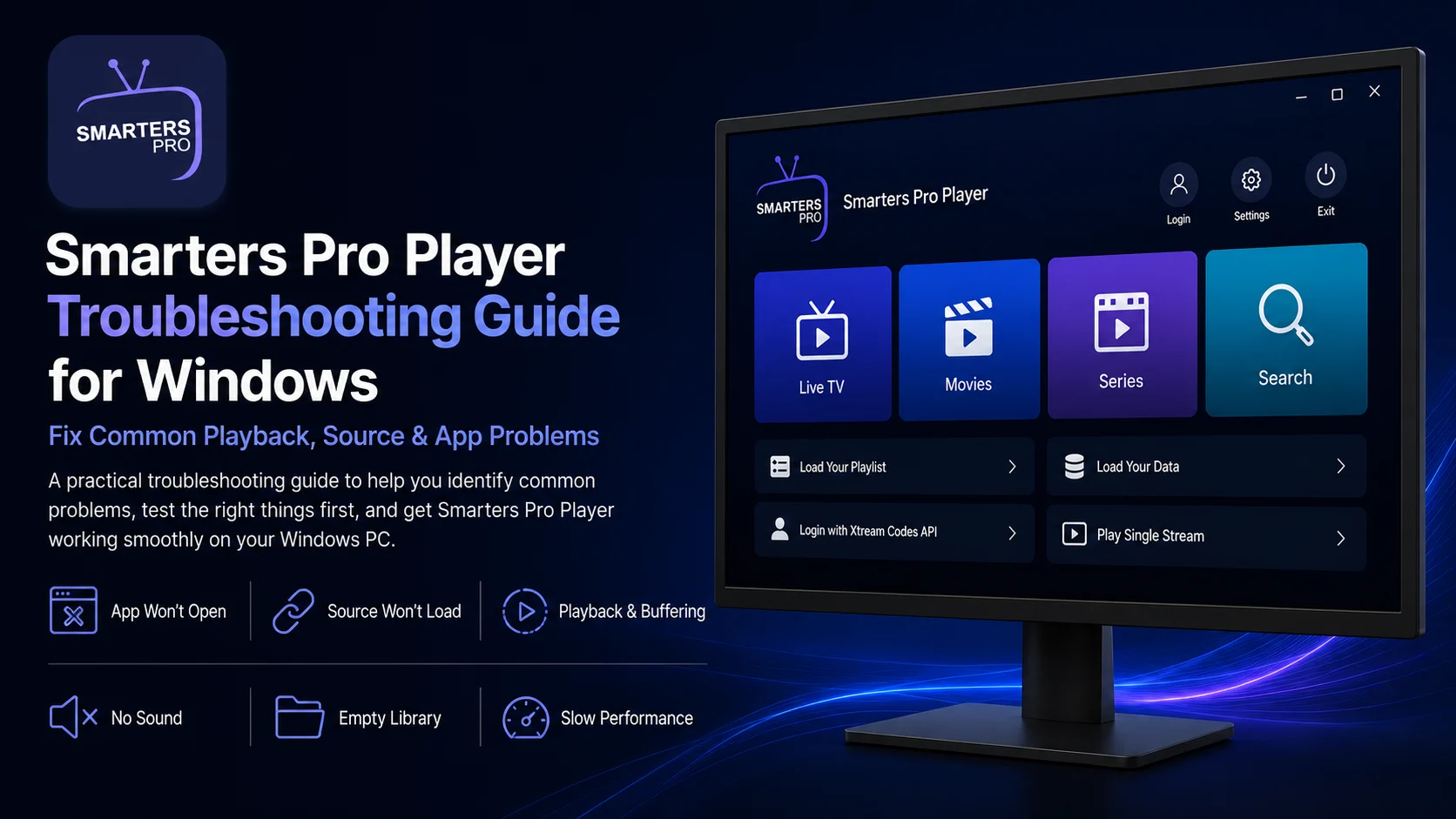
Why Proper Smarters Pro Player Setup Matters
A correct setup does more than make content appear.
It helps establish whether your Windows installation is working, whether your source details are valid, whether the library can load successfully, and whether your PC can play compatible streams correctly.
That gives you a valuable troubleshooting baseline.
If Smarters Pro Player opens normally, accepts your source, loads your media, and plays several different items before you change advanced settings, you know your core configuration works.
Later, if a problem develops, you can determine whether it is connected to the player, your source, your internet connection, or a setting that changed.
Smarters Pro Player Windows Setup Overview
| Setup | What you 'll DO |
|---|---|
| First Launch | Open Smarters Pro Player and review initial screens |
| Connection Method | Choose the source option available in your build |
| Source Details | Enter playlist URL or account/API information |
| Library Loading | Allow available media information to populate |
| Media Check | Review Live TV, Movies, Series, or other sections |
| Playback Test | Test several compatible streams |
| Windows Check | Verify audio, display, and network behavior |
| Stable Baseline | Keep defaults until basic playback works |
Before You Start
Make sure Smarters Pro Player is already installed and launches correctly on Windows.
You should also have the connection information supplied by the media service or source you are authorized to use.
Depending on your particular Smarters Pro Windows build, this may be an M3U playlist URL, a local playlist file, or account/API login information.
Keep the original details nearby rather than typing them from memory.
Connection URLs and account credentials can be sensitive, so do not post them publicly or expose them in screenshots.
Current official Smarters player descriptions continue to emphasize user-managed media rather than built-in content.
Step 1: Launch Smarters Pro Player on Windows
Open the Windows Start menu and launch Smarters Pro Player.
Allow the player a moment to initialize.
On first launch, your build may display terms, a disclaimer, or an onboarding screen before showing the available source options.
Read any notices before proceeding.
Do not be concerned if the player initially contains no channels or media. Smarters Pro Player is the interface; your library appears after you connect an appropriate source.
If the application reaches its setup screen normally, your Windows installation has already passed the first important check.
Step 2: Review the Available Connection Methods
Look carefully at the source or user setup options displayed by your Windows version.
Older and classic Smarters Pro builds commonly use wording around loading a playlist/file or signing in through an account/API-based connection. Newer Smarters products and different platforms may use different labels.
Choose the option that matches the information you actually received.
Do not select an account-based method when you only have a playlist URL, and do not convert working source details simply because another setup option appears more familiar.
Following the format provided by your authorized source is the safest approach.
Step 3: Set Up an Account/API-Based Source
If your Windows build provides an account or Xtream-style/API login option, open it.
The form may ask for a profile name plus information such as a username, password, and server or portal address.
Enter everything exactly as supplied.
A single missing character in the URL or an incorrect password can prevent the player from connecting.
If the application asks you to create a profile name, use something descriptive rather than a generic label.
This becomes helpful if you later add more than one source.
Before saving, review every field and remove accidental spaces copied before or after credentials.
Step 4: Set Up an M3U Playlist
If your source provides an M3U playlist URL, choose the playlist or URL-based connection option shown in Smarters Pro Player.
Enter a recognizable name for the playlist if requested.
Then paste the complete M3U URL.
Copying and pasting is usually better than manually typing a long address.
Check that the full URL has been inserted and that there are no unnecessary spaces.
Current official Smarters player listings confirm support for M3U and other standard playlist formats across the Smarters ecosystem, although exact Windows UI wording may differ by build.
Save the source and allow Smarters Pro Player to begin processing the information.
Step 5: Use a Local Playlist File If Your Build Supports It
Some Smarters Pro versions may also expose an option for loading media through a local playlist file.
If your Windows build provides this option and you already have a legitimate compatible playlist file stored on your computer, browse to that file and select it.
Current Smarters player descriptions explicitly mention playing personally owned media from both local storage and remote sources.
Do not download random playlist files simply to populate the application.
Use only files and media sources that you are authorized to access.
Step 6: Allow the Media Library to Load
After adding your source, give Smarters Pro Player time to retrieve and organize the available information.
The amount of time required can depend on your internet connection, source-server performance, and library size.
A source containing a large amount of live TV, movies, series, or other media information can take longer to populate than a smaller playlist.
Avoid repeatedly closing the Windows application while it is still loading.
Let the initial process complete before concluding that the player is frozen.
If the main library eventually appears, move on to playback testing.
Step 7: Explore the Main Media Sections
Once loading is complete, review the media areas shown by your source and Windows build.
You may see sections associated with live TV, movies, series, or other categories.
The exact library structure is not entirely controlled by Smarters Pro Player.
Your connected source determines much of the media, naming, categories, and information that becomes available inside the player.
This means two users running the same Windows player can see very different libraries.
During setup, your goal is not to reorganize everything. Simply confirm that the expected media information appears.
Step 8: Test Your First Live Stream
Choose one compatible live TV item and begin playback.
Give it a few seconds to connect.
Check whether the picture appears, audio is present, and playback remains stable.
If the first stream does not work, test two or three others before changing any settings.
One unavailable stream does not mean your complete Windows setup has failed.
If several different items play correctly, your core configuration is most likely working.
This testing method is much more useful than immediately deleting the source and starting again.
Step 9: Test Movies or Other On-Demand Media
If your connected source contains movies, series, or other on-demand media, test one of those items as well.
This confirms that more than one part of the library is usable.
Current Smarters products are designed for live streaming, video-on-demand, audio playback, and user-managed media.
If Live TV works but one movie does not, test another movie.
If most media plays normally, an individual unavailable title is not a reason to rebuild the entire setup.
Step 10: Check Guide or Program Information When Available
Your Windows build or connected source may provide program-guide information.
If a guide or EPG section is available, allow it time to populate and check whether information appears for supported channels.
Remember that program information can depend on what your connected source supplies.
A channel playing successfully while guide information is missing does not automatically indicate a playback problem.
Treat the guide and actual video stream as separate parts of the viewing experience.
Step 11: Keep Playback Settings at Their Defaults Initially
Smarters Pro Player may provide playback or application settings that can affect the viewing experience.
Do not modify everything during the initial setup.
Start with the default configuration and test several known media items.
If playback works correctly, you now have a reliable baseline.
You can experiment with additional settings later, but change one option at a time.
This approach makes it much easier to understand what each adjustment does and to reverse a change if it causes a problem.
Step 12: Check Windows Audio Settings
If video appears but you cannot hear anything, confirm the Windows audio output before changing the player configuration.
Click the speaker icon on the Windows taskbar and check the volume.
Also confirm that Windows is sending sound to the correct device.
For example, audio might be routed to Bluetooth headphones, a monitor, an HDMI-connected display, or another output device.
Testing another media item can also help determine whether the issue affects the player generally or only one stream.
Step 13: Check Your Windows Network Connection
Streaming requires a stable connection.
If multiple media items buffer or fail simultaneously, test your Windows internet connection.
Open another internet-based service and verify that the PC is online.
If you are using Wi-Fi, check signal quality. If your PC has Ethernet available, a wired connection can provide a more consistent environment for desktop streaming.
Do not immediately change player settings when the underlying network is unstable.
Step 14: Manage Additional Profiles Carefully
If your Windows version allows multiple users, playlists, or profiles, add additional sources only after the first one works properly.
Give every source a recognizable name.
This makes switching easier and becomes useful during troubleshooting.
For example, if one profile fails but another still loads and plays normally, the player itself is clearly still working.
The problem is more likely associated with the affected source or its connection details.
Step 15: Protect Your Source Credentials
Never share your complete playlist URL, username, password, or server information publicly.
These details can provide access to your media account.
If you need to send a screenshot while asking for support, blur or crop all sensitive fields first.
Also avoid saving connection information in unsecured text files on a shared Windows computer.
Smarters currently emphasizes that users are responsible for managing their own legally acquired media, reinforcing the importance of treating external sources separately from the player itself.
What If Your Source Will Not Load?
Start by checking the details you entered.
For an M3U source, verify the entire playlist URL.
For an account/API login, check the username, password, and server information.
Then confirm that the Windows PC has a working internet connection.
If Smarters Pro Player itself opens normally but one specific source will not connect, reinstalling the application should not be your first response.
The source details or external service may be the actual issue.
What If the Library Loads but Nothing Plays?
If media categories appear but playback fails, test several different items.
If everything fails, check the Windows network connection and confirm that the source remains active.
If only one or two items fail while others work, leave your configuration alone.
Individual streams can become unavailable independently of the player.
This distinction helps prevent unnecessary source removal or reinstallation.
Best Practices After Setup
Keep your first configuration simple.
Use one working source until you understand how Smarters Pro Player behaves on your Windows computer.
Protect your source credentials, maintain a reliable network, and test multiple media items before troubleshooting the entire application.
Keep the default playback configuration until you have confirmed normal video and audio.
When you eventually customize the player, change one setting at a time.
Common Smarters Pro Player Setup Mistakes
One common mistake is expecting Smarters Pro Player to automatically include channels after installation.
Another is entering source details incorrectly and assuming the application is broken.
Users may also add multiple profiles before confirming the first one works or modify several playback settings before testing the defaults.
A cleaner setup order is straightforward:
Open the player → add one authorized source → allow it to load → test several media items → customize afterward.
Why Proper Smarters Pro Player Setup Matters
A good setup creates a stable foundation for everything you do later.
You know the Windows application works, your source has connected successfully, your library has loaded, and basic playback is functioning.
If a problem develops later, that baseline helps you narrow down the cause quickly.
The same approach also prevents you from blaming Smarters Pro Player for problems that actually originate with an individual media item, an external source, or the Windows network connection.
What’s Next?
Now that Smarters Pro Player is configured on your Windows PC, the next step is learning how to use the player comfortably every day.
Continue with the:
Smarters Pro Player Beginner Guide for Windows
The Beginner Guide will explain everyday navigation, live TV and on-demand browsing, source management, playback basics, program information, Windows audio behavior, and how to recognize the difference between player, network, and source-related problems.
Final Thoughts
Setting up Smarters Pro Player on Windows is much easier when you follow a controlled process.
Open the application, select the connection method that matches the information supplied by your authorized source, add your playlist or account details carefully, allow the media library to finish loading, and test several different items.
Keep advanced settings at their defaults until playback works.
Most importantly, remember that Smarters Pro Player is the player rather than the media provider. Current official Smarters listings describe Smarters applications as standalone players for user-managed, legally acquired media.
Once the basic Windows configuration works reliably, you are ready to learn the interface in more detail.
Frequently Asked Questions (FAQs)
1) How do I set up Smarters Pro Player on Windows?
Open the installed Windows application, choose the source or login method provided by your build, enter your authorized connection information, allow the library to load, and test several media items before changing advanced settings.
2) Can I add an M3U playlist to Smarters Pro Player?
Smarters currently supports M3U and other standard playlist formats across its media-player ecosystem. If your Windows build provides an M3U or playlist URL option, enter the complete URL supplied by your authorized source.
3) Can I use an account or API login on Windows?
Some Smarters Pro Player Windows builds provide account/API-based login options. If your installed build shows such an option, use the server and account details supplied by your authorized source.
4) Why is my media library empty?
Confirm that your source was added successfully and that it contains compatible media information. Smarters is a standalone media player and does not automatically supply channels or streaming services.
5) Why does one stream fail while others work?
An individual stream can become unavailable even while the player and overall source connection remain functional. Test multiple items before changing your complete configuration.
6) Should I change playback settings immediately after setup?
No. Keep the default configuration until several media items play correctly. After establishing a stable baseline, change one setting at a time.
7) What should I read after this setup guide?
Continue with the Smarters Pro Player Beginner Guide for Windows to learn everyday navigation, media browsing, player controls, source management, and essential Windows viewing habits.
Continue Learning with Player SDK
Continue your Smarters Pro Player journey with Player SDK, your resource for installation guides, setup guides, beginner guides, troubleshooting, tips & tricks, hidden features, and device-specific media player tutorials.
Now that Smarters Pro Player is configured on your Windows PC, continue with the Smarters Pro Player Beginner Guide for Windows to learn the interface, navigate your media more efficiently, understand playback behavior, and become comfortable using the player every day
