Installing Smarters Pro Player on Windows gives you a desktop-friendly way to access compatible live TV, movies, series, and other media supplied through your own streaming source. The Windows version of Smarters Pro Player has historically been distributed through the official Smarters website as a dedicated Windows application rather than requiring an Android emulator.
Smarters Pro Player should be understood as a media player, not as the service supplying your channels or media library. The current official Smarters ecosystem explicitly describes its player products as standalone media players that do not provide, host, sell, or promote media channels or streaming services. Users are responsible for adding and managing their own legally acquired media.
For Windows users, this distinction is especially important during installation. Downloading and opening Smarters Pro Player successfully does not mean live TV, movies, or series will automatically appear. Source configuration comes afterward.
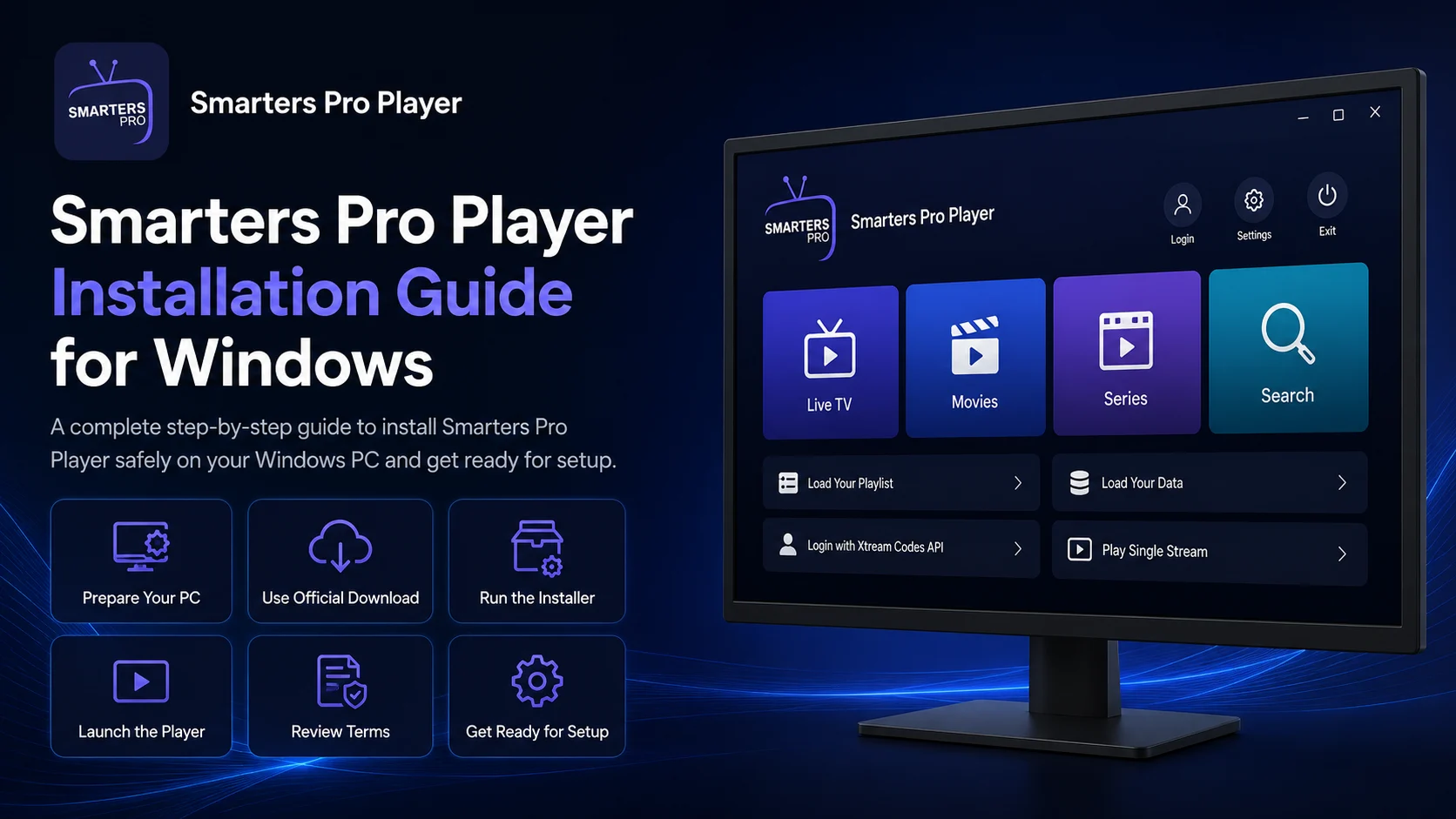
This complete Smarters Pro Player Installation Guide for Windows explains how to prepare your PC, locate the correct Windows download, install the application safely, launch it for the first time, and get ready for the upcoming Setup Guide.
Why Install Smarters Pro Player on Windows?
A Windows desktop or laptop gives you more screen space than a phone and can be convenient for users who already spend significant time on their computer.
The Windows edition of Smarters Pro Player has been promoted as a player for accessing compatible live TV, movies, and series on Windows PCs and laptops. Older official Smarters material also describes the Windows application as customizable for businesses, although those white-label capabilities are separate from the normal end-user installation covered here.
For an ordinary Windows user, the goal is much simpler: install the player, make sure it launches correctly, and then connect your authorized media source during setup.
Because there are many similarly named applications online and in software stores, using the official Smarters website as your starting point is particularly important.
Smarters Pro Player Windows Installation Overview
| Installation Stage | What You'll Do |
|---|---|
| PC Preparation | Check Windows, storage, and internet connection |
| Official Download | Locate the Windows app through Smarters |
| Installer Check | Verify you downloaded the intended setup file |
| Installation | Run the Windows setup process |
| First Launch | Confirm Smarters Pro Player opens correctly |
| Terms & Permissions | Review the prompts displayed by the app |
| Player Basics | Understand what the app does and does not provide |
| Source Preparation | Get your compatible connection information ready |
Step 1: Prepare Your Windows PC
Before downloading Smarters Pro Player, make sure your Windows computer is working normally and has a reliable internet connection.
Install available Windows updates when appropriate and make sure you have enough free storage for the application and normal temporary files.
You do not need a gaming-class computer simply to begin the installation process, but the actual viewing experience later can depend on your hardware, display capabilities, network, and the media being played.
If you are using a work-managed or school-managed computer, software installation may also be restricted by your administrator.
For a personal PC, sign in to an account with permission to install applications.
Step 2: Use the Official Smarters Website
Open a trusted browser such as Microsoft Edge, Chrome, or Firefox and go to the official Smarters website.
Historically, the official installation flow has directed Windows users to the site's Downloads section and then to the Windows application download. The Windows installer has commonly been distributed as a file whose name begins with IPTVSmartersProSetup.
The exact appearance of the website can change over time, so follow the current Windows download option rather than relying entirely on screenshots from older tutorials.
Avoid searching for random copies of the installer on unrelated download sites when an official source is available.
Step 3: Be Careful With Similar Windows Apps
This is an important part of installing Smarters Pro Player correctly.
Searching the Microsoft Store or the wider web for “Smarters Pro Player” currently brings up several similarly named applications from unrelated publishers. For example, Microsoft Store search results include products with names such as Smarters Pro and Smarters Pro Player - Smart +, with publishers that are not the original WHMCS Smarters identity associated with the official Smarters ecosystem.
A similar name does not automatically mean it is the same application.
For this guide, use the Windows download offered through the official Smarters website rather than choosing a lookalike based only on its name or icon.
Step 4: Download the Windows Installer
Select the Windows download option from the official site.
Your browser should begin downloading the installation file.
Wait until the download is complete before opening it.
Depending on your browser settings, the file may appear in the browser's Downloads menu or in your Windows Downloads folder.
If Windows or your browser displays a security prompt, verify that you intentionally downloaded the installer from the official Smarters source before continuing.
Do not disable your Windows security protections simply to force an unfamiliar file to run.
Step 5: Locate the Downloaded Setup File
Open File Explorer and select the Downloads folder if the installer does not launch directly from your browser.
Locate the Smarters Pro Player setup file.
Older documented Windows installation instructions refer to an installer with a name beginning with IPTVSmartersProSetup.
File naming can change between releases, so do not reject a legitimate newer installer only because its exact filename differs from an older tutorial.
What matters is that you obtained it through the intended official download route.
Step 6: Start the Smarters Pro Player Installation
Double-click the Windows setup file.
Windows may display a User Account Control prompt asking whether you want to allow the application to make changes to your device.
Review the publisher and file information shown on your PC, then continue only if the prompt corresponds to the installer you intentionally downloaded.
Follow the installation wizard displayed on screen.
Depending on the current version, you may need to confirm an installation location or simply proceed through the standard setup steps.
Allow the installation to finish before closing the installer.
Step 7: Launch Smarters Pro Player
Once installation is complete, open Smarters Pro Player.
You may be able to launch it immediately from the installation window. Otherwise, open the Windows Start menu and search for Smarters Pro Player.
Give the application a moment to initialize.
At this stage, the most important test is not whether channels appear. You are simply checking that the application launches normally and reaches its main or onboarding interface.
Older Windows installation documentation shows the next stage beginning with accepting the application's terms before entering connection information.
Step 8: Review the Terms Shown by the Player
f Smarters Pro Player presents terms, a disclaimer, or another first-launch notice, read it before proceeding.
Do not treat these screens as something that must automatically be skipped.
The wider official Smarters ecosystem currently emphasizes that Smarters applications are standalone players and that users must manage their own legally acquired media rather than expecting the application to supply streaming services.
Understanding that distinction now prevents confusion during the next configuration stage.
Step 9: Understand What Installation Actually Gives You
After installation, Smarters Pro Player gives you the player application.
It does not automatically give you a complete viewing library.
Older Windows-specific Smarters documentation describes the application as allowing users to enter connection details supplied by their streaming service and then access compatible live TV, movies, and series through the Windows player.
Current Smarters player descriptions continue to emphasize user-supplied media and playlist formats rather than built-in content.
So if Smarters Pro Player opens but initially looks empty, that alone does not mean installation failed.
Step 10: Prepare Your Compatible Media Source
Before moving to the Setup Guide, prepare the connection information associated with your authorized streaming source.
Different Smarters versions have supported playlist- and account-based connection workflows. Current official Smarters player listings explicitly mention standard playlist formats, including M3U and JSON, while older Smarters Pro Player workflows also documented provider-login and API-based setups.
Because this guide focuses specifically on Windows installation, do not enter random credentials simply to test the application.
Use only the source information you are authorized to access and follow the connection choices displayed by your current Windows build.
Step 11: Keep Private Login Details Secure
Connection URLs, usernames, passwords, and playlist details should be treated as private.
Do not publish them in screenshots or post them on public support forums.
If you need help later, hide any sensitive fields before sharing an image of the application.
This is particularly important because some playlist URLs can contain account-related information directly inside the address.
Keep the original details stored securely so you can re-enter them if you ever need to configure the application again.
Step 12: Do Not Change Advanced Settings Yet
Once Smarters Pro Player opens, you may be tempted to explore every available option.
For installation, leave advanced playback and interface settings alone.
A clean default configuration gives you a useful baseline.
First complete the Setup Guide, connect your authorized source, and confirm that normal playback works.
Only after that should you begin adjusting features or preferences.
If something eventually goes wrong, having a known working baseline makes troubleshooting significantly easier.
Step 13: Confirm the Installation Was Successful
You can consider the Smarters Pro Player Windows installation successful when the application appears in Windows, launches normally, responds to navigation, and reaches its source or login interface.
You do not need live TV, movies, or series to appear yet.
Those depend on configuration.
If the program itself opens without immediately crashing or displaying an installation error, you are ready to move to the next stage.
What If the Installer Will Not Open?
If the downloaded installer will not start, first make sure the file has finished downloading completely.
Restart Windows and try again.
You should also verify that you used the official download route rather than an unrelated similarly named application.
Windows security software may warn about unfamiliar installers. Review the warning carefully rather than immediately bypassing it.
If the file appears incomplete or corrupted, delete it and obtain a fresh copy through the official website.
Avoid downloading several different unofficial versions in an attempt to find one that works.
What If Windows Blocks the Installation?
Windows includes security protections designed to warn users about potentially unfamiliar software.
If you receive a warning, verify the origin of the installer first.
Do not turn off Microsoft Defender or other security tools just to continue.
If you are on a work or school PC, an administrator policy may prevent installation completely. In that situation, use a personal Windows computer or follow your organization's approved software process.
Security warnings should be investigated, not ignored.
What If Smarters Pro Player Opens but Is Empty?
An empty player after installation is not necessarily an error.
The official Smarters ecosystem describes its current players as standalone media players that require users to add their own media rather than providing channels or streaming services themselves.
If the Windows application opens normally, your installation is most likely complete.
The next step is source configuration.
Do not repeatedly uninstall and reinstall the player simply because no media appears before you have connected your source.
Best Practices After Installation
Keep the Windows installer and future updates limited to trusted Smarters sources.
Do not install similarly named applications simply because they appear higher in search results.
Keep your Windows PC updated, maintain reasonable free storage, and protect all source credentials.
For your first configuration, use one authorized source and test it fully before adding additional profiles or changing advanced settings.
This simple approach keeps the Windows setup much easier to understand.
Common Smarters Pro Player Installation Mistakes
One major mistake is downloading the first similarly named Windows application found online.
Another is expecting the player to automatically include channels or subscriptions after installation.
Users may also begin changing settings before connecting a working source or disable Windows security protections because an installer displays a warning.
A cleaner approach is to verify the official download, install the application normally, confirm it launches, and then proceed to configuration.
Why Proper Smarters Pro Player Installation Matters
Correct installation creates the foundation for every Windows guide that follows.
Once you know you downloaded the intended application, installed it successfully, and confirmed that it launches, later problems become easier to diagnose.
If a source does not load, you can focus on the connection details.
If playback buffers, you can investigate the network or media source.
If only one stream fails, you do not need to question whether the original Windows installation was wrong.
Separating installation from setup keeps troubleshooting logical.
What's Next?
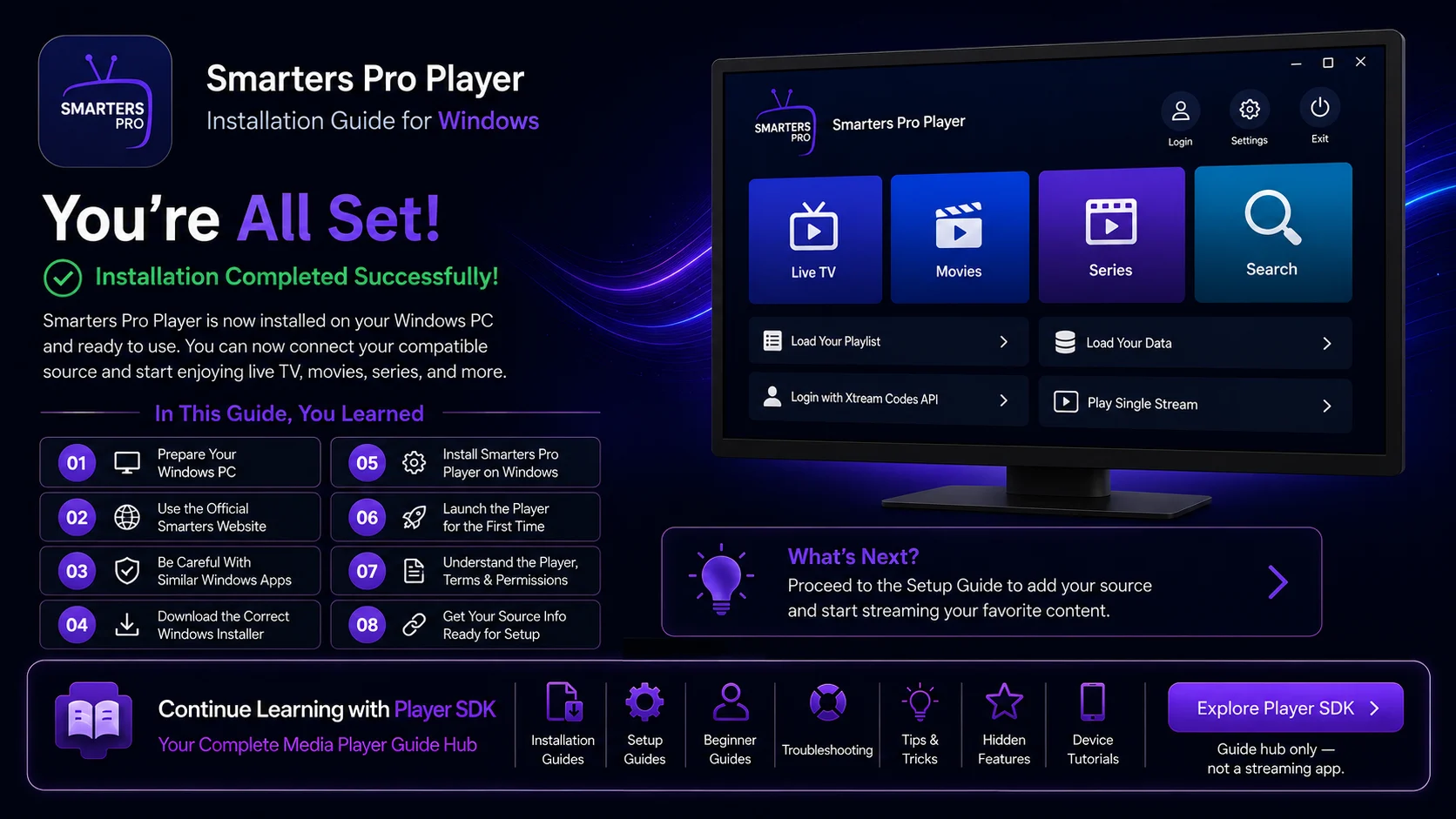
Now that Smarters Pro Player is installed on your Windows PC or laptop, the next step is connecting the player to your compatible media source.
Continue with the:
Smarters Pro Player Setup Guide for Windows
The Setup Guide will explain how to work with the connection methods displayed by the Windows application, add your authorized source, allow the library to load, test your first media, and prepare Smarters Pro Player for regular desktop use.
Final Thoughts
Installing Smarters Pro Player on Windows is straightforward when you begin with the correct source.
Use the official Smarters website, select the Windows application, download the installer, follow the Windows setup process, and confirm that Smarters Pro Player launches correctly. Historical Windows instructions from Smarters describe this official website-download approach and a dedicated Smarters Pro Player setup installer for Windows PCs.
Be particularly careful with similarly named apps because current Windows search results contain several unrelated Smarters-style applications.
Finally, remember that Smarters Pro Player is the player. Your compatible, legally acquired media comes from the source you add yourself, consistent with the current official Smarters standalone-player positioning.
With the application installed and your authorized source details ready, you can move on to complete configuration.
Frequently Asked Questions (FAQs)
1) Can I install Smarters Pro Player on a Windows PC?
Yes. Smarters Pro Player has a dedicated Windows version that has been distributed through the official Smarters website for Windows PCs and laptops.
2) Where should I download Smarters Pro Player for Windows?
Use the official Smarters website and its Windows download option. This reduces the risk of confusing the intended application with similarly named third-party products.
3) Is every “Smarters Pro Player” app in the Microsoft Store official?
No assumption should be made based on the name alone. Microsoft Store currently contains similarly named applications from different publishers, so verify the publisher and official distribution route before installing.
4) Why is Smarters Pro Player empty after installation?
The player does not automatically provide a media library. Smarters current official player positioning states that users add and manage their own legally acquired media.
5) Do I need an Android emulator to use Smarters Pro Player on Windows?
No emulator is required when using the dedicated Windows application. Historical official Smarters materials specifically document a Windows player for PCs and laptops
6) Should I disable Windows security if the installer is blocked?
No. Verify that the installer came from the official source and investigate the warning first. Disabling Windows security protections simply to force an unfamiliar installer to run is not recommended.
7) What should I read after the installation guide?
Continue with the Smarters Pro Player Setup Guide for Windows to learn how to connect your authorized media source, load your library, test playback, and prepare the Windows player for everyday use.
Continue Learning with Player SDK
Continue your Smarters Pro Player journey with Player SDK, your resource for installation guides, setup guides, beginner guides, troubleshooting, tips & tricks, hidden features, and device-specific media player tutorials.
Now that Smarters Pro Player is installed on your Windows PC, continue with the Smarters Pro Player Setup Guide for Windows to connect your compatible source, load your media library, test playback, and prepare the player for regular desktop viewing.
