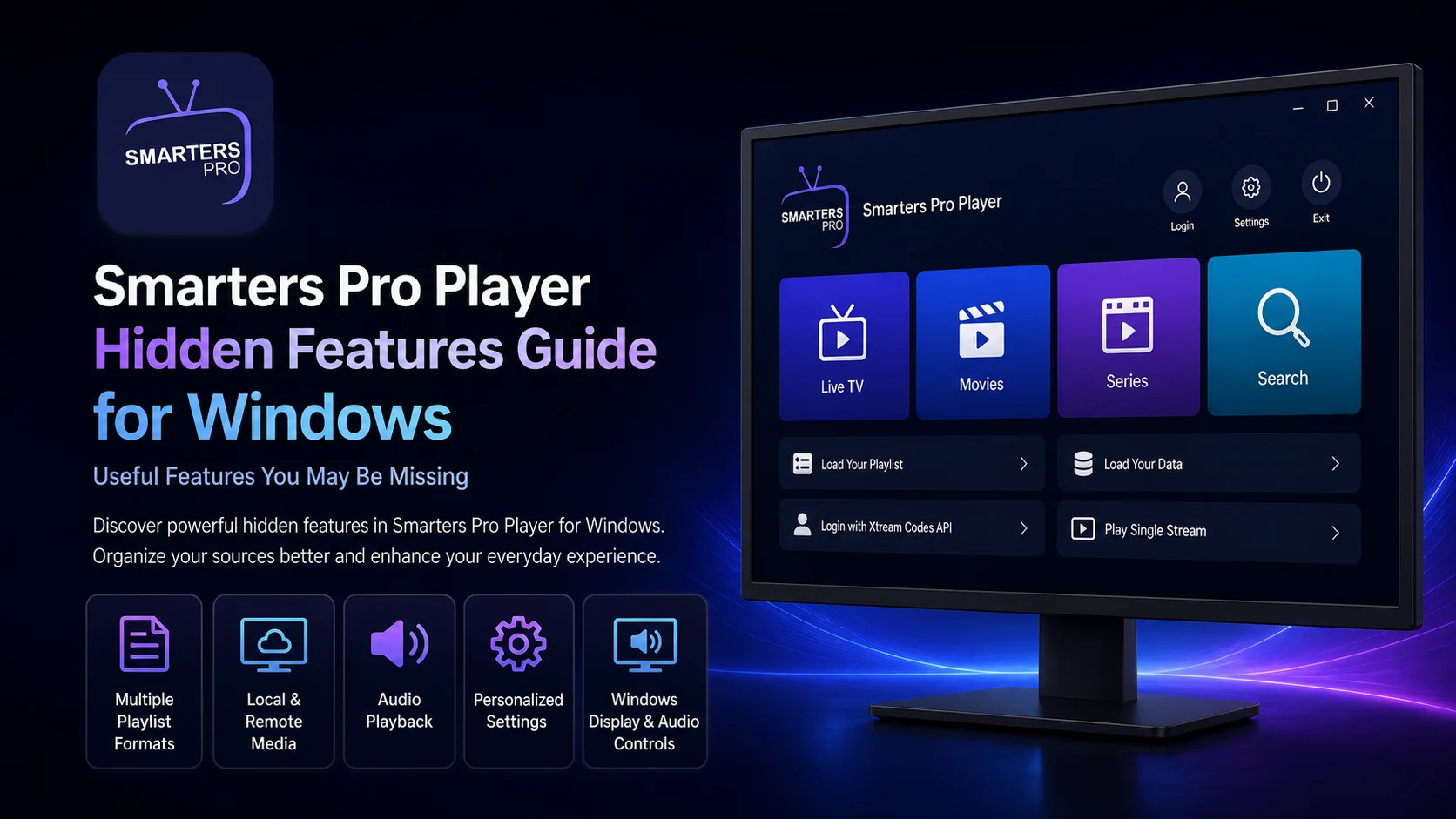
Once Smarters Pro Player is installed and configured on your Windows PC or laptop, it is easy to use the application in a very basic way: open your media library, select something to watch, switch to full screen, and close the player when you are finished.
However, the Smarters ecosystem is designed to do more than serve as a simple, single-format video player. Current official Smarters Pro information confirms support for M3U, JSON, and other standard playlist formats, local and remote user-owned media, live streaming, video-on-demand, audio playback, high-quality playback, cross-platform use including Windows, and personalized settings.
Some capabilities available in a particular Smarters Pro Player Windows build can differ from those shown on Android, TV, or newer Smarters products. For that reason, this guide focuses on features and behaviors that are relevant to the broader Smarters Windows experience without assuming that every historical or mobile-only control appears in your desktop version.
It is equally important to remember that Smarters Pro is a standalone media player. The official developer states that it does not provide, host, sell, or promote channels or streaming services; users add and manage their own legally acquired media.
This complete Smarters Pro Player Hidden Features Guide for Windows explores useful capabilities that many desktop users overlook after completing the basic setup.
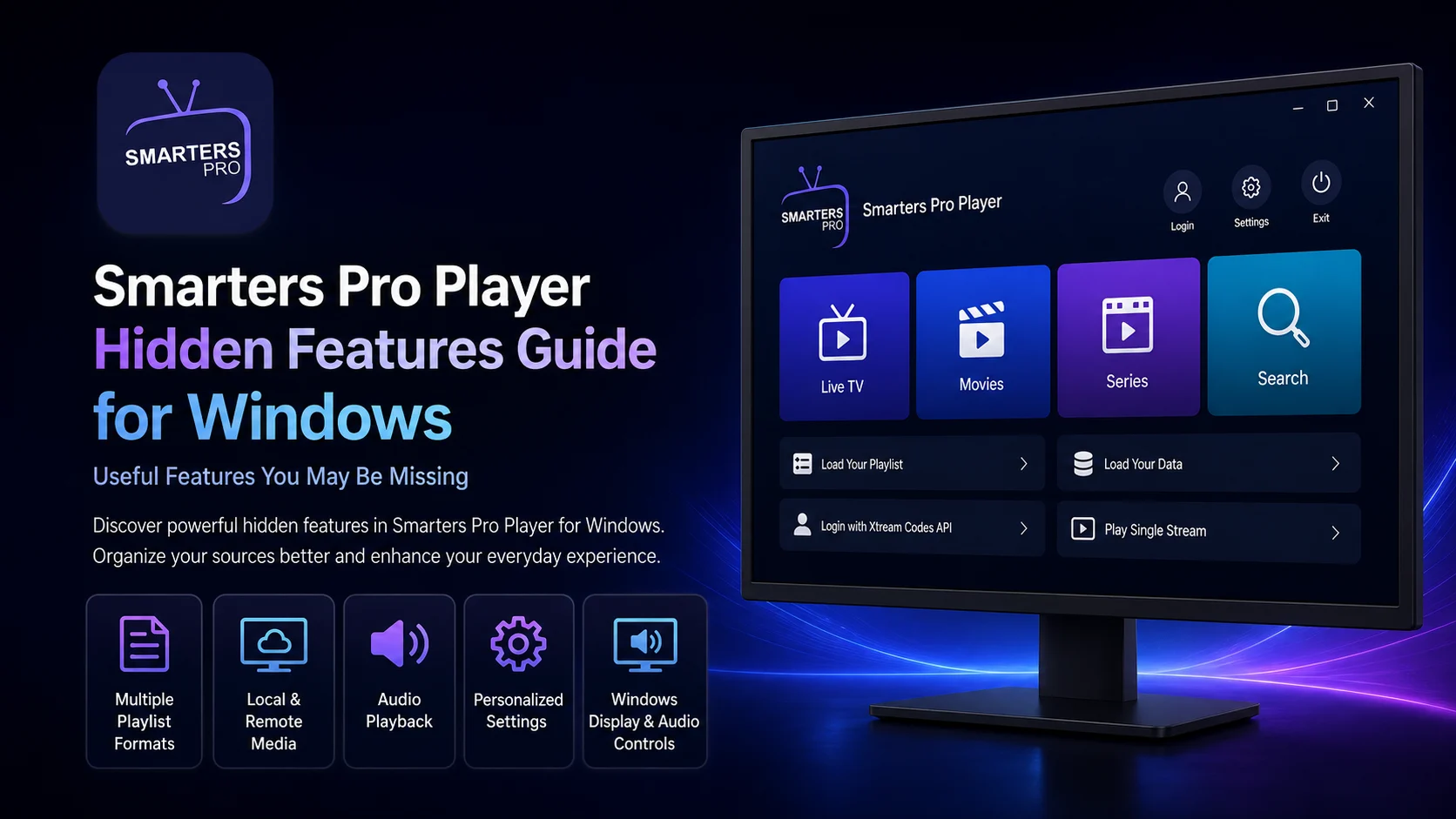
Why Explore Smarters Pro Player Hidden Features?
Most beginners concentrate on whether their library loads and whether playback works.
That is completely reasonable during setup, but it can mean other useful parts of the Smarters experience go unnoticed.
Understanding playlist flexibility, local and remote media, audio playback, personalized configuration, source organization, Windows display behavior, and the relationship between the player and media source can make Smarters Pro Player considerably easier to manage.
These features are also valuable for troubleshooting.
Once you understand what comes from the player, what comes from Windows, and what comes from your connected source, you can diagnose problems without repeatedly deleting a working configuration.
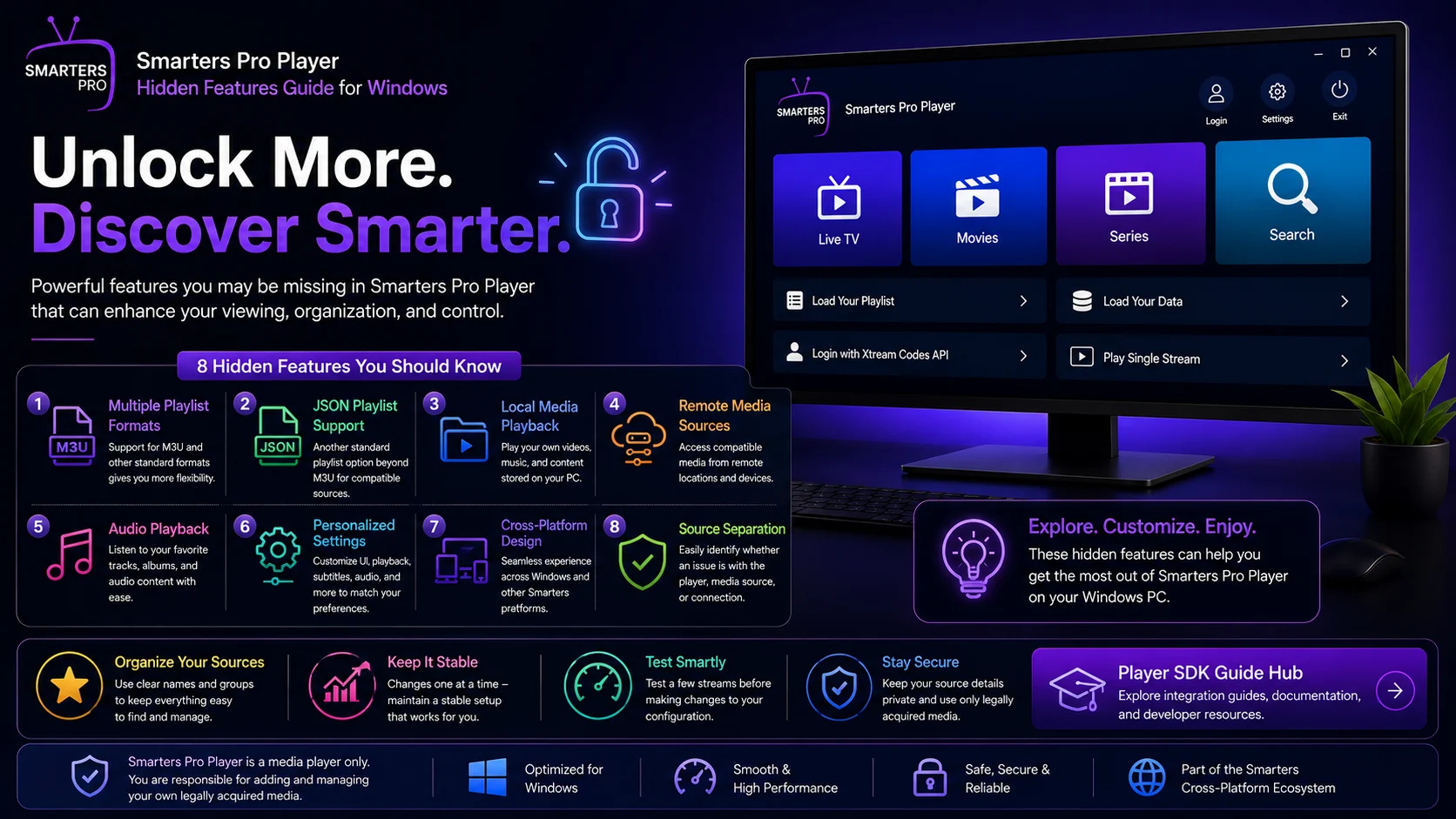
Smarters Pro Player Features Worth Exploring
| Feature Area | Why It is Useful |
|---|---|
| Multiple Playlist Formats | Gives you more flexibility than a single source format |
| JSON Playlist Support | Provides another standard playlist option beyond M3U |
| Local Media Playback | Lets the player work with personally owned files |
| Remote Media Sources | Provides access to compatible network-based media |
| Audio Playback | Extends the player beyond video-only use |
| Personalized Settings | Allows the experience to be adjusted to your preferences |
| Cross-Platform Design | Makes Windows part of a wider Smarters ecosystem |
| Source Separation | Helps identify player, media, and connection problems |
Hidden Feature 1: Smarters Is Not Limited to M3U Playlists
Many users associate Smarters almost entirely with M3U.
Current official Smarters Pro information actually states support for M3U, JSON, and other standard playlist formats.
That is important because compatible media libraries do not always arrive in exactly the same format.
If your Windows build exposes more than one playlist-import option, inspect those choices rather than assuming M3U is the only route.
Use the format your authorized media source actually provides instead of converting a working source unnecessarily.
The exact menu names can vary between Windows releases, but understanding that Smarters supports a broader playlist ecosystem gives you more flexibility when configuring legitimate media.
Hidden Feature 2: JSON Playlist Support Is Easy to Overlook
JSON playlist support is one of the more overlooked capabilities in the current Smarters ecosystem.
Most setup tutorials focus heavily on M3U, so users may never realize that JSON is also officially listed among the supported formats.
If your Windows version provides an appropriate JSON import or source workflow, this can offer an alternative way of organizing compatible media information.
There is no need to move an existing working library to JSON just because it is available.
The value is flexibility: Smarters is designed to handle more than one standard playlist structure.
Hidden Feature 3: Local Media Can Turn Smarters Into a Broader Windows Player
Another capability that is often overlooked is support for personally owned media from local storage.
On Windows, this can be particularly useful because desktop and laptop computers often contain personal video or audio libraries.
If your installed Smarters build exposes local-media options, you may be able to use the same general player environment for compatible media stored directly on the PC.
Local playback also provides a useful troubleshooting comparison.
If a compatible local file plays normally while remote media struggles, the basic player may still be functioning correctly. Your network or remote source then becomes more relevant to investigate.
Hidden Feature 4: Remote Sources Work Differently From Local Files
Smarters also officially supports remote sources for user-owned media.
This distinction matters.
A local file depends mostly on the PC, storage location, permissions, and media compatibility. Remote content additionally depends on the network and availability of the external source.
Understanding these two paths can dramatically improve troubleshooting.
If local media works but remote playback does not, changing Windows video settings may not solve anything.
Check the remote connection and network first.
Thinking of local and remote playback as separate workflows helps you avoid unnecessary changes to the player itself.
Hidden Feature 5: Smarters Can Handle Audio Playback Too
Smarters is usually discussed as a video-streaming player, but the current official description also specifically includes audio playback.
That means the broader player is not designed only around live TV or video-on-demand.
Where your Windows build and connected media support it, compatible audio can form part of the same media environment.
This may be useful if your media collection contains audio streams or personally owned audio content.
If you encounter audio-specific media, test it separately from video. Audio-only playback and video playback do not always present identical controls or behavior.
Hidden Feature 6: Personalized Settings Are Part of the Smarters Experience
Current Smarters Pro information highlights a personalized experience and the ability to customize settings for an optimized viewing environment.
The specific customization controls can differ by platform and Windows build, but the important point is that you are not necessarily limited to one fixed configuration.
Explore the Settings area after your basic source and playback are already working.
Do not modify every option simultaneously.
A much better approach is to change one preference, test familiar media, and decide whether the adjustment genuinely improves your Windows experience.
Your original working configuration should remain your reference point.
Hidden Feature 7: Windows Display Controls Are Part of the Viewing Workflow
Not everything that affects the Smarters experience is located inside Smarters.
Windows controls important parts of desktop video presentation, including screen resolution, display scaling, multi-monitor placement, and full-screen behavior.
For example, if Smarters Pro Player plays correctly but looks unusually large or small, Windows display scaling may deserve attention.
If you use two monitors, you may also be able to position the player on your preferred display before entering full-screen mode.
The useful insight is knowing when not to change your media source.
A display issue can exist while your source and playback configuration remain completely healthy.
Hidden Feature 8: Windows Audio Routing Can Change Where Sound Goes
Desktop users often connect several audio devices to one computer.
You may have laptop speakers, headphones, Bluetooth earbuds, HDMI audio, a monitor, or USB speakers available simultaneously.
Windows decides which one receives the output.
If Smarters video plays correctly but appears silent, check Windows audio routing before modifying your source.
Sound may simply be playing through a device you are not currently using.
This is especially easy to miss after connecting or disconnecting Bluetooth or HDMI devices.
Knowing this can turn what appears to be a player problem into a quick Windows adjustment.
Hidden Feature 9: Different Media Types Can Fail Independently
A large connected source can contain live TV, movies, series, audio, or other media.
These do not necessarily succeed or fail together.
One live TV item may stop working while movies continue normally. One on-demand title can fail while dozens of others remain playable.
This is an important capability to understand because it tells you that the player can remain healthy even when individual media does not work.
Always test several items before rebuilding your source.
A single failed stream should not be treated as proof that Smarters Pro Player itself has failed.
Hidden Feature 10: Your Library Structure Comes From the Source
The categories, titles, media availability, and organization you see inside Smarters can depend heavily on the information supplied by your connected source.
The player provides the interface, but it cannot create media that was never provided.
This is why two Windows users can run a similar Smarters application and still have completely different-looking libraries.
It also explains why a missing title should not immediately be treated as an application bug.
First confirm whether the media actually exists in the connected library.
Understanding this relationship makes both navigation and troubleshooting more predictable.
Hidden Feature 11: Multiple Source Formats Can Be a Troubleshooting Tool
Support for different standard playlist formats is useful for more than configuration flexibility.
It also helps you think more clearly about source-specific failures.
If one legitimate source fails while another supported source still works, you immediately know the player can continue functioning with compatible media.
That does not necessarily mean one format is better than another.
It simply gives you another diagnostic point.
Keep your working sources clearly labeled so you always know which configuration you are testing.
Hidden Feature 12: High-Quality Playback Depends on More Than the Player
Smarters officially promotes high-quality playback and advanced video-codec support in its current product description.
But final playback quality still depends on the complete Windows environment.
Your PC hardware, media encoding, display, network connection, and source performance can all influence the result.
If one demanding stream performs poorly while several others work smoothly, avoid immediately changing every Smarters setting.
Compare multiple media items and check Windows resource usage.
The ability to support high-quality media does not mean every source will deliver the same quality or stability.
Hidden Feature 13: Cross-Platform Support Includes Windows
Smarters Pro officially lists Windows alongside Android, iOS, macOS, and other platforms as part of its cross-platform design.
For a Windows user, this means the desktop application belongs to a wider player ecosystem rather than being an isolated one-off product.
That can be useful when you already use Smarters products on another supported platform.
However, do not assume every button or feature behaves identically across operating systems.
Windows, mobile, and TV interfaces can differ significantly because each platform has different navigation and system capabilities.
Use Windows-specific instructions whenever you are configuring the desktop player.
Hidden Feature 14: Smarters Does Not Control the Entire Viewing Experience
One of the most important features to understand is actually a design principle.
Smarters is a standalone media player, and the official developer states that it does not provide, host, sell, or promote media content or streaming services. Users are expected to add and manage their own legally acquired media.
This separation explains many everyday situations.
A stream can disappear while the player remains functional. A source can stop connecting even when Windows and Smarters are working perfectly. A missing category may come from source information rather than the application.
Once you understand those layers, the player becomes far easier to manage.
Hidden Feature 15: A Working Default Setup Is Your Best Reference
Your original successful configuration is one of the most useful tools you have.
If your media library loads and several items play correctly using the default settings, you know the basic system works.
When you later personalize the Windows player, change one option at a time.
If performance becomes worse, you will know exactly which adjustment was made most recently.
This approach is especially valuable when exploring controls that vary between different Smarters Pro Player Windows builds.
Keeping a stable baseline lets you experiment without losing track of a working setup.
Best Practices When Exploring Smarters Pro Player Features
Explore additional capabilities only after you have a reliable source and normal playback.
Test local and remote media separately, inspect supported playlist options before assuming M3U is your only choice, and keep all playlist URLs or account information private.
Use Windows display and audio controls when the problem is clearly system-related rather than rebuilding your source.
Most importantly, use only media you are authorized to access. Current Smarters Pro positioning explicitly requires users to add and manage their own legally acquired media.
Common Mistakes When Exploring Advanced Features
One common mistake is assuming every feature described across the Smarters ecosystem must appear identically in every Windows release.
Windows builds can differ, so follow the controls actually available in your installed version.
Another mistake is confusing source behavior with player behavior.
Users may also modify several personalized settings simultaneously or remove a working source when the actual issue is Windows audio, display configuration, or network connectivity.
Explore gradually and preserve a setup that already works.
Why These Smarters Pro Player Hidden Features Matter
Smarters becomes considerably more flexible once you recognize that it supports more than one standard playlist format and can work with both local and remote user-owned media.
M3U and JSON support give compatible sources more flexibility, audio playback extends the application beyond ordinary video, and personalized settings can make the experience better suited to your Windows environment.
At the same time, understanding Windows audio, displays, network behavior, and source separation gives you better control without unnecessarily changing the player.
These capabilities make Smarters more useful as a general desktop media environment.
Final Thoughts
Exploring the hidden features of Smarters Pro Player on Windows reveals that the experience goes beyond simply loading one playlist and pressing Play.
Current official Smarters information confirms support for M3U, JSON, and other standard playlist formats, local and remote media, live streaming, video-on-demand, audio playback, high-quality playback, cross-platform support including Windows, and personalized settings.
The most useful feature, however, may be understanding how these components work together.
Smarters provides the player. Your authorized source provides compatible media. Windows manages the desktop environment, audio output, display, storage, and networking.
Once those responsibilities are clear, Smarters Pro Player becomes easier to organize, customize, and troubleshoot.
Frequently Asked Questions (FAQs)
1) What hidden features does Smarters Pro Player have on Windows?
Useful capabilities worth exploring include multiple standard playlist formats, local and remote media playback, audio playback, personalized settings, cross-platform support, and source-based media management. Exact controls can vary by Windows build.
2) Does Smarters support formats other than M3U?
Yes. Current official Smarters Pro information specifically lists M3U, JSON, and other standard playlist formats.
3) Can Smarters Pro Player play local media on Windows?
The current Smarters Pro ecosystem supports personally owned media from local storage as well as remote sources. Availability and menu placement can depend on the particular Windows build.
4) Can Smarters play audio as well as video?
Yes. Audio playback is officially listed alongside live streaming and video-on-demand as part of Smarters Pro's media-player capabilities.
5) Why does one source work while another does not?
Different sources can fail independently. If one compatible source works normally, the Windows player itself may still be functioning correctly even if another source has a connection or availability problem.
7) Are all Smarters features identical on Windows, Android, and TV?
Not necessarily. Smarters is cross-platform, but interfaces and available controls can differ between Windows, mobile, TV, and other versions.
8) What should I explore after completing the Windows Smarters guides?
You can continue with other Windows media-player tutorials on the Player SDK or compare Smarters Pro Player with alternative players based on playlist support, local-media capabilities, playback experience, and device compatibility.
Continue Learning with Player SDK
Continue exploring Player SDK, your resource for installation guides, setup guides, beginner guides, troubleshooting, tips & tricks, hidden features, and device-specific media player tutorials.
Use Player SDK to compare Windows media players, understand different playlist and playback workflows, solve common player problems, and choose the media-player experience that best fits your devices and authorized sources.
