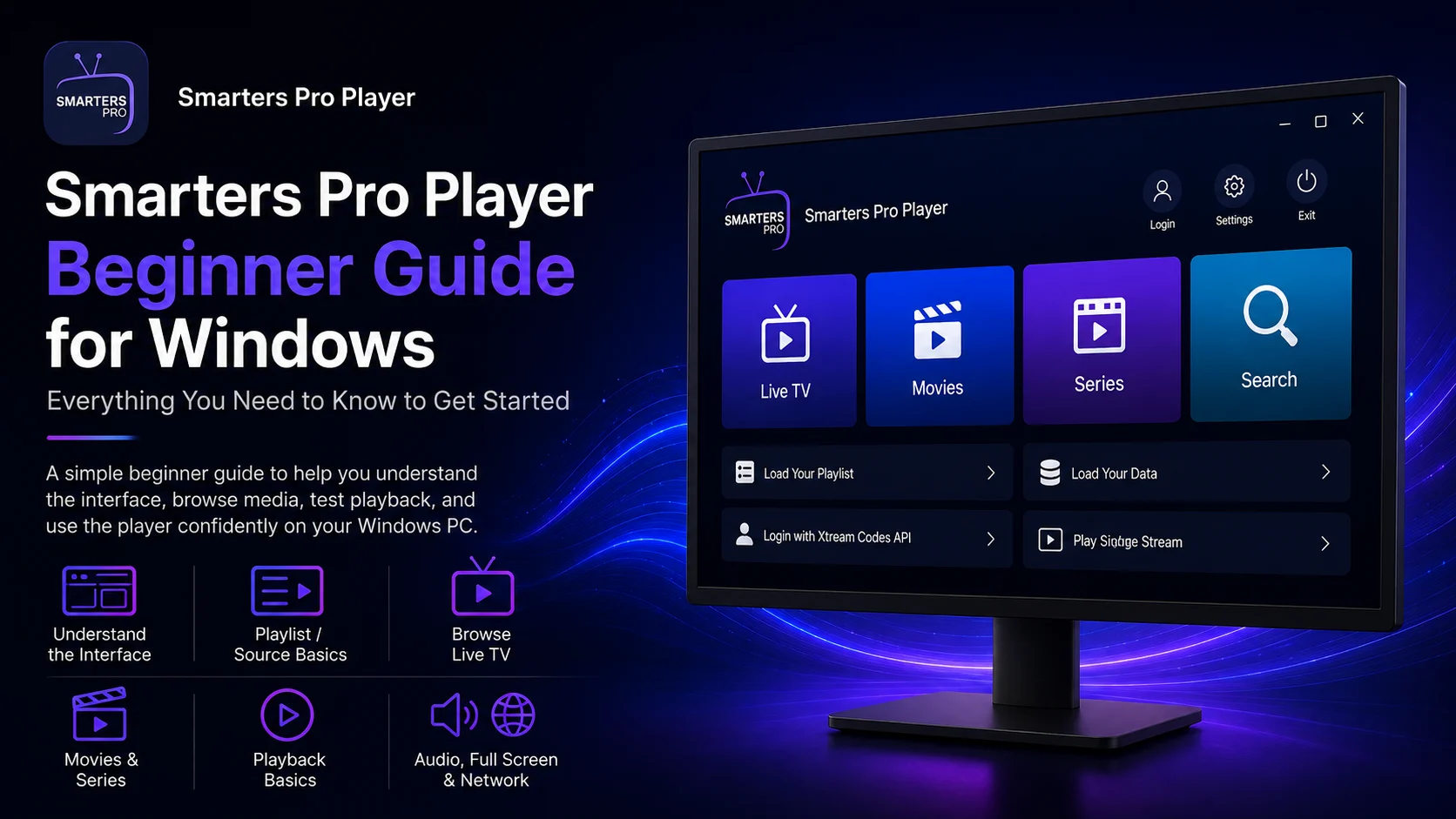
After installing and configuring Smarters Pro Player on your Windows PC or laptop, the next step is learning how to use the player comfortably every day.
For beginners, the most important thing is not exploring every available setting immediately. Start by understanding the main interface, learning how your connected playlist affects the media you see, testing basic playback, and becoming familiar with Windows-specific controls such as volume, full-screen viewing, and network behavior.
The current official Smarters ecosystem describes its applications as standalone media players that support user-managed media from local and remote sources, including M3U, JSON, and other standard playlist formats. Smarters also highlights live streaming, video-on-demand, audio playback, high-quality playback, and customizable settings.
Most importantly, Smarters Pro Player should not be confused with the service providing your media. Current official Smarters listings explicitly state that the player does not provide, host, sell, or promote channels or streaming services. Users are responsible for adding and managing their own legally acquired media.
This complete Smarters Pro Player Beginner Guide for Windows explains the basic workflow, media navigation, playlist behavior, playback, source management, and practical habits every new Windows user should understand.
Why Learn Smarters Pro Player Basics First?
Once your source is connected, Smarters Pro Player can present a large amount of media inside one Windows application.
Depending on the source and the version of the Windows player you are using, you may encounter live TV, movies, series, video-on-demand, audio, program information, playlists, or other media sections.
Trying to customize everything on the first day can make the player more complicated than necessary.
A better beginner workflow is to first confirm that the application opens, your source loads, several different media items play correctly, Windows audio is working, and your internet connection is stable.
This also creates a useful troubleshooting baseline.
If something stops working later, you will know what the player looked like when everything was functioning properly.
Smarters Pro Player Beginner Essentials
| Beginner Area | What You Should Learn |
|---|---|
| Home Interface | Navigate the main Windows player sections |
| Playlist/Source | Understand where your media comes from |
| Live Streaming | Browse and test available live media |
| Movies & VOD | Access compatible on-demand content |
| Playback | Use basic video controls confidently |
| Full Screen | Take advantage of the Windows display |
| Audio | Manage Windows volume and output devices |
| Network | Recognize connection-related playback problems |
Understand the Player and Source Relationship
This is the most important concept for new users.
Smarters Pro Player is the player. Your connected source supplies the media.
Current Smarters products are designed around personally owned or legally acquired media, including media accessed through supported playlists and remote sources.
That means the player does not independently decide which channels, movies, series, or other titles appear.
Your source can influence the available library, categories, names, organization, and media availability.
As a result, two people using a Smarters player may see very different libraries even if they are using the same general application ecosystem.
Understanding this distinction will make everyday use and troubleshooting much easier.
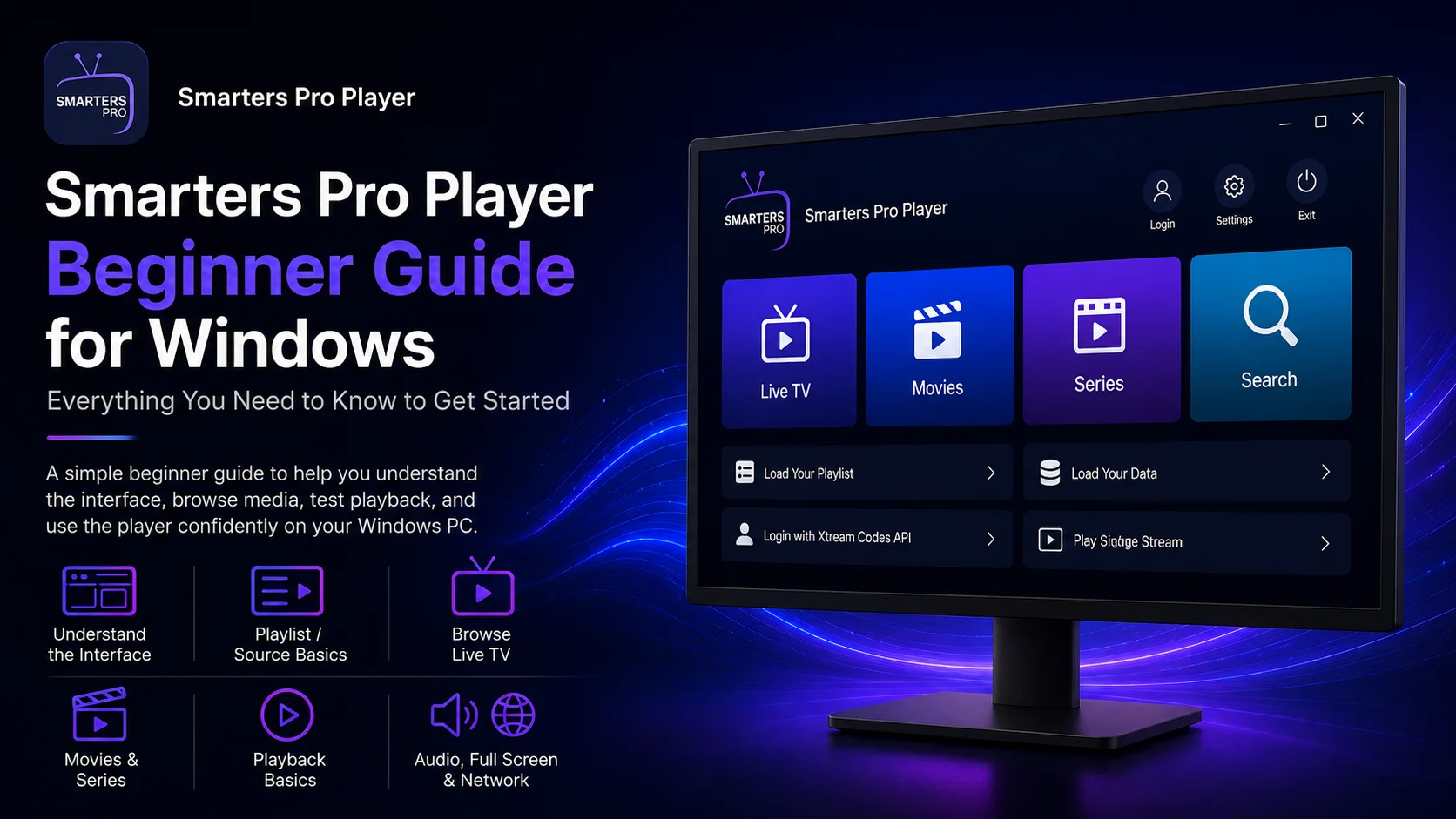
Start With the Main Windows Interface
Launch Smarters Pro Player from the Windows Start menu.
Allow your connected source enough time to load before rapidly opening several sections.
The interface can differ depending on the Windows build, so focus on the controls actually displayed in your version rather than expecting an older screenshot or mobile tutorial to match exactly.
Identify the main areas first.
Look for the home screen, source or profile area, media categories, player settings, and any available live TV or on-demand sections.
You do not need to memorize every menu.
For your first few sessions, simply learn how to open media and return to the main screen.
Learn How Your Playlist Works
If you configured Smarters Pro Player using a playlist, that playlist acts as one of the main sources of information presented inside the player.
Current official Smarters applications support formats including M3U and JSON, along with other standard playlist formats.
Your particular Windows build may expose these options differently.
Once a playlist is working, avoid deleting or recreating it simply because one media item does not play.
A playlist can remain correctly connected even when one individual stream becomes temporarily unavailable.
This is why beginners should always test several media items before changing the source configuration.
Browse Live Media Carefully
If your source provides live streaming, open the relevant section and browse the available categories.
Select one item and allow playback a few moments to begin.
If it works, test two or three more.
This gives you a better idea of whether your basic setup is stable.
If one stream fails but several others work correctly, your complete player configuration is probably still functioning.
Do not immediately reinstall Smarters Pro Player or remove the playlist.
Individual media items can behave independently.
Explore Movies and Video-on-Demand
Current official Smarters products support video-on-demand playback as part of their broader media-player functionality.
If your connected source includes movies or other on-demand content, open the appropriate area and choose a familiar item.
Start playback and confirm that both picture and sound work normally.
If one movie fails, try another.
The same principle used with live streaming applies here: one failed title does not automatically indicate a complete player failure.
The available movie library itself depends on the source you have connected.
Understand Series Navigation
If your source provides a series, you may need to move through several levels before beginning playback.
A typical library can include a series section, individual titles, seasons, and episodes.
The exact organization comes from the information available through your source and the way your Windows build displays it.
Start with a series you recognize.
Open a season, choose an episode, and test playback.
If one episode does not work but others do, investigate the individual item before changing your complete configuration.
Learn the Basic Playback Controls
Once video begins, spend some time understanding the player interface.
Become familiar with starting and pausing playback, navigating the current item, closing playback, and entering or leaving full-screen mode.
Do not worry about advanced settings yet.
Current Smarters products emphasize high-quality media playback and personalized settings, but beginners benefit most from first learning the default player experience.
If normal playback already works well, there is no reason to change settings simply because they are available.
Use Full-Screen Mode on Windows
One of the biggest advantages of using Smarters Pro Player on a Windows laptop or desktop is screen size.
Once a stream is playing correctly, use the available full-screen control to create a cleaner viewing experience.
If you are using multiple monitors, Windows may remember where the application was last positioned.
Make sure you know how to exit full-screen mode and return to the player interface.
Full-screen problems are often display-related rather than source-related, so do not modify playlist settings simply because a window is not behaving as expected.
Understand Windows Audio Output
Windows controls which speakers or headphones receive audio.
If video works but you hear nothing, first check the Windows speaker icon on the taskbar.
Make sure the volume is not muted and that the correct output device is selected.
For example, sound may be routed to Bluetooth headphones, HDMI, a monitor, USB speakers, or another connected audio device.
Test another media item as well.
If audio works on one stream but not another, the issue may be specific to the individual media rather than your Windows configuration.
Use a Stable Internet Connection
Streaming performance depends heavily on network quality.
If several media items buffer, pause, or fail at the same time, check your Windows internet connection before changing the player.
Wi-Fi can work well, but signal strength matters.
If your PC supports Ethernet and you regularly stream for long periods, a wired connection can provide a more stable desktop environment.
If only one stream buffers while several others work normally, the network may not be the main problem.
This simple comparison is one of the fastest ways to narrow down an issue.
Understand Local and Remote Media
The current official Smarters ecosystem states that its players can work with personally owned media from both local storage and remote sources.
This is useful for understanding Smarters as a broader media-player platform rather than only a single type of streaming interface.
Your Windows build may expose local or remote media options differently, so follow the features actually displayed in your version.
If you do use local media, remember that Windows file locations and permissions can affect whether the player can access a file.
Remote media, by contrast, depends more heavily on network connectivity and source availability.
Keep Multiple Sources Organized
If your Windows version supports multiple profiles, users, or playlists, give every source a clear and recognizable name.
This makes switching between sources much easier.
It also becomes useful when something stops working.
If one source fails while another still loads and plays normally, the player itself is clearly still capable of functioning.
You can then focus on the affected source instead of reinstalling Smarters Pro Player.
Beginners should usually become comfortable with one stable source before adding several additional configurations.
Do Not Share Your Source Credentials
Playlist URLs, usernames, passwords, server addresses, and similar connection details should be treated as private.
Do not post them in screenshots, forums, social media, or public support discussions.
Some playlist URLs can contain account-related information directly inside the address.
If you need help, hide the sensitive parts of your configuration before sharing an image.
Current official Smarters listings emphasize that users are responsible for managing their own media, reinforcing the separation between the player and external media sources.
Avoid Changing Too Many Settings
A working default configuration is valuable.
If the source loads and playback works, use Smarters Pro Player normally for a while before changing advanced options.
When you do customize something, change one setting at a time.
Then test a familiar media item.
If the experience improves, keep the change. If something becomes worse, reverse it.
Changing five settings at once makes it much harder to identify what caused a problem.
This is one of the simplest ways for beginners to keep the Windows player stable.
Know Whether the Problem Is the Player, Source, or Network
A simple diagnostic routine can save a lot of time.
If Smarters Pro Player itself will not open, focus on the Windows application.
If the application opens but the library does not load, inspect the source and network.
If the library appears and most streams work but one fails, focus on that media item.
If every stream buffers, check your internet connection.
This approach is much better than immediately uninstalling the application whenever something goes wrong.
It also protects a setup that may already be working correctly.
Keep the Windows Environment Healthy
Your player is only one application running on the computer.
Windows storage, updates, network drivers, audio devices, and other software can influence the viewing experience.
Keep reasonable free storage available and install appropriate Windows updates.
If Smarters Pro Player behaves unusually after the PC has been running for a long period, close the application and reopen it.
Restarting Windows can also resolve temporary system problems before you consider more drastic changes.
Best Practices for New Smarters Pro Player Users
Keep your first setup simple and use one reliable source while learning the player.
Allow the library to finish loading before navigating quickly, test several items whenever one fails, and check Windows audio or network controls before changing playlist information.
Keep credentials private and only add media that you are authorized to use.
Current official Smarters products are explicitly positioned around user-managed, legally acquired media rather than built-in streaming services.
Once the basics feel familiar, you can gradually explore the additional controls provided by your specific Windows build.
Common Beginner Mistakes
One major mistake is assuming Smarters Pro Player supplies the media itself.
Another is deleting a complete source because one stream becomes unavailable.
Beginners may also change several settings immediately after setup, making future problems harder to diagnose.
Ignoring Windows-level controls is another common issue. A sound problem can come from the wrong Windows output device, while buffering can result from network conditions rather than the player.
Understanding these separate components makes the application significantly easier to use.
Why Smarters Pro Player Is Useful on Windows
The Windows environment provides a larger display, keyboard and mouse navigation, desktop multitasking, and access to both local and remote media workflows.
The broader Smarters ecosystem currently supports live streaming, video-on-demand, audio playback, multiple standard playlist formats, high-quality playback, and customizable player settings.
For beginners, the real advantage is having one desktop media interface where compatible user-managed sources can be accessed and played.
The experience becomes much smoother once you understand the player-source-network relationship.
What’s Next?
Now that you understand the basic Smarters Pro Player Windows workflow, the next step is learning what to do when something stops working.
Continue with the:
Smarters Pro Player Troubleshooting Guide for Windows
The next guide will explain how to diagnose playlist-loading problems, account or source connection failures, buffering, missing media, playback errors, Windows audio problems, slow performance, application crashes, and other common issues.
Final Thoughts
Learning how to use Smarters Pro Player on Windows becomes much easier once you focus on the fundamentals.
Understand where your media comes from, learn the main interface, test several Live TV or on-demand items, become comfortable with the playback controls, and use Windows full-screen, audio, and network settings correctly.
Most importantly, remember that Smarters is the player rather than the media provider. Current official Smarters listings state that users add and manage their own legally acquired media and that the player does not supply streaming services or channels.
Keep your configuration simple, protect your credentials, and avoid changing a working setup without a clear reason.
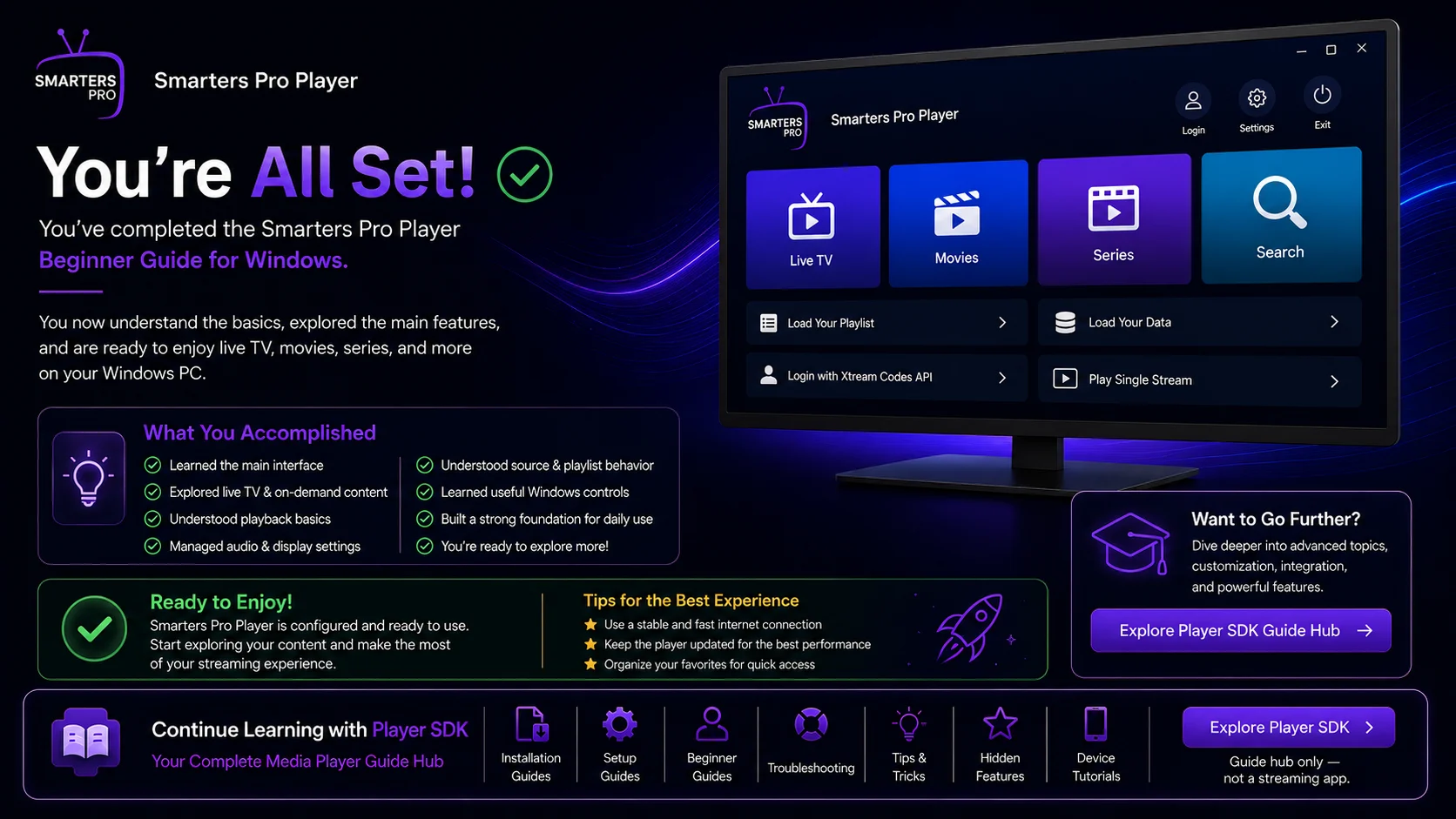
With these basics understood, you are ready to use Smarters Pro Player more confidently on your Windows PC.
Frequently Asked Questions (FAQs)
1) Is Smarters Pro Player easy to use on Windows?
Once a compatible source has been configured, the basic workflow is straightforward: open the player, allow the library to load, choose compatible media, and use the standard playback controls.
2) Does Smarters provide channels or streaming services?
No. Current official Smarters listings describe the application as a standalone media player. Users must add and manage their own legally acquired media.
3) What playlist formats does Smarters support?
Current official Smarters products support M3U, JSON, and other standard playlist formats. The exact source options available in a Windows build can vary, so use the options displayed by your installed version.
4) Why does one stream fail while others work?
Individual media items can become unavailable separately. If several other streams play normally, your player and overall source connection may still be functioning correctly.
5) Why is there video but no sound on Windows?
Check Windows media volume and make sure the correct speaker, headphones, HDMI output, or other audio device is selected. Then test another media item.
6) Why does Smarters Pro Player buffer?
Buffering can be caused by an unstable network or the performance of the individual media source. Test several items and your Windows internet connection before changing player settings.
7) Should I change advanced settings immediately?
No. Keep the default configuration until your source loads and several media items play successfully. Then customize one setting at a time.
8) What should I read after this beginner guide?
Continue with the Smarters Pro Player Troubleshooting Guide for Windows to learn how to diagnose source, playlist, playback, network, audio, and application problems.
Continue Learning with Player SDK
Continue your Smarters Pro Player journey with Player SDK, your resource for installation guides, setup guides, beginner guides, troubleshooting, tips & tricks, hidden features, and device-specific media player tutorials.
Now that you understand the Windows basics, continue with the Smarters Pro Player Troubleshooting Guide for Windows to learn how to identify common problems, protect your working configuration, and maintain a smoother desktop viewing experience.
