Purple Easy Player is designed to give iPhone users a simple way to access compatible personal media and authorized streams from supported sources. Once the app is installed, configured, and working correctly, the next step is learning how to use it more efficiently.
Most users can handle basic playback within a few minutes, but a few practical habits can make Purple Easy faster to navigate, easier to manage, and more reliable during everyday use. These tips are not about changing complicated settings or exploring advanced functions. Instead, they focus on improving your normal viewing routine.
This complete Purple Easy Player Tips & Tricks Guide for iPhone explains how to organize your viewing, improve playback habits, reduce unnecessary troubleshooting, and get more from the player without overlapping with hidden-feature content.
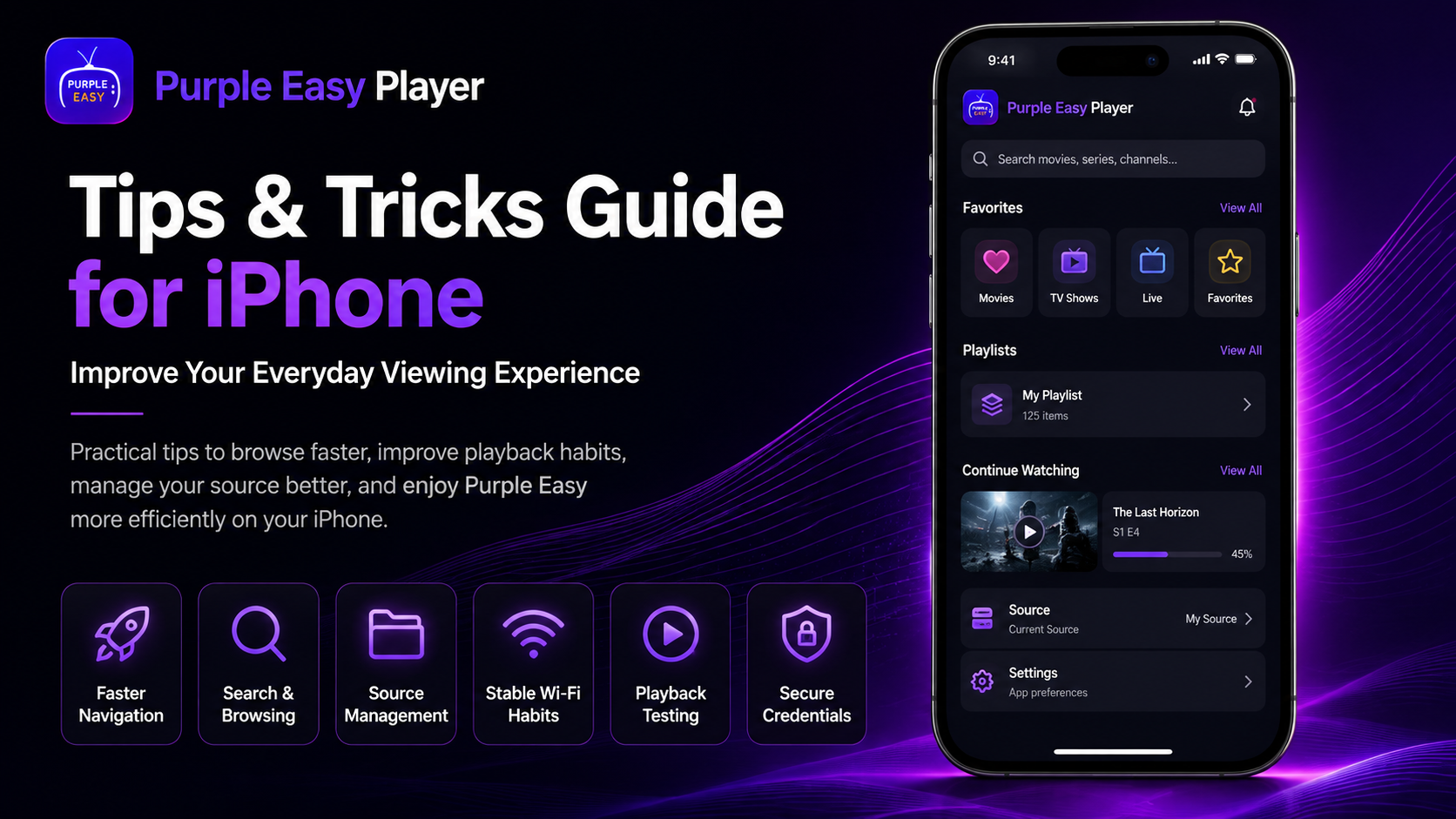
Why Learn Purple Easy Tips & Tricks?
Once Purple Easy is set up correctly, the easiest way to improve your experience is to learn to use the app more efficiently rather than constantly changing its configuration.
Simple habits can help you find content faster, avoid unnecessary reinstallation, identify whether a problem comes from the player or your source, and keep playback more stable.
The most useful improvements usually come from understanding how Purple Easy interacts with your iPhone, network, and connected media source.
What You'll Learn
| Tip Area | Benefit |
|---|---|
| Source Management | Keep your media access organized |
| Playback Testing | Identify problems more quickly |
| Search & Navigation | Find content faster |
| Network Habits | Reduce buffering and interruptions |
| Device Maintenance | Keep playback smoother |
| Update Management | Maintain compatibility |
| Credential Security | Protect private source information |
Tip 1: Let Your Library Finish Loading
When you open Purple Easy, especially after connecting a large media source, give the player enough time to load the available information.
Repeatedly closing and reopening the application can interrupt the process and make the library feel slower than it actually is.
If the source contains many categories or media entries, an initial load may take longer than future sessions.
A little patience during loading creates a much smoother experience.
Tip 2: Test More Than One Stream Before Troubleshooting
If a video or stream refuses to play, don't immediately change the player settings.
Test another item from the same library.
If several other streams work normally, the unavailable item may simply have a source-side problem.
This habit saves a lot of unnecessary troubleshooting and helps you avoid changing settings that were already correct.
Tip 3: Use Search Instead of Endless Scrolling
Large or media libraries can become difficult to browse manually.
When Purple Easy provides a search option, use it to locate specific content instead of scrolling through every category.
Searching by title or keyword can save considerable time, especially if your connected source contains hundreds or thousands of entries.
The quality of search results may depend on the metadata supplied by your source, but it is still one of the fastest ways to navigate a large library.
Tip 4: Keep Your Source Details Organized
If your media source requires account details, server addresses, or other private connection information, store them securely outside the app.
You don't need to re-enter this information frequently when your setup is already working, but having an accurate backup makes future troubleshooting easier.
Avoid storing credentials in public notes, screenshots, or messages that other people can access.
Accurate and secure source information also prevents mistakes if you ever need to reconnect the service.
Tip 5: Prefer Stable Wi-Fi for Long Viewing Sessions
A strong network connection is one of the biggest factors affecting streamed media.
For long movies or higher-quality content, stable Wi-Fi generally provides a more consistent experience than a weak mobile connection.
If buffering begins, test your network before changing Purple Easy.
Move closer to the router, check whether other devices are heavily using the connection, and try another stream.
This helps determine whether the issue is related to your network or the media source.
Tip 6: Avoid Switching Networks During Playback
Moving from Wi-Fi to mobile data or between different Wi-Fi networks while a stream is already running can interrupt playback.
If possible, connect to the network you want to use before starting your media.
A stable connection reduces the need for the player to reconnect to the source mid-session.
If you must switch networks, give the iPhone a moment to establish the new connection before restarting playback.
Tip 7: Learn the Basic Playback Controls Well
You don't need to master every available option to use Purple Easy efficiently.
Focus first on the controls you use most often, such as play, pause, seeking, full-screen playback, and returning to your media library.
Once those actions become familiar, everyday use feels much faster.
Trying to learn every icon at once can make the interface seem more complicated than it actually is.
Tip 8: Use Full Screen for Comfortable Viewing
For movies, shows, and longer video sessions, full-screen playback provides a cleaner viewing experience.
If orientation doesn't change as expected, check your iPhone's Orientation Lock before assuming Purple Easy has a display problem.
This is a useful habit because some playback behavior is controlled by iOS rather than the player itself.
Understanding where an issue originates prevents unnecessary setting changes.
Tip 9: Keep Your iPhone Storage Healthy
Even if your media is streamed rather than stored locally, your iPhone still benefits from having available storage.
A nearly full device can affect overall iOS performance.
Periodically remove unnecessary downloads, duplicate files, and unused applications.
Keeping some free storage available helps iOS manage temporary data and keeps media applications more responsive.
Tip 10: Restart the App When It Feels Unusually Slow
If Purple Easy becomes sluggish after a long viewing session, close the app completely and reopen it.
You don't need to reinstall it.
A simple restart refreshes temporary app processes and can often restore normal responsiveness.
If the problem continues, restarting the iPhone is another straightforward step worth trying.
Tip 11: Keep Purple Easy Updated
Check the App Store periodically for application updates.
Updates can improve compatibility, interface behavior, stability, and performance.
You should also keep iOS on a supported version.
After a major update, test a few familiar media items before changing any settings. If everything works normally, there is no reason to rebuild your configuration.
Tip 12: Don't Change Settings Without a Reason
One of the easiest ways to create problems is changing multiple options simply because they are available.
If Purple Easy already plays your media correctly, keep the working configuration.
When you do want to adjust something, change one setting at a time.
Then test playback.
This approach makes it much easier to identify which adjustment caused a problem and return to the previous configuration if needed.
Tip 13: Learn to Recognize Source-Side Problems
A working media player cannot fix a stream that is unavailable at the source.
If Purple Easy opens normally, your library loads, and most content plays correctly, a single failed stream is unlikely to mean the entire application is broken.
This simple distinction is one of the most useful habits for users.
Always test multiple items before diagnosing a player-wide problem.
Tip 14: Keep Local Network Devices Available
If your media comes from a NAS, home media server, network tuner, or another local device, that source must remain online.
Make sure your iPhone is connected to the correct Wi-Fi network and that the server is powered on.
If the source disappears, check the network and server first.
Reinstalling Purple Easy won't help if the device hosting your media is offline.
Tip 15: Review Permissions After iOS Changes
Sometimes iOS updates or device changes can affect app permissions.
If a previously working local network feature suddenly stops functioning, review the permissions available to Purple Easy in your iPhone settings.
Don't change every permission unnecessarily.
Only confirm that the access required for your actual setup remains enabled.
Tip 16: Use a Simple Testing Routine
When something feels wrong, use the same quick routine each time.
First confirm that Purple Easy opens. Then check whether the library loads. Finally, test two or three different media items.
This simple sequence immediately tells you a lot.
If the app doesn't open, focus on the application or iPhone. If the library doesn't load, focus on the source or network. If only one stream fails, focus on that individual media item.
This is much faster than random troubleshooting.
Tip 17: Avoid Re-Adding a Working Source
If your current media source loads correctly, don't delete and reconnect it unless you actually need to.
Repeatedly removing a working configuration increases the chance of introducing typos or connection mistakes.
Stable setups are usually best left alone.
Only reconnect a source when its details have changed, it has stopped working, or you're intentionally replacing it.
Tip 18: Protect Your Viewing Accounts
Treat your connection credentials like passwords.
Don't post screenshots showing usernames, private URLs, access tokens, or server information.
If you're asking someone for technical help, hide those details first.
Protecting your credentials keeps your account secure and reduces the chance of unauthorized access.
Best Practices for Everyday Purple Easy Use
The easiest way to keep Purple Easy reliable is to use a simple routine. Maintain a stable network, allow your library to load properly, keep the player and iOS updated, and avoid changing settings when everything is already working.
When a problem appears, test multiple media items before assuming the application is responsible.
If you're using local media sources, keep those devices maintained and available as well.
These habits require very little effort but can make everyday playback considerably more predictable.
Common Mistakes to Avoid
A common mistake is treating every unavailable stream as an application failure. Another is repeatedly deleting and reconnecting the media source without checking whether the original source was simply temporarily unavailable.
Users also sometimes change many settings at once, making it difficult to identify why playback later behaves differently.
Another avoidable mistake is ignoring the network. Streaming quality depends heavily on connection stability, so Wi-Fi should always be one of the first things you check when buffering begins.
Why These Tips Matter
Purple Easy sits between your iPhone and your compatible media source.
A good experience therefore depends on more than the app alone.
By managing your source carefully, using a stable network, keeping the device healthy, and following a consistent troubleshooting routine, you reduce unnecessary interruptions and make the player much easier to use.
Most of these improvements don't require advanced knowledge. They're simply good habits that help you get more reliable results from your existing setup.
What's Next?
Now that you've learned practical ways to improve everyday Purple Easy use, the next step is exploring capabilities that aren't always obvious during normal playback.
Continue with the:
Purple Easy Player Hidden Features Guide for iPhone
That guide will focus specifically on lesser-known tools, interface options, and additional capabilities without repeating the everyday tips covered here.
Final Thoughts
Getting more from the Purple Easy Player on iPhone doesn't require complicated adjustments.
The most effective improvements come from using the player intelligently: allow your library to load, test multiple streams before troubleshooting, keep your source information secure, use stable Wi-Fi, maintain your iPhone, and avoid changing settings without a clear reason.
Once these habits become part of your normal routine, Purple Easy becomes easier to navigate and much simpler to troubleshoot.
The goal isn't to constantly optimize the app. It's to maintain a stable configuration that lets you spend more time watching your authorized media and less time fixing unnecessary problems.
Frequently Asked Questions (FAQs)
1) What is the best Purple Easy tip for beginners?
One of the most useful habits is testing multiple streams before troubleshooting. If other media plays correctly, the problem may be with one individual stream rather than Purple Easy itself.
2) How can I reduce buffering in Purple Easy?
Use a stable Wi-Fi connection, reduce network congestion, test another media item, and make sure your source itself is performing normally before changing player settings.
3) Should I change the Purple Easy settings for better playback?
Only when you have a specific reason. If playback already works correctly, keeping the current configuration is usually better than changing multiple settings unnecessarily.
4) Why should I keep my source details private?
Source credentials can contain private account or server access information. Sharing them publicly could allow unauthorized access to your account or media source.
5) Does restarting Purple Easy help performance?
Yes. If the app becomes unusually slow or unresponsive, closing and reopening it can refresh temporary processes without affecting your main configuration.
6) What should I read after this Tips & Tricks Guide?
Continue with the Purple Easy Player Hidden Features Guide for iPhone to explore lesser-known tools and additional capabilities without repeating the everyday usage tips in this article.
Continue Learning with Player SDK
Take your Purple Easy experience further with Player SDK, your resource for installation guides, setup guides, beginner guides, troubleshooting, tips & tricks, hidden features, and device-specific media player tutorials.
Now that you've improved your everyday Purple Easy workflow, continue with the Hidden Features Guide for iPhone to discover additional capabilities and get even more from your player while keeping your setup simple and reliable.
