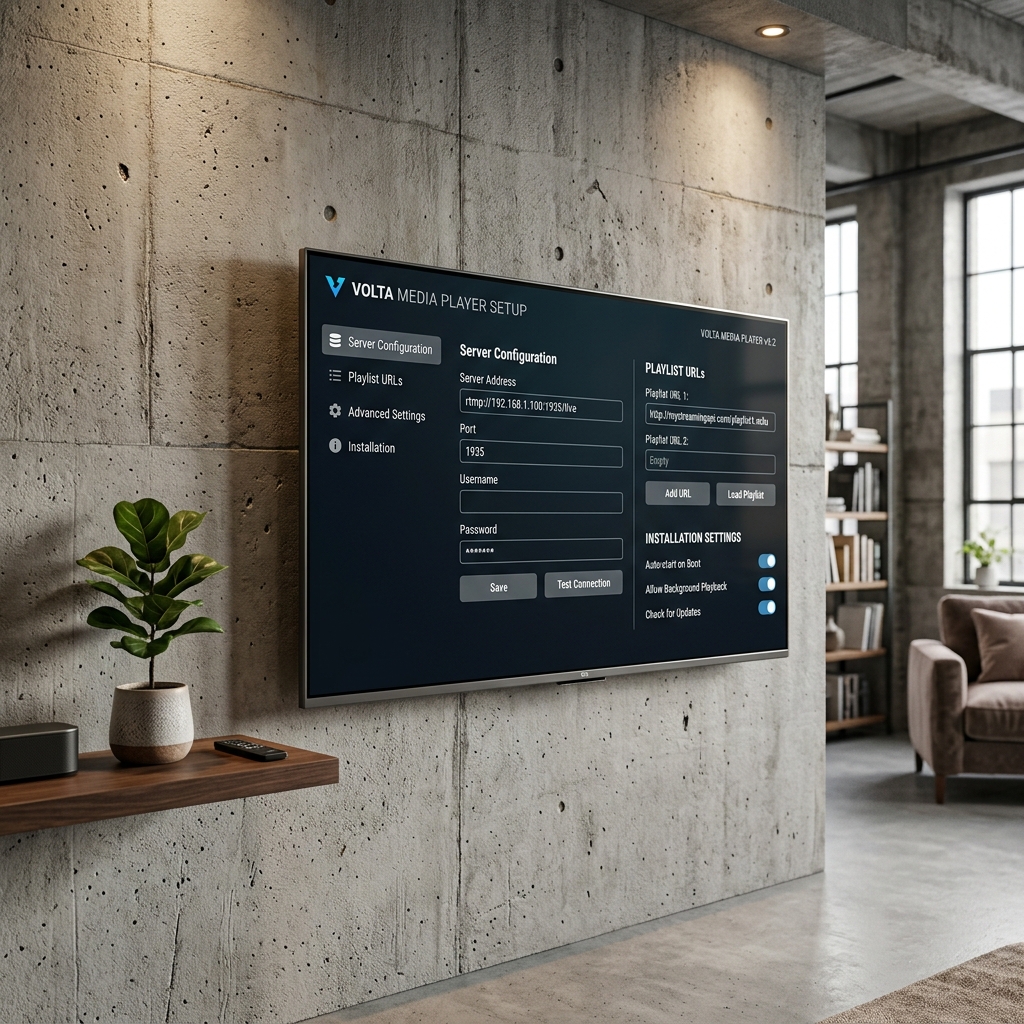
After installing Purple Easy Player on your iPhone, the next step is to configure the app correctly so you can access your compatible personal media or authorized streaming sources. Installation only places the player on your device, setup is where you connect your media source, understand the interface, test playback, and adjust the basic settings needed for everyday use.Purple Easy is developed by Purple Smart TV LLC and is currently available on Apple's App Store for iPhone and iPad. The developer positions Purple Easy as a media player rather than a provider of channels or subscriptions. Purple Smart TV also describes its player products as tools for managing and streaming compatible content through a user-friendly interface.That distinction is important. Purple Easy does not automatically give you television channels, movies, or a subscription. You need your own compatible and authorized media or streaming source.This complete Purple Easy Player Setup Guide for iPhone walks you through the configuration process from the first launch to testing playback and preparing the app for regular use.
Why Set Up Purple Easy Properly?
Purple Easy can open immediately after installation, but that does not mean the player is fully ready for your particular media source.A proper setup helps you connect the correct source, understand where your content appears, test whether playback works, organize your viewing experience, and identify network or source-related problems before they become confusing.The biggest advantage of completing the setup carefully is that troubleshooting becomes much easier later. If the player launches properly and your source has been entered correctly, you can quickly determine whether a future issue relates to Purple Easy, your network, your media server, or the source itself.Purple Easy belongs to a broader family of Purple Smart TV media-player products, and the developer's current app portfolio includes Purple Easy alongside other media-player applications.
What You'll Configure
| Setup Area | Purpose | |
|---|---|---|
| Initial Launch | Confirm Purple Easy opens normally | |
| Permissions | Allow relevant iPhone access | |
| Media Source | Prepare your authorized source | |
| Source Connection | Connect compatible media or streams | |
| Library Loading | Allow available content to populate | |
| Playback Testing | Verify video and audio performance | |
| Navigation | Learn the main player interface | |
| Updates | Keep the player compatible and stable |
Step 1: Open Purple Easy Player
Launch the Purple Easy Player from your iPhone Home Screen or App Library.Allow the application to finish its initial loading process before making changes. Depending on the current version, the interface may contain different navigation sections, source options, media categories, or settings.Don't worry if your screen doesn't exactly match an older online screenshot. Applications can receive interface changes through updates.During this first step, simply confirm that Purple Easy opens normally and responds when you move between its available sections.If the application immediately closes or becomes unresponsive, resolve that issue before adding any media source.
Step 2: Review iPhone Permissions
Purple Easy may need certain iOS permissions depending on the functions you intend to use.Open the iPhone Settings app and find Purple Easy if you want to review the permissions currently available to it.Only enable permissions that are relevant to your use case. For example, local network access may matter if you're connecting to compatible devices or servers on your home network.Permission options can vary by iOS version and application release, so you should follow the prompts displayed on your own iPhone rather than relying completely on older screenshots.If a feature doesn't work later, checking permissions is one of the first troubleshooting steps worth trying.
Step 3: Understand What You Need Before Adding a Source
Before attempting to add anything, determine exactly where your media comes from.Purple Smart TV describes its media-player ecosystem as a way to manage and stream user-provided content, while its related Purple Playlist Player specifically describes playback from personal audio/video media and sources such as an internet service provider, HTTP server, local network, home media server, NAS, network tuner, or security/monitor camera.For Purple Easy, the safest setup approach is therefore to prepare the compatible source information supplied by the service or system you're authorized to use.Avoid assuming that installing the player automatically provides content.
Step 4: Prepare Your Compatible Media Source
Before entering anything into Purple Easy, keep your connection details ready.Your source might be associated with a compatible internet service, HTTP-based media location, local server, NAS device, or another supported system.The exact details you need depend on that source and on the connection methods supported in your current version of Purple Easy.Copy connection information carefully whenever possible rather than typing long addresses manually. A missing character, incorrect password, or extra space can prevent the source from loading.If your source uses login credentials, keep them private and avoid sharing screenshots containing usernames, passwords, URLs, or account identifiers.
Step 5: Add Your Source Inside Purple Easy
Open the section of Purple Easy that allows you to add or connect a media source.The exact wording may vary with the current app version. Look for an option associated with adding a source, account, playlist, server, or media connection.Enter the information provided by your legitimate media or service provider exactly as supplied.Double-check capitalization, spacing, addresses, usernames, and passwords before continuing.If Purple Easy rejects the information immediately, don't repeatedly reinstall the application. First verify that the details are correct and that your service or source is currently active.
Step 6: Allow the Media Library to Load
After connecting a valid source, Purple Easy may require some time to retrieve and organize the available information.How long this takes can depend on your internet connection, the size of the media library, the speed of the source server, and the amount of information being loaded.Avoid repeatedly closing the application while the first synchronization is taking place.If your media collection is large, the initial load may naturally take longer than future launches.A stable Wi-Fi connection is preferable during initial configuration because it reduces the chance of an interrupted load.
Step 7: Learn the Purple Easy Interface
Once your compatible source has loaded, spend some time understanding how Purple Easy presents your media.Different sources can produce different libraries, so the exact categories available may vary.Focus on learning where your main media sections, recently accessed content, settings, search controls, playback options, or other available navigation features are located.Don't try to customize everything immediately.The goal of the Setup Guide is to establish a stable baseline. Once you know that your source and playback work correctly, you can explore more advanced usage in the Purple Easy Beginner Guide and later guides.
Step 8: Test Your First Stream or Media File
Select one piece of media from your authorized source and start playback.Use this first test to confirm that the entire setup process has worked.Check whether the video begins normally, audio is present, playback remains stable, and the player controls respond correctly.If possible, test more than one item before deciding there is a problem. A single stream or media file can fail independently even while the application works normally.This distinction is especially important with -style services, because individual stream availability depends on the source, not just the player.
Step 9: Check Audio and Video Quality
Once playback begins, pay attention to synchronization and stability.Video should play without constant freezing, and audio should remain reasonably synchronized with the picture.If you experience buffering, first check your network rather than immediately changing application settings.Streaming quality depends on several factors, including connection speed, source-server performance, media bitrate, and network congestion. Delivery itself is particularly sensitive to network conditions and quality-of-service factors.Testing on reliable Wi-Fi gives you a better idea of whether the source and player are working correctly.
Step 10: Test Full-Screen Playback
Switch your test media into full-screen mode.Verify that the iPhone changes orientation correctly if supported by the content and your device settings.Check whether the playback controls appear and disappear normally and whether returning to the main library works without stopping the application unexpectedly.This is a simple test, but it confirms that Purple Easy is working properly beyond merely loading a library.If full-screen behavior feels incorrect, check your iPhone orientation lock before assuming the player is malfunctioning.
Step 11: Check Local Network Access if Required
If your media comes from a local server, NAS device, network tuner, or another device inside your home network, ensure your iPhone is connected to the correct Wi-Fi network.Your media server also needs to be online and reachable.Local network access may require permission on iOS. If Purple Easy cannot detect a compatible local source, review the application's permissions from iPhone Settings.Also confirm that router settings, firewall rules, or server permissions aren't blocking access.Local-network problems are often mistaken for media-player issues, so checking connectivity early can save considerable troubleshooting time.
Step 12: Keep the Default Settings Initially
It's tempting to change multiple playback and interface options immediately after setup, but keeping the defaults initially is usually more practical.First confirm that your media source loads and normal playback works.After that, change one preference at a time.This approach gives you a clear baseline. If a future setting creates an unexpected problem, you'll know which change caused it.A stable default configuration is more useful than aggressively customizing the player before you've tested its basic functionality.
Step 13: Confirm Your Source Is Authorized and Active
If Purple Easy opens normally but your media refuses to load, verify the source itself.Make sure your account or server is active and that you're authorized to access the content.Purple Easy should be treated as the playback tool rather than the service responsible for supplying your media. Purple's related player listings explicitly state that their players do not provide playlists/content themselves, reinforcing the distinction between the player and the user's source.If a provider-side account expires or a home server goes offline, reinstalling Purple Easy won't resolve the underlying problem.
Step 14: Keep Purple Easy Updated
Check the App Store periodically for updates to Purple Easy.Purple Smart TV currently maintains several related iPhone and iPad media-player applications, including Purple Easy, indicating an actively distributed application ecosystem.Updates can improve compatibility, stability, interface behavior, and general performance.It's also important to keep your iPhone on a supported iOS version.If an issue begins immediately after an update, restart the application and your iPhone before changing your complete setup.
Best Practices After Setup
Once your source and playback are working, keep your configuration simple and secure. Store private account information safely, avoid sharing service credentials publicly, and use reliable networks for streamed media.If you maintain media on a NAS or home server, keep that device updated and available whenever you want to access it from Purple Easy.You should also avoid frequently deleting and re-adding a working source without a reason. Stable configuration reduces unnecessary errors and makes everyday usage much easier.
Common Setup Problems
Why Proper Purple Easy Setup Matters
The setup stage connects the application to your actual media experience.Installation confirms that Purple Easy can run on your iPhone, while setup confirms that the player can reach your authorized media source and reproduce its content correctly.Completing these steps carefully gives you a stable foundation for everything that follows, including learning navigation, improving playback habits, troubleshooting problems, and exploring additional features.It also prevents a common beginner mistake: confusing a source problem with an application problem.
What's Next?
Now that Purple Easy is installed and configured, you're ready to learn how to use it comfortably every day.Continue with the:Purple Easy Player Beginner Guide for iPhoneThat guide will focus on navigating the interface, browsing your available media, using playback controls, locating content efficiently, understanding everyday features, and becoming comfortable with Purple Easy without repeatedly changing important setup options.
Final Thoughts
Setting up Purple Easy Player on iPhone is easier when you understand the relationship between the player and your media source.Start by opening the application, reviewing relevant permissions, preparing your authorized source information, connecting that source carefully, allowing the library to load, and testing real playback before changing advanced settings.Remember that Purple Easy acts as the playback environment rather than automatically supplying a subscription or media library. Your viewing experience therefore depends on both the player and the quality, availability, and authorization of the media source you connect.Once your source loads correctly and your first playback test works, the essential setup is complete. From there, you can begin learning the interface and making Purple Easy more convenient for everyday viewing.
Frequently Asked Questions (FAQs)
1) Do I need to set up Purple Easy after installing it?
Yes. Installation places the player on your iPhone, but you'll still need to prepare and connect a compatible authorized media source before you can access your own media or streams.
2) Does Purple Easy provide channels?
Purple Easy should be treated as a media player, not as a channel or subscription provider. Your content must come from a compatible source you're authorized to use.
3) Why isn't my media loading after setup?
Check your connection details, internet or local network, source availability, and any required account credentials. If Purple Easy opens normally, the problem may be with the source rather than the player.
4) Can Purple Easy work with local network media?
Purple Smart TV's related media-player ecosystem supports local-network-style sources such as home media servers and NAS devices. Availability of specific connection methods should always be confirmed in the current Purple Easy version.
5) Why does playback keep buffering?
Buffering can result from network speed, congestion, source-server performance, or high-bitrate media. Test a stable Wi-Fi connection and another media item before changing the entire player configuration.
6) What should I read after this setup guide?
Continue with the Purple Easy - Player Beginner Guide for iPhone to learn how to browse your media, navigate the interface, use playback controls, and become comfortable with the player during everyday use.
Continue Learning with Player SDK
Continue your Purple Easy journey with Player SDK, your resource for installation guides, setup guides, beginner guides, troubleshooting, tips & tricks, hidden features, and device-specific media player tutorials.Now that your Purple Easy setup is complete, move on to the Purple Easy - Player Beginner Guide for iPhone to learn the interface, understand everyday playback, and get more from your player without unnecessary complexity.
