Installing the right media player can make accessing personal videos and compatible streams on an iPhone much more convenient. Purple Easy Player is designed to provide iPhone users with a straightforward way to play personal audio and video media and access compatible streams from supported sources.
Purple Easy Player is particularly useful if your media comes from sources such as an ISP, HTTP server, local network, home media server, NAS, network tuner, or compatible security and monitor cameras. Rather than limiting you to media stored directly on your iPhone, the player can become a central interface for accessing supported media sources.
Before getting started, however, there is one important distinction to understand: Purple Easy is a media player, not a content or subscription provider. Installing the app does not automatically provide television channels, movies, or a subscription. You need your own compatible and authorized media source.
This complete Purple Easy Player Installation Guide for iPhone explains how to check compatibility, download the correct application, complete the initial installation, review permissions, prepare your media source, and make sure Purple Easy is ready for configuration.
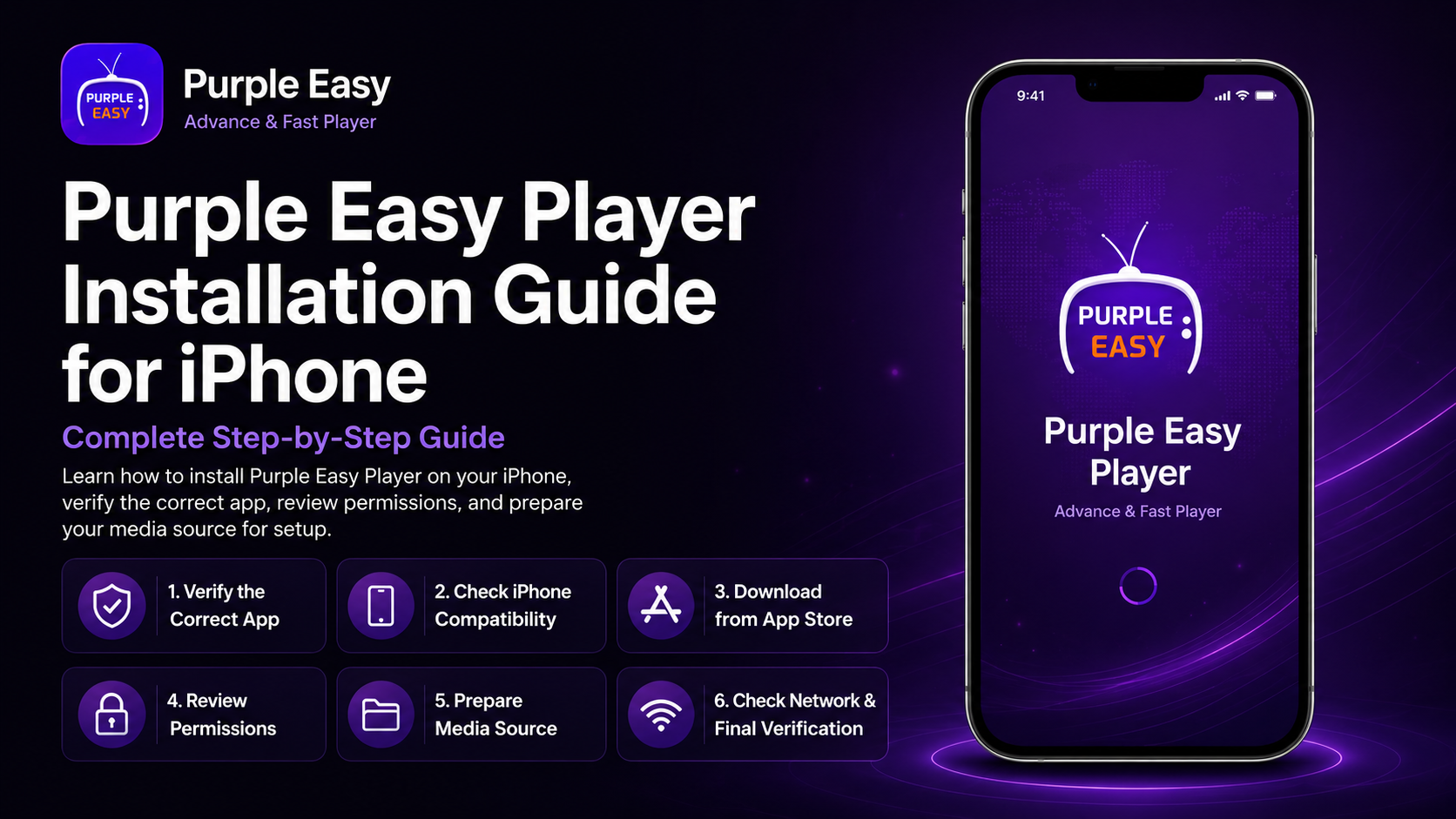
Why Choose Purple Easy Player on iPhone?
An iPhone is already a convenient device for entertainment, and a dedicated media player can make it easier to access content from different locations.
Purple Easy is designed to work as a media and playback application. Instead of assuming that all your videos are stored directly on your phone, it can work with compatible media and streams from several types of sources.
According to its current Apple App Store listing, the application is published by Purple Smart TV LLC and is available in the Entertainment category.
A properly installed player gives you a clean starting point before connecting your preferred media source and customizing the viewing experience.
What You'll Complete in This Guide
| Stage / Area | What You'll Complete |
|---|---|
| Compatibility Check | Make sure your iPhone supports Purple Easy |
| App Verification | Find the correct application and developer |
| Installation | Download Purple Easy from the App Store |
| First Launch | Open the player and check basic operation |
| Permissions | Review relevant iPhone access requests |
| Source Preparation | Prepare your authorized media source |
| Connection Check | Verify internet or local network availability |
| Final Verification | Confirm the player is ready for setup |
Before Installing Purple Easy on iPhone
Start by making sure your device meets the application's current requirements.
The App Store listing states that Purple Easy - Player requires iOS 13.0 or later on iPhone. Its listed download size is approximately 272.8 MB, although app size and requirements can change with future releases.
Make sure you have sufficient free storage and a reliable internet connection before starting the download. Keeping your iPhone updated to a supported version of iOS can also help with compatibility and stability.
You'll also need access to your Apple Account so that you can download applications from the App Store.
At this stage, you don't need to configure your complete media source. Simply make sure you know what source you plan to use after installation.
Step 1: Open the App Store
Unlock your iPhone and open the App Store.
Select the Search option and enter: Purple Easy - Player
and media-player searches can return several similar applications, so don't install the first result based solely on its name or icon.
Open the application's complete App Store page before downloading it.
Step 2: Verify the Correct Purple Easy App
Confirm that you've selected Purple Easy - Player from Purple Smart TV LLC.
Checking the developer is an easy way to avoid accidentally installing another application with a similar name.
You can also review the screenshots, description, category, compatibility information, privacy details, and recent update notes on the App Store page.
The current listing describes Purple Easy as an advanced and fast player and places it in the Entertainment category.
Because application details can change, always treat the current App Store listing as the best reference for compatibility and availability.
Step 3: Check iPhone Compatibility
Before downloading the application, verify that your iPhone is running a compatible version of iOS.
Purple Easy currently requires iOS 13.0 or later according to its App Store listing.
If you're unsure which iOS version your iPhone uses, open your device settings and check the software information.
If an appropriate iOS update is available for your device, consider installing it before setting up your media player. Running supported software can reduce compatibility problems.
Also make sure you have enough free storage for the application and normal app data.
Step 4: Download Purple Easy Player
Once you've verified the application, tap Get or the download button shown by the App Store.
Your iPhone may ask you to confirm the download using Face ID, Touch ID, or your Apple Account password.
Complete the authentication and allow the download to finish.
Keep your Wi-Fi or mobile data connection active during installation. The amount of time required will depend on your internet connection and current App Store conditions.
After installation, the Purple Easy icon should appear on your Home Screen or in the App Library.
Step 5: Launch Purple Easy for the First Time
Tap Open from the App Store or select the Purple Easy icon on your iPhone.
Give the application a moment to initialize.
During this first launch, focus on confirming that the player opens normally and that its main interface responds correctly.
You don't need to change every setting yet. Installation and configuration are separate stages, and keeping them separate makes troubleshooting much easier if you encounter a problem later.
Step 6: Review Permission Requests
Purple Easy may display iOS permission requests depending on the features you access and the version currently installed.
Read each request rather than automatically accepting everything.
Only provide permissions that make sense for the functions you intend to use. If you deny something and later discover that a feature requires it, available permissions can generally be reviewed from your iPhone Settings.
Permission options can also change as applications and iOS evolve, so don't worry if your screen doesn't exactly match an older tutorial.
Step 7: Understand What Purple Easy Actually Provides
This is one of the most important steps for first-time users.
Purple Easy provides the player—not the content subscription itself.
Installing it should not be expected to automatically generate a library of TV channels, movies, or other third-party programming.
Apple's current listing describes the application as a player for personal audio/video media and compatible streams from sources including an ISP, HTTP server, local network, home media server, NAS, network tuner, and security or monitor camera.
This broader approach means the source you eventually configure will depend on how you intend to use the application.
Always use media and streams you own or are authorized to access.
Step 8: Prepare Your Compatible Media Source
Now decide where your media will come from.
For example, you may intend to access a compatible home media server, NAS, local network source, HTTP-based stream, ISP-provided source, network tuner, or another source supported by the current version of Purple Easy.
The exact connection information required depends on that source.
You don't need to enter everything during the installation process. Simply keep the necessary authorized connection information available so that you're prepared for the setup guide.
This is more accurate than assuming every Purple Easy user needs the same playlist or account type.
Step 9: Check Your Internet or Local Network
The connection you need depends on your media source.
For internet-based media, make sure your iPhone has a reliable Wi-Fi or mobile data connection. Streaming video can use significant data, so keep your mobile plan and provider conditions in mind.
If you're accessing a local media server, NAS, or another network device, ensure your iPhone and source are connected to the appropriate network.
A weak or incorrectly configured network can result in slow loading or playback interruptions even when Purple Easy itself is functioning correctly.
Step 10: Explore the Purple Easy Interface
Once the application is running, spend a few minutes exploring its interface.
Don't immediately change every available option.
Instead, identify the main navigation areas, settings, media-related sections, and available source controls in the version installed on your iPhone.
The Purple Easy interface may change through future updates, which means screenshots from older tutorials won't always match your current version exactly.
Understanding the basic layout now will make configuration easier later.
Step 11: Confirm the Installation Was Successful
Before moving to the full setup process, verify that Purple Easy operates normally.
The application should launch without immediately closing, respond to navigation, and allow you to access its available interface and settings.
If Purple Easy opens successfully but doesn't show your desired media, that doesn't necessarily indicate an installation problem.
Remember that your personal or compatible streaming source may still need to be connected.
At this point, you're only confirming that the application itself was installed correctly.
Step 12: Keep Purple Easy Updated
After installation, check the App Store periodically for Purple Easy updates.
Updates can introduce performance improvements, compatibility changes, interface refinements, and bug fixes. They can also help the player remain compatible with newer versions of iOS.
Keeping both your iPhone software and Purple Easy current provides a better foundation for reliable playback.
Automatic app updates can also be managed through your iPhone's App Store settings if you prefer not to update applications manually.
What If Purple Easy Doesn't Install?
If Purple Easy won't download, start by checking your internet connection and available storage.
Next, verify that your iPhone meets the current iOS requirement and that your Apple Account can download applications normally.
Closing and reopening the App Store may resolve temporary issues. Restarting your iPhone can also help if the download remains stuck.
If Purple Easy doesn't appear in your App Store, check its current regional availability rather than downloading unknown copies from unofficial sources.
What If Purple Easy Opens but Doesn't Show Media?
An empty media area doesn't automatically mean something went wrong during installation.
Purple Easy is a player, so the media you want to access may still need to be connected through a compatible source.
First confirm that the app itself opens and responds normally. Then proceed to configuration.
This distinction is useful because repeatedly deleting and reinstalling the application won't solve a missing-source problem.
Best Practices After Installation
Keep Purple Easy updated, maintain sufficient free iPhone storage, and use a reliable network when accessing streamed media. It's also a good idea to keep your source information private if it contains account or connection details.
Start with the default application settings wherever possible. Connect your authorized media source, test basic playback, and then personalize the player gradually.
Changing too many options before testing the default configuration can make troubleshooting unnecessarily difficult.
Common Installation Mistakes
One of the biggest mistakes is assuming a player automatically includes a service. Purple Easy should be treated as the playback application, while your compatible media comes from a separate authorized source.
Another common mistake is downloading a similarly named application without verifying the developer.
Users can also confuse network problems with installation problems. If Purple Easy launches normally but a remote source won't load, investigate the source and network before reinstalling the app.
Why Proper Purple Easy Installation Matters
A correct installation gives you a reliable foundation for every step that follows.
By verifying the application, checking iPhone compatibility, reviewing permissions, confirming that Purple Easy launches correctly, and preparing your intended media source, you reduce the chances of running into avoidable configuration problems.
You'll also know that if an issue occurs later, you can focus on the network, media source, or configuration instead of wondering whether the application was installed incorrectly.
What's Next?
Now that Purple Easy Player is installed on your iPhone, you're ready to configure the application for your preferred compatible media source.
Continue with the:
Purple Easy Player Setup Guide for iPhone
The Setup Guide will cover preparing your media source, navigating the player, connecting compatible media or streaming sources, testing playback, and adjusting the essential settings for everyday use.
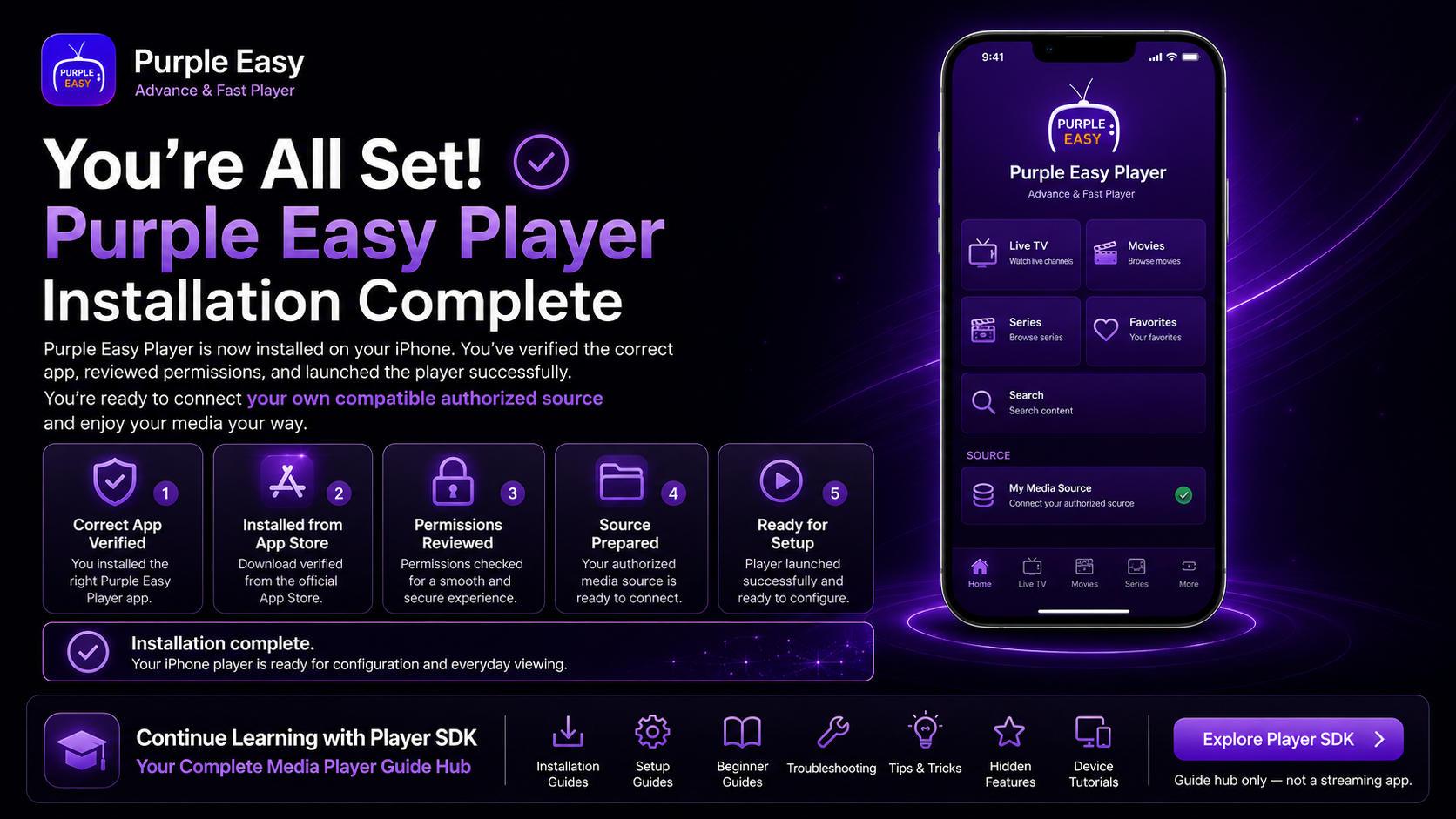
Final Thoughts
Installing the Purple Easy Player on an iPhone is a straightforward process when you begin with the correct application and understand its purpose.
Check that your iPhone meets the current compatibility requirements, download Purple Easy Player by Purple Smart TV LLC through the App Store, review relevant permissions, and verify that the application launches correctly.
Most importantly, remember that Purple Easy is a media player rather than a content provider. Your personal media or authorized compatible streams come from the source you choose to connect.
Once these installation steps are complete, you'll be ready to move on to the Purple Easy Setup Guide and configure the player for regular use.
Frequently Asked Questions (FAQs)
1) Is Purple Easy Player available for iPhone?
Yes, Purple Easy has an iPhone listing on Apple's App Store. Availability can vary by region, so check the App Store on your device for the current status.
2) What iOS version does Purple Easy require?
The current US App Store listing states that Purple Easy requires iOS 13.0 or later on iPhone. Requirements may change with future updates.
3) Does Purple Easy provide channels or subscriptions?
Purple Easy should be treated as a player rather than a provider of an subscription. You'll need your own compatible and authorized media or streaming source.
4) Can Purple Easy work with network media?
Its current App Store description mentions sources such as local networks, home media servers, NAS devices, HTTP servers, network tuners, and other compatible sources.
5) Why doesn't my media appear immediately after installation?
Your media source may still need to be connected or configured. If Purple Easy opens normally, proceed to the setup stage before assuming there's an installation problem.
6) What should I read after this installation guide?
Continue with the Purple Easy - Player Setup Guide for iPhone, where you'll learn how to prepare and connect a compatible media source, understand the interface, test playback, and configure the player for everyday use.
Continue Learning with Player SDK
Continue your Purple Easy journey with Player SDK, your resource for installation guides, setup guides, beginner guides, troubleshooting, tips & tricks, hidden features, and device-specific media player tutorials.
After installing Purple Easy on your iPhone, move on to the Purple Easy Player Setup Guide to configure your compatible media source correctly, test playback, and build a smoother everyday viewing experience.
