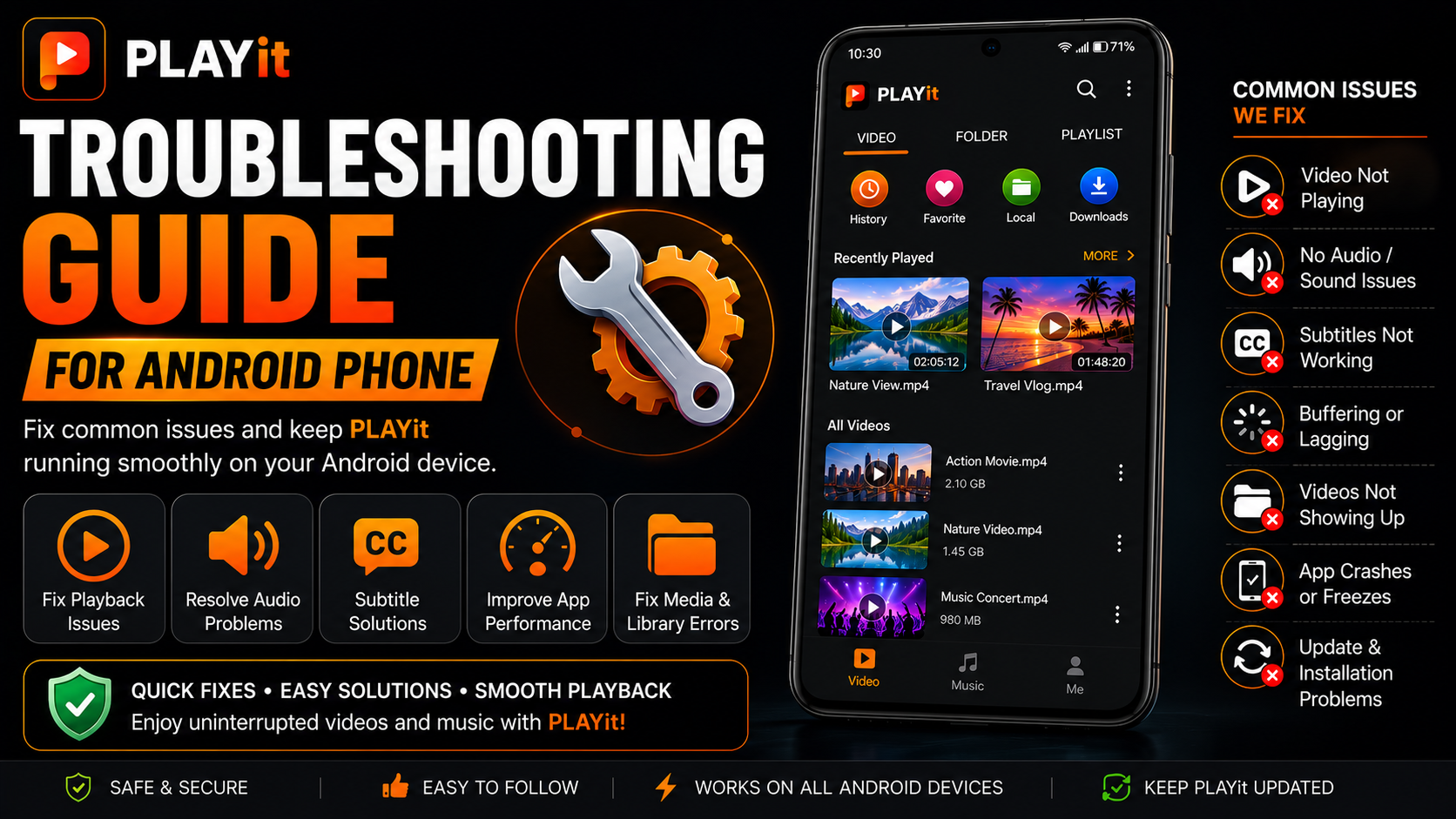
PLAYit is one of the most popular media players for Android, offering smooth HD video playback, music support, subtitle compatibility, floating player mode, and an easy-to-use interface. While the app is generally reliable, you may occasionally encounter issues such as videos not playing, audio problems, app crashes, subtitle errors, or slow performance.
The good news is that most PLAYit problems can be solved within a few minutes without reinstalling the application. Understanding the most common issues and their solutions helps you spend less time troubleshooting and more time enjoying your media.
In this complete PLAYit troubleshooting guide for Android, you'll learn how to diagnose common problems, apply simple fixes, and keep running smoothly for the best possible viewing experience.
Why Learn PLAYit Troubleshooting?
Every Android app can experience occasional issues due to software updates, storage limitations, permissions, or device settings. Learning basic troubleshooting techniques allows you to solve problems quickly without unnecessary frustration.
Benefits include:
- Faster problem-solving
- Better video playback
- Improved app stability
- Fewer interruptions
- Better subtitle performance
- Smoother audio playback
- Improved media organization
- Longer app reliability
Most problems have simple solutions that take only a few minutes.
What You'll Learn
| Topic | Description | |
|---|---|---|
| Installation Issues | Fix download and install problems | |
| Playback Errors | Resolve video playback issues | |
| Audio Problems | Restore sound | |
| Subtitle Issues | Improve subtitle performance | |
| Performance Fixes | Make PLAYit run smoothly | |
| Storage Problems | Manage media files | |
| Update Issues | Keep PLAYit current | |
| Best Practices | Prevent future problems |
Problem 1: PLAYit Won't Install
If PLAYit doesn't install properly, the issue is usually related to storage, internet connectivity, or Android compatibility.
Possible Causes
- Weak internet connection
- Insufficient storage
- Interrupted download
- Outdated Android version
- Google Play Store issue
Solutions
- Restart your internet connection.
- Free up device storage.
- Restart the Play Store.
- Reboot your Android phone.
- Download PLAYit again from the Google Play Store.
Problem 2: PLAYit Won't Open
Sometimes the app installs successfully but refuses to launch.
Possible Causes
- Temporary app error
- Android memory issue
- Corrupted cache
- Background process conflict
Solutions
- Restart your phone.
- Force close PLAYit.
- Clear the app cache.
- Update PLAYit.
- Update Android.
Most startup issues disappear after restarting the device.
Problem 3: Videos Won't Play
This is one of the most common problems.
Possible Causes
- Unsupported file
- Damaged video
- Missing permissions
- Playback interruption
Solutions
- Try another video file.
- Verify storage permissions.
- Restart PLAYit.
- Restart your phone.
- Update the application.
Testing multiple videos helps determine whether the issue affects one file or the entire application.
Problem 4: No Audio During Playback
The video appears correctly, but there's no sound.
Possible Causes
- Phone volume muted
- Bluetooth audio connected
- Damaged media file
- Audio output issue
Solutions
- Increase media volume.
- Disconnect Bluetooth devices.
- Play another video.
- Restart PLAYit.
- Restart your phone.
Problem 5: Videos Keep Buffering
If local videos buffer or hesitate unexpectedly:
Possible Causes
- Low available storage
- Too many background apps
- Device performance limitations
Solutions
- Close unused applications.
- Restart your phone.
- Free storage space.
- Update PLAYit.
Problem 6: Subtitles Don't Appear
Subtitles improve accessibility, but sometimes they fail to display.
Possible Causes
- Subtitles disabled
- Incorrect subtitle settings
- Unsupported subtitle format
Solutions
- Enable subtitles inside playback controls.
- Check subtitle settings.
- Test another subtitle file.
- Restart playback.
Problem 7: Floating Player Doesn't Work
Floating Player is one of PLAYit's most popular features.If it doesn't appear:
Possible Causes
- Missing permission
- Android restriction
- Disabled overlay permission
Solutions
Go to:Android Settings → Apps → PLAYit → PermissionsEnable the required permissions, including display over other apps if supported by your Android version.
Problem 8: PLAYit Doesn't Find Videos
If your media library appears empty:
Possible Causes
- Storage permission denied
- Files stored in another location
- Media scan incomplete
Solutions
- Grant storage permission.
- Refresh the media library.
- Verify that videos exist on the device.
- Restart PLAYit.
Problem 9: App Runs Slowly
Sluggish performance is often related to the phone rather than the application.
Possible Causes
- Low RAM
- Full storage
- Too many background apps
- Outdated version
Solutions
- Close unused apps.
- Restart Android.
- Free storage.
- Update PLAYit.
Problem 10: App Crashes Frequently
Unexpected crashes are usually temporary.
Solutions
- Restart the device.
- Clear PLAYit's cache.
- Install updates.
- Remove unused background apps.
- Reopen PLAYit.
Problem 11: Playback Controls Freeze
Sometimes playback buttons stop responding.
Solutions
- Pause and resume playback.
- Exit the video.
- Restart PLAYit.
- Restart Android.
Problem 12: Recently Played Doesn't Update
If playback history seems incorrect:
Solutions
- Close PLAYit completely.
- Reopen the app.
- Play another video.
- Update PLAYit.
Problem 13: Storage Full
A full device can negatively affect media playback.
Solutions
Delete:
- Duplicate videos
- Old downloads
- Temporary files
- Unused applications
Maintaining free storage improves overall performance.
Problem 14: Google Play Update Issues
If updates fail:
Solutions
- Restart Play Store.
- Check internet connectivity.
- Restart the phone.
- Try updating later.
| App Won't Open | Restart phone | |
| Video Won't Play | Test another file | |
| No Audio | Check media volume | |
| Subtitle Missing | Enable subtitles | |
| Floating Player | Verify permissions | |
| Slow Performance | Free storage | |
| Videos Missing | Grant storage permission | |
| Frequent Crashes | Update PLAYit |
Prevent Future Problems
The best way to avoid troubleshooting is through regular maintenance.
Recommended habits include:
- Keep PLAYit updated.
- Maintain sufficient free storage.
- Organize media folders.
- Restart your phone occasionally.
- Grant required permissions.
- Update Android regularly.
Preventive maintenance keeps PLAYit performing at its best.
Best Practices for Smooth Performance
For the best everyday experience, update PLAYit through the Google Play Store whenever new versions become available. Keep your Android phone organized by removing unnecessary files and maintaining enough free storage. Testing playback after major updates also helps identify any issues early.
These simple habits reduce the likelihood of common problems and improve long-term stability.
Why Troubleshooting Skills Matter
Understanding basic troubleshooting allows you to solve common PLAYit issues without wasting time searching for complicated solutions. Whether the problem involves playback, audio, subtitles, permissions, or storage, most fixes are quick and easy once you know where to look.
Instead of reinstalling the application immediately, following a logical troubleshooting process often restores normal functionality within minutes.
What's Next?
Now that you know how to solve common PLAYit problems, it's time to discover ways to improve your everyday experience.Continue with the:
PLAYit Tips & Tricks Guide
You'll learn practical techniques for better navigation, smoother playback, improved organization, and everyday productivity that help you get even more from PLAYit.
Final Thoughts
Troubleshooting doesn't have to be complicated. Most PLAYit issues are caused by permissions, storage limitations, outdated software, or temporary Android processes. By following the solutions in this guide, you can quickly restore smooth playback and keep the app running reliably.
With regular updates, organized media files, and a few good maintenance habits, PLAYit will continue to provide an excellent media experience for watching videos, listening to music, and managing your personal entertainment library.
Frequently Asked Questions (FAQs)
1) Why won't PLAYit play my videos?
Check that the video file is supported, verify storage permissions, and test another file to determine whether the issue is specific to one video.
2) Why is there no sound in PLAYit?
Ensure your media volume is turned up, disconnect any Bluetooth audio devices, and test another video.
3) How do I fix PLAYit crashes?
Restart your Android phone, clear the app cache, update PLAYit, and close unnecessary background applications.
4) Why can't PLAYit find my videos?
Most often, storage or media permissions haven't been granted. Enable them through Android Settings.
5) Should I keep PLAYit updated?
Yes. Updates improve performance, compatibility, security, and overall stability.
6) What should I read after this troubleshooting guide?
The next recommended article is the PLAYit Tips & Tricks Guide, where you'll discover practical ways to improve your overall media experience and use PLAYit more efficiently.
Continue Learning with Player SDK
Keep expanding your PLAYit knowledge with the Player SDK, your trusted destination for installation guides, setup guides, beginner tutorials, troubleshooting, tips & tricks, hidden features, supported device guides, and complete media player resources.
Whether you're solving a problem or looking to master every feature, Player SDK offers beginner-friendly, step-by-step guides to help you get the most out of PLAYit on your Android phone.
