You've successfully installed PLAYit on your Android phone now it's time to configure it for the best possible media experience. While PLAYit works immediately after installation, spending a few minutes setting it up properly will improve video playback, organize your media library, enhance subtitles, and make navigation much smoother.
Whether you use PLAYit to watch movies, play personal videos, listen to music, or manage downloaded media, the right setup ensures you enjoy all of its features without unnecessary interruptions.
In this complete PLAYit Setup Guide for Android, you'll learn how to configure the application step by step, personalize the interface, optimize playback settings, organize your media, and prepare PLAYit for everyday use.
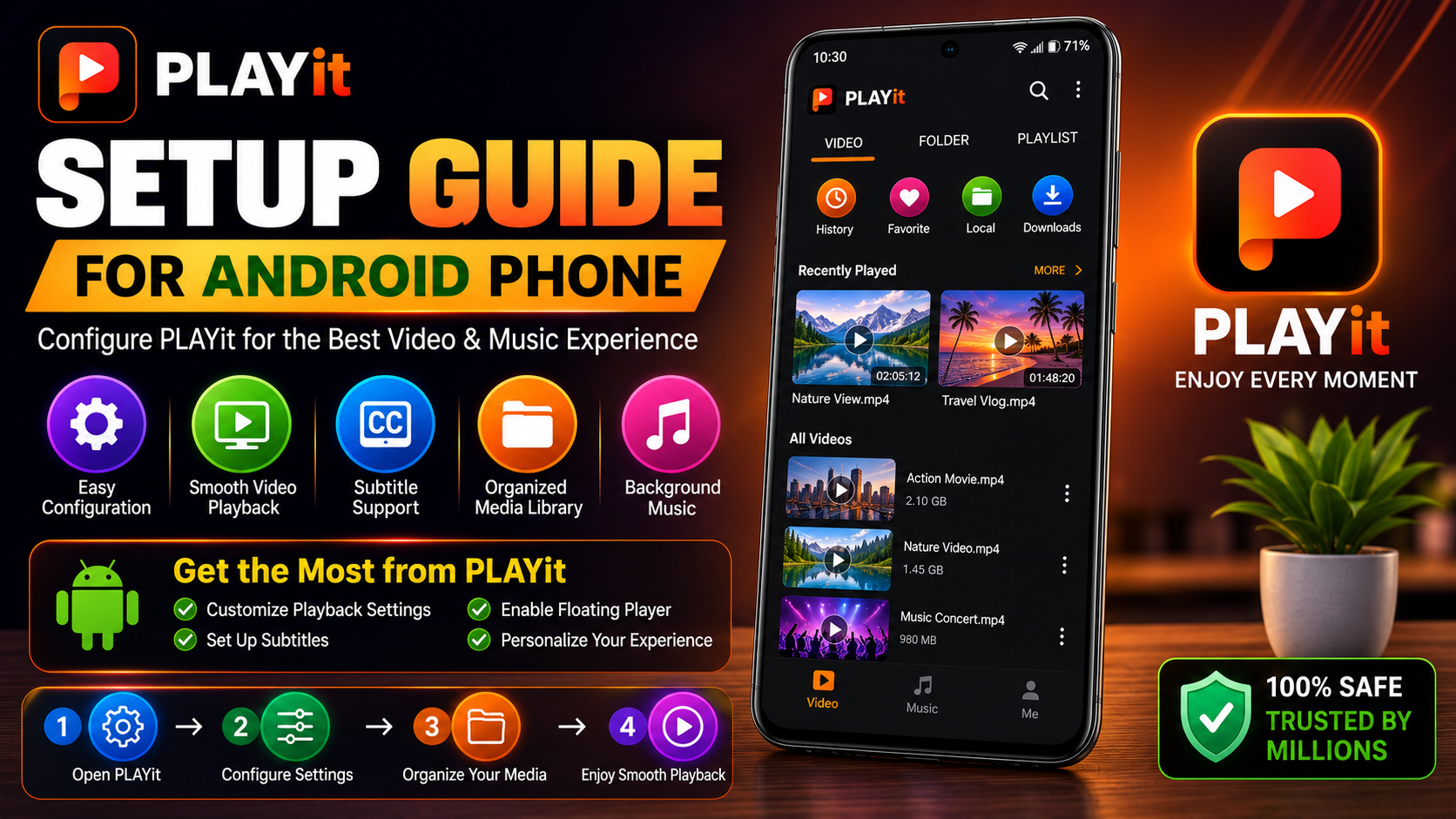
Why Set Up PLAYit Properly?
Many users install PLAYit and immediately begin watching videos. While that's perfectly fine, configuring a few settings first provides a noticeably better experience.
A proper setup helps you:
Improve video playbackOrganize your media libraryCustomize subtitlesPersonalize the interfaceEnhance audio qualityImprove navigationMake everyday use more convenientGet the best overall performance
What You'll Learn
| Section | What You'll Learn |
|---|---|
| First Launch | Initial configuration |
| Permissions | Required Android permissions |
| Media Library | Organize videos and music |
| Playback Settings | Customize video playback |
| Subtitle Setup | Improve readability |
| Interface Settings | Personalize PLAYit |
| Best Practices | Everyday optimization |
Before You Begin
Before configuring PLAYit, make sure:
PLAYit is successfully installed.Your Android phone has enough storage.Required permissions have been granted.Your videos and music are already stored on your device.
Completing these steps makes the setup process much easier.
Step 1: Launch PLAYit
Open PLAYit from your Home Screen or app drawer.
During the first launch, PLAYit may briefly scan your phone for supported media files.
Allow this process to finish before making any changes.
Step 2: Grant Required Permissions
For PLAYit to function correctly, Android may request several permissions.
Typical permissions include the following:
Photos and VideosStorage AccessMedia Files
Granting these permissions allows PLAYit to automatically detect your local content.
Without them, videos may not appear inside the application.
Step 3: Allow Media Scanning
PLAYit automatically scans your phone and categorizes supported files.
Depending on the amount of stored media, this process may take a few moments.
Once complete, you'll see organized categories for:
VideosMusicDownloadsRecently PlayedLocal Files
Step 4: Explore the Home Screen
Take a few minutes to become familiar with the interface.
Most Android versions of PLAYit include sections such as the following:
VideoMusicFolderPlaylistRecently Played
Learning the layout makes everyday navigation much easier.
Step 5: Organize Your Media
Keeping your files organized improves browsing.
Create folders such as the following:
MoviesTV ShowsMusicFamily VideosDownloadsTravel VideosEducational Content
A clean folder structure helps PLAYit locate your content more efficiently.
Step 6: Configure Playback Settings
Visit the playback settings to personalize your viewing experience.
Recommended adjustments include:
Default playback qualityAuto resume playbackScreen orientationBrightness behaviorVolume controls
These settings improve comfort during longer viewing sessions.
Step 7: Customize Subtitle Settings
If you regularly watch subtitled content, adjust subtitle preferences before watching videos.
Customize:
Font sizeFont colorSubtitle positionBackgroundSynchronization
Well-configured subtitles improve readability considerably.
Step 8: Test Video Playback
Play one or two videos after completing setup.
Verify:
Smooth playback Clear audio Subtitle functionality Full-screen mode Playback controls
Smooth playbackClear audioSubtitle functionalityFull-screen modePlayback controls
Step 9: Explore Music Playback
PLAYit isn't only a video player.
It also supports music playback with features like the following:
Background musicPlaylist managementMusic browsingAudio controls
Spend a few minutes exploring these features if you regularly listen to music.
Step 10: Learn Floating Player Mode
One of PLAYit's most useful features is Floating Window mode.
This allows videos to continue playing while you use other Android applications.
It's especially helpful when:
Browsing the webChattingTaking notesMultitasking
Step 11: Learn Playback Controls
PLAYit includes intuitive playback controls.
Become familiar with:
PauseResumeSeek ForwardSeek BackwardVolumeBrightnessFull ScreenPlayback Speed (if available)
Knowing these controls improves your daily experience.
Step 12: Explore Built-in File Management
PLAYit helps organize media through its built-in file browser.
You can easily browse the following:
DownloadsVideosMusicFoldersLocal storage
Keeping your files organized makes future browsing much faster.
Step 13: Personalize the Interface
Depending on your version, PLAYit may allow you to customize certain appearance settings.
Examples include:
LanguageInterface preferencesPlayback behaviorViewing options
Choose settings that best match your daily usage.
Step 14: Keep PLAYit updated
Visit the Google Play Store regularly.
Updates provide:
Performance improvementsBetter compatibilityBug fixesNew featuresSecurity enhancements
Using the latest version helps ensure a smooth experience.
Recommended Setup Checklist
| Step | Status |
|---|---|
| Open PLAYit | ✓ |
| Grant Permissions | ✓ |
| Scan Media | ✓ |
| Organize Folders | ✓ |
| Configure Playback | ✓ |
| Customize Subtitles | ✓ |
| Test Video | ✓ |
| Explore Floating Player | ✓ |
| Update App | ✓ |
Best Practices for Everyday Use
To keep PLAYit running smoothly, develop a few good habits.
Organize your videos into dedicated folders before importing them, update the application regularly through the Google Play Store, and maintain enough free storage on your Android device. Testing playback after updates also helps confirm that everything continues working as expected.
These simple practices improve long-term performance and make your media library easier to manage.
Common Setup Mistakes
Avoid these common mistakes during setup:
Skipping permission requestsLeaving videos in random foldersIgnoring subtitle settingsNever testing playbackNot updating the applicationFilling device storage completely
Preventing these issues creates a much better user experience.
Why Proper Setup Matters
PLAYit is designed to provide a fast and enjoyable media experience, but proper setup unlocks its full potential. Configuring playback preferences, organizing your media library, customizing subtitles, and exploring useful features like Floating Player mode all contribute to a smoother and more personalized experience.
Spending just a few minutes on setup can significantly improve how you use PLAYit every day.
What's Next?
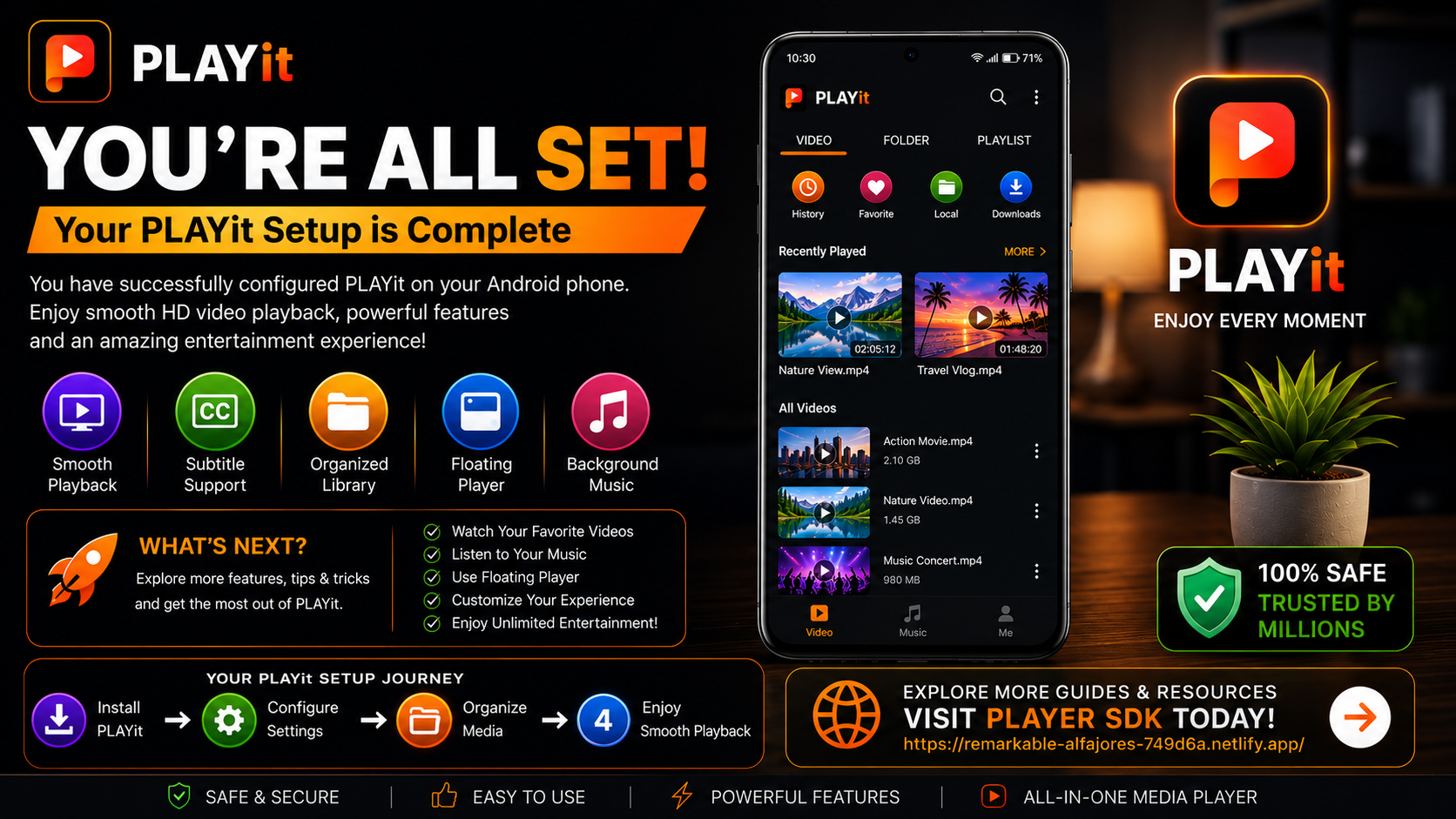
Now that PLAYit is fully configured, you're ready to start exploring everything it has to offer.
Continue with the:
PLAYit Beginner's Guide
You'll learn how to navigate the interface, understand the main features, organize your media effectively, and become comfortable using PLAYit every day.
Final Thoughts
Setting up PLAYit correctly is one of the easiest ways to improve your overall media experience. From organizing your videos and configuring subtitles to exploring playback controls and floating window mode, these small adjustments make a noticeable difference.
Whether you're watching movies, listening to music, or managing a growing collection of personal media, a properly configured PLAYit installation provides smoother playback, better organization, and greater convenience every time you open the app.
Frequently Asked Questions (FAQs)
1) Why should I configure PLAYit after installation? Proper setup improves playback quality, media organization, subtitles, and overall usability. 2) Does PLAYit automatically find my videos? Yes. After granting storage or media permissions, PLAYit scans your device and organizes supported media files. 3) Can I change subtitle settings later? Yes. Subtitle preferences can be customized anytime through the playback settings. 4) What is Floating Player mode? Floating Player allows videos to continue playing while you use other apps on your Android phone. 5) Should I update PLAYit regularly? Absolutely. Updates improve performance, compatibility, security, and overall stability. 6) What should I read after this setup guide? The next recommended article is the PLAYit Beginner Guide, where you'll learn how to navigate the app confidently and understand its core features.
Continue Learning with Player SDK
Your PLAYit setup is now complete continue your learning journey with Player SDK, your trusted destination for PLAYit installation guides, beginner tutorials, troubleshooting, tips & tricks, hidden features, supported device guides, and complete media player resources.
Whether you're a first-time user or looking to master every feature, Player SDK provides step-by-step guides that help you get the most out of your media player.
