Using NIO Player on an iPhone is usually straightforward once your M3U playlist or Xtream Codes API source has been configured correctly. However, streaming depends on several different components working together, so you may occasionally experience problems such as a playlist not loading, buffering, missing live TV channels, movies or series that will not play, catch-up issues, missing subtitles, audio problems, or an app that feels slow.
The key to successful NIO Player troubleshooting on iPhone is identifying which part of the setup is actually causing the problem.
NIO Player provides the media-player interface and playback controls. Your connected M3U or Xtream source supplies the available live TV, movies, series, catch-up content, and associated information. Your internet connection delivers that media, while your iPhone and iOS provide the device environment.
Because these are separate components, reinstalling NIO Player every time something stops working is rarely the best first step.
This complete NIO Player Troubleshooting Guide for iPhone explains how to diagnose common problems systematically while protecting a configuration that may already be working correctly.
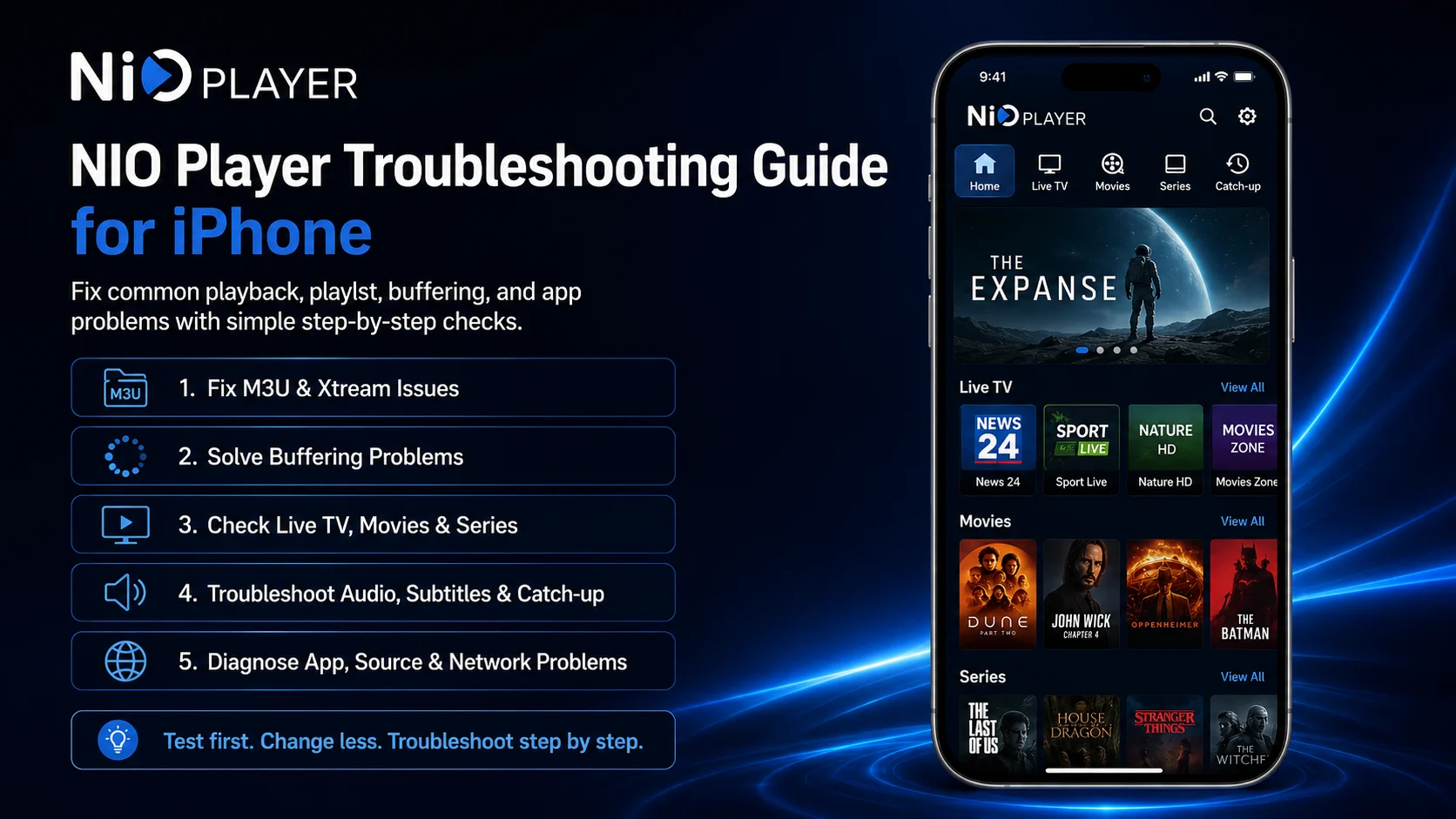
Why NIO Player Troubleshooting Should Be Systematic
Imagine that NIO Player opens normally, your complete library appears, and nearly every channel works except one.
That situation does not suggest that the entire application needs to be reinstalled.
The failed stream may simply be unavailable through the connected source.
Likewise, if the player opens but your complete M3U playlist does not load, you should check the playlist URL, network, and external source before changing video settings.
A simple troubleshooting process helps you determine whether the issue involves the player, source, network, media item, or iPhone.
Common NIO Player Problems and First Checks
| Problem | Best First Check |
|---|---|
| M3U playlist will not load | Verify the complete playlist URL |
| Xtream login fails | Check server and credentials |
| One channel will not play | Test several other channels |
| Everything is buffering | Check the internet connection |
| Movie or episode will not start | Test another media item |
| Catch-up is unavailable | Confirm the source provides it |
| Subtitles are missing | Check available subtitle tracks |
| No audio | Check volume and audio track |
| Search cannot find content | Confirm the item exists in the library |
| App feels slow | Restart NIO Player and iPhone |
Problem 1: NIO Player Will Not Open
If NIO Player refuses to launch, start with the simplest solution.
Close the app completely and reopen it.
If it still does not start correctly, restart your iPhone and try again.
You should also check whether an updated version of Nio Smart Player is available through Apple’s App Store and whether your iPhone is running a supported iOS version.
If the problem began immediately after a temporary system issue, restarting often resolves it without requiring reinstallation.
Only consider reinstalling after you have checked these simpler possibilities and securely retained any account or source information you may need afterward.
Problem 2: M3U Playlist Does Not Load
If your M3U playlist will not load in NIO Player, carefully inspect the complete URL.
Long playlist addresses are easy to copy incorrectly.
Check whether any characters are missing and make sure there are no accidental spaces before or after the URL.
Whenever possible, copy the original playlist information directly from your authorized streaming source rather than manually typing it.
Next, verify that your iPhone has internet access.
If NIO Player itself opens normally but one M3U source does not load, the application installation may still be completely fine.
The external source or connection information may be responsible.
Problem 3: Xtream Codes API Login Fails
NIO Player also supports Xtream Codes API connections.
If your source does not connect, carefully review the server address, username, password, and any other information requested by the current NIO Player interface.
Even a single incorrect character can prevent authentication.
Check capitalization, numbers, special characters, and accidental spaces.
If these credentials previously worked but suddenly stop connecting, confirm that the account or external service is still active.
Reinstalling NIO Player cannot repair incorrect or inactive source credentials.
Problem 4: One Live TV Channel Will Not Play
This is one of the easiest problems to diagnose.
Test several other live TV channels.
If they work normally, the original channel may simply be temporarily unavailable.
Do not delete your complete playlist because one stream fails.
NIO Player may be functioning correctly while an individual source item is experiencing a problem.
Wait and test the affected channel again later.
If many different channels stop working simultaneously, then begin checking your network and source more broadly.
Problem 5: No Live TV Channels Are Playing
If the complete live TV library appears but nothing plays, first check your internet connection.
Open another internet-based app and make sure your iPhone is online.
Then test movies or series if your connected source provides them.
If those also fail, the problem may involve the network or external source rather than one specific live TV channel.
If you have multiple authorized playlists configured, another playlist can also be useful for comparison.
When a second source works, you know NIO Player itself is still capable of loading and playing media.
Problem 6: NIO Player Keeps Buffering
Buffering can result from weak Wi-Fi, network congestion, mobile-data instability, source-server performance, or an unusually demanding stream.
Test several different media items.
If everything buffers, investigate your connection.
Move closer to your Wi-Fi router if necessary and check whether other devices are heavily using the same network.
If only one channel or video buffers while others remain smooth, the individual stream is more likely to be responsible.
Avoid changing multiple NIO Player playback settings before checking the network and source.
Problem 7: Movies or Series Will Not Start
If a movie or series title refuses to play, test another title.
For the series, test another episode as well.
If the rest of the on-demand library works correctly, the problem may be specific to the unavailable media item.
Remember that NIO Player displays content supplied through your connected source. It does not control whether every individual title remains available.
If all movies and series fail but live TV continues working, that difference can also help identify which part of the external library is experiencing a problem.
Problem 8: TV Catch-Up Is Missing
NIO Player supports TV catch-up, but catch-up must also be provided by your connected source.
If a channel plays live but does not show previous programs, do not automatically assume that NIO Player is malfunctioning.
Some channels may offer catch-up, while others do not.
Availability can differ between sources and even between channels within the same source.
Test several supported channels and verify whether catch-up content is actually included in your source before changing the player configuration.
Problem 9: Catch-Up Content Will Not Play
If catch-up information appears but a selected program does not start, first test another catch-up item.
Then check ordinary live TV playback.
If live streams work and only one previous program fails, the problem may involve that individual catch-up item.
If every catch-up program fails, confirm your network and source availability.
Keeping normal live TV playback and catch-up troubleshooting separate helps you identify the problem more accurately.
Problem 10: Subtitles Are Missing
NIO Player provides subtitle controls for compatible media.
If subtitles do not appear, open the playback controls and check whether a subtitle track is available.
Not every movie, episode, or stream necessarily includes subtitle information.
Test another media item.
If subtitles work there, the first title may simply not contain a compatible subtitle track.
Do not reinstall the complete player because one piece of media lacks subtitles.
The availability of subtitles can depend on the media supplied through your source.
Problem 11: The Wrong Audio Track Is Playing
NIO Player supports audio track controls.
If a movie or series episode plays in an unexpected language or audio format, open the player controls and check the available audio-track options.
Select the appropriate track and test playback.
Not every media item will provide multiple audio choices.
If the expected track is completely absent, the connected media may not contain that option.
This is different from an application-wide audio problem.
Problem 12: Video Plays but There Is No Sound
If the picture works but you hear no audio, check your iPhone volume first.
Increase the media volume while playback is active.
Also check whether your iPhone is sending audio to AirPods, Bluetooth headphones, a speaker, or another connected audio device.
Then open NIO Player’s available audio-track controls and see whether another compatible track can be selected.
Finally, test another video.
If audio works elsewhere, the problem may be specific to the original media item.
Problem 13: Video Looks Stretched or Incorrect
NIO Player includes Aspect controls that can affect how video fits the iPhone display.
If the image appears stretched, unusually narrow, or incorrectly proportioned, open the available aspect settings.
Try another suitable display mode.
Avoid assuming that every video should fill the complete iPhone screen.
Some media is naturally produced in wider or narrower formats, and forcing it into a different ratio can distort the image.
If the default mode looks natural, there is usually no reason to change it.
Problem 14: Global Search Cannot Find Something
NIO Player’s Global Search can make large media libraries easier to navigate, but it can only search information available through your connected source.
Try searching with a shorter or more distinctive keyword.
If the item still does not appear, manually browse the appropriate Live TV, Movies, or Series category.
If it is not present there either, the source may not currently include it.
Search cannot find media that does not exist in the connected library.
Problem 15: Favorites Have Disappeared
If saved favorites no longer appear, first make sure you are viewing the correct playlist.
This is particularly important if you use NIO Player’s multiple playlist support.
Different sources can contain different channels, movies, and series.
If you recently removed or re-added a playlist, available media identifiers may also have changed.
Before rebuilding everything, confirm which source is active and whether the original media is still available in that library.
Problem 16: One Playlist Works but Another Does Not
Multiple playlist support provides a useful troubleshooting advantage.
If Playlist A fails but Playlist B loads normally, you have already confirmed that NIO Player and your iPhone are capable of connecting to another source.
Focus your investigation on Playlist A.
Check its M3U URL or Xtream details and verify that its external service is available.
Do not change the working playlist simply because another source has stopped responding.
Keeping sources clearly named makes this comparison much easier.
Problem 17: NIO Player Is Slow
If NIO Player feels unusually slow, allow your library to finish loading before assuming that the app has frozen.
Large sources containing extensive live TV, movies, series, and catch-up information can naturally require more time.
If the app remains sluggish after loading completes, close and reopen it.
Restarting the iPhone can also clear temporary system issues.
Check available storage as well, because an iPhone with very little free space may experience broader performance problems.
Avoid deleting a working playlist until you have completed these basic checks.
Problem 18: Problems Started After an Update
Application or iOS updates can sometimes change interface behavior.
If NIO Player looks or behaves differently after an update, restart the application first.
Then test your normal playlist and a few familiar media items.
An option may have moved rather than disappeared.
Do not immediately delete your M3U or Xtream source because the interface changed.
If normal playback still works, your underlying configuration may remain intact.
Explore the updated interface before making major changes.
When Should You Reinstall NIO Player?
Reinstallation should be a later troubleshooting step.
Consider it when the application itself repeatedly fails to launch or remains unstable after restarting NIO Player and your iPhone, checking for updates, and confirming that the device is otherwise working normally.
Before uninstalling, securely retain any account and source information you may need afterward.
A reinstall will not fix an inactive M3U source, incorrect Xtream credentials, one unavailable channel, missing catch-up content, or a media item without subtitles.
Use it only when the application itself appears to be the likely problem.
Best Practices to Prevent NIO Player Problems
Keep your M3U and Xtream information private and accurate. Use stable Wi-Fi for larger libraries or longer viewing sessions and allow the player enough time to finish loading.
When one media item fails, test others before changing anything.
If you use multiple playlists, give each source a recognizable name.
Use the default playback configuration as your baseline and change only one option at a time when adjusting subtitles, tracks, or aspect settings.
Most importantly, use only streaming sources and media that you are authorized to access.
Common Troubleshooting Mistakes
One of the biggest mistakes is reinstalling NIO Player because a single channel or movie fails.
Another is deleting a working playlist before checking the network or source.
Users may also change multiple playback settings simultaneously, making it difficult to identify which adjustment caused a new problem.
A much better troubleshooting sequence is straightforward: confirm NIO Player opens, confirm the library loads, test several media items, and then check the network or individual source.
This keeps your working configuration protected.
Why Understanding NIO Player Troubleshooting Matters
NIO Player combines several useful capabilities, including M3U and Xtream connections, Live TV, Movies, Series, Catch-up, multiple playlists, Favorites, Global Search, parental controls, subtitles, audio tracks, video tracks, and aspect settings.
Understanding which component controls each part of the experience makes troubleshooting much easier.
You do not need to rebuild the entire application every time one feature behaves differently.
Identify the affected area first and apply the smallest appropriate fix.
What’s Next?
Now that you know how to diagnose common NIO Player problems on iPhone, the next step is improving your everyday workflow.
Continue with the:
NIO Player Tips & Tricks Guide for iPhone
The next guide will cover practical ways to manage playlists, use Favorites and Global Search efficiently, improve navigation, work with Catch-up, manage playback controls, and make everyday NIO Player viewing more convenient.
Final Thoughts
Troubleshooting NIO Player on iPhone becomes much easier once you separate the player, source, network, and individual media item.
If NIO Player will not open, investigate the app and iPhone. If an M3U playlist or Xtream connection fails, check the source information. If one channel stops playing, test others. If everything buffers, investigate your internet connection.
The same logic applies to catch-up, subtitles, audio tracks, global search, favorites, and multiple playlists.
Start with the simplest check and avoid deleting a working configuration without a clear reason.
A systematic troubleshooting process saves time, protects your setup, and helps you return to normal playback much faster.
Frequently Asked Questions (FAQs)
1) Why is my M3U playlist not loading in NIO Player?
Check the complete M3U URL for missing characters or extra spaces, confirm your iPhone has internet access, and verify that the external source is currently active.
2) Why are my Xtream Codes API details not working?
Review the server address, username, password, and other required fields carefully. Incorrect or inactive credentials cannot be fixed by reinstalling NIO Player.
3) Why does NIO Player keep buffering?
Buffering can be caused by weak Wi-Fi, network congestion, mobile data instability, or source performance. Test several media items and your internet connection before changing player settings.
4) Why does one live TV channel fail while others work?
An individual stream can become unavailable even when the rest of your source and NIO Player are functioning correctly. Test other channels before making changes.
5) Why are subtitles missing in NIO Player?
NIO Player supports subtitles, but compatible subtitle tracks must be available with the media. Test another title to determine whether the problem is specific to one item.
6) Why is TV Catch-up unavailable?
NIO Player supports catch-up, but the connected source must provide compatible catch-up content. Availability can differ by channel and source.
7) Should I reinstall NIO Player when something stops working?
Not immediately. Restart the app and iPhone, check your source, test several media items, verify your network, and review connection details first.
8) What should I read after this troubleshooting guide?
Continue with the NIO Player Tips & Tricks Guide for iPhone to learn how to improve navigation, playlist organization, Favorites, Search, Catch-up usage, and everyday playback.
Continue Learning with Player SDK
Continue your NIO Player journey with Player SDK, your resource for installation guides, setup guides, beginner guides, troubleshooting, tips & tricks, hidden features, and device-specific media player tutorials.
Now that you know how to diagnose common NIO Player problems, continue with the NIO Player Tips & Tricks Guide for iPhone to make playlist management, navigation, playback, search, favorites, and everyday viewing more efficient.
