Once NIO Player is installed and configured on your iPhone, a few practical habits can make everyday streaming faster, cleaner, and easier to manage.
Officially listed as Nio Smart Player, the app supports user-added M3U playlists and Xtream Codes API connections and is designed for live TV, movies, series, and TV catch-up. It also includes useful tools such as multiple playlists, Favorites, Global Search, parental controls, subtitle settings, audio-track options, video-track controls, and aspect settings.
The best NIO Player experience does not come from changing every option in the app. It comes from using the right features at the right time, keeping your source information organized, and knowing when a playback issue is related to the app, your network, or an individual stream.
Remember that NIO Player does not provide built-in channels, subscriptions, playlists, or pre-loaded copyrighted streams. It displays and plays compatible content that you add through your own authorized source.
This complete NIO Player Tips & Tricks Guide for iPhone focuses on practical ways to improve browsing, playback, playlist management, catch-up usage, search, favorites, and everyday viewing.
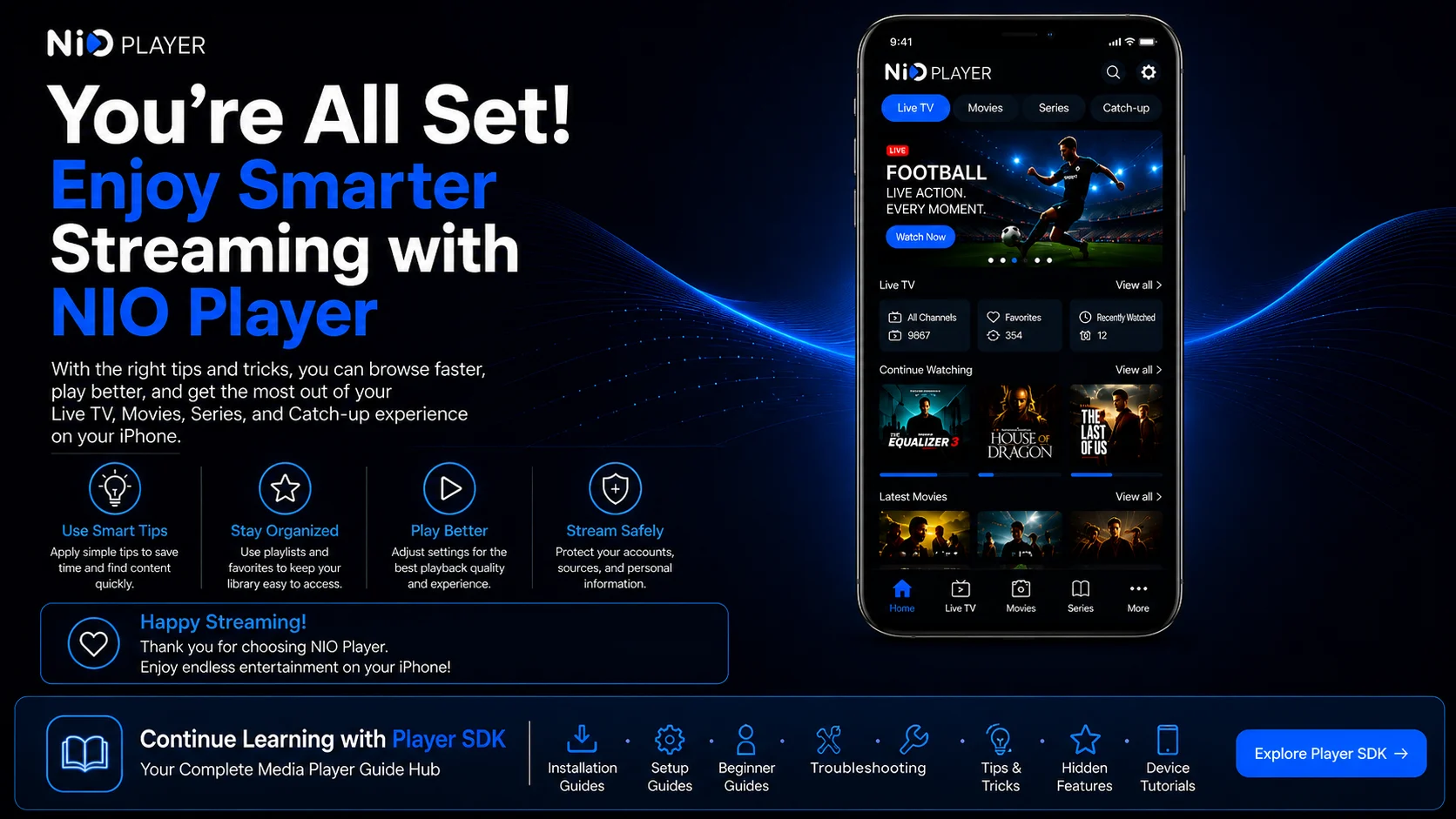
Why Learn NIO Player Tips & Tricks?
A large streaming library can quickly become difficult to navigate.
If your connected source contains hundreds of live TV channels, movies, series, and catch-up entries, manually browsing every category can waste a lot of time.
NIO Player already gives you tools such as Global Search, Favorites, multiple playlists, advanced track controls, and parental controls. The key is learning how to use them efficiently.
Small improvements also make troubleshooting easier.
For example, testing another channel before changing player settings can quickly tell you whether the issue affects one stream or your complete setup.
The goal is straightforward: make NIO Player easier to use without making the configuration more complicated.
Quick NIO Player Tips for iPhone
| Tip | Find Content Faster |
|---|---|
| Use Global Search | Find content faster |
| Keep Favorites Focused | Reach regular content quickly |
| Name Playlists Clearly | Manage multiple sources easily |
| Test Multiple Streams | Identify source-specific problems |
| Use Catch-up Selectively | Access supported previous programs |
| Review Track Controls | Improve audio and subtitle experience |
| Adjust Aspect Only When Needed | Keep video proportions natural |
| Protect Source Details | Keep accounts and playlists secure |
Tip 1: Let Your Library Finish Loading
When you open NIO Player, give your connected source enough time to populate before rapidly moving between sections.
Large sources can contain substantial amounts of live TV, movies, series, and catch-up information.
If the app is still retrieving and organizing this information, some areas may initially appear slower than expected.
Repeatedly closing and reopening NIO Player can make the process more frustrating.
Use a stable connection and allow the library to settle first. Once the main content areas appear normally, navigation usually becomes much easier.
Tip 2: Use Global Search Before Browsing Categories
One of the easiest ways to improve your NIO Player workflow is to use Global Search more often.
If you already know the title, channel, movie, or series you want, there is little reason to browse through many categories manually.
Open Search and enter a short, distinctive keyword.
Search results depend on the information supplied by your connected source, so exact naming matters.
If a long title does not return useful results, try a shorter version.
For large libraries, Search can save a significant amount of time.
Tip 3: Keep Your Favorites List Small and Useful
NIO Player supports Favorites, but the feature works best when you use it selectively.
Do not add every channel or title that looks interesting.
Instead, reserve Favorites for content you genuinely access regularly.
A focused Favorites section gives you a quick starting point whenever you open the app.
If the list becomes too large, review it and remove items you no longer watch.
Favorites should make navigation faster, not become another oversized library
Tip 4: Give Every Playlist a Clear Name
NIO Player supports multiple playlists, which is useful if you have more than one compatible authorized source.
When adding several sources, clear naming becomes important.
Avoid generic names that make different playlists difficult to identify.
Choose short names that tell you immediately which library you are opening.
This also helps during troubleshooting.
If one playlist stops loading while another works normally, you can quickly identify the affected source without changing the complete application.
Tip 5: Start With One Reliable Playlist
Even though multiple playlists are supported, adding several sources immediately is not always the best approach.
Get one source working properly first.
Make sure the library loads, test Live TV, check movies or series, and confirm that normal playback is stable.
Once you understand how a reliable source behaves, adding another playlist becomes easier.
You will also have a useful comparison point if a future source behaves differently.
A simple starting configuration is much easier to manage.
Tip 6: Test More Than One Channel Before Troubleshooting
If a live TV channel stops working, do not immediately delete your playlist or change player settings.
Test two or three other channels.
If they play normally, the original stream may simply be temporarily unavailable.
This quick test is one of the most useful habits for NIO Player users.
It helps separate an individual media problem from a larger app, network, or source issue.
The same principle works for movies and series: test another title or episode before changing your setup
Tip 7: Use TV Catch-Up Only Where It Is Available
NIO Player supports TV catch-up, but availability depends on your connected source.
Not every channel or program will necessarily provide previous broadcasts.
If Catch-up works on some channels but not others, this does not automatically mean the app has a problem.
Treat catch-up as a source-dependent feature.
When it is available, use it to revisit supported content instead of searching manually for another copy elsewhere in your library.
Tip 8: Learn the Subtitle Controls Before You Need Them
NIO Player includes advanced subtitle settings.
It is useful to learn where these controls are located while testing media that already plays correctly.
If compatible subtitle tracks are available, open the player controls and select the track you want.
Do not assume every movie or series episode includes subtitles.
If one title has no subtitle option but another does, the difference may come from the media itself.
Knowing the controls in advance makes future viewing more convenient.
Tip 9: Check Audio Tracks When the Language Is Wrong
If a movie or series plays with an unexpected language, do not immediately assume the file is incorrect.
NIO Player supports audio-track selection for compatible media.
Open the available audio controls and check whether additional tracks are listed.
Select the appropriate option and test playback.
Not every media item will contain multiple tracks, but when they are available, using the built-in selection controls is much faster than changing your complete source configuration.
Tip 10: Do Not Change Video Tracks Without a Reason
NIO Player also includes video-track controls.
These are useful when compatible media provides multiple video-related options, but they do not need to be changed during every viewing session.
If playback already looks correct, leave the current selection alone.
When experimenting, change one option at a time and test the result.
If the video becomes unstable or behaves unexpectedly, return to the previous selection.
Keeping a working baseline makes advanced controls much easier to manage.
Tip 11: Adjust Aspect Settings Only When Necessary
The Aspect setting controls how compatible video fits the iPhone display.
Some users immediately force every video to fill the complete screen, but this can distort the image.
A wider movie may naturally show empty space above and below, while older content may use a narrower shape.
Only change the aspect setting when the video genuinely looks stretched, compressed, or incorrectly displayed.
The correct goal is natural proportions, not always maximum screen coverage.
Tip 12: Use Stable Wi-Fi for Longer Viewing Sessions
NIO Player depends on continuous data delivery during streaming.
For longer sessions, a reliable Wi-Fi connection can provide a more consistent experience than an unstable mobile connection.
If playback buffers across several media items, check your network before changing player settings.
Move closer to the router if the signal is weak and consider whether other devices are using large amounts of bandwidth.
If only one stream buffers while everything else works normally, the individual source item may be the more likely cause.
Tip 13: Avoid Switching Networks During Playback
Your iPhone can move between Wi-Fi and cellular data depending on signal conditions.
Changing connections during active playback may interrupt the current stream.
Whenever possible, choose your preferred network before beginning a longer viewing session.
If playback stops after the network changes, wait until the iPhone has fully connected to the new network and then restart the media.
This is often easier than changing NIO Player settings unnecessarily.
Tip 14: Keep Your M3U and Xtream Details Private
Your source information can contain sensitive account details.
An M3U URL may include private connection data, while Xtream Codes API access can involve a server address, username, and password.
Avoid sharing screenshots that expose these details.
If you need technical assistance, hide or crop private fields before posting anything publicly.
Treat your NIO Player account information the same way.
Protecting your credentials reduces the risk of unauthorized access and keeps your setup easier to manage.
Tip 15: Use Parental Controls on Shared Devices
NIO Player includes parental controls for shared-device situations.
If younger family members use the same iPhone or player environment, review the available restriction settings.
Configure them only after your basic playback setup works correctly.
Use secure access information where the app provides it.
For broader device management, combine NIO Player controls with appropriate Apple family or iPhone settings.
This gives you more complete control than relying on a single app-level restriction.
Tip 16: Restart the App Before Reinstalling It
If NIO Player becomes unusually slow or stops responding properly, do not immediately uninstall it.
Close the app completely and reopen it.
If the problem continues, restart your iPhone.
These simple actions can resolve temporary application or iOS issues without removing a working configuration.
Reinstallation should generally come later, after you have checked the source, network, app behavior, and available updates.
A reinstall cannot fix an unavailable individual stream or inactive external account.
Tip 17: Keep NIO Player and iOS Updated
Application and iOS updates can improve compatibility, stability, and performance.
Check the App Store periodically for NIO Player updates and keep your iPhone software reasonably current when your device supports newer releases.
After an update, test a few familiar media items before changing your configuration.
If the interface looks different, explore the new layout first.
A setting may simply have moved rather than disappeared.
Tip 18: Use a Simple Testing Routine
When something feels wrong, use the same sequence every time.
First, check whether NIO Player opens normally.
Next, check whether your playlist loads.
Then test several media items.
If the app opens and the library loads but one channel fails, focus on that stream.
If no library appears, check the source and connection information.
If everything buffers, check the network.
This simple routine can save a lot of unnecessary troubleshooting.
Best Practices for Everyday NIO Player Use
A good NIO Player setup should remain simple and predictable.
Use Global Search to navigate large libraries, keep Favorites focused, and give multiple playlists recognizable names.
Use Catch-up where your source provides it and learn how subtitle, audio-track, video-track, and aspect controls work before making major adjustments.
Keep your source credentials private and use only media and services you are authorized to access.
Most importantly, protect a configuration that already works. Avoid changing several settings at once simply because the options are available.
Common NIO Player Usage Mistakes
One common mistake is deleting a complete playlist because one channel stops working.
Another is filling Favorites with so many items that it becomes difficult to navigate.
Users can also make playback worse by forcing every video into the same aspect setting or changing several audio and video options simultaneously.
Sharing screenshots containing M3U or Xtream credentials is another mistake that should always be avoided.
The best NIO Player workflow is organized, secure, and simple.
Why These NIO Player Tips Matter
NIO Player already provides several tools for making a large streaming library easier to use.
Global Search reduces unnecessary browsing. Favorites keeps your most-used content accessible. Multiple playlist support helps organize different sources, while Catch-up adds another way to access compatible previous programs.
Advanced subtitle, audio, video track, and aspect settings provide more control during playback.
The real benefit comes from using these features with a stable configuration rather than constantly adjusting the player.
Once your workflow becomes familiar, NIO Player feels much faster and easier to navigate.
What’s Next?
Now that you know how to make everyday NIO Player viewing more efficient, continue with the:
NIO Player Hidden Features Guide for iPhone
The next guide will focus on additional NIO Player capabilities that deserve a closer look without simply repeating the everyday techniques covered here.
Final Thoughts
Getting more from NIO Player on iPhone does not require complicated configuration.
Use Global Search when you already know what you want, maintain a focused Favorites list, keep multiple playlists organized, and use TV Catch-up where compatible content is available.
Learn the subtitle, audio track, video track, and aspect controls gradually.
When playback fails, test multiple media items before changing anything. When everything buffers, check your network. When one source fails but another works, focus on the affected playlist.
Most importantly, keep your M3U and Xtream connection details secure and avoid unnecessary changes to a setup that already works.
These simple habits can make NIO Player faster to navigate, easier to troubleshoot, and more convenient for everyday iPhone viewing.
Frequently Asked Questions (FAQs)
1) How can I make NIO Player easier to use on iPhone?
Use Global Search for large libraries, maintain a focused Favorites list, give playlists clear names, and keep your working player configuration simple.
2) How can I reduce buffering in NIO Player?
Use a stable connection and test multiple media items. If everything buffers, investigate your network. If only one stream is affected, the individual source item may be responsible.
3) Can NIO Player manage multiple playlists?
Yes. NIO Player supports multiple playlists. Clear playlist names make switching between compatible sources easier.
4) How should I use Favorites in NIO Player?
Add only the channels or other media you access frequently. A smaller Favorites list is usually faster and easier to navigate.
5) Does NIO Player support TV catch-up?
Yes. NIO Player supports TV catch-up when compatible previous content is supplied through your connected source.
6) Can I change subtitles and audio tracks?
Yes. NIO Player includes controls for subtitles, audio tracks, video tracks, and aspect settings when compatible options are available with the media.
7) Should I reinstall NIO Player if one channel stops working?
Usually not. Test several other channels or media items first. If they work normally, your player and playlist may still be functioning correctly.
8) What should I read after this Tips & Tricks Guide?
Continue with the NIO Player Hidden Features Guide for iPhone to explore additional capabilities and understand more of what NIO Player can do.
Continue Learning with Player SDK
Continue your NIO Player journey with Player SDK, your resource for installation guides, setup guides, beginner guides, troubleshooting, tips & tricks, hidden features, and device-specific media player tutorials.
Now that you have improved your everyday NIO Player workflow, continue with the NIO Player Hidden Features Guide for iPhone to explore more of the player’s capabilities and get even more from your iPhone viewing experience.
