After installing NIO Player on your iPhone, the next step is to connect your own compatible streaming source and prepare the app for everyday viewing.
Officially listed as Nio Smart Player, the app is designed for playing live TV, Movies, Series, and TV Catch-up from sources added by the user. NIO Player supports both M3U playlists and Xtream Codes API connections, giving users flexible ways to connect their own compatible streaming service.
NIO Player also includes useful features such as multiple playlist support, favorites, global search, parental controls, subtitle options, audio track controls, video track controls, and aspect settings.
One important point should be clear before you begin: NIO Player does not provide built-in channels, subscriptions, playlists, or pre-loaded copyrighted streams. The application only displays and plays content that you add through your own compatible source.
This complete NIO Player Setup Guide for iPhone walks you through account access, adding an M3U or Xtream source, loading your media library, testing live TV and on-demand playback, and configuring the most important options for regular use
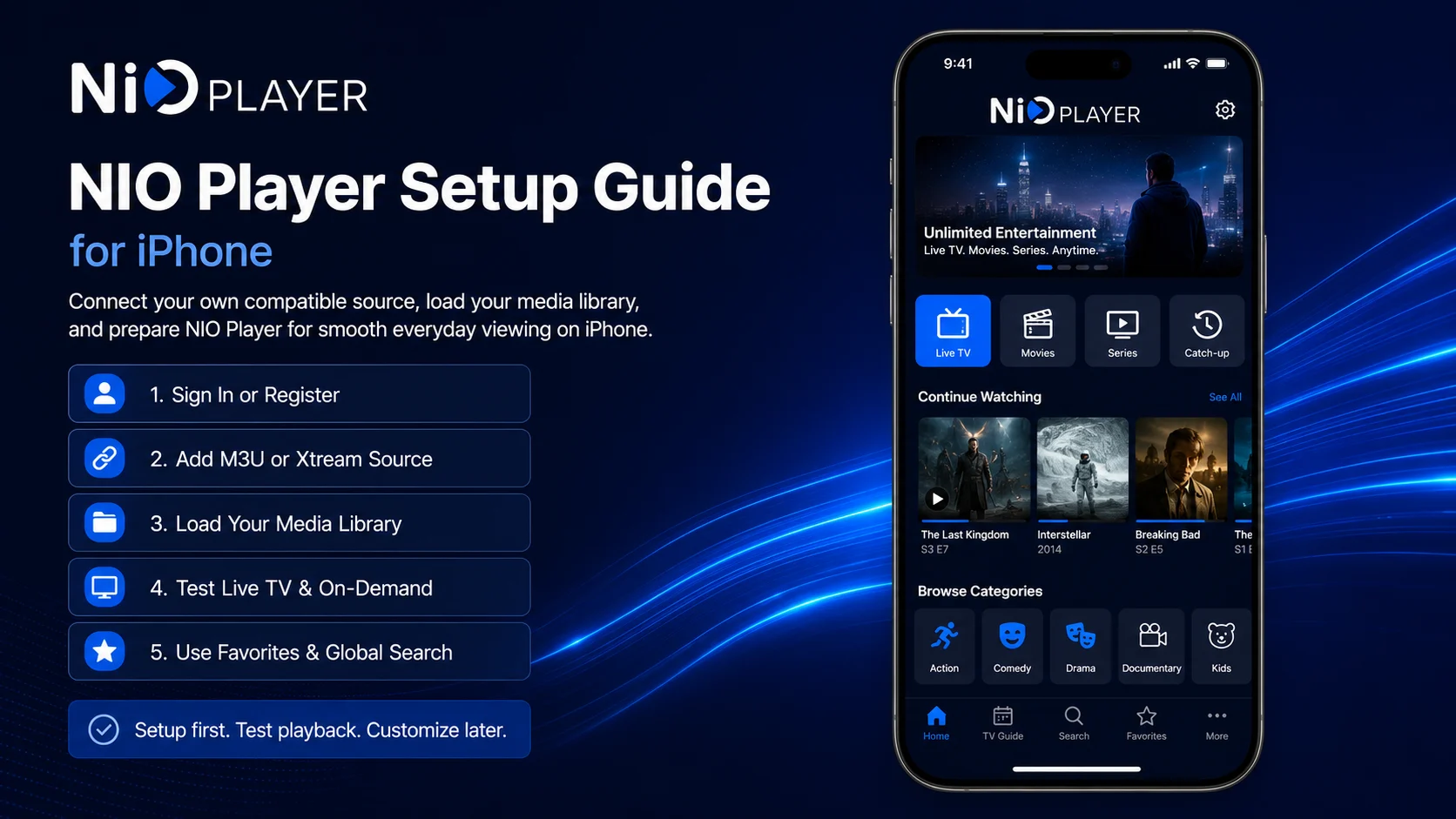
Why Proper NIO Player Setup Matters
Installing NIO Player gives you the application, but configuration is what makes the player useful.
A correct setup allows NIO Player to retrieve the live TV, movies, series, catch-up content, and other media information made available through your connected source.
It also helps you establish a reliable baseline.
If the application opens normally, your source loads successfully, and several media items play correctly before you change advanced settings, you know your core configuration works.
Later, if something stops working, it becomes much easier to determine whether the problem comes from NIO Player, your source, your internet connection, or a setting you changed.
For beginners, the best approach is therefore simple: connect first, test second, and customize later.
What You’ll Configure in NIO Player
| Setup Area | What You'll Do |
|---|---|
| First Launch | Confirm NIO Player opens normally |
| Account Access | Register or sign in if required |
| Streaming Source | Add M3U or Xtream Codes API details |
| Library Loading | Allow available media to populate |
| Live TV | Test your first compatible channel |
| Movies & Series | Check on-demand playback |
| Player Controls | Explore subtitles, tracks, and aspect options |
| Navigation | Use Favorites and Global Search |
Step 1: Open NIO Player on Your iPhone
Launch the NIO Smart Player from your iPhone Home Screen or App Library.
Give the application a few moments to load completely.
If this is your first time opening NIO Player after installation, you may see login, registration, or playlist-related options rather than a fully populated media library.
That is normal.
The application does not automatically provide media. Your library becomes available after you connect your own compatible streaming source.
Before moving forward, make sure NIO Player opens correctly and responds normally when you navigate through its initial interface.
Step 2: Register or Sign In
NIO Player’s onboarding process may include account registration or login.
Follow the options displayed in your current iPhone version.
If you already have a NIO Player account, sign in using the correct credentials. If registration is required, follow the instructions shown by the app.
Keep your NIO Player account information private.
Avoid sharing screenshots that expose email addresses, usernames, passwords, or other private information.
Once you have successfully completed the account stage, you can move on to adding your streaming source.
Step 3: Prepare Your M3U or Xtream Information
NIO Player supports M3U playlists and Xtream Codes API connections.
Before entering anything, make sure you have the correct information supplied by the streaming service or media source you are authorized to use.
If your service provides an M3U source, you will usually receive a playlist URL.
If it provides Xtream-based access, you may receive a server address along with a username and password.
Keep the original information available so you can copy it accurately.
Small mistakes such as an extra space, missing character, incorrect password, or incomplete URL can prevent a valid source from loading.
Treat all connection details as private account information.
Step 4: Add an M3U Playlist
If your source uses an M3U playlist, open the source or playlist management area in NIO Player.
Choose the option that corresponds to M3U.
The exact wording may change between versions, so follow the labels displayed in your current app.
If NIO Player asks you to enter a playlist name, choose something easy to recognize.
This becomes especially useful if you later add more than one source.
Next, paste the complete M3U URL.
Review the URL carefully before saving it. Make sure the entire link was copied and that no extra spaces appear at the beginning or end.
Once saved, NIO Player should attempt to connect to the source and retrieve the available media information.
Step 5: Add an Xtream Codes API Source
If your service provides Xtream Codes API credentials, choose the corresponding connection option.
Enter the required information exactly as supplied.
Depending on the current NIO Player interface, you may be asked for a server or portal address, username, password, and a name for the source.
Check every field carefully.
Pay attention to capitalization, special characters, numbers, and spaces.
Once the information is complete, save the source and allow NIO Player to connect.
Never publish screenshots containing these credentials. They can provide access to your private streaming account.
Step 6: Allow Your Media Library to Load
After adding a valid source, NIO Player may need some time to retrieve and organize the media available through it.
The amount of time required depends on your internet connection, the source server, and the size of the library.
A source containing a large collection of live TV, movies, series, and catch-up content can naturally take longer to populate than a smaller playlist.
Avoid repeatedly closing and reopening the application while the library is still loading.
For the initial configuration, a reliable Wi-Fi connection can make the process more consistent.
Once the main media sections appear, your source has successfully reached the player.
Step 7: Explore Live TV
If your source provides live TV, open the relevant section in NIO Player.
Browse an available category and select a channel.
Allow a few moments for playback to start.
Check whether the picture appears, audio works, and playback remains reasonably stable.
If the first channel fails, test two or three others.
One unavailable stream does not automatically mean the complete NIO Player setup has failed.
If several other channels work normally, your basic source connection and playback configuration are most likely functioning correctly.
Step 8: Test Movies and Series
NIO Player is also designed to play movies and series supplied by your connected source.
Open the Movies or Series section if available.
Select a familiar title and start playback.
For a series, you may need to choose the appropriate season and episode.
Testing both live TV and on-demand media gives you a better understanding of whether the source has loaded correctly across different sections.
Remember that NIO Player does not create the available library. Titles, categories, episodes, artwork, and availability depend on the information supplied by your connected source.
Step 9: Check TV Catch-Up
NIO Player also supports TV catch-up content.
If your connected source provides compatible catch-up access, look for the relevant controls or sections in the player.
Catch-up availability can differ significantly between sources.
Some channels may offer previous programs, while others may only support live playback.
Therefore, if Live TV works but Catch-up is missing for a particular channel, do not immediately assume your NIO Player configuration is incorrect.
The required catch-up information must also be supplied by the connected source.
Step 10: Learn the Subtitle Controls
NIO Player includes advanced playback options for subtitles.
Start a video that already plays correctly and open the playback controls.
If subtitle tracks are available with the media, look for the subtitle option and select the appropriate track.
Not every media item will necessarily provide subtitles.
If one movie has no subtitle option while another does, the difference may come from the available media information rather than the app itself.
Learning where the subtitle controls are located early will make everyday playback more convenient.
Step 11: Explore Audio and Video Track Options
NIO Player also includes options for audio tracks and video tracks.
These controls can be useful when compatible media contains multiple track options.
For example, a movie or series may provide more than one audio track.
Open the player controls during playback and explore the options made available for that media.
Do not change several settings simultaneously.
Choose one option, test the result, and then decide whether you want to keep it.
This approach makes customization easier and avoids unnecessary confusion.
Step 12: Adjust the Aspect Setting When Needed
The Aspect control can help change how video fits your iPhone display.
Depending on the source material, some videos may appear with different proportions.
Use the aspect controls available in NIO Player to test the viewing mode that works best for the media.
Avoid assuming every video needs the same setting.
Some content is naturally produced in different aspect ratios, so a mode that looks correct for one video may not be ideal for another.
Use aspect adjustment only when it improves the viewing experience.
Step 13: Use Global Search
A large media library can become difficult to navigate manually.
NIO Player includes Global Search, making it easier to locate content without repeatedly browsing categories.
After your source has fully loaded, open Search and enter a title or relevant keyword.
Search results depend on the names and information supplied by your source.
Global Search becomes particularly useful when your playlist contains a large number of live TV channels, movies, and series.
Instead of scrolling through many categories, you can often reach the content you want much faster.
Step 14: Create a Useful Favorites List
NIO Player allows users to add content to Favorites.
Use this feature for channels, movies, series, or other supported media you access regularly.
The best Favorites list is focused rather than enormous.
If you save hundreds of items, Favorites becomes another large library that you have to search manually.
Instead, keep frequently used content there so it becomes a fast-access section.
Review your favorites occasionally and remove media that you no longer use.
Step 15: Manage Multiple Playlists
NIO Player officially supports multiple playlists.
This is useful if you have more than one compatible and authorized streaming source.
However, start with one working source before adding several others.
Once your first playlist loads and playback works correctly, you can gradually add additional sources.
Give every playlist a descriptive name.
Clear naming becomes useful for both navigation and troubleshooting.
If one source fails while another still works, you immediately know the NIO Player application itself is still capable of loading another library.
Step 16: Review Parental Controls
NIO Player includes parental controls.
If your iPhone or player configuration is shared with children or other household members, review the available controls after basic playback is working.
Configure restrictions according to your household requirements and use secure access information where the app provides that option.
Player-level restrictions can be useful, but they should complement appropriate Apple family and device controls when necessary.
The important point during setup is to establish normal playback before introducing additional restrictions.
Step 17: Keep Your Working Configuration Simple
Once your source loads, Live TV plays, and movies or series work correctly, you have established a successful NIO Player configuration.
Avoid changing every option immediately.
Use the working setup for a while.
Then gradually customize subtitles, audio tracks, aspect behavior, favorites, parental controls, and other preferences.
Making changes one at a time gives you a clear understanding of what each setting affects.
If something becomes worse, you can easily reverse the most recent adjustment.
What If Your M3U Playlist Does Not Load?
If NIO Player cannot load an M3U source, start by checking the complete URL.
Make sure it was copied correctly and contains no accidental spaces.
Next, confirm that your iPhone has a working internet connection.
If NIO Player itself opens normally, the application installation may be completely fine.
The issue can instead involve the external source, connection information, or network.
Avoid immediately uninstalling the player because one source does not connect.
What If Xtream Login Does Not Work?
If an Xtream connection fails, review every credential carefully.
Check the server address, username, and password.
If those details previously worked but no longer connect, confirm that the external service remains active.
An inactive account cannot be repaired by changing NIO Player settings.
If another source loads successfully in the same application, that also suggests the player itself is functioning.
Best Practices After NIO Player Setup
Keep your NIO Player account and source credentials private.
Use reliable Wi-Fi when loading a large library and test multiple media items before concluding that the complete source has failed.
Use Global Search for large libraries and Favorites for content you access frequently.
Keep one reliable playlist as your baseline before adding several additional sources.
Most importantly, avoid changing a working setup without a specific reason.
A stable configuration is easier to use and much easier to troubleshoot.
Common NIO Player Setup Mistakes
One common mistake is expecting the application to contain media before a source has been connected.
Another is entering M3U or Xtream information incorrectly and assuming the player is malfunctioning.
Users may also add several playlists before confirming that the first one works.
Changing multiple advanced playback controls before testing normal playback can create additional confusion.
A better setup order is simple: account, source, library, playback, then customization.
Why Proper NIO Player Setup Matters
A good setup turns NIO Player into a practical media environment on your iPhone.
Once your compatible source is connected, you can access the live TV, movies, series, and catch-up content made available through that source.
You can then take advantage of Global Search, Favorites, multiple playlists, parental controls, subtitle settings, audio and video track controls, and aspect options.
A proper setup also makes future troubleshooting much easier because you know what a successful working configuration looks like.
What’s Next?
Now that NIO Player is configured on your iPhone, the next step is learning how to use it comfortably in everyday viewing.
Continue with the:
NIO Player Beginner Guide for iPhone
The Beginner Guide will explain how to navigate live TV, movies, series, and catch-up, use Global Search and Favorites, manage multiple playlists, understand playback controls, and recognize whether a problem comes from the player, network, or connected source.
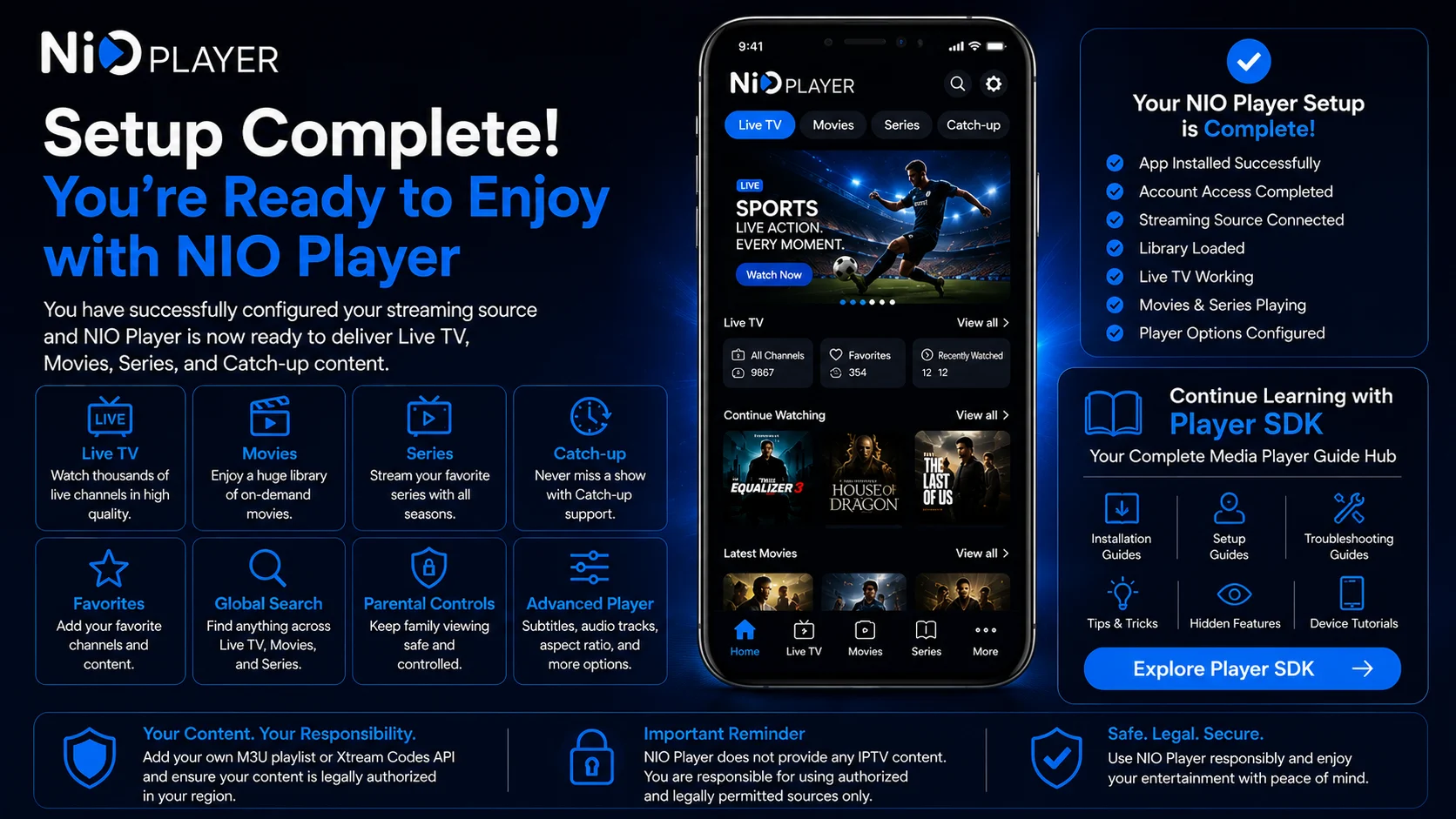
Final Thoughts
Setting up NIO Player on iPhone is straightforward when you start with the correct connection information.
Sign in or register where required, add your compatible M3U playlist or Xtream Codes API credentials, let your library finish loading, and test several media items before changing advanced settings.
Once everything works, explore Live TV, Movies, Series, TV Catch-up, Global Search, Favorites, multiple playlists, subtitle controls, audio tracks, video tracks, aspect settings, and parental controls.
Remember that NIO Player provides the playback environment while your own compatible source supplies the available media.
Keep your credentials secure, use authorized sources, and customize the app gradually.
With the essential configuration complete, NIO Player is ready for regular iPhone viewing.
Frequently Asked Questions (FAQs)
1) How do I set up NIO Player on iPhone?
Open NIO Player, sign in or register if required, and add your compatible M3U playlist or Xtream Codes API information. Allow the library to load and test several media items.
2) Does NIO Player support M3U playlists?
Yes. NIO Player supports compatible M3U playlists that users add themselves.
3) Can I use the Xtream Codes API with NIO Player?
Yes. NIO Player supports Xtream Codes API connections. Enter the details exactly as supplied by your authorized streaming source.
4) Can NIO Player manage multiple playlists?
Yes. Multiple playlist support allows users to manage more than one compatible source inside NIO Player.
5) Does NIO Player support TV catch-up?
Yes. NIO Player can play TV catch-up content when compatible catch-up media is available through the connected source.
6) What advanced playback controls are available?
NIO Player includes advanced controls for subtitles, audio tracks, video tracks, and aspect settings.
7) Why does NIO Player show no media after setup?
Confirm that your M3U or Xtream source was added successfully and that it is active. NIO Player itself does not provide built-in channels, subscriptions, or pre-loaded media.
8) What should I read after this setup guide?
Continue with the NIO Player Beginner Guide for iPhone to learn everyday navigation, favorites, global search, multiple playlists, playback controls, and efficient media browsing.
Continue Learning with Player SDK
Continue your NIO Player journey with Player SDK, your resource for installation guides, setup guides, beginner guides, troubleshooting, tips & tricks, hidden features, and device-specific media player tutorials.
Now that NIO Player is configured on your iPhone, continue with the NIO Player Beginner Guide for iPhone to learn the interface, navigate your media faster, understand playback controls, and become comfortable using NIO Player every day.
