Installing NIO Player on an iPhone is the first step toward using your own compatible IPTV or media source in a dedicated mobile player. Officially listed as Nio Smart Player, the app is available for iPhone through Apple’s App Store and is developed by Nio Player LLC. The current App Store listing describes it as a media player for live TV, movies, series, and TV catch-up content.
NIO Player does not provide IPTV channels, playlists, subscriptions, or pre-loaded copyrighted streams. Instead, users add their own streaming information through supported methods such as M3U playlists or Xtream Codes API credentials. The app then displays and plays the content supplied through that user-added source.
The current Malta App Store listing shows Nio Smart Player as a free download, approximately 114.1 MB, with iOS 14.0 or later required for iPhone. It is also listed for iPad and Apple TV. These details can change with future releases, so checking the current App Store listing before installation is always recommended.
This complete NIO Player Installation Guide for iPhone explains how to find the correct app, check compatibility, install it safely, launch it for the first time, and prepare your iPhone for the upcoming setup process
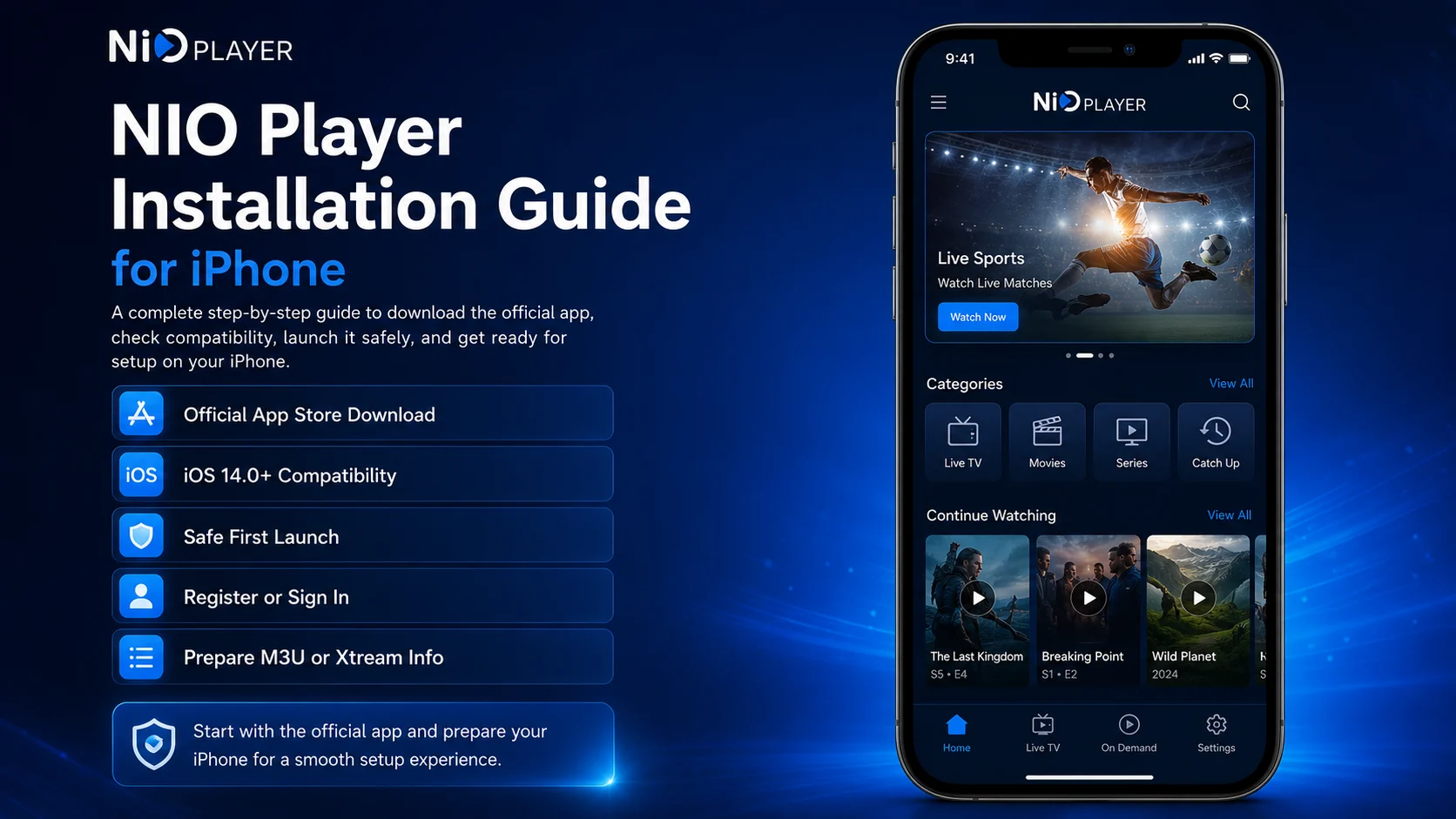
Why Install NIO Player on iPhone?
NIO Player is designed to provide a dedicated interface for compatible IPTV and media sources on mobile devices. Its official App Store description highlights seamless playback, an intuitive design, and smart search, along with support for multiple playlists, Favorites, Global Search, parental controls, and advanced player options for subtitles, audio tracks, video tracks, and aspect settings.
For iPhone users, this means you can keep your authorized media source accessible on a portable device rather than depending entirely on a television or set-top box.
NIO Player also belongs to a wider multi-device ecosystem. NIO’s official website currently lists the player across Android Mobile, Android TV, Fire TV/Android Boxes, iOS, Apple TV, and Web Player environments.
During installation, however, the goal is simple: get the official iPhone app installed successfully before adding any IPTV credentials or changing player settings.
NIO Player iPhone Installation Overview
| Installation Stage | What You 'll Do |
|---|---|
| Compatibility Check | Confirm your iPhone meets the iOS requirement |
| App Verification | Identify the official Nio Smart Player listing |
| Download | Install the app through Apple’s App Store |
| First Launch | Confirm NIO Player opens normally |
| App Review | Understand what the player does and does not provide |
| Account Preparation | Get ready to register or sign in |
| Source Preparation | Prepare your authorized M3U or Xtream information |
| Final Check | Make sure the app is ready for setup |
Step 1: Check Your iPhone Compatibility
Before downloading NIO Player, make sure your iPhone meets the current software requirement.
The current App Store listing states that the Nio Smart Player requires iOS 14.0 or later on iPhone. The same listing currently shows an app size of approximately 114.1 MB.
To check your iOS version, open:
Settings → General → About
Look for the iOS version.
If your phone is running an older version but supports a newer iOS release, you can check for updates through Settings → General → Software Update.
Also make sure your iPhone has sufficient free storage. Although the app itself is currently around 114 MB, iOS needs additional free space for application data, updates, caches, and normal device operation.
Step 2: Open the Apple App Store
Unlock your iPhone and open the App Store.
Tap the Search tab and enter:
Nio Smart Player
Search results can contain other IPTV or media players with similar wording, so do not install an app based only on the first result.
Open the complete listing and verify the app information before downloading.
The official listing currently identifies the application as Nio Smart Player, with Nio Player LLC shown as the developer/provider. It is categorized under Photo & Video and is available for iPhone, iPad, and Apple TV.
Checking these details helps ensure that you are installing the intended application.
Step 3: Review the Current App Store Listing
Before tapping the download button, spend a moment reviewing the current NIO Player listing.
Apple currently shows the app as free to download and lists its compatibility, size, languages, developer, privacy information, and age rating directly on the page.
The feature description also provides a useful preview of what you will configure later.
NIO Player officially lists support for multiple playlists, Favorites, Xtream Codes API, M3U playlists, Global Search, advanced subtitle controls, audio and video track options, aspect controls, and parental controls.
You do not need to configure these features during installation. For now, simply confirm that you have found the correct application.
Step 4: Download NIO Player
Tap the App Store download button.
Depending on your iPhone settings, Apple may ask you to confirm the installation using Face ID, Touch ID, or your Apple Account password.
Complete the confirmation and wait for NIO Player to download.
Keep your iPhone connected to a reliable Wi-Fi or mobile-data connection until the installation finishes.
Once installed, the App Store button should change to Open, and the NIO Player icon should appear on your iPhone.
Unlike apps that require manually downloaded installation packages, the iPhone version is distributed through Apple’s App Store, so there is no need to install an external APK or enable installation from unknown sources. NIO’s official device guide also directs iOS users to download the application through the iOS Store.
Step 5: Open NIO Player for the First Time
Tap Open from the App Store or launch NIO Player from your Home Screen or App Library.
Give the application a few moments to initialize.
Your first goal is simply to confirm that NIO Player starts correctly and that you can reach its initial interface.
Do not expect live TV, movies, or series to automatically appear.
NIO Player explicitly states that it does not supply channels or playlists. The official NIO website describes the basic onboarding process as downloading the app, registering or logging in, and then adding an M3U or Xtream playlist.
An empty player after installation can therefore be completely normal.
Step 6: Understand What NIO Player Actually Provides
This is one of the most important parts of installing NIO Player correctly.
NIO Player is the media player, not the IPTV content provider.
Its App Store listing states that the application does not promote or offer copyrighted material, IPTV subscriptions, or copyrighted streams. Users must add their own streaming URLs, M3U playlists, credentials, or service-provider information. The application then displays and plays the user-added content.
This distinction becomes especially important when troubleshooting later.
If NIO Player opens correctly but your source does not load, reinstalling the application may not solve the issue. The source information, account credentials, network connection, or external service may instead need attention.
Only use streams and media sources that you are authorized to access.
Step 7: Review Any iPhone Permission Requests
During the first launch or later feature use, NIO Player may request access to certain iOS capabilities depending on the current app version and the feature you are using.
Read every permission request before allowing it.
Do not enable permissions automatically simply because the app asks.
If you later need to review access, open the Settings app on your iPhone and locate NIO Player in the application settings.
Available permission options can vary depending on the current version of NIO Player and iOS.
The important installation principle is to keep your initial setup clean and grant only permissions that are relevant to the functions you intend to use.
Step 8: Prepare to Register or Log In
NIO Player’s official getting-started flow lists Register and/or Login after downloading the application.
If the current iPhone version asks you to create or connect a NIO Player account, follow the instructions displayed inside the app.
Keep your login information private.
Avoid posting screenshots containing usernames, email addresses, account identifiers, or other sensitive information when asking for help online.
You do not need to explore every account-related function during installation. The objective is simply to have your account ready for the next setup stage.
Step 9: Prepare Your M3U Playlist or Xtream Credentials
NIO Player officially supports both M3U playlists and Xtream Codes API connections.
Before moving to the Setup Guide, prepare whichever connection method your authorized media provider has supplied.
An M3U setup commonly uses a playlist URL. An Xtream configuration generally uses the account information and server details provided by your service.
Do not guess these details or use random playlists found online.
Keep the original information secure so that you can copy it accurately during configuration. Small errors in a URL, username, password, or server detail can prevent a valid source from connecting.
The actual source-adding process belongs in the NIO Player Setup Guide for iPhone, so there is no need to configure it during installation.
Step 10: Explore the Interface Without Changing Settings
Once NIO Player opens successfully, spend a short time familiarizing yourself with the interface.
Its App Store listing highlights an intuitive, user-friendly layout and features including multiple playlists, Favorites, Global Search, parental controls, and advanced player options.
You may not be able to meaningfully use every area until a source has been added.
That is completely normal.
Avoid changing player settings before you have tested a working stream. Keeping the default configuration initially gives you a useful baseline for the setup and troubleshooting stages.
Step 11: Confirm the Installation Was Successful
A successful NIO Player installation is easy to verify.
The app should appear on your iPhone, open normally, respond when you navigate through its initial interface, and allow you to reach the account or playlist-related areas required for setup.
Your media library does not need to contain content for installation to be considered successful.
If NIO Player launches normally, the application itself has been installed.
The next step is connecting your account and authorized media source.
What If NIO Player Won’t Download?
If NIO Player does not install, first check your internet connection and available iPhone storage.
Confirm that your device is running a compatible version of iOS. The current App Store listing requires iOS 14.0 or later for iPhone.
If the App Store download is stuck, pause and retry it or restart your iPhone.
Also check whether you are signed in to the App Store correctly and whether Apple is showing any account-related download restrictions.
Avoid downloading unofficial copies of the application from unrelated sources when the official iPhone version is available through Apple’s App Store.
What If NIO Player Opens but Shows No Content?
An empty screen after installation does not necessarily indicate a problem.
NIO Player does not provide its own channels or playlists. Its official setup process requires users to add their own M3U or Xtream playlist after registration or login.
If the application opens correctly, installation is complete.
Proceed to the setup stage rather than repeatedly uninstalling and reinstalling the app.
Best Practices After Installation
Keep NIO Player and iOS updated when supported updates become available, maintain enough free storage on your iPhone, and use a reliable connection during initial playlist loading.
Protect your NIO account, M3U URLs, and Xtream credentials.
Do not expose private playlist information in screenshots or public forums.
Most importantly, start with the default player configuration. Add one working source, test normal playback, and only then begin exploring advanced controls such as Favorites, Search, subtitles, audio/video tracks, aspect settings, and parental controls. These features are officially listed for Nio Smart Player.
Common NIO Player Installation Mistakes
The most common mistake is expecting channels, movies, or series to appear immediately after downloading the app.
Another is confusing NIO Player with the external service that supplies your media.
Users may also search for random IPTV credentials because the application appears empty, change several settings before adding a valid source, or share private connection details while asking for assistance.
The cleaner approach is simple: install the official application, verify that it opens, prepare your account, and then move to source configuration.
Why Proper NIO Player Installation Matters
A correct installation gives every later guide a reliable starting point.
Once you know the official Nio Smart Player app is installed, your iPhone meets the compatibility requirement, and the player opens correctly, any future problem becomes easier to diagnose.
If your playlist later fails to load, you can focus on the source or credentials. If playback buffers, you can investigate the network or stream instead of questioning whether you installed the wrong application.
A clean installation saves time throughout the entire NIO Player experience.
What’s Next?
Now that NIO Player is installed on your iPhone, the next step is connecting your account and media source.
Continue with the:
NIO Player Setup Guide for iPhone
The Setup Guide will explain how to register or log in, add your compatible M3U playlist or Xtream Codes API credentials, allow the media library to load, test your first Live TV or on-demand stream, and prepare NIO Player for everyday use.
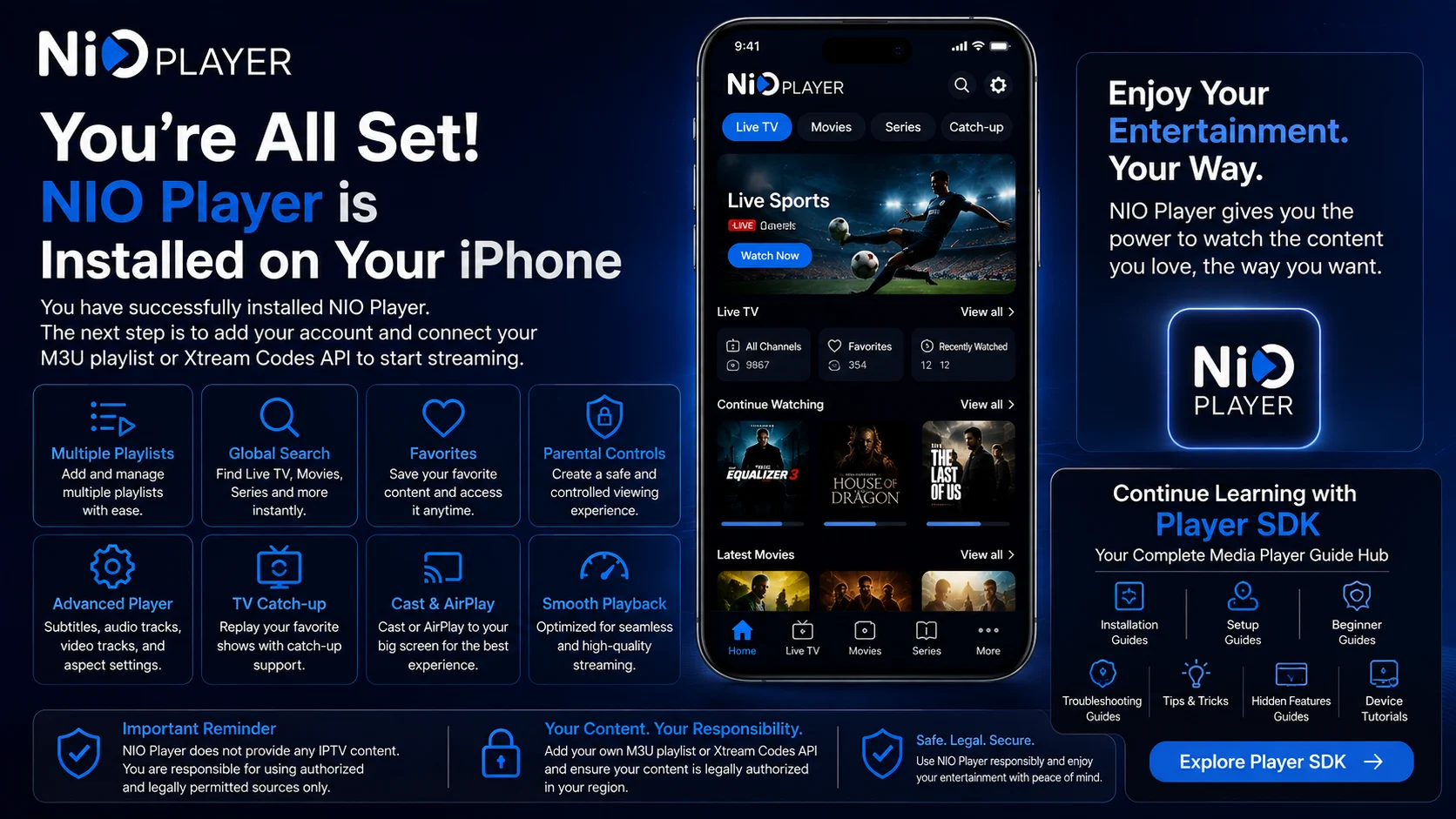
Final Thoughts
Installing NIO Player on iPhone is straightforward because the official application is available through Apple’s App Store.
The current listing identifies the app as Nio Smart Player by Nio Player LLC, requires iOS 14.0 or later on iPhone, and describes support for live TV, movies, series, TV catch-up, multiple playlists, favorites, global search, M3U playlists, Xtream Codes API, advanced playback controls, and parental controls.
Remember that those viewing features require your own compatible content source. NIO Player itself does not supply IPTV subscriptions, channels, or playlists.
Once the application opens successfully and your authorized M3U or Xtream information is ready, you are prepared for the complete setup process.
Frequently Asked Questions (FAQs)
1) Is NIO Player available for iPhone?
Yes. Nio Smart Player is currently available through Apple’s App Store for iPhone, along with iPad and Apple TV versions.
2) What iOS version does NIO Player require?
The current App Store listing requires iOS 14.0 or later for iPhone. Requirements can change with future updates, so check the current listing before installation.
3) Does NIO Player provide IPTV channels?
No. NIO Player states that it does not provide channels, playlists, IPTV subscriptions, or copyrighted streams. Users add their own compatible sources.
4) Does NIO Player support M3U playlists?
Yes. Nio Smart Player officially lists M3U Playlist support among its features.
5) Can I use Xtream Codes with NIO Player?
Yes. The official App Store description lists Xtream Codes API support alongside M3U playlists.
6) Why is NIO Player empty after installation?
The application only displays media added by the user. After installing it, you still need to register or log in and add your authorized M3U or Xtream source.
7) What should I read after this installation guide?
Continue with the NIO Player Setup Guide for iPhone to learn how to connect your account, add an M3U or Xtream source, load your library, and test playback.
Continue Learning with Player SDK
Continue your NIO Player journey with Player SDK, your resource for installation guides, setup guides, beginner guides, troubleshooting, tips & tricks, hidden features, and device-specific media player tutorials.
Now that NIO Player is installed on your iPhone, continue with the NIO Player Setup Guide for iPhone to add your authorized M3U or Xtream source, load your media library, test playback, and prepare the player for everyday viewing.
