After installing and setting up NIO Player on your iPhone, the next step is learning how to use the player confidently in everyday viewing.
Officially listed as Nio Smart Player, the app is designed for playing live TV, movies, series, and TV catch-up from compatible sources added by the user. NIO Player supports M3U playlists and Xtream Codes API connections and includes practical features such as multiple playlists, favorites, global search, parental controls, subtitle settings, audio-track controls, video-track controls, and aspect-ratio options.
For beginners, the best approach is not to change every setting immediately. Start by learning the main interface, understanding where your media comes from, testing different types of content, and becoming familiar with the basic playback controls.
It is also important to remember that NIO Player does not provide built-in channels, subscriptions, playlists, or pre-loaded copyrighted streams. The app displays and plays content supplied through the compatible source you add yourself.
This complete NIO Player Beginner Guide for iPhone will help you understand the interface, browse live TV, movies, and series, use Catch-up, manage favorites, search your library, switch playlists, and make better use of NIO Player’s playback controls.
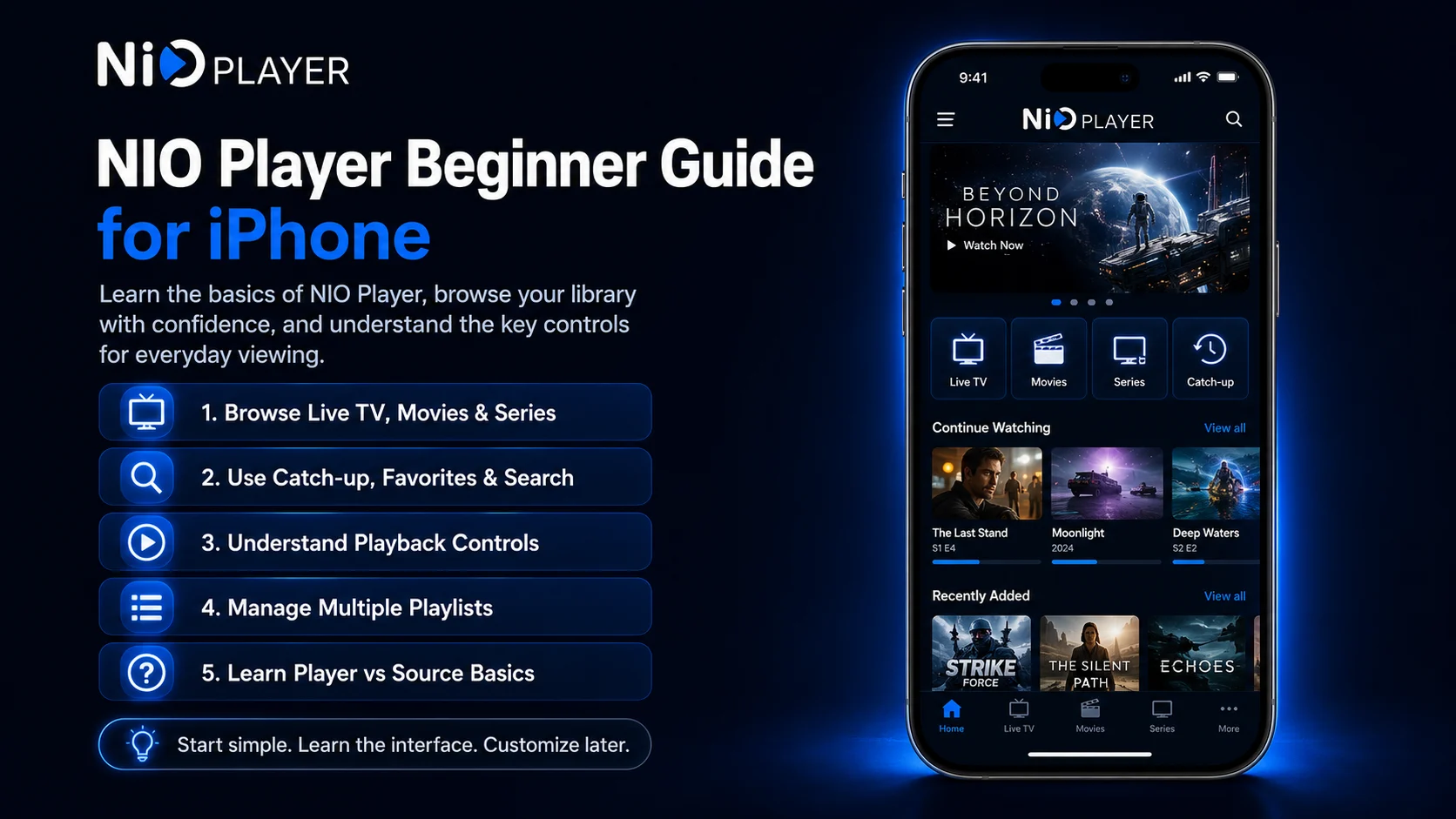
Why Learn the NIO Player Basics First?
A large streaming library can contain hundreds or even thousands of media entries.
Without understanding NIO Player’s navigation features, you may spend more time scrolling through categories than actually watching something.
Learning the basics also makes future troubleshooting easier.
For example, if NIO Player opens normally and your complete library loads but one channel refuses to play, the entire application probably has not failed. If the source itself does not load, the problem may be related to your connection information or an external service instead.
Understanding these differences helps you avoid unnecessary changes to a working player.
NIO Player Beginner Essentials
| Feature Area | What It Helps You Do |
|---|---|
| Live TV | Browse and play available live channels |
| Movies & Series | Access on-demand content from your source |
| TV Catch-up | Watch supported previously aired content |
| Favorites | Keep regular content easier to reach |
| Global Search | Find titles across a large library |
| Multiple Playlists | Manage more than one compatible source |
| Playback Controls | Manage subtitles, tracks, and screen appearance |
| Parental Controls | Add restrictions for shared-device use |
Understand How NIO Player Works
Before exploring the interface, understand the relationship between NIO Player and your media source.
NIO Player is the media player.
Your M3U playlist or Xtream Codes API connection is the source.
The source supplies the available live TV, movies, series, catch-up information, categories, titles, and other media data. NIO Player provides the interface and playback tools used to access that information.
This means two people using NIO Player can see completely different libraries even when both have the same version of the app.
Always use sources and media that you are authorized to access.
Start With the Main NIO Player Interface
Open NIO Player from your iPhone Home Screen or App Library.
Give your connected source enough time to finish loading before moving rapidly between different sections.
Depending on your source and current app version, you may see areas related to live TV, movies, series, catch-up, favorites, search, playlists, and player settings.
Do not worry about learning every screen immediately.
Begin by identifying the main content areas and learning how to return to the home or main navigation screen.
Once that becomes familiar, the rest of the application becomes much easier to use.
Learn How to Browse Live TV
If your connected source provides live TV, open the corresponding section.
You may see channels grouped into categories supplied through your source.
Choose a category and select a channel to begin playback.
Give the stream a few moments to start.
If the first channel does not play, test two or three others before changing anything.
When several other channels work normally, the failed stream may simply be temporarily unavailable.
This is one of the most useful habits a new NIO Player user can develop because it prevents unnecessary reconfiguration.
Explore Movies
If your connected source contains Movies, open the Movies section and browse the available categories.
Select a title and review the information displayed in the player.
Then start playback.
The available artwork, title names, descriptions, categories, and other media information can depend on the source connected to NIO Player.
If a movie is missing from your library, NIO Player cannot create it independently. It can only display compatible media made available through your source.
For a beginner, the main objective is simply to understand how to open a title, begin playback, and return to the library.
Learn How Series Work
The Series section may require slightly more navigation than Movies.
Open a series, choose the relevant season, and then select an episode.
Depending on the source, episode information and organization can differ.
Use a familiar series during your first few tests so you can easily identify whether the episodes have loaded correctly.
If one episode fails while another plays normally, test additional episodes before changing your source configuration.
This helps distinguish an individual media problem from a wider player issue.
Understand TV Catch-Up
NIO Player supports TV catch-up when compatible catch-up media is supplied through the connected source.
Catch-up allows supported previously aired content to be available after the original live broadcast.
Not every source, channel, or program will necessarily provide it.
If Live TV works but you do not see catch-up for a particular channel, that does not automatically mean your NIO Player setup is incorrect.
The required catch-up content also needs to be available through your source.
Think of Catch-up as an additional source-dependent viewing option rather than something guaranteed for every channel.
Learn the Basic Playback Controls
Once the video starts, tap the screen to reveal the available player controls.
Become comfortable with ordinary playback before exploring more advanced options.
Learn how to pause and resume, return to the previous screen, and access the player controls available for the current media.
NIO Player also provides advanced options for subtitles, audio tracks, video tracks, and aspect settings.
These controls may not all be relevant for every video.
The best approach is to explore them using a media item that already plays correctly.
Use Subtitle Settings
If compatible subtitle tracks are available, NIO Player allows you to manage them from the player.
Open the subtitle controls during playback and check the available choices.
Some media may have multiple subtitle tracks, while other content may have none.
If subtitles are missing from one title but available on another, the difference may come from the media source rather than a problem with the complete application.
As a beginner, learn where the subtitle controls are located so you can quickly access them when needed.
Understand Audio Track Controls
Some movies or series may contain multiple audio tracks.
NIO Player includes audio track controls that allow you to select from compatible options supplied with the media.
Open the playback controls and check whether additional audio tracks are available.
Do not assume every media item will offer multiple languages or tracks.
Availability depends on what is included with the content.
If you change an audio track, test playback for a few moments to confirm that the selected option works correctly.
Explore Video Track Options Carefully
NIO Player also provides video track controls for compatible media.
These are more advanced than ordinary Play and Pause functions, so there is no need to make them part of every viewing session.
If multiple video-related options are available, explore them gradually.
Use a stream that already works well, change one option, and observe the result.
Avoid changing several playback settings together because it becomes difficult to identify which change affected the experience.
Adjust Aspect Settings When Necessary
Different videos can use different screen proportions.
NIO Player’s Aspect setting can help adjust how compatible video appears on your iPhone display.
If a video appears unusually stretched, compressed, or positioned, review the available aspect options.
Do not automatically force every video into the same display mode.
Some media is naturally produced in a different aspect ratio, and changing it unnecessarily can distort the image.
Use the aspect control only when it improves how the current video fits your screen.
Use Global Search for Large Libraries
One of the easiest ways to save time in NIO Player is Global Search.
Instead of manually browsing several categories, use Search when you already know what you want.
Enter the name of a channel, movie, series, or another relevant title.
Search results depend on the names and information supplied through your connected source.
Global search becomes particularly useful with very large libraries, where manually scrolling can be slow.
For everyday use, searching first can often be faster than remembering exactly which category contains a title.
Create a Focused Favorites List
NIO Player supports Favorites, giving you a quicker route to frequently accessed content.
When you find a channel or media item you regularly use, add it to Favorites through the controls available in your current version.
Keep the list selective.
Adding hundreds of items defeats the purpose because Favorites then becomes another oversized library.
Instead, use it for content you genuinely return to frequently.
Review your favorites occasionally and remove items that are no longer useful.
Understand Multiple Playlist Support
NIO Player supports multiple playlists, which means you can manage more than one compatible source.
This can be convenient if you legitimately use different media sources.
However, beginners should become comfortable with one working playlist before adding several others.
Once you do add another source, give it a clear name.
Good naming makes switching easier and also helps with troubleshooting.
If Playlist A stops loading but Playlist B still works, you immediately know that NIO Player itself is capable of accessing another connected source.
Learn the Difference Between Player, Source, and Network Problems
This is one of the most important skills for any NIO Player beginner.
If the app opens and your library loads but one media item fails, test other content.
If everything from one source disappears, check that source and its connection details.
If all streams buffer across the library, test your internet connection.
If NIO Player itself does not open correctly, then the application or iPhone environment deserves more attention.
Separating these areas helps you avoid reinstalling the app whenever a single stream fails.
Check Your Internet Connection Before Changing Settings
Streaming depends heavily on your connection.
If several media items begin buffering, confirm that your Wi-Fi or mobile data is working properly.
Test another internet-based application and make sure your iPhone has a stable signal.
Network congestion can also affect playback.
If several devices are heavily using the same connection, available bandwidth may be reduced.
If only one media item struggles while everything else works, the individual stream is a more likely cause than your entire connection.
Keep Your Credentials Private
Your M3U URL and Xtream Codes API information may contain private connection details.
Do not share them publicly.
When asking for technical help, hide usernames, passwords, URLs, server addresses, or other sensitive information from screenshots.
Protect your NIO Player account information as well.
Keeping source details private helps prevent unauthorized access and makes your streaming setup safer to manage.
Use Parental Controls Where Appropriate
NIO Player includes parental controls.
If the player or iPhone is shared with younger household members, review the available restriction options.
Use the controls according to your own household requirements.
For broader device management, combine app-level restrictions with appropriate Apple family or iPhone security settings.
You do not need to configure parental controls during your very first viewing session.
First make sure ordinary navigation and playback work correctly, then add restrictions afterward.
Avoid Changing Too Many Settings
A working NIO Player configuration is valuable.
Do not immediately change every audio, video, aspect, or other player option just because they are available.
Start with the defaults.
When you want to experiment, change one setting and test a familiar media item.
If the experience improves, keep it. If something becomes worse, reverse the adjustment.
This method makes learning NIO Player much easier and gives you a stable reference point for troubleshooting later.
Best Practices for New NIO Player Users
Keep your setup simple, let your library finish loading, and use one reliable source while learning the application.
Use Global Search instead of endlessly browsing large libraries and build a focused Favorites section for regular content.
Test several media items whenever one fails, and check your internet connection before changing playback settings.
Protect your source credentials and only use media that you are authorized to access.
Once the basics feel familiar, you can become more comfortable with Catch-up, multiple playlists, track controls, aspect settings, and parental controls.
Common Beginner Mistakes
The biggest mistake is assuming NIO Player provides the media itself.
Another common error is deleting a complete playlist because one channel or episode does not work.
Users may also overlook Global Search and Favorites, making large libraries unnecessarily difficult to navigate.
Changing several player settings before understanding the default configuration can create additional problems.
Learning the relationship between NIO Player, your source, your network, and your iPhone prevents most of these beginner mistakes.
What’s Next?
Now that you understand everyday NIO Player use on iPhone, the next step is learning how to diagnose problems when something does not work as expected.
Continue with the:
NIO Player Troubleshooting Guide for iPhone
The next guide will explain how to fix M3U and Xtream connection problems, playlists that do not load, buffering, unavailable streams, subtitle and audio issues, catch-up problems, search issues, application crashes, and other common NIO Player problems.
Final Thoughts
Learning how to use NIO Player on iPhone becomes much easier once you understand the basic workflow.
Your connected M3U or Xtream source provides the available media, while NIO Player gives you the interface and playback environment.
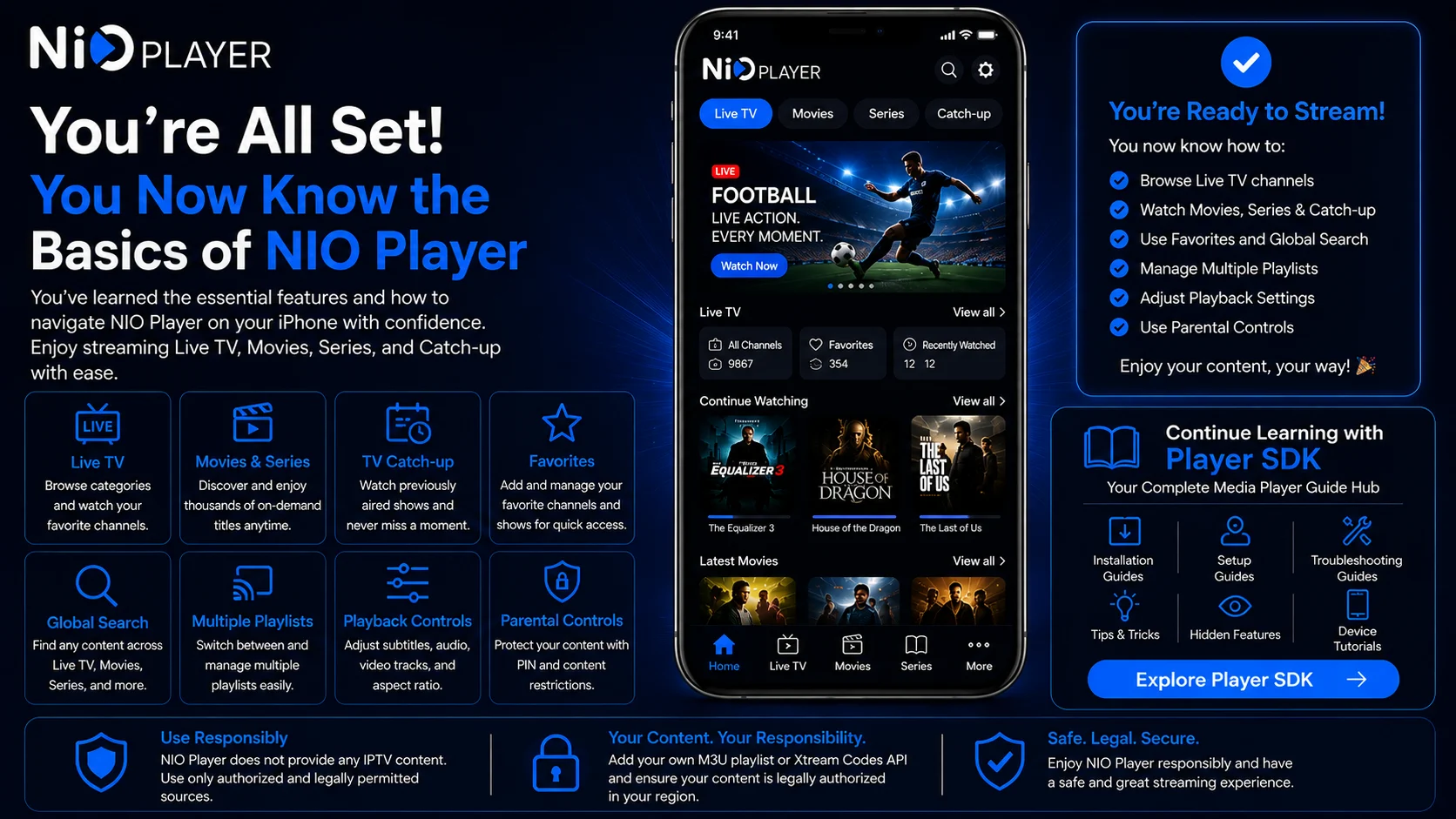
Learn how to browse live TV, movies, series, and TV catch-up, use Global Search for large libraries, create a focused Favorites list, and become familiar with subtitle, audio-track, video-track, and aspect controls.
If something stops working, test other media before changing the entire setup.
A simple and stable configuration is usually easier to use than one that has been heavily modified before you understand the basics.
With these fundamentals in place, you are ready to use NIO Player confidently on your iPhone.
Frequently Asked Questions (FAQs)
1) Is NIO Player easy to use for beginners?
Yes. Once a compatible M3U or Xtream source is configured, everyday use mainly involves browsing available media, choosing content, and using the standard player controls
2) What content can NIO Player play?
NIO Player is designed for compatible live TV, movies, series, and TV catch-up content supplied through a user-added source.
3) Can I search my complete NIO Player library?
NIO Player includes Global Search, which can help locate available channels, movies, series, and other content using source-provided information.
4) Can I create favorites in NIO Player?
Yes. Favorites can be used to keep frequently accessed compatible content easier to reach.
5) Does NIO Player support multiple playlists?
Yes. NIO Player supports multiple playlists. Beginners should get one source working properly before adding additional ones.
6) Can I change subtitles and audio tracks?
Yes. NIO Player includes advanced controls for subtitles, audio tracks, video tracks, and aspect settings when compatible options are available with the media.
7) Does NIO Player support TV catch-up?
Yes. NIO Player can play TV Catch-up content when compatible Catch-up media is supplied through your connected source.
8) What should I read after this beginner guide?
Continue with the NIO Player Troubleshooting Guide for iPhone to learn how to diagnose connection, playback, buffering, catch-up, subtitle, audio, search, and application problems.
Continue Learning with Player SDK
Continue your NIO Player journey with Player SDK, your resource for installation guides, setup guides, beginner guides, troubleshooting, tips & tricks, hidden features, and device-specific media player tutorials.
Now that you understand the NIO Player basics, continue with the NIO Player Troubleshooting Guide for iPhone to learn how to identify common problems, protect your working setup, and keep your everyday viewing experience running smoothly.
