MX Player is one of the most trusted media players for Android, known for its smooth video playback, broad format compatibility, hardware acceleration, and user-friendly interface. While it performs exceptionally well on most devices, users may occasionally encounter issues such as videos not playing, subtitle synchronization problems, audio delays, buffering, app crashes, or media files not appearing in the library.
The good news is that most MX Player problems can be resolved within a few minutes without reinstalling the application or losing your media. Understanding the cause of these issues and applying the correct solution helps restore smooth playback and ensures the app continues performing at its best.
In this complete troubleshooting guide, you'll learn how to identify the most common MX Player issues, understand why they happen, and follow practical solutions to fix them. Whether you're a beginner or an experienced Android user, this guide will help you enjoy a better and more reliable media playback experience.
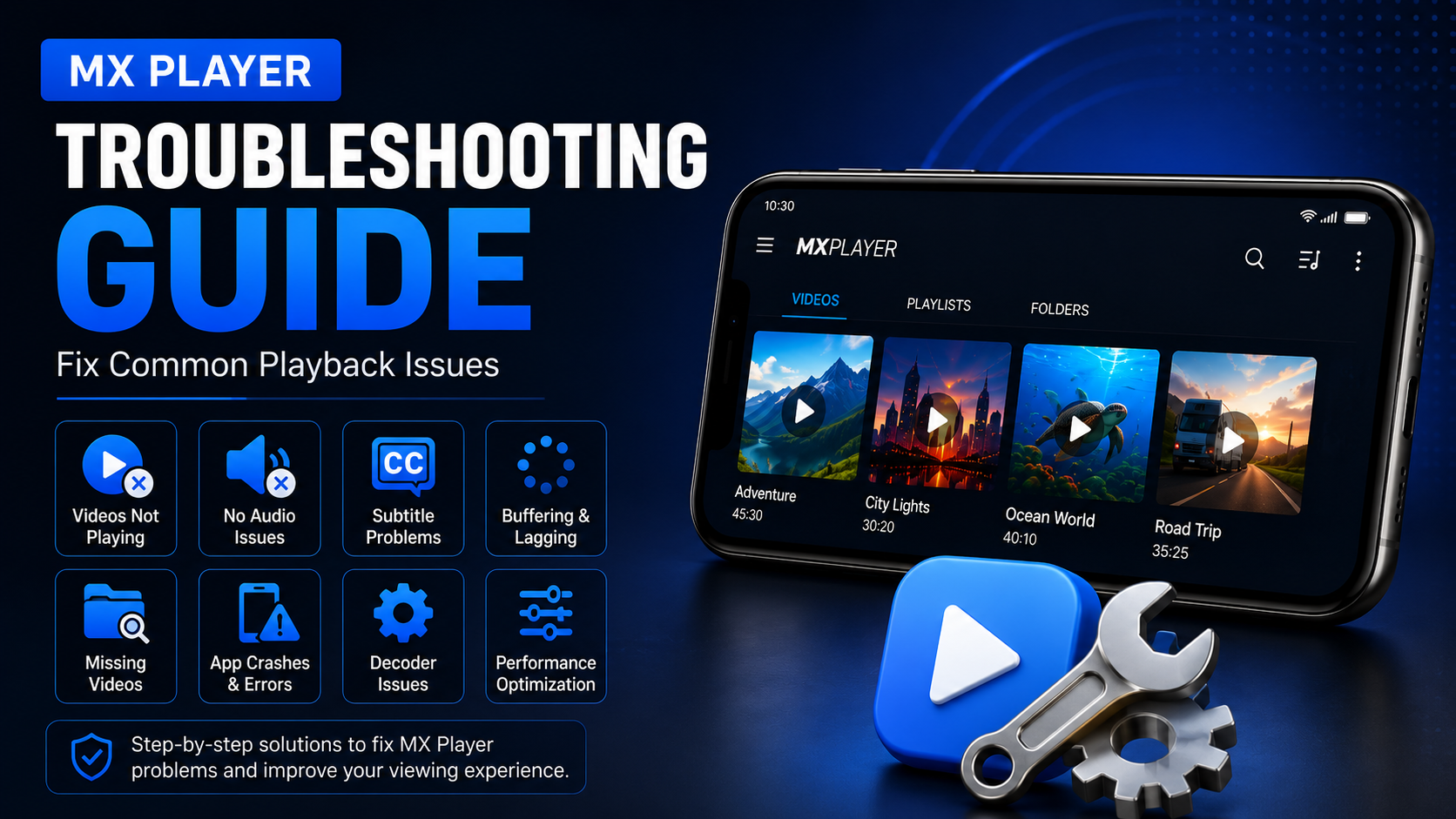
Why Troubleshooting MX Player Is Important
Even a powerful media player can occasionally experience issues due to Android updates, unsupported codecs, incorrect settings, storage permissions, or corrupted media files.
Learning basic troubleshooting techniques helps you:
Fix playback problems quickly Avoid unnecessary reinstallation Improve video performance Restore missing media files Optimize subtitle synchronization Resolve audio-related issues Keep MX Player running smoothly
A few simple adjustments can often solve problems in minutes.
What You'll Learn
| Issue | What You'll Learn |
|---|---|
| Videos Not Playing | Diagnose playback failures |
| Missing Media | Restore your media library |
| Audio Problems | Fix sound-related issues |
| Subtitle Issues | Correct subtitle loading and sync |
| Performance Problems | Improve playback smoothness |
| Decoder Settings | Optimize hardware and software decoding |
| Storage & Permissions | Ensure MX Player can access media |
| Maintenance Tips | Prevent future issues |
Problem 1: MX Player Can't Find Your Videos
One of the most common issues is opening MX Player and discovering that none of your videos appear in the media library.
This usually happens because the application doesn't have permission to access your device storage, or your media library hasn't finished scanning.
How to Fix It
Open Android Settings and verify that MX Player has permission to access photos, videos, and audio files. After granting permission, reopen the app and allow it to complete another media scan.
If your videos are stored on an SD card, make sure the card is properly mounted and accessible.
Problem 2: Videos Won't Play
Sometimes a video appears in the library but refuses to start. Possible causes include the following:
Unsupported codec Corrupted file Incomplete download Decoder configuration Outdated application
Solution
First, try playing another video. If only one file fails, the problem likely lies with the video itself. If every video fails, update MX Player through the Google Play Store and verify your decoder settings.
Problem 3: Black Screen During Playback
A black screen with audio usually indicates a decoding problem. The video exists, but the decoder cannot properly render it.
Fix
Navigate to:
Settings → Decoder
Switch between hardware decoder and software decoder. Many playback issues disappear immediately after changing decoder mode.
Problem 4: No Audio
If your video plays normally but there's no sound, don't immediately assume the file is damaged. Check:
Device volume Bluetooth connection Silent mode Audio output device Headphone connection
If other apps also have no sound, the issue is likely with Android rather than MX Player.
Problem 5: Audio Out of Sync
Sometimes voices don't match lip movements. This usually occurs because of poorly encoded files or wireless audio devices.
MX Player includes audio synchronization controls that allow you to fine-tune playback timing. Adjust the delay until voices match the video naturally.
Problem 6: Subtitle Not Loading
External subtitle files occasionally fail to load. This can happen if:
The subtitle file has a different filename It's stored in another folder The format isn't supported The subtitle is corrupted
Solution
Keep subtitle files inside the same folder as the video whenever possible. If automatic detection fails, manually select the subtitle file during playback.
Problem 7: Subtitle Delay
Even correctly loaded subtitles may appear too early or too late. Fortunately, MX Player allows subtitle synchronization adjustments.
Increase or decrease the subtitle delay until dialogue matches the on-screen text.
Problem 8: Playback Lag
High-resolution videos can sometimes stutter on older Android devices. Lag is commonly caused by:
Limited RAM Background apps Decoder selection Low storage Overheating
Improve Performance
Close unnecessary applications. Restart your device. Enable Hardware Decoder. Maintain adequate free storage. Keep Android updated.
Problem 9: App Crashes Frequently
Unexpected crashes usually indicate temporary software conflicts. Possible causes include the following:
Old app version Android update conflicts Corrupted cache Damaged settings
Solution
Update MX Player. Clear application cache. Restart the phone. If necessary, reinstall the latest version.
Problem 10: Slow Library Scanning
Large video collections naturally require more scanning time. However, unusually slow scans may indicate storage issues.
Organizing videos into fewer folders helps MX Player scan content more efficiently.
Problem 11: Playback Controls Not Responding
If gestures or playback buttons stop working:
Pause playback. Close the video. Restart MX Player. Restart the device if necessary.
Temporary interface glitches often disappear after reopening the application.
Problem 12: High Battery Consumption
Watching long HD videos naturally consumes battery. However, battery drain increases when the software decoder handles demanding videos.
Enabling hardware decoder reduces processor usage and generally improves battery efficiency on supported devices.
Problem 13: Screen Rotation Problems
If videos refuse to rotate correctly:
Check Android Auto Rotate. Verify MX Player orientation settings. Unlock screen rotation inside playback controls.
Problem 14: SD Card Videos Missing
Many users store movies on SD cards. If the card becomes unavailable, MX Player cannot locate those files.
Remove and reinsert the SD card. Allow Android to remount storage before reopening MX Player.
Problem 15: Network Playback Issues
If you're accessing media over a local network and playback frequently disconnects, verify that your device remains connected to the same network as the shared media source. Restarting the network connection or server can often resolve temporary connectivity issues.
Performance Optimization Tips
Troubleshooting isn't only about fixing problems—it also helps prevent them.
Keeping your Android device updated, installing the latest version of MX Player, maintaining sufficient free storage, and closing unnecessary background applications all contribute to smoother playback.
Organizing your videos into clearly named folders makes library scanning faster, while enabling hardware decoding on supported devices improves both performance and battery efficiency.
Regular maintenance reduces the likelihood of playback interruptions and helps MX Player continue performing reliably.
Quick Troubleshooting Checklist
| Problem | Recommended Solution |
|---|---|
| Videos Missing | Grant storage permission |
| Black Screen | Switch decoder mode |
| No Audio | Check device audio settings |
| Subtitle Missing | Load subtitle manually |
| Subtitle Delay | Adjust synchronization |
| Playback Lag | Enable hardware decoding |
| App Crashing | Update or reinstall MX Player |
| Slow Library | Organize media folders |
| Rotation Problems | Check orientation settings |
| Battery Drain | Use hardware decoding |
Best Practices to Avoid Future Problems
Preventing issues is easier than fixing them. Always download MX Player from the official Google Play Store to ensure you receive authentic updates and security patches. Keep your Android operating system current, maintain adequate free storage, and avoid storing corrupted or incomplete media files.
If you frequently use subtitles, keep subtitle files alongside the corresponding videos. For large media libraries, organize content into dedicated folders to simplify navigation and improve scanning performance.
Taking these simple steps helps maintain a stable and enjoyable playback experience.
Why MX Player Continues to Be a Reliable Media Player
Despite occasional issues that any application may experience, MX Player remains one of the most dependable media players available for Android. Its support for multiple video formats, customizable playback controls, subtitle management, hardware acceleration, and intuitive interface make it a favorite among millions of users.
Most common problems can be solved with basic troubleshooting, allowing you to return to watching your favorite content without unnecessary frustration.
Final Thoughts
Troubleshooting MX Player doesn't have to be complicated. Whether you're dealing with missing videos, playback lag, subtitle synchronization, audio problems, or decoder issues, the solutions are often straightforward and only take a few minutes to apply.
By understanding the most common causes of playback problems and following the recommendations in this guide, you can keep MX Player running efficiently and enjoy uninterrupted video playback across a wide range of media files.
Frequently Asked Questions (FAQs)
1) Why is MX Player not showing my videos?
This usually happens because storage permissions haven't been granted or the media library hasn't finished scanning. Check Android permissions and allow the app to refresh its library.
2) How do I fix a black screen with audio?
Open Settings → Decoder and switch between hardware and software decoding. This often resolves video rendering issues.
3) Why are subtitles out of sync?
Subtitle timing may not match the video file. Use MX Player's subtitle synchronization controls to adjust the delay.
4) Why does MX Player keep crashing?
Frequent crashes can result from outdated software, corrupted cache, or Android conflicts. Updating the app and clearing the cache often fixes the problem.
5) What should I do if there's no audio?
Check your device volume, Bluetooth connections, silent mode, and audio output settings before assuming the media file is damaged.
6) How can I improve playback performance?
Enable hardware decoding, close background apps, keep your device updated, and ensure you have enough free storage for smooth playback.
Continue Learning with Player SDK
Want to get even more out of MX Player? Player SDK is your trusted destination for installation guides, setup tutorials, beginner guides, troubleshooting solutions, hidden features, expert tips, supported device guides, and advanced media player resources.
Whether you're using MX Player, VLC Media Player, Kodi, TiviMate, OTT Navigator, Sparkle TV, Perfect Player, or other popular media players, Player SDK offers easy-to-follow guides that help beginners and experienced users unlock the full potential of their apps.
