MX Player is one of the most popular Android media players thanks to its fast performance, wide video format support, intuitive controls, and customizable playback experience. While many users simply install the app and start watching videos, there are numerous settings and everyday techniques that can make using MX Player even smoother and more enjoyable.
From mastering gesture controls and optimizing playback performance to organizing your media library and customizing subtitles, learning a few practical tips can significantly improve your overall experience. These enhancements don't require technical expertise and can be applied in just a few minutes.
Whether you're watching movies, TV shows, educational videos, or personal recordings, this guide shares the best MX Player tips and tricks to help you get more from the app every day.
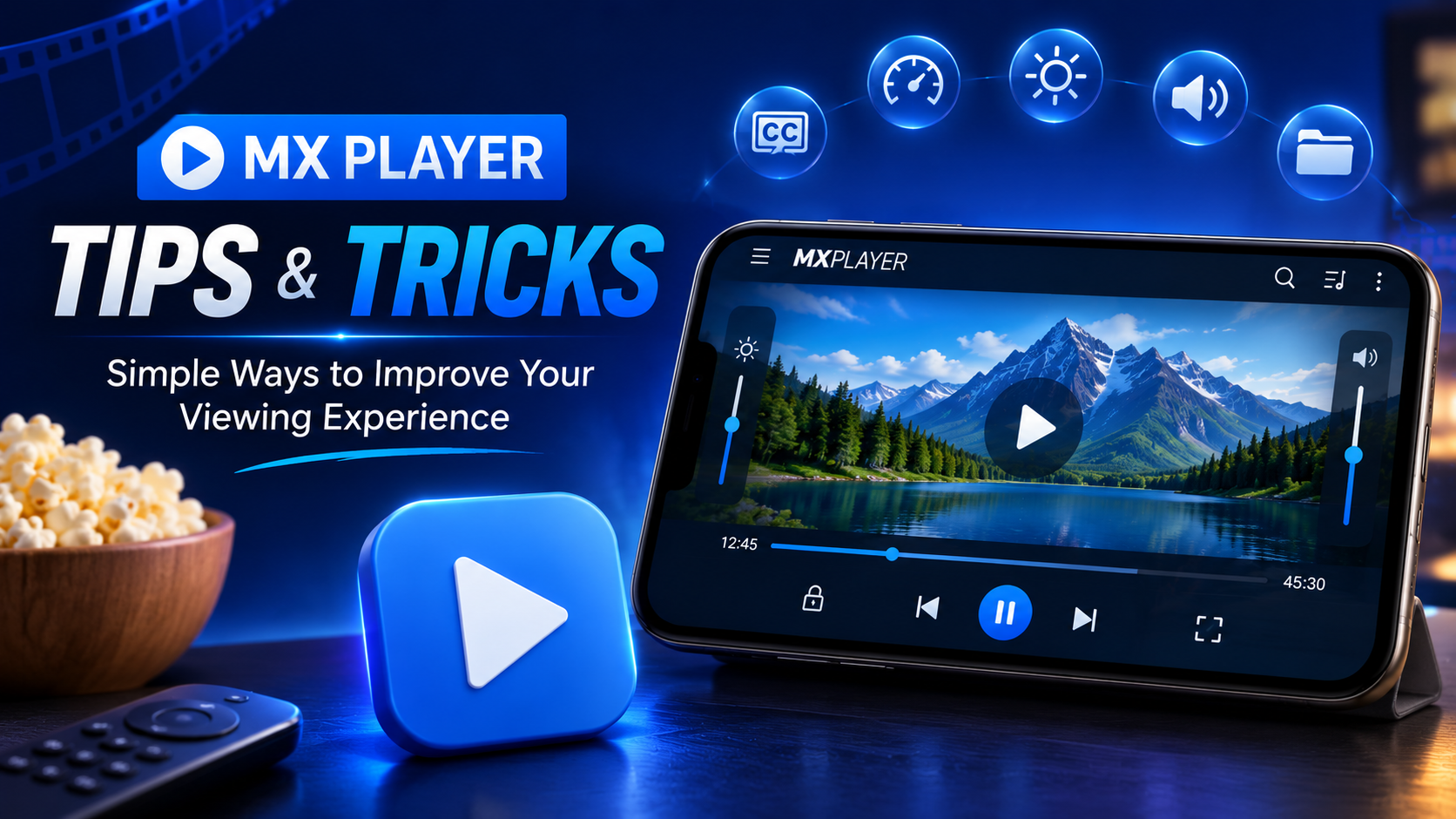
Why Learn MX Player Tips & Tricks?
MX Player includes many useful customization options that are easy to overlook during normal use. Understanding how these features work helps you navigate faster, improve playback quality, reduce interruptions, and personalize the application according to your preferences.
Instead of using the default settings, a few small adjustments can make your media experience smoother and more efficient.
What You'll Learn
| Tip Area | What You'll Learn |
|---|---|
| Gesture Controls | Faster navigation |
| Hardware Decoding | Better video performance |
| Subtitle Customization | Improved readability |
| Playback Speed | Watch content at your pace |
| Screen Lock | Prevent accidental touches |
| Audio Controls | Better listening experience |
| Media Organization | Cleaner library |
| Performance Tips | Smoother playback |
Tip 1: Master Gesture Controls
One of the most convenient features in MX Player is its gesture-based navigation. Instead of relying on playback buttons, you can control common functions with simple swipes.
Swipe up or down on the left side of the screen to adjust brightness. Swipe on the right side to change the volume, and swipe horizontally to seek through the video timeline.
These gestures make playback quicker and reduce the need to repeatedly open on-screen controls.
Tip 2: Enable Hardware Decoding
Hardware decoding allows MX Player to use your device's graphics processor for video playback, improving efficiency on supported devices.
Advantages include smoother playback of HD content, lower battery consumption, reduced processor usage, and improved overall performance.
If you experience playback issues with a particular video, switching between hardware and software decoding can also help resolve compatibility problems.
Tip 3: Customize Subtitle Appearance
Subtitles are easier to read when they're tailored to your preferences.
MX Player lets you adjust font size, color, text style, background, and synchronization. Larger fonts with subtle backgrounds are especially useful on smaller smartphone screens or when watching videos outdoors.
Taking a moment to adjust these options ensures dialogue remains clear without obstructing important visuals.
Tip 4: Adjust Playback Speed
Controlling playback speed allows you to watch content at your preferred pace.
You can slow down tutorials, online classes, and technical demonstrations to better understand complex topics or speed through familiar content to save time.
MX Player provides flexible speed controls while maintaining smooth playback for supported media.
Tip 5: Use Resume Playback
If you pause a movie or TV episode halfway through, Resume Playback remembers your last watched position.
The next time you open the file, MX Player offers to continue from where you stopped, making it much easier to finish longer videos without manually searching through the timeline.
Tip 6: Lock the Screen During Playback
Accidental touches can interrupt your viewing experience.
The built-in screen lock disables touch controls while the video continues playing, preventing unwanted pauses, fast-forwarding, or volume changes.
This feature is especially useful when traveling, exercising, or handing your device to children.
Tip 7: Organize Your Media Library
Keeping videos inside dedicated folders improves navigation and makes your library easier to browse. Create separate folders for:
Movies TV Shows Downloads Educational Videos Personal Recordings
A well-organized library also helps MX Player locate media files more efficiently.
Tip 8: Keep Subtitle Files in the Same Folder
If you regularly use external subtitle files, store them in the same folder as the corresponding video and use matching filenames whenever possible.
Doing so allows MX Player to automatically detect subtitles, reducing the need to manually select them during playback.
Tip 9: Explore Audio Controls
MX Player offers useful audio adjustments beyond basic volume control.
Depending on the content and your device, you can fine-tune audio synchronization and playback behavior to improve the listening experience, especially when using Bluetooth speakers or wireless headphones.
Tip 10: Use the Search Function
Large video collections can become difficult to browse.
Instead of scrolling endlessly through your media library, use MX Player's search function to quickly locate specific videos or folders.
This saves time, particularly if you maintain a large offline collection.
Tip 11: Keep MX Player Updated
Regular updates improve codec compatibility, playback performance, application stability, and security.
Installing updates from the official Google Play Store ensures you receive the latest enhancements and bug fixes.
Tip 12: Maintain Free Device Storage
Low storage space can slow down your Android device and indirectly affect media playback.
Keeping sufficient free storage helps MX Player scan your library more efficiently and reduces the likelihood of playback interruptions caused by system slowdowns.
Tip 13: Personalize Playback Settings
MX Player provides several playback customization options, including screen orientation, aspect ratio, resume behavior, and playback controls.
Exploring these settings allows you to tailor the app to your viewing habits and create a more comfortable experience.
Tip 14: Use Clear File Names
Descriptive filenames make organizing and locating videos much easier.
Instead of generic names, use meaningful titles that clearly identify the content. This improves search results and keeps your media library tidy.
Tip 15: Restart the App Occasionally
After extended use or switching between multiple videos, restarting MX Player can refresh the interface and improve responsiveness.
This simple step helps resolve minor temporary glitches without requiring additional troubleshooting.
Everyday Practices for Better Performance
Good viewing habits contribute to a better MX Player experience. Keep the application updated, organize your media into dedicated folders, allow library scans to complete, and maintain adequate free storage on your device. Enabling hardware decoding on supported devices and using gesture controls regularly can further improve playback efficiency.
These small adjustments help ensure smoother performance and make everyday media consumption more enjoyable.
Quick Tips Reference
| Tip | Benefit |
|---|---|
| Enable Hardware Decoding | Smoother HD playback |
| Learn Gesture Controls | Faster navigation |
| Customize Subtitles | Better readability |
| Resume Playback | Continue where you stopped |
| Lock the Screen | Prevent accidental touches |
| Organize Media | Cleaner library |
| Keep the App Updated | Improved stability |
| Use Search | Quickly find videos |
Common Mistakes to Avoid
Many users never explore the playback settings after installing MX Player, missing valuable customization options that improve daily use. Others keep videos scattered across random folders, making the media library difficult to browse.
Using outdated versions of the application can also lead to compatibility issues with newer video formats. Likewise, denying storage permissions during installation may prevent MX Player from detecting local media.
Avoiding these common mistakes helps maintain a smoother and more reliable viewing experience.
Why These Tips Matter
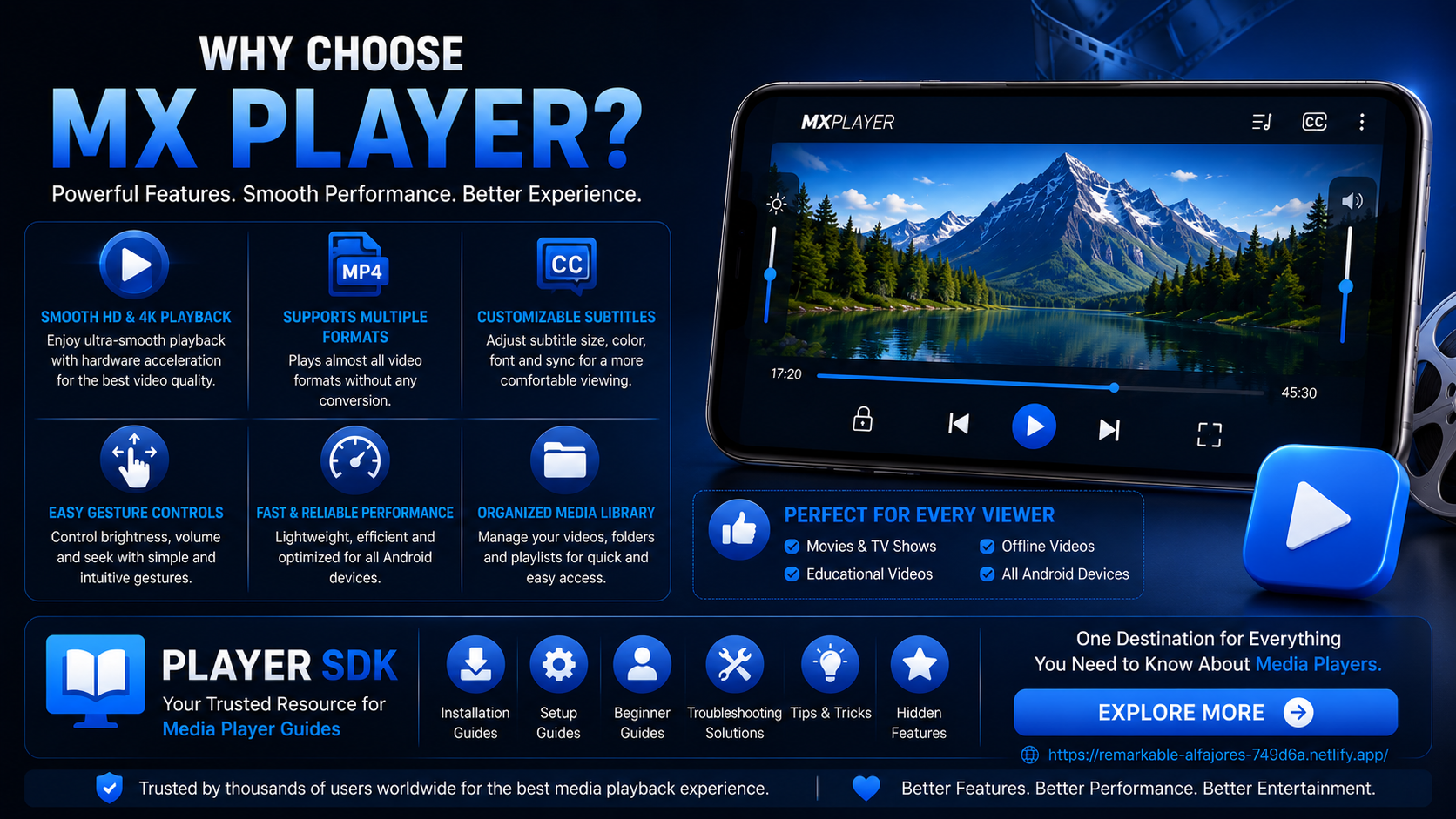
MX Player is designed to be simple for beginners while offering enough flexibility for users who want greater control over their media playback. Small adjustments such as enabling hardware decoding, organizing your library, customizing subtitles, and learning gesture controls can significantly improve how the app performs during everyday use.
By applying these practical tips, you can enjoy a faster, more comfortable, and more personalized media experience.
Final Thoughts
MX Player offers much more than basic video playback. Taking advantage of gesture navigation, playback customization, subtitle settings, audio controls, and library organization helps you get the best possible performance from the app.
Whether you're watching movies during travel, studying with educational videos, or managing a large offline media collection, these tips will help you use MX Player more efficiently and enjoy a smoother viewing experience every day.
Frequently Asked Questions (FAQs)
1) What is the most useful MX Player tip for beginners?
Learning gesture controls is one of the quickest ways to improve navigation because it allows you to adjust brightness, volume, and playback position without interrupting the video.
2) Does hardware decoding improve playback?
Yes. Hardware decoding generally provides smoother playback, lower processor usage, and better battery efficiency on supported Android devices.
3) Can I customize subtitles in MX Player?
Yes. You can change subtitle size, color, font, background, and synchronization to improve readability.
4) Why should I organize my video folders?
Organized folders make your media library easier to browse, improve search efficiency, and simplify file management.
5) Is it important to keep MX Player updated?
Absolutely. Updates often include performance improvements, codec support enhancements, bug fixes, and security updates.
6) Can I prevent accidental touches while watching videos?
Yes. The screen lock feature disables touch controls during playback, preventing unwanted interruptions.
Continue Learning with Player SDK
Looking to get even more from MX Player? Player SDK is your trusted destination for installation guides, setup tutorials, beginner guides, troubleshooting solutions, tips & tricks, supported device guides, and advanced media player resources.
Whether you're using MX Player, VLC Media Player, Kodi, TiviMate, OTT Navigator, Sparkle TV, Perfect Player, or other leading media players, Player SDK provides easy-to-follow guides that help you improve your media playback experience.
