MX Player is one of the most popular media players available for Android, offering an excellent balance of performance, simplicity, and advanced playback features. While installing the app is quick, properly configuring it after installation can significantly improve your viewing experience. Many users simply open the app and start watching videos, but MX Player includes several useful settings that optimize playback quality, subtitle support, gesture controls, hardware acceleration, and overall performance.
If you've already installed MX Player, this comprehensive setup guide will walk you through everything you need to configure before watching your favorite movies, TV shows, music videos, or personal recordings. Whether you're a first-time user or upgrading to a newer Android device, this guide will help you unlock the full potential of MX Player.
By the end of this guide, your MX Player installation will be fully optimized for smooth playback, easy navigation, and the best multimedia experience possible.
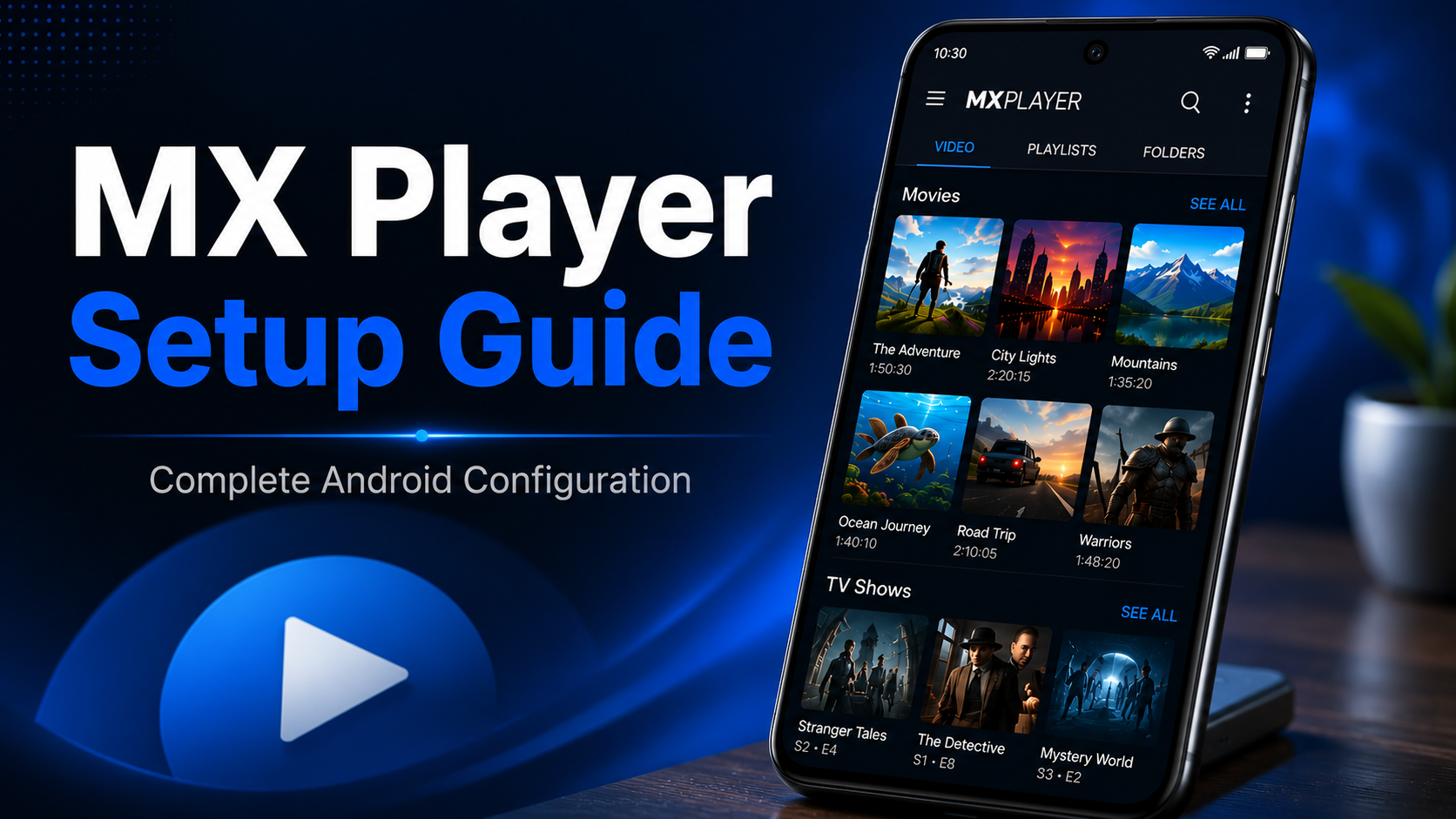
Why Properly Setting Up MX Player Matters
MX Player works immediately after installation, but its default configuration may not provide the best experience for every user.
Taking a few minutes to customize the application allows you to improve playback performance, enable useful gestures, organize your media library, configure subtitles, and ensure videos play smoothly on your Android device.
A proper setup also reduces common issues such as lag, subtitle synchronization problems, playback interruptions, and incorrect decoder selection.
What You'll Learn
| Feature | Description |
|---|---|
| Media Permissions | Access local videos and music |
| Media Library | Organize content automatically |
| Hardware Decoder | Better HD playback performance |
| Gesture Controls | Easy brightness, volume, and seek adjustments |
| Subtitle Settings | Better subtitle experience |
| Audio Settings | Improved sound quality |
| Playback Controls | Personalized viewing |
| Library Management | Faster navigation |
Step-by-Step MX Player Setup Guide
Step 1: Launch MX Player
Open MX Player from your Android home screen or app drawer. The application loads within seconds and automatically prepares the media library. If this is your first launch after installation, you'll be guided through several permission requests.
Step 2: Allow Media Permissions
MX Player needs permission to access your device storage. Grant permission to allow the application to scan:
Photos Videos Movies Downloaded media Audio files
Without these permissions, your local media library cannot be displayed.
Step 3: Let MX Player Scan Your Device
After permissions are granted, MX Player automatically searches your internal storage and SD card for supported media files. Depending on the number of files stored on your device, this process may take anywhere from a few seconds to a couple of minutes. Avoid closing the application during the initial scan.
Step 4: Review Your Video Library
Once scanning finishes, your videos appear in an organized library. MX Player automatically displays thumbnails, file names, durations, and folder locations. If a recently downloaded video doesn't appear, refresh the library or browse directly to the folder using the File Browser.
Step 5: Configure Hardware Decoding
Hardware decoding is one of the most important settings. Navigate to:
Settings → Decoder
Enable hardware decoding for supported formats. Benefits include:
Better HD playback Reduced battery consumption Lower CPU usage Improved playback stability
Most modern Android devices perform significantly better with hardware decoding enabled.
Step 6: Customize Gesture Controls
MX Player includes intuitive gesture controls that make playback easier. During video playback:
Swipe vertically on the left side to adjust brightness. Swipe vertically on the right side to control volume. Swipe horizontally to seek forward or backward.
These gestures eliminate the need for on-screen buttons and create a more immersive viewing experience.
Step 7: Configure Subtitle Settings
If you frequently watch movies with subtitles, spend a few minutes customizing subtitle preferences. You can adjust:
Subtitle size Font color Text style Background Synchronization Character encoding
These settings improve readability on both small and large Android displays.
Step 8: Personalize Playback Settings
MX Player allows extensive playback customization. Open Settings and explore options such as:
Resume playback Playback speed Screen orientation Aspect ratio Auto-rotation Screen lock Background playback
These options help tailor MX Player to your personal viewing habits.
Step 9: Configure Audio Preferences
Good audio is just as important as high-quality video. Inside Audio Settings, you can customize:
Volume controls Audio output Decoder preferences Headphone behavior Audio synchronization
These settings help ensure consistent sound quality across different media files.
Step 10: Organize Your Media Library
A well-organized media library makes navigation much easier. Store movies, TV shows, educational videos, and personal recordings in clearly named folders. MX Player automatically categorizes content more efficiently when folders are organized properly.
Step 11: Explore Advanced Features
Many users never explore MX Player beyond basic playback. Take a few minutes to discover features such as the following:
Playback speed adjustment Background audio Subtitle synchronization Picture zoom Screen rotation lock Multi-core decoding Sleep timer
These advanced tools make MX Player considerably more powerful than a standard video player.
Step 12: Keep MX Player Updated
Regular updates provide:
Performance improvements Security patches Bug fixes New playback features Improved codec compatibility
Always install updates through the official Google Play Store to ensure maximum stability and security.
Best Settings for Smooth Playback
Although every Android device is different, several settings consistently improve playback performance.
Enable hardware decoding whenever possible. Allow MX Player to resume playback automatically. Keep gesture controls enabled for easier navigation. Maintain adequate free storage on your device. Use properly organized media folders. Regularly update both Android and MX Player.
These recommendations provide a smoother viewing experience across most devices.
Common Setup Mistakes to Avoid
Many users skip permission requests during installation, preventing MX Player from detecting local media.
Others disable hardware decoding without realizing it can improve playback performance on compatible devices.
Another common mistake is storing videos across dozens of randomly named folders, making the library difficult to browse.
Some users also ignore subtitle settings even though a few simple adjustments can dramatically improve readability.
Spending five minutes configuring MX Player properly can prevent many common playback issues later.
Recommended Setup Checklist
| Setting | Recommended Configuration |
|---|---|
| Storage Permission | Enabled |
| Hardware Decoder | Enabled |
| Automatic Library Scan | Enabled |
| Gesture Controls | Enabled |
| Subtitle Customization | Configured |
| Resume Playback | Enabled |
| Playback Speed | Default |
| Screen Orientation | Auto |
| Latest Version Installed | Yes |
| Free Device Storage | Recommended |
Why MX Player Is Easy to Configure
Unlike many media players that require complicated setup procedures, MX Player focuses on simplicity.
Its clean interface makes it easy to locate important settings while still providing advanced customization for experienced users.
Whether you're watching downloaded movies, educational videos, anime, TV shows, or personal recordings, MX Player adapts well to different viewing preferences.
The combination of automatic media scanning, intuitive gestures, customizable subtitles, and hardware acceleration creates an excellent user experience immediately after setup.
Final Thoughts
A proper MX Player setup ensures that every video plays smoothly while giving you full control over playback, subtitles, gestures, and media organization. By configuring the recommended settings outlined in this guide, you can avoid common playback issues and enjoy a more personalized multimedia experience.
Whether you're a casual viewer or someone with a large offline media library, investing a few minutes in the setup process helps you unlock the full capabilities of MX Player and enjoy consistent, high-quality playback every day.
Frequently Asked Questions (FAQs)
1) Do I need to configure MX Player after installation?
Yes. While MX Player works immediately after installation, configuring permissions, hardware decoding, subtitles, and playback settings improves the overall experience.
2) Why isn't MX Player showing my videos?
This usually happens because storage permission hasn't been granted or the media library hasn't finished scanning. Grant permissions and refresh the library.
3) Should I enable hardware decoding?
Yes. Hardware decoding is recommended for most Android devices because it improves playback performance and reduces battery consumption.
4) Can I customize subtitles?
Absolutely. MX Player allows you to adjust subtitle size, color, font, synchronization, and encoding for a more comfortable viewing experience.
5) Does MX Player remember where I stopped watching?
Yes. Enabling the resume playback option allows MX Player to continue videos from the last watched position.
6) Is it safe to update MX Player regularly?
Yes. Installing updates from the official Google Play Store ensures you receive the latest features, performance improvements, and security fixes.
Continue Learning with Player SDK
Ready to get even more from MX Player? Player SDK is your trusted destination for the best media player installation guides, setup tutorials, beginner guides, hidden features, tips & tricks, troubleshooting articles, supported device guides, and advanced playback resources.
Whether you're using MX Player, VLC Media Player, Kodi, TiviMate, OTT Navigator, Televizo, Sparkle TV, Perfect Player, or other leading media players, Player SDK provides step-by-step tutorials designed to help beginners and experienced users maximize their media experience.
