MX Player has become one of the most trusted media players for Android users thanks to its fast performance, smooth playback, intuitive interface, and powerful customization features. Whether you enjoy watching movies, TV shows, downloaded videos, or personal recordings, MX Player provides a reliable multimedia experience with support for a wide range of video formats and playback options.
If you're using MX Player for the first time, the app may seem simple on the surface, but it offers many useful features that can significantly improve your viewing experience. From gesture controls and subtitle support to hardware decoding and playback customization, learning the basics will help you get the most out of the application.
This beginner's guide explains everything you need to know about MX Player, including how its interface works, where to find important settings, how to play your first video, customize playback, manage subtitles, and discover features that many new users overlook.
By the end of this guide, you'll feel comfortable navigating MX Player and using it like an experienced user.
Why MX Player Is Perfect for Beginners
One of the biggest reasons MX Player remains popular is its balance between simplicity and advanced functionality.
New users can begin watching videos immediately after installation without navigating complicated menus, while experienced users can explore dozens of customization options as they become more familiar with the application.
The clean interface, responsive controls, automatic media scanning, and reliable playback make MX Player one of the easiest media players to learn.
What You'll Learn
| Topic | What You'll Learn |
|---|---|
| Home Screen | Understand the main interface |
| Media Library | Find and organize videos |
| Playback Controls | Learn touch gestures |
| Subtitle Support | Add and customize subtitles |
| Playback Settings | Personalize your experience |
| Decoder Options | Improve playback performance |
| Library Management | Keep media organized |
| Hidden Features | Discover useful tools |
Understanding the MX Player Home Screen
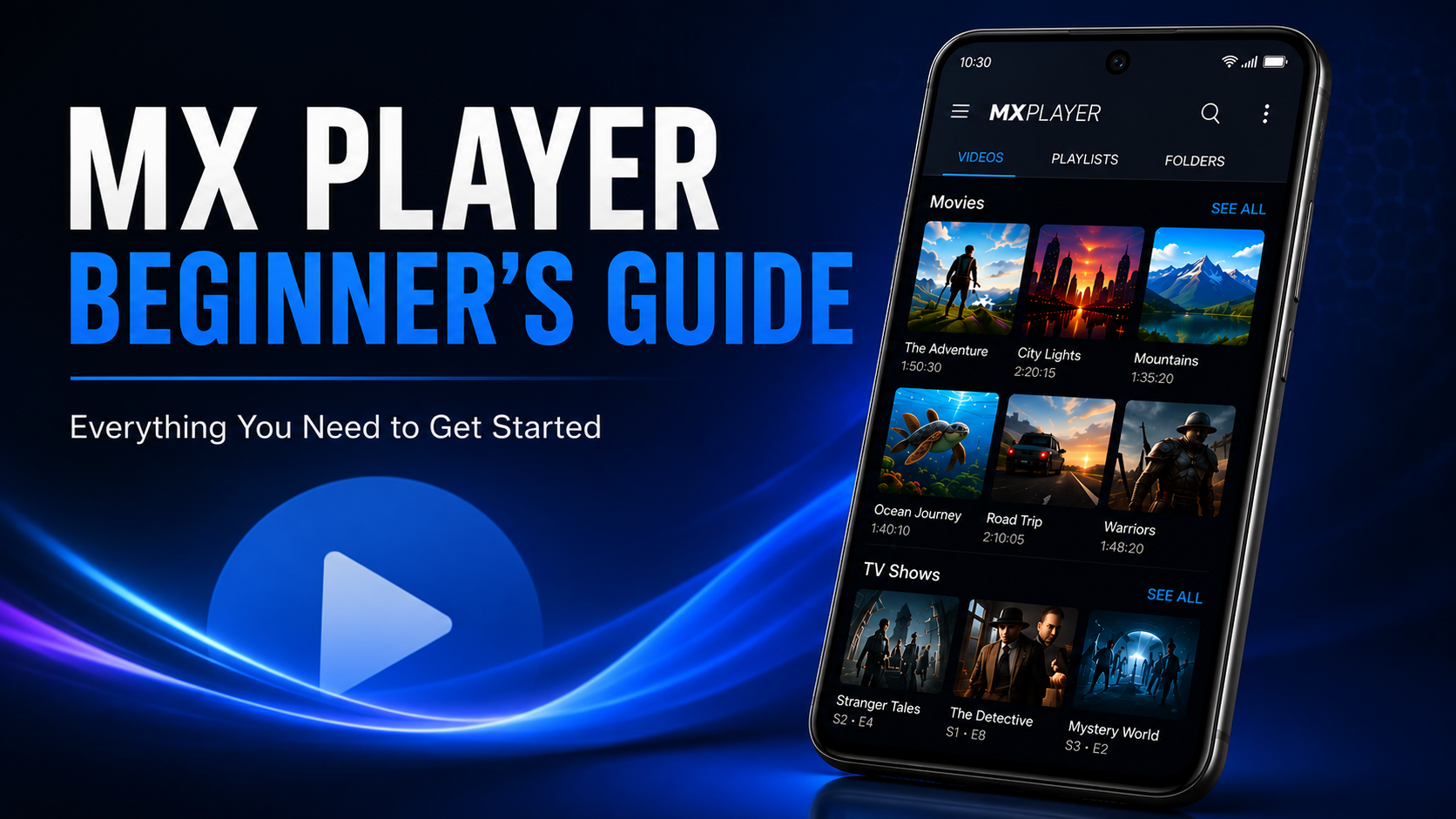
When you launch MX Player, you'll see your media library displayed on the home screen. The app automatically scans your device storage and organizes supported video files into an easy-to-browse library.
Each video usually includes a thumbnail, file name, duration, and folder location. The search function makes it easy to locate specific files, while folders help organize larger media collections.
The interface is intentionally simple so beginners can start watching videos immediately without navigating unnecessary menus.
Playing Your First Video
Watching your first video is straightforward.
Simply tap any video displayed in the library.
MX Player immediately opens the playback screen and begins playing the selected file.
If you've previously watched the same video, the app can resume playback from where you stopped, allowing you to continue without manually searching for your last position.
Learning the Playback Controls
The playback screen contains several useful controls designed to make navigation easy.
Tap once on the screen to display playback controls. You'll find options for:
Pause Play Fast Forward Rewind Screen Lock Subtitle Controls Audio Options Settings
These controls remain hidden during playback to maximize screen space.
Master Gesture Controls
Gesture controls are one of MX Player's most popular features.
Instead of repeatedly tapping buttons, simply swipe across the screen:
Swipe vertically on the left side to adjust brightness. Swipe vertically on the right side to control volume. Swipe horizontally to scroll through the video timeline.
These intuitive gestures make watching videos much more comfortable, especially on larger smartphones and tablets.
Understanding the Media Library
The media library automatically organizes your videos after scanning your device. You can browse content by folders or scroll through thumbnails displayed on the home screen.
Keeping your videos organized in clearly named folders makes browsing much easier. For example:
Movies TV Shows Family Videos Downloads Educational Videos Travel Videos
This organization helps MX Player categorize content more efficiently.
How Subtitle Support Works
If you enjoy watching foreign-language movies or educational videos, subtitles become extremely important. MX Player supports external subtitle files.
While watching a video, open subtitle controls and select your subtitle file. You can also customize:
Subtitle size Font style Text color Background Synchronization Encoding
These options improve readability across different screen sizes.
Hardware Decoding Explained
One feature many beginners don't understand is hardware decoding. Simply put, hardware decoding allows your Android device to use its internal graphics processor instead of relying entirely on the CPU.
Benefits include:
Smoother HD playback Reduced battery usage Lower processor load Better overall performance
Most modern devices perform best with hardware decoding enabled.
Playback Speed Control
Sometimes you may want to watch content faster or slower. MX Player allows playback speed adjustment directly during playback.
This feature is especially useful for:
Online lectures Educational videos Podcasts Tutorials Training sessions
Slow down complex material or speed through longer content according to your preference.
Screen Orientation and Aspect Ratio
Different videos may display better in different orientations. MX Player lets you:
Rotate the screen Lock orientation Change aspect ratio Stretch videos Fit videos correctly
These options ensure videos display properly regardless of the original recording format.
Audio Controls
MX Player provides more than simple volume adjustment.
Depending on your device and media file, you can manage audio preferences such as output behavior and synchronization.
If you're using Bluetooth speakers or wireless headphones and notice slight delays, the app includes controls that can help improve synchronization with supported content.
Resume Playback
Imagine watching a two-hour movie but stopping halfway through. The next time you open the file, MX Player remembers exactly where you stopped.
This feature saves time and makes watching long content much more convenient.
Organizing Your Media
A clean media library improves your overall experience. Store similar videos inside dedicated folders. Avoid placing hundreds of unrelated files inside one directory. A well-organized library makes browsing faster while reducing confusion.
Exploring the Settings Menu
Although many beginners never open Settings, it's worth spending a few minutes exploring. Here you'll find options related to:
Playback Subtitles Decoder Audio Gestures Notifications Themes Library scanning Background playback
These settings allow you to customize MX Player according to your viewing habits.
Hidden Features Beginners Should Know
Many useful tools remain hidden until users begin exploring. Some popular features include:
Background audio playback Sleep timer Screen lock Playback resume Subtitle synchronization Gesture shortcuts Multi-core decoding Zoom controls
These features make everyday media playback much more enjoyable.
Tips for the Best MX Player Experience
To get the best experience, keep MX Player updated through the Google Play Store so you always have the latest performance improvements and bug fixes. Organize your videos into dedicated folders for easier browsing and enable storage permissions so the app can automatically detect new media.
If you regularly watch HD content, hardware decoding can improve playback on compatible devices. Subtitle users should keep subtitle files in the same folder as their videos whenever possible to simplify loading and synchronization.
Spending a few minutes exploring the settings menu can also help you discover useful customization options that make everyday playback more comfortable.
Beginner Tips at a Glance
| Tip | Benefit |
|---|---|
| Organize Videos | Easier browsing |
| Enable Hardware Decoding | Better performance |
| Learn Gestures | Faster controls |
| Customize Subtitles | Improved readability |
| Use Resume Playback | Continue where you stopped |
| Keep App Updated | Better stability |
| Explore Settings | Unlock more features |
| Use Search | Quickly find media |
Common Mistakes New Users Make
Many beginners accidentally deny storage permissions during the first launch, preventing MX Player from displaying local videos. Others overlook gesture controls and rely only on playback buttons, missing a faster and more intuitive way to navigate.
Another common mistake is ignoring the settings menu, where many of the app's best customization features are located. Keeping media files scattered across random folders can also make browsing more difficult than necessary.
Taking a little time to explore the app and organize your media helps avoid these issues and provides a much smoother experience.
Why MX Player Remains One of the Best Android Media Players
MX Player continues to be a favorite among Android users because it combines reliability with flexibility. It supports a wide variety of video formats, offers responsive playback controls, customizable subtitles, gesture navigation, hardware acceleration, and a clean interface that works well for both beginners and experienced users.
Whether you're watching downloaded movies during travel, educational videos for learning, or personal recordings, MX Player delivers consistent performance and a user-friendly experience.
Final Thoughts
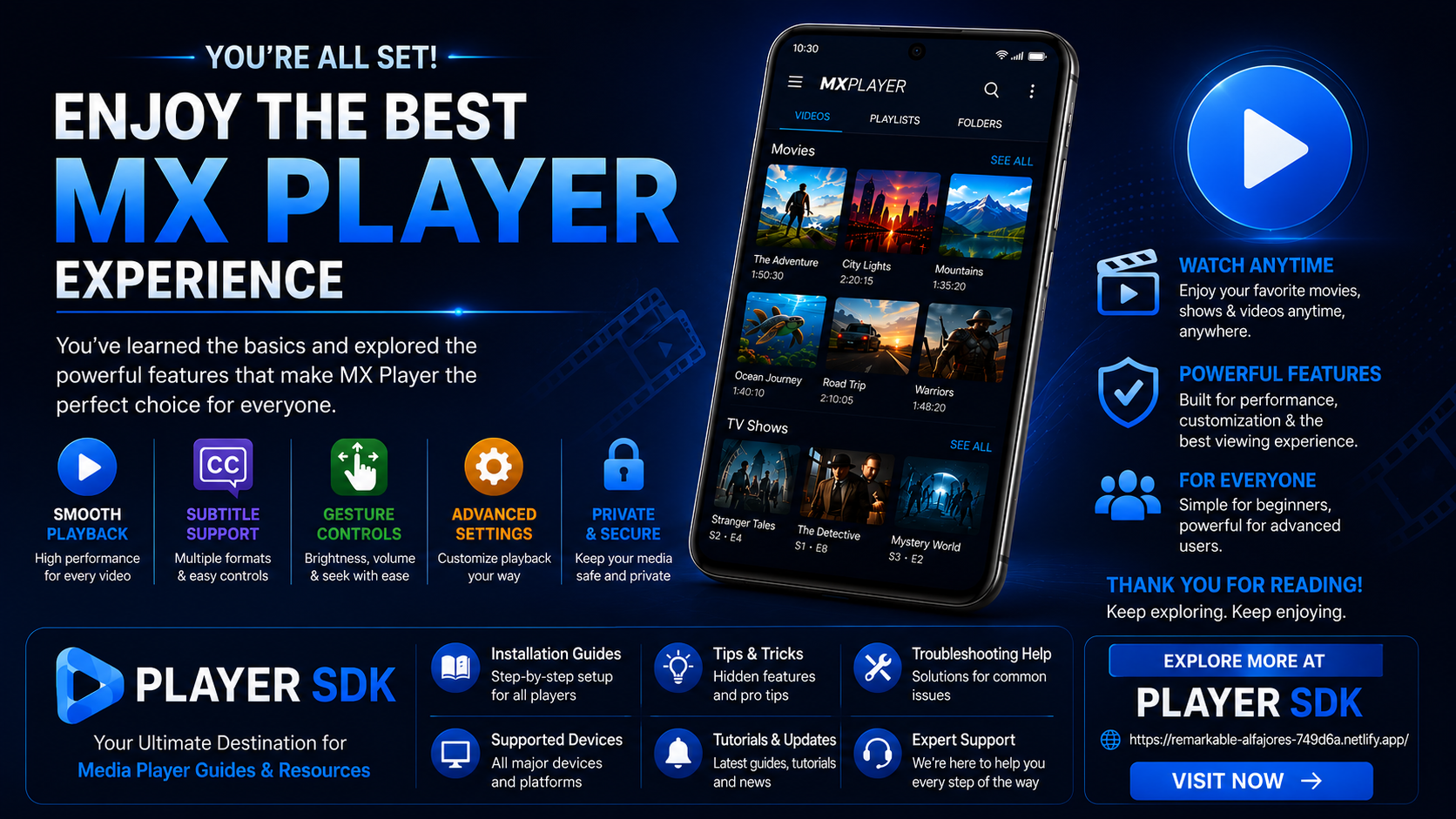
Learning the basics of MX Player only takes a few minutes, but understanding its features can greatly improve your media playback experience. From intuitive gesture controls and subtitle support to hardware decoding and customizable playback settings, MX Player offers everything beginners need to enjoy videos with confidence.
As you become more familiar with the app, you'll discover even more advanced tools that help personalize playback and make everyday viewing faster, smoother, and more enjoyable.
Frequently Asked Questions (FAQs)
1) Is MX Player good for beginners?
Yes. MX Player has a clean interface that's easy to navigate while also offering advanced features for users who want more control.
2) Can MX Player play offline videos?
Yes. MX Player is designed to play locally stored videos without requiring an internet connection.
3) Does MX Player support subtitles?
Yes. It supports external subtitle files and provides options to customize their appearance and synchronization.
4) Should I enable hardware decoding?
Yes. On compatible devices, hardware decoding improves playback performance and helps reduce battery consumption.
5) Can MX Player remember where I stopped watching?
Yes. Resume playback allows you to continue videos from the last watched position.
6) Is MX Player free?
MX Player offers a free version, with some features or content varying by region and version.
Continue Learning with Player SDK
Want to become an MX Player expert? Player SDK is your trusted destination for the best media player installation guides, setup tutorials, beginner guides, hidden features, tips & tricks, troubleshooting articles, supported device guides, and advanced playback resources.
Whether you're using MX Player, VLC Media Player, Kodi, TiviMate, OTT Navigator, Televizo, Sparkle TV, Perfect Player, or other popular media players, Player SDK provides step-by-step guides to help you unlock every feature and get the best viewing experience.
