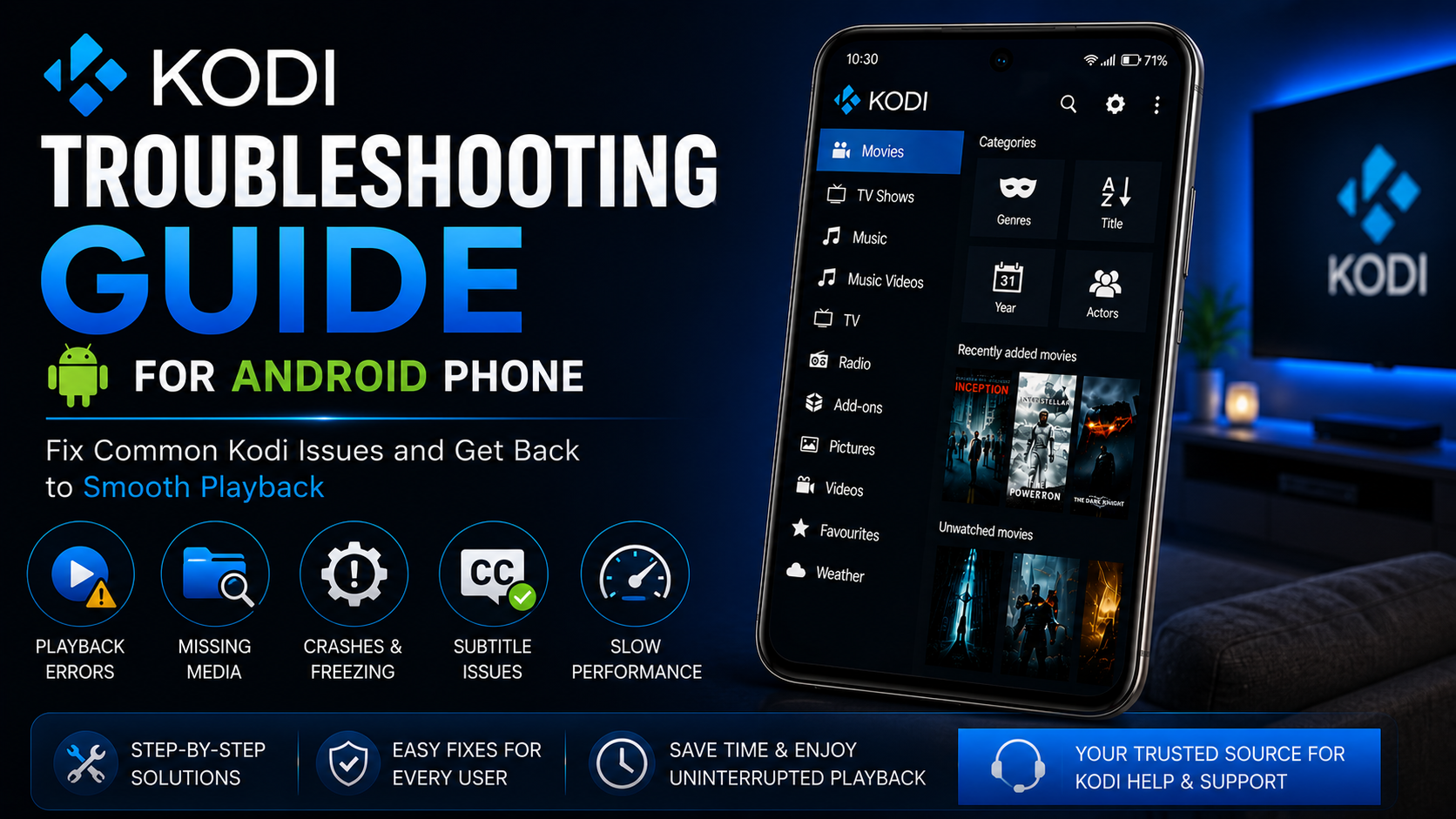
Kodi is one of the most powerful media players available for Android, offering excellent playback quality, media organization, and extensive customization options. However, like any application, you may occasionally encounter issues such as Kodi not opening, videos buffering, playback errors, crashes, missing media, subtitle problems, or performance slowdowns.
The good news is that most Kodi problems can be solved within a few minutes without reinstalling the application or losing your media library.
In this complete Kodi troubleshooting guide, you'll learn how to diagnose common issues, apply simple fixes, and keep Kodi running smoothly on your Android phone. Whether you're a beginner or an experienced user, these troubleshooting tips will help you quickly resolve problems and enjoy an uninterrupted media experience.
Why Troubleshooting Kodi Is Important
Even the best applications may occasionally experience problems due to Android updates, storage limitations, outdated software, incorrect settings, or media compatibility issues.
Understanding basic troubleshooting helps you:
Resolve issues faster Avoid unnecessary reinstalls Improve playback performance Keep Kodi stable Maintain your media library Reduce crashes and errors
Learning a few troubleshooting techniques can save time and make your overall Kodi experience much more enjoyable.
What You'll Learn
| Issue Area | What You'll Learn |
|---|---|
| App Launch Issues | Fix Kodi not opening |
| Playback Problems | Resolve video errors |
| Media Library Issues | Fix missing files |
| Subtitle Problems | Correct subtitle issues |
| Performance Optimization | Improve speed |
| Storage Management | Free up space |
| Update Issues | Keep Kodi running smoothly |
| Best Practices | Prevent future problems |
Problem 1: Kodi Won't Open
Sometimes Kodi may fail to launch or close immediately after opening.
Possible Causes
Corrupted app data Interrupted update Low storage Android compatibility issue
Solutions
Restart your Android phone. Close background applications. Check available storage. Update Kodi through Google Play. Restart the device before trying again.
Many startup issues disappear after a simple restart.
Problem 2: Kodi Keeps Crashing
If Kodi crashes while browsing or playing media, the issue is often related to outdated software or limited system resources.
Fixes
Install the latest Kodi update. Restart your device. Close unused applications. Ensure enough free storage. Clear temporary cache if necessary. Avoid opening multiple heavy apps while using Kodi.
Problem 3: Videos Won't Play
Sometimes a video appears in the library but refuses to start.
Check the following:
Is the file damaged? Does Android still have storage access enabled? Is the video fully downloaded? Is the file format supported?
Testing another video can help determine whether the issue is with Kodi or the media file itself.
Problem 4: Buffering During Playback
Buffering can interrupt your viewing experience, especially when accessing content over a network.
Improve Playback
Use a stable Wi-Fi connection. Close apps using bandwidth. Pause briefly to allow buffering. Restart your router if necessary. Avoid weak mobile data connections for large HD videos.
A stable internet connection significantly improves playback.
Problem 5: Media Library Doesn't Show Videos
Kodi organizes media through your selected folders. If videos disappear, the library may need attention.
Solutions
Confirm storage permission is enabled. Verify the media folder still exists. Refresh the library. Check whether files were moved or renamed. Re-add the media folder if required.
Keeping folders organized reduces future library issues.
Problem 6: Subtitles Don't Display Correctly
Subtitle issues usually involve synchronization or appearance settings.
Fixes
Enable subtitles during playback. Verify subtitle files match the video. Adjust subtitle delay. Increase font size if needed. Confirm subtitle language settings.
Proper subtitle configuration improves readability.
Problem 7: Kodi Feels Slow
As your media collection grows, Kodi may feel less responsive.
Improve Performance
Close background apps. Keep sufficient free storage. Remove unused media sources. Restart Kodi periodically. Keep the application updated.
Good device maintenance improves overall responsiveness.
Problem 8: Audio and Video Are Out of Sync
Occasionally audio may not perfectly match video playback.
Try These Fixes
Restart playback. Test another video. Adjust audio synchronization. Disconnect and reconnect Bluetooth audio devices. Restart Kodi.
Synchronization issues are usually easy to correct.
Problem 9: Storage Permission Problems
Without storage permission, Kodi cannot access your videos or music.
Enable Permission
Step-by-Step Instructions
- Android Settings
- Apps
- Kodi
- Permissions
- Allow Storage
Return to Kodi and refresh your library.
Problem 10: Kodi Isn't Updated
Older versions may experience compatibility problems.
Update Kodi
Step-by-Step Instructions
- Open Google Play Store.
- Search Kodi.
- Tap Update.
- Restart the application after updating.
Regular updates improve stability and security.
Performance Optimization Checklist
| Action | Frequency / Detail |
|---|---|
| Update Kodi | Always use latest version |
| Restart Device | Weekly |
| Free Storage | Maintain available space |
| Check Permissions | Storage enabled |
| Organize Library | Separate media folders |
| Close Background Apps | Before long viewing sessions |
| Update Android | Keep OS current |
| Test Playback | After major updates |
Prevent Future Problems
The easiest troubleshooting is preventing issues before they happen.
Good habits include:
Installing updates regularly Organizing media folders Keeping Android updated Maintaining free storage Using official Kodi releases Restarting the device occasionally
These practices improve long-term stability.
Best Practices for Smooth Playback
For the best Kodi experience, avoid filling your phone's storage completely, use reliable internet when streaming network content, and periodically review your media library for unnecessary files. Small maintenance tasks help Kodi remain fast and responsive over time.
When Should You Reinstall Kodi?
Reinstalling should be your last option.
Consider reinstalling only if:
Kodi won't launch after updates. Repeated crashes continue after troubleshooting. Important application files become corrupted.
Always try the simpler fixes first before removing the application.
Why Kodi Remains Reliable
Despite occasional issues, Kodi remains one of the most stable and feature-rich media players available. Most problems are minor and can be resolved quickly with the troubleshooting methods described above.
Regular updates, proper storage management, and good organization help ensure Kodi performs reliably for years.
What's Next?
Now that you know how to solve common Kodi issues, it's time to discover ways to improve your everyday experience.
Continue with the:
Kodi Tips & Tricks Guide
You'll learn useful shortcuts, productivity features, and practical techniques that help you use Kodi more efficiently.
Final Thoughts
Troubleshooting doesn't have to be complicated. Most Kodi problems—whether related to playback, media libraries, permissions, or performance—can be fixed with a few simple steps.
By understanding these common issues and their solutions, you'll spend less time solving problems and more time enjoying your favorite movies, music, and videos. Keeping Kodi updated, maintaining your Android phone, and organizing your media properly will help deliver a consistently smooth experience.
Frequently Asked Questions (FAQs)
1) Why won't Kodi open on my Android phone?
This is often caused by outdated software, insufficient storage, or temporary Android issues. Restarting your device and updating Kodi usually resolves the problem.
2) Why are my videos missing from the Kodi library?
Check that storage permission is enabled and verify your media folders haven't been moved or renamed.
3) How do I fix buffering?
Use a stable Wi-Fi connection, reduce network congestion, and allow videos a moment to buffer before playback.
4) Why are subtitles not showing?
Ensure subtitles are enabled, verify the subtitle file matches the video, and adjust subtitle settings if necessary.
5) Should I reinstall Kodi to fix problems?
Not usually. Most issues can be solved through updates, restarting the device, checking permissions, or refreshing the media library.
6) What should I read after this troubleshooting guide?
The next recommended article is the Kodi Tips & Tricks Guide, where you'll learn useful features, shortcuts, and ways to enhance your everyday Kodi experience.
Continue Learning with Player SDK
Solved your Kodi issue? Keep improving your media experience with Player SDK, your trusted source for Kodi installation guides, setup guides, beginner tutorials, tips & tricks, hidden features, supported device guides, and complete media player resources.
Whether you're new to Kodi or an experienced user, Player SDK offers easy-to-follow guides to help you unlock the full potential of your media player.
