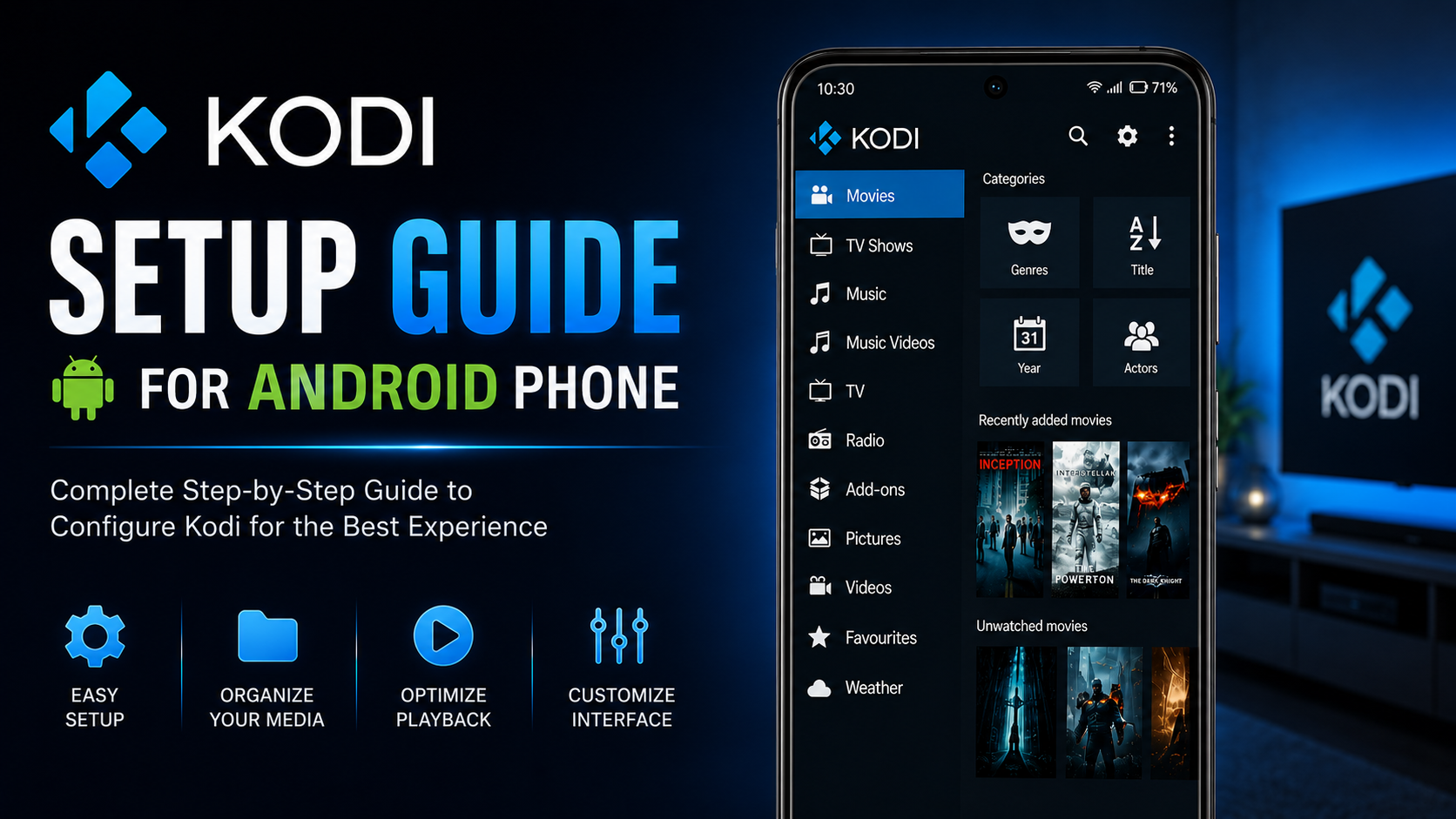
After successfully installing Kodi on your Android phone, the next step is configuring it for the best possible media experience. While Kodi works immediately after installation, spending a few minutes adjusting its settings can significantly improve navigation, playback quality, media organization, and overall usability.
Kodi is much more than a simple media player. It functions as a complete media center that lets you organize movies, TV shows, music, photos, and personal videos into one beautiful interface. Proper setup ensures smoother playback, better library management, improved subtitle support, and a personalized experience that fits your viewing habits.
In this comprehensive Kodi setup guide, you'll learn exactly how to configure Kodi on your Android phone after installation. From choosing the right language and interface settings to organizing your media library and optimizing playback, this guide covers everything beginners need to get started.
Why Proper Kodi Setup Matters
Many users install Kodi and immediately begin using it without exploring the available settings. While Kodi works well out of the box, a proper setup improves performance, makes navigation easier, and helps you get the most from the application.
A few minutes spent configuring Kodi now can save time later and create a much smoother entertainment experience.
Benefits of a proper setup include:
Faster navigation Better media organization Improved subtitle experience Personalized interface Optimized playback Easier library management Better long-term usability
What You'll Learn
| Area | What You'll Learn |
|---|---|
| Initial Configuration | First-time setup |
| Language Settings | Customize interface language |
| Media Library | Organize your content |
| Playback Settings | Improve viewing experience |
| Interface Personalization | Customize Kodi |
| Permissions | Ensure smooth access |
| Performance Tips | Optimize Android playback |
| Best Practices | Maintain Kodi efficiently |
Step 1: Complete the First Launch
When Kodi opens for the first time after installation, it finishes creating its internal folders and preparing the application. Allow the process to complete before making any changes. Once finished, you'll reach Kodi's home screen. Take a few moments to familiarize yourself with the interface.
Step 2: Choose Your Preferred Language
Kodi supports multiple languages. To change the language:
Step-by-Step Instructions
- Open Settings.
- Select Interface.
- Choose Regional.
- Select Language.
- Choose your preferred language.
The interface updates automatically.
Step 3: Understand the Home Screen
Kodi's home screen is organized into several sections. You'll typically see:
Movies TV Shows Music Pictures Videos Settings File Manager
Initially, these sections appear empty because no personal media has been added yet. This is completely normal.
Step 4: Allow Storage Access
Kodi requires access to your phone's storage so it can locate media files. If permission wasn't granted during installation:
Step-by-Step Instructions
- Open Android Settings.
- Apps.
- Kodi.
- Permissions.
- Enable storage access.
Without this permission, Kodi cannot scan your local media.
Step 5: Add Your Media Folder
One of Kodi's biggest strengths is its organized media library. Instead of browsing random folders every time, Kodi creates a structured library.
To begin:
Step-by-Step Instructions
- Open Videos.
- Select Files.
- Choose Add Videos.
- Browse to your media folder.
- Confirm your selection.
Kodi will remember the folder for future scans.
Step 6: Organize Your Media
Keeping your videos organized makes Kodi much easier to use. Consider creating separate folders for:
Movies TV Shows Family Videos Downloads Educational Videos Music Videos
An organized library makes navigation significantly faster.
Step 7: Configure Playback Settings
Kodi allows you to customize playback behavior according to your preferences. Recommended adjustments include:
Resume playback Screen orientation Video scaling Subtitle preferences Playback controls
These settings improve everyday viewing without changing the original media quality.
Step 8: Customize Subtitle Settings
If you frequently watch subtitled content, spend a few minutes adjusting subtitle appearance. Kodi lets you personalize the following:
Font size Font color Background Text position Synchronization
Comfortable subtitles improve readability during long viewing sessions.
Step 9: Explore Interface Personalization
Kodi offers several customization options that help create a more personal experience. You can adjust:
Theme Color scheme Menu layout Screen saver Regional settings
Simple adjustments make Kodi feel more comfortable for daily use.
Step 10: Verify Media Playback
Before adding a large media collection, test playback with one or two videos. Verify that:
Videos play smoothly. Audio is synchronized. Subtitles display correctly. Navigation remains responsive.
This confirms your setup is functioning correctly.
Recommended Setup Checklist
| Setting | Recommended Configuration |
|---|---|
| Language | Your preferred language |
| Storage Permission | Enabled |
| Media Folder | Added |
| Resume Playback | Enabled |
| Subtitle Preferences | Customized |
| Screen Orientation | Auto |
| Theme | Default or preferred |
| Playback Test | Completed |
Improve Library Organization
A well-organized library is one of Kodi's greatest strengths. Store similar content inside dedicated folders rather than mixing everything. Good organization improves browsing speed and makes future library management much easier.
Keep Kodi Updated
Regular updates improve performance, compatibility, security, bug fixes, and user experience. Whenever Google Play offers a Kodi update, install it promptly.
Avoid Common Setup Mistakes
Many beginners accidentally skip important setup steps. Common mistakes include:
Ignoring storage permissions Adding random folders Skipping playback testing Leaving subtitle settings unchanged Using outdated versions
Correcting these early creates a much better experience.
Optimize Kodi for Daily Use
Once Kodi has been configured properly, everyday use becomes much smoother. Spend a few minutes exploring the interface, organizing media folders, and testing playback before adding a large collection of videos. These small adjustments make Kodi faster, cleaner, and easier to navigate.
Why Kodi Setup Is Worth the Time
Unlike many basic media players, Kodi is designed to grow with your media collection. The more organized your initial setup is, the easier it becomes to manage thousands of videos later.
A well-configured Kodi installation provides cleaner navigation, better playback, improved organization, greater personalization, and more enjoyable viewing.
What Comes Next?
Now that Kodi has been configured successfully, you're ready to begin learning how everything works. The next guide in this series is the Kodi Beginner Guide, where you'll learn how to navigate Kodi, understand its interface, use its core features, and become comfortable using the application every day.
Final Thoughts
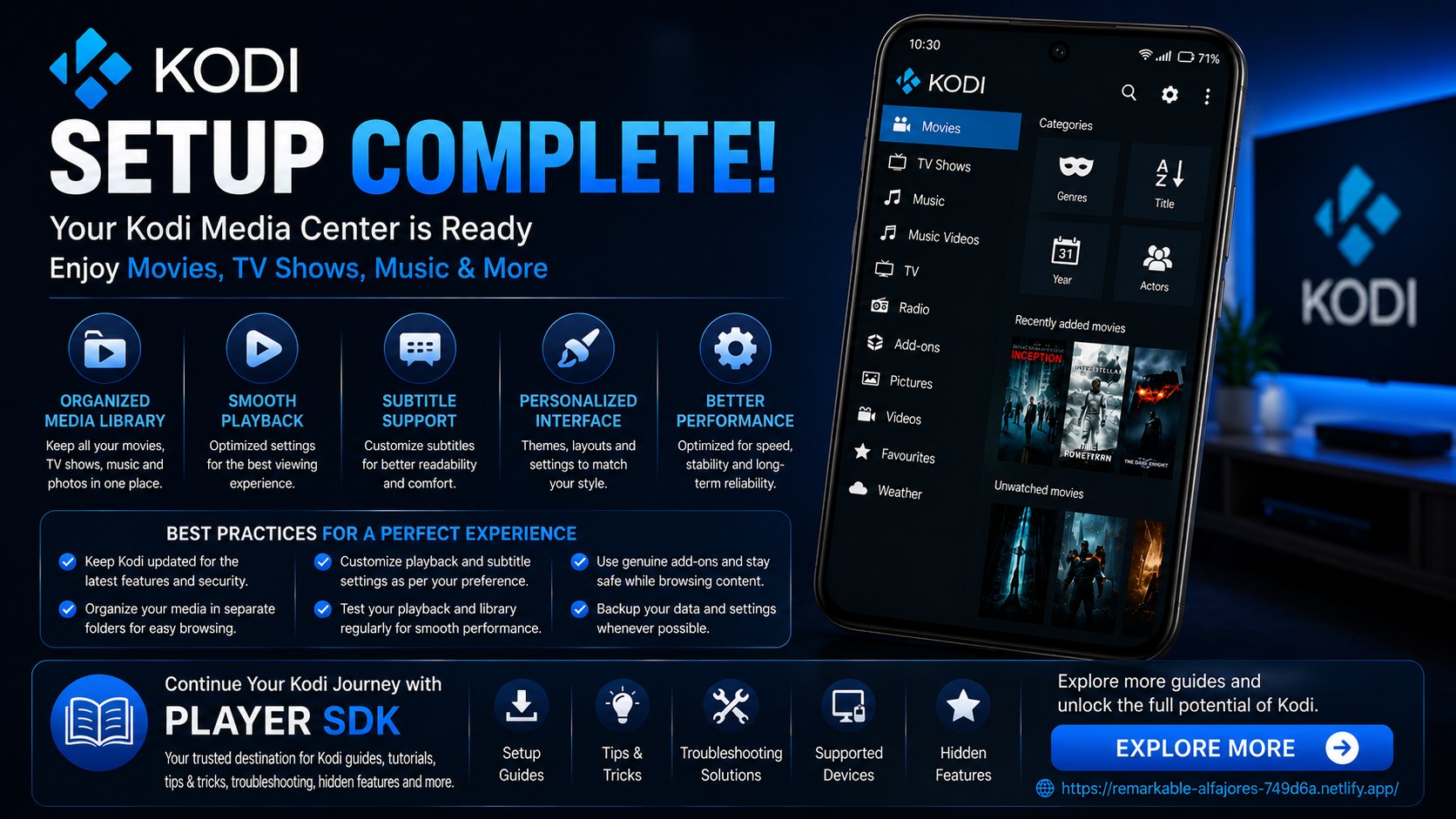
Setting up Kodi properly is just as important as installing it. Taking a few minutes to organize your media folders, adjust playback preferences, customize subtitles, and personalize the interface creates a much smoother and more enjoyable media experience.
Once your setup is complete, Kodi becomes a powerful media center capable of organizing and playing your entire media library with ease. Whether you're watching movies, listening to music, or managing personal videos, a well-configured Kodi installation ensures everything runs efficiently from day one.
Frequently Asked Questions (FAQs)
1) Do I need to set up Kodi after installing it?
Yes. While Kodi works immediately after installation, configuring the settings improves usability, playback, and media organization.
2) Why should I add media folders?
Adding media folders allows Kodi to organize your content into an easy-to-browse library instead of manually browsing files every time.
3) Can I customize Kodi's interface?
Yes. Kodi supports themes, language settings, menu customization, and various interface preferences.
4) Should I customize subtitle settings?
If you regularly watch subtitled content, adjusting font size, color, and synchronization greatly improves readability.
5) How often should I update Kodi?
Install updates whenever they're available through the Google Play Store to receive new features, performance improvements, and security fixes.
6) What's the next step after setup?
After setup, continue with the Kodi Beginner Guide to learn how to navigate the interface, use core features, and get the most out of Kodi.
Continue Learning with Player SDK
Your Kodi setup is complete now it's time to unlock its full potential. Player SDK is your trusted destination for Kodi beginner guides, troubleshooting, tips & tricks, hidden features, supported device guides, and in-depth media player tutorials.
Whether you're just starting with Kodi or looking to master every feature, Player SDK provides step-by-step resources designed to help you get the best possible experience.
