Kodi is one of the world's most popular open-source media players, trusted by millions of users for organizing and enjoying personal media collections. Whether you want to watch locally stored movies, play music, browse photos, or create a complete entertainment hub on your Android phone, Kodi provides a powerful and highly customizable experience.
Unlike traditional media players, Kodi is designed as a complete media center. It supports a wide range of video and audio formats, offers an organized media library, provides subtitle support, and allows extensive personalization to match your viewing preferences.
If you're installing Kodi for the first time, the process is simple and takes only a few minutes. In this complete installation guide, you'll learn how to safely download Kodi, install it on your Android phone, grant the required permissions, verify that everything is working correctly, and avoid the most common installation mistakes.
By the end of this guide, you'll have Kodi installed and ready for the next step, setting it up for the best media experience.
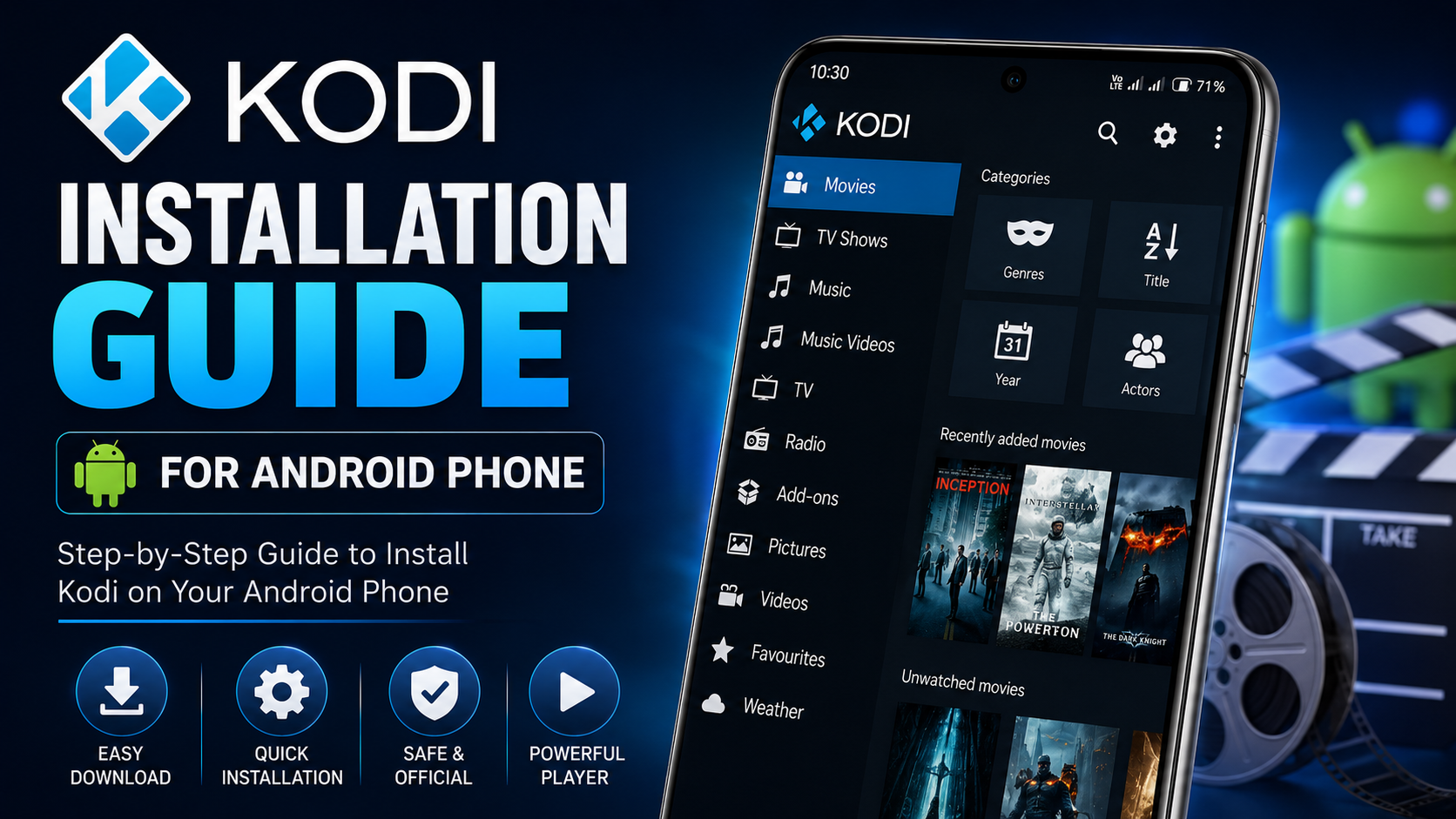
Why Install Kodi on Your Android Phone?
Android smartphones have become powerful enough to function as portable entertainment centers, and Kodi makes full use of that capability. Instead of using multiple apps to manage different types of media, Kodi lets you organize everything in one place.
Some of the biggest benefits include:
Supports hundreds of video and audio formats Beautiful and organized media library Excellent subtitle support Smooth HD and 4K playback (supported devices) Free and open-source software Regular updates from the Kodi Foundation Highly customizable interface Works with locally stored media
Whether you're using Samsung, Google Pixel, Xiaomi, OnePlus, Vivo, Oppo, Motorola, Realme, or another Android device, Kodi offers a consistent and reliable media experience.
What You'll Learn
| Topic | What You'll Learn |
|---|---|
| System Requirements | Check Android compatibility |
| Download Kodi | Install safely from Google Play |
| Installation Process | Step-by-step Android guide |
| Required Permissions | Allow media access |
| Verify Installation | Ensure Kodi works properly |
| Common Installation Problems | Easy troubleshooting |
| Installation Tips | Best practices |
Before You Begin
Before installing Kodi, spend a minute preparing your device. Make sure your Android phone has:
A stable internet connection At least 250 MB of free storage Google Play Store access Updated Android software (recommended) Enough battery to complete installation
Using the official Google Play Store ensures you're installing the latest secure version of Kodi.
Step 1: Open Google Play Store
Unlock your Android phone and launch the Google Play Store. Tap the search bar at the top and search for Kodi.
Several results may appear. Always choose the official application published by the Kodi Foundation. Avoid downloading unofficial or modified versions from unknown sources.
Step 2: Install Kodi
After opening the official Kodi app page, tap the Install button. Google Play automatically downloads the latest stable version and installs it on your Android phone.
Depending on your internet speed, this usually takes one to three minutes. Avoid closing the Play Store during installation.
Step 3: Open Kodi
Once installation is complete, tap Open. You can also find Kodi inside your app drawer or home screen.
The first launch may take slightly longer because Kodi prepares its initial configuration. This is completely normal.
Step 4: Grant Required Permissions
The first time Kodi opens, Android will request permission to access your device storage. Tap Allow.
Kodi needs access to:
Videos Music Photos Internal Storage
Without these permissions, Kodi won't be able to locate your local media files. Granting permission now avoids problems later.
Step 5: Allow Kodi to Complete Initial Setup
After permissions are granted, Kodi begins creating its internal folders and preparing the application. This process usually finishes within a minute.
Avoid force-closing the application while setup is in progress. Once complete, you'll reach Kodi's home screen.
Step 6: Verify Successful Installation
Your installation is complete if:
Kodi opens without errors Home screen loads normally Menus respond smoothly Settings can be opened No crash occurs
If everything works correctly, congratulations! Kodi has been successfully installed on your Android phone.
Understanding Kodi's Home Screen
When Kodi launches for the first time, you'll notice a clean and organized interface. The main navigation includes:
Movies TV Shows Music Pictures Add-ons Settings File Manager
Initially, these sections may appear empty because you haven't added your personal media yet. This is expected. The next guide in this series will explain how to properly configure Kodi after installation.
Why Install Kodi from Google Play?
Installing Kodi through the Google Play Store provides several important advantages.
First, you receive verified software directly from the Kodi Foundation, reducing the risk of downloading unofficial or modified versions. Second, Google Play automatically delivers future updates, ensuring your app stays secure and compatible with the latest Android versions.
Using the official version also gives you access to performance improvements, bug fixes, and new features as they become available.
Common Installation Problems
Although Kodi installs smoothly on most Android phones, a few common issues can occasionally occur.
| Problem | Recommended Solution |
|---|---|
| Play Store download won't start | Check your internet connection and restart the Play Store |
| Not enough storage | Free up space and try again |
| Installation stops midway | Restart your phone and reinstall |
| Kodi won't open | Restart your device and launch again |
| App crashes on first launch | Update Android and reinstall Kodi |
| Storage permission denied | Enable permissions from Android Settings |
Most installation problems can be resolved within a few minutes.
Installation Tips
Following a few simple practices helps ensure a smooth installation.
Always install Kodi from the official Google Play Store rather than third-party websites. Use a stable Wi-Fi connection whenever possible to avoid interrupted downloads, and make sure your device has enough available storage before beginning the installation.
Keeping Android updated also improves compatibility with newer versions of Kodi. Finally, avoid force closing the application during its first launch while it completes its initial setup.
These small steps help prevent common installation issues and ensure a reliable experience from the beginning.
Security Recommendations
Because Kodi is open-source software, many unofficial websites distribute modified versions that may include unwanted changes or outdated software.
For the safest experience:
Download Kodi only from Google Play. Keep automatic updates enabled. Avoid unofficial APK files unless absolutely necessary. Install the latest stable release. Keep Android updated with the latest security patches.
Following these recommendations helps keep your device secure and ensures you're using the most reliable version of Kodi.
What to Do After Installation
Once Kodi is installed successfully, the next step is setting it up for everyday use.
This includes configuring language preferences, adjusting playback settings, granting additional permissions if required, organizing your media library, and customizing the interface according to your preferences.
These topics will be covered in the next article: Kodi Setup Guide for Android.
Why Kodi Is Worth Installing
Kodi continues to be one of the most respected media players because it combines flexibility, performance, and customization into a single application.
Whether you're watching movies, organizing personal videos, listening to music, or managing a growing offline media library, Kodi provides an excellent platform that adapts to your needs.
Its clean interface, broad format support, and active development community make it an ideal choice for Android users looking for more than a basic media player.
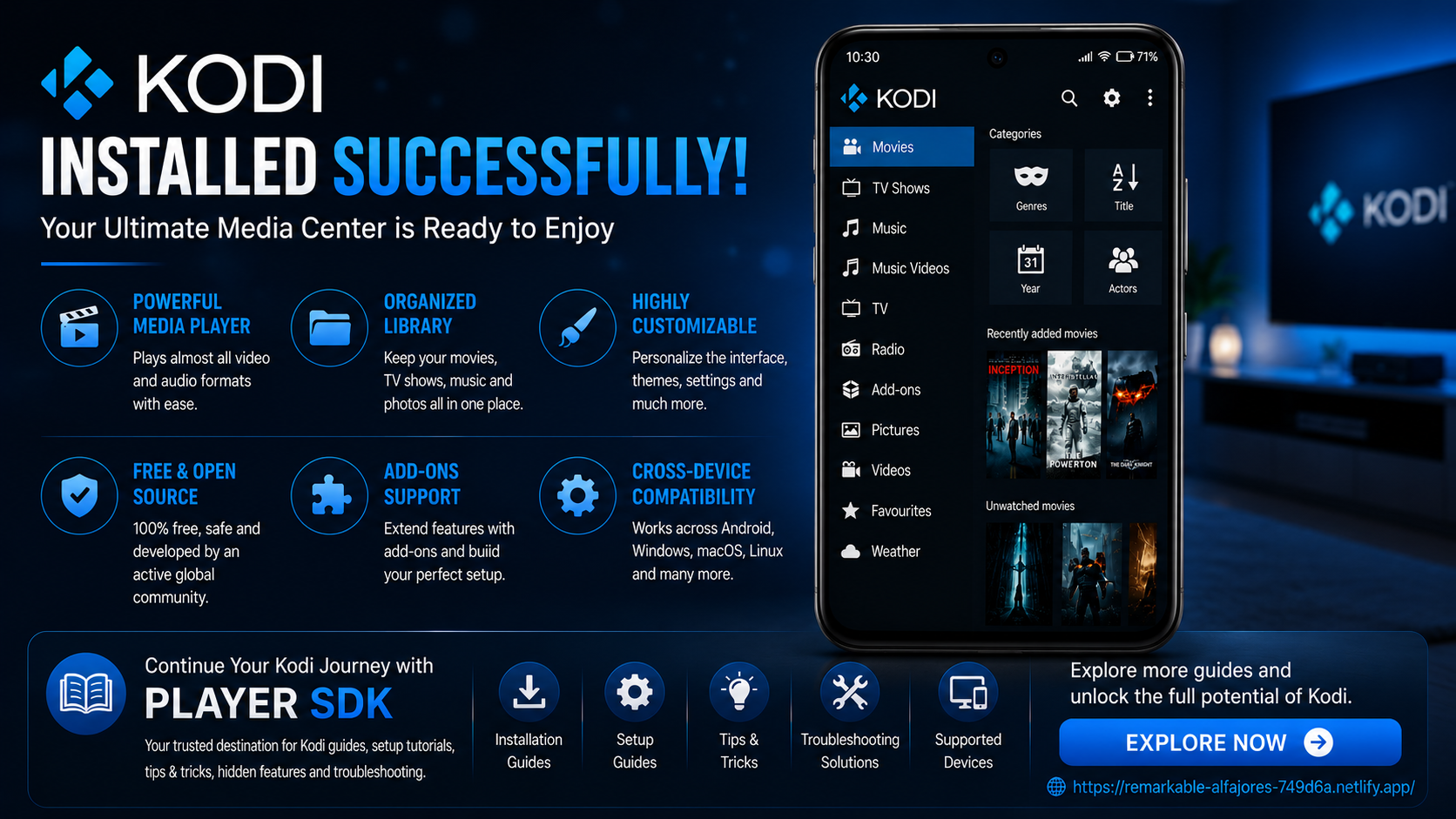
Final Thoughts
Installing Kodi on an Android phone is a quick and straightforward process when you use the official Google Play Store. By following the correct installation steps, granting the required permissions, and verifying the setup, you'll have a powerful media player ready to organize and play your favorite content.
This guide focused solely on installing Kodi. Once installation is complete, the next step is learning how to configure the app for the best viewing experience through the Kodi Setup Guide.
Frequently Asked Questions (FAQs)
1) Is Kodi free to install on Android?
Yes. Kodi is completely free and open-source, and it can be downloaded from the Google Play Store without any cost.
2) Can I install Kodi on any Android phone?
Kodi supports most modern Android smartphones that meet the application's minimum system requirements and have access to the Google Play Store.
3) Do I need an account to use Kodi?
No. Kodi does not require you to create an account for installation or basic use.
4) Why does Kodi ask for storage permissions?
Kodi needs access to your device's storage so it can locate and organize your videos, music, and photos.
5) How long does the installation take?
Most installations are completed within a few minutes, depending on your internet connection and device performance.
6) What should I do after installing Kodi?
After installation, you should continue with the Kodi Setup Guide, where you'll configure settings, organize your media library, and personalize the application.
Continue Learning with Player SDK
Ready to get the most out of Kodi? Player SDK is your trusted destination for Kodi setup guides, beginner guides, troubleshooting, tips & tricks, hidden features, supported device guides, and complete media player tutorials.
Whether you're just getting started or want to become an advanced Kodi user, Player SDK provides easy-to-follow guides that help you unlock the full potential of Kodi and other popular media players.
