Kodi is one of the most powerful and flexible media players available for Android. Unlike traditional video players that simply play media files, Kodi is designed to be a complete media center where you can organize movies, TV shows, music, photos, and personal videos in one place.
If you've recently installed and set up Kodi, you might feel overwhelmed by its interface and numerous features. That's completely normal. Kodi offers many customization options, but learning the basics first makes the experience much easier.
This beginner's guide will introduce you to Kodi's interface, explain how its core features work, and help you become comfortable using the app on your Android phone. By the end of this guide, you'll understand how to navigate Kodi confidently and enjoy a better media experience.
Why Learn Kodi Before Using It?
Many new users open Kodi for the first time and immediately feel confused because it looks different from a standard media player.
Learning the basics helps you:
Navigate confidently Organize your media efficiently Improve playback quality Customize the interface Save time finding videos Enjoy a smoother viewing experience
A small investment in learning Kodi now makes everyday use much simpler.
What You'll Learn
| Topic | What You'll Learn |
|---|---|
| Kodi Interface | Understand the home screen |
| Main Navigation | Learn where everything is |
| Media Library | Organize your content |
| Playback Controls | Watch videos comfortably |
| Settings | Customize Kodi |
| Personalization | Make Kodi your own |
| Best Practices | Everyday usage tips |
| Beginner Mistakes | What to avoid |
What Is Kodi?
Kodi is a free, open-source media player developed by the Kodi Foundation. It allows you to manage your personal media collection inside one organized application.
Instead of opening different apps for music, movies, TV shows, and photos, Kodi combines everything into one clean interface. Kodi is designed to work with your own media library and gives you complete control over how your content is organized and played.
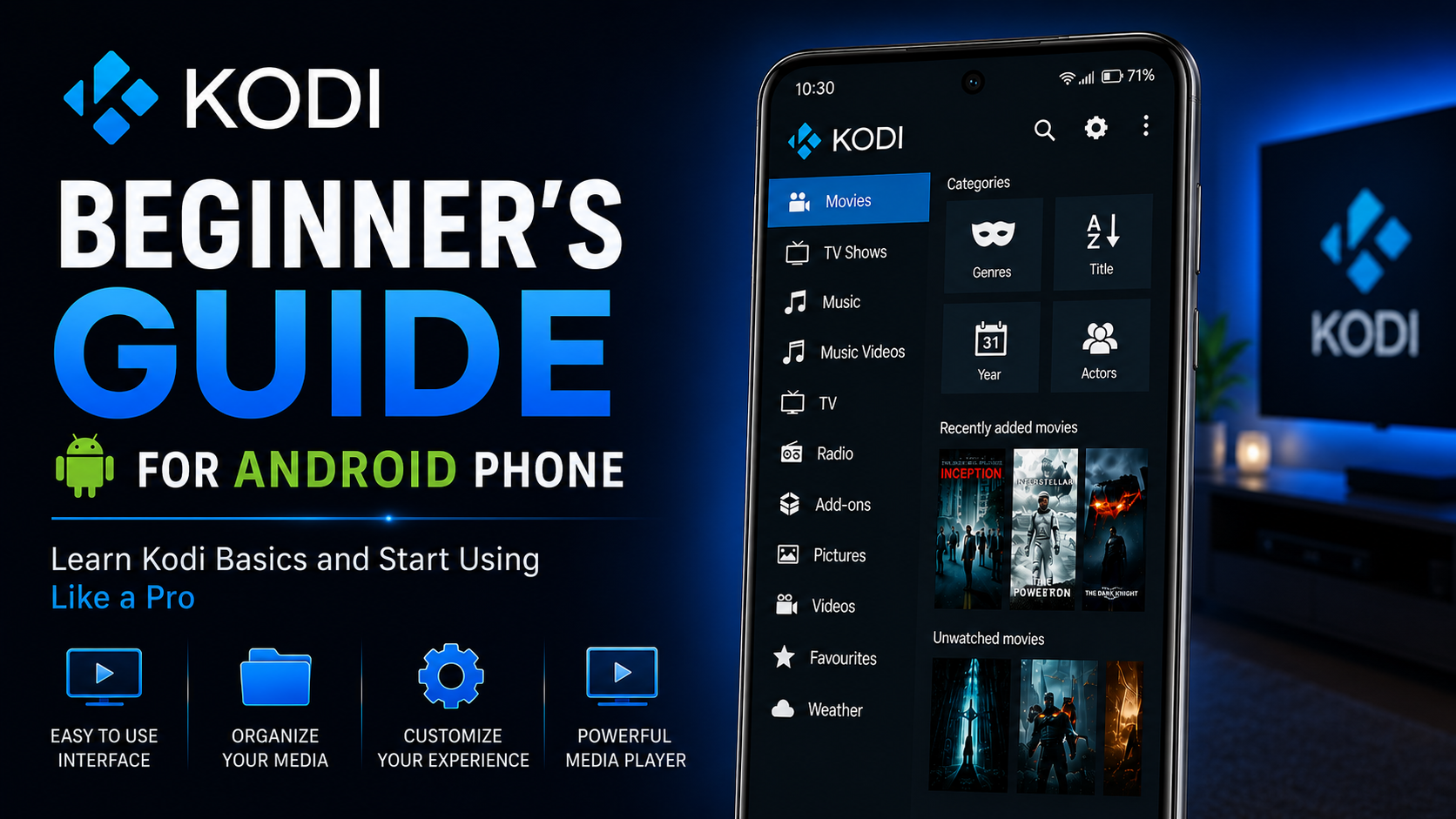
Understanding the Home Screen
When you open Kodi, you'll arrive at the home screen. This is where you'll spend most of your time. The main menu typically includes the following:
Movies TV Shows Music Pictures Videos Settings File Manager
Each section is designed to organize a different type of media. Initially, many sections may appear empty until you've added your personal content.
Navigating Kodi
Kodi's navigation is designed to be simple once you understand the layout. Swipe and tap through the menus to explore different categories.
The Settings section allows you to customize the application, while the Videos and Music sections give you access to your personal media library. Spend a few minutes exploring the interface before making major changes.
Understanding the Media Library
One of Kodi's biggest strengths is its media library. Instead of manually browsing folders every time, Kodi organizes your content into an easy-to-use collection.
This makes it easier to find movies, TV shows, and music quickly. Keeping your media organized also improves the overall browsing experience.
Organize Your Media
A clean folder structure makes Kodi much easier to use. Consider creating folders like:
Movies TV Shows Family Videos Educational Videos Downloads Music Photos
Organized folders make future browsing much faster.
Learn the Playback Controls
Kodi offers several playback controls that improve everyday viewing. While watching a video, you can:
Pause playback Resume later Adjust the volume Seek forward Seek backward Enable subtitles Access playback options
These controls become second nature after a little practice.
Customize the Interface
Kodi allows beginners to personalize the application without making complicated changes. You can customize:
Language Theme Menu appearance Regional settings Screen saver
These small changes help make Kodi feel more comfortable to use.
Explore the Settings Menu
The Settings section is where Kodi becomes truly customizable. Here you'll find options for:
Interface Player Media Services System Storage
You don't need to change everything immediately. Explore each category gradually as you become more familiar with the application.
Learn Subtitle Settings
If you regularly watch movies or international content, subtitles become an important feature. Kodi allows you to adjust the following:
Font size Color Position Background Synchronization
Personalized subtitles improve readability during long viewing sessions.
Understand Playback Settings
Playback settings allow you to customize how videos behave. Examples include:
Resume playback Display preferences Video scaling Audio options
These settings help create a more comfortable viewing experience.
Keep Your Library Organized
As your collection grows, organization becomes increasingly important. Avoid placing every video inside one large folder. Instead, separate media by category. This makes browsing faster and keeps your library clean.
Learn Where Your Settings Are Saved
Kodi remembers many of your preferences automatically. Once you customize playback settings, language, subtitles, and interface options, you generally won't need to configure them again unless you reinstall the application.
Update Kodi Regularly
Keeping Kodi updated ensures you receive:
Performance improvements New features Bug fixes Security updates Improved compatibility
Always install updates through the Google Play Store.
Beginner Tips for Daily Use
Developing good habits early makes Kodi much easier to manage. Take time to organize your media into clearly named folders before adding it to Kodi. Explore the settings menu gradually instead of changing everything at once, and regularly check for app updates to benefit from performance improvements and new features.
As you become more comfortable with Kodi, you'll naturally discover additional customization options that enhance your experience.
Quick Beginner Checklist
| Step | Status |
|---|---|
| Installed Kodi | ✓ |
| Completed Setup | ✓ |
| Added Media Folder | ✓ |
| Organized Videos | ✓ |
| Customized Language | ✓ |
| Tested Playback | ✓ |
| Updated Kodi | ✓ |
| Ready to Explore | ✓ |
Common Beginner Mistakes
New users often make a few avoidable mistakes when learning Kodi. Some of the most common include the following:
Adding disorganized folders Skipping playback testing Ignoring subtitle settings Using outdated versions Changing too many settings at once Not exploring the interface
Avoiding these mistakes makes learning Kodi much easier.
Why Kodi Is Beginner Friendly
Although Kodi looks advanced at first, its interface becomes very intuitive after a little practice. The application is designed to grow with you. Beginners can enjoy simple media playback immediately, while advanced users have access to deeper customization as they gain experience.
This flexibility is one of the biggest reasons Kodi remains popular worldwide.
What's Next?
Now that you've learned the basics, the next step is improving your everyday experience. Continue with the Kodi Troubleshooting Guide, where you'll learn how to solve common playback issues, fix media library problems, improve performance, and resolve typical Android-related errors.
Final Thoughts
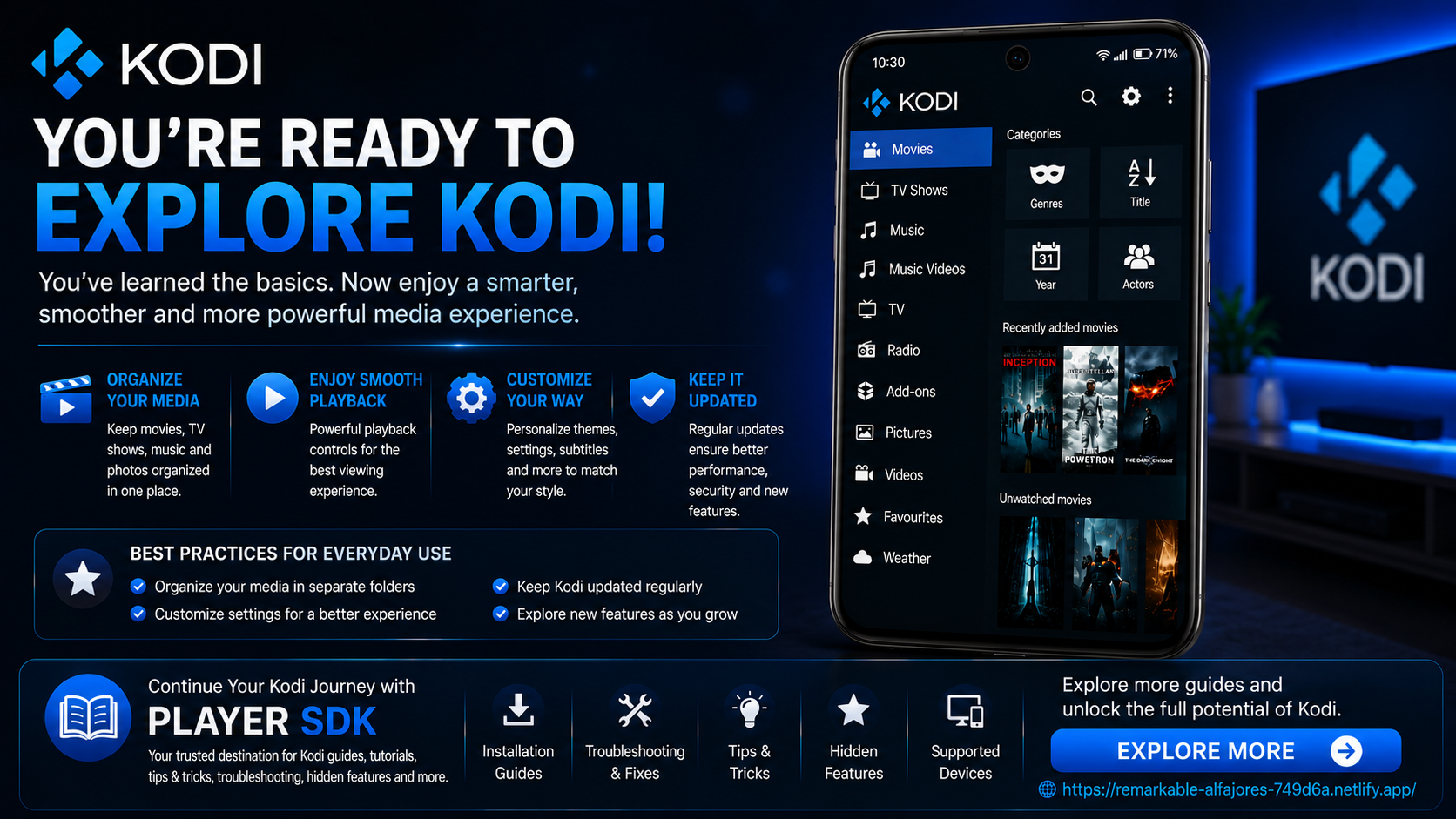
Learning Kodi doesn't happen overnight, but understanding the basics is the most important first step. Once you become familiar with the interface, media library, playback controls, and settings, you'll quickly discover why Kodi is considered one of the best media center applications available.
Whether you're organizing movies, watching TV shows, listening to music, or managing personal videos, Kodi offers a powerful yet flexible experience that improves as you continue exploring its features.
Frequently Asked Questions (FAQs)
1) Is Kodi difficult for beginners?
No. While Kodi offers many advanced features, its basic functions are easy to learn with a little practice.
2) Do I need to organize my videos before using Kodi?
It's highly recommended. Organized folders make browsing your media library much easier.
3) Can I customize Kodi?
Yes. You can personalize the interface, playback settings, language, subtitles, and several other options.
4) Why should I update Kodi?
Updates improve performance, compatibility, and security and introduce new features.
5) Is Kodi only for movies?
No. Kodi also supports music, photos, personal videos, and other locally stored media.
6) What should I learn after this beginner guide?
The next recommended guide is the Kodi Troubleshooting Guide, where you'll learn how to solve common issues and optimize Kodi for daily use.
Continue Learning with Player SDK
Ready to become a Kodi expert? Player SDK is your trusted resource for Kodi installation guides, setup guides, troubleshooting, tips & tricks, hidden features, supported device guides, and complete media player tutorials.
Whether you're just starting your Kodi journey or looking to master every feature, Player SDK provides beginner-friendly, step-by-step guides to help you get the most from your media player.
