If you’re using KMPlayer on your Android phone, you already have one of the most powerful and flexible media players available. Known for its smooth playback, wide format support, and advanced customization options, KMPlayer offers far more than just basic video playback.
However, most users only scratch the surface of what KMPlayer can actually do.
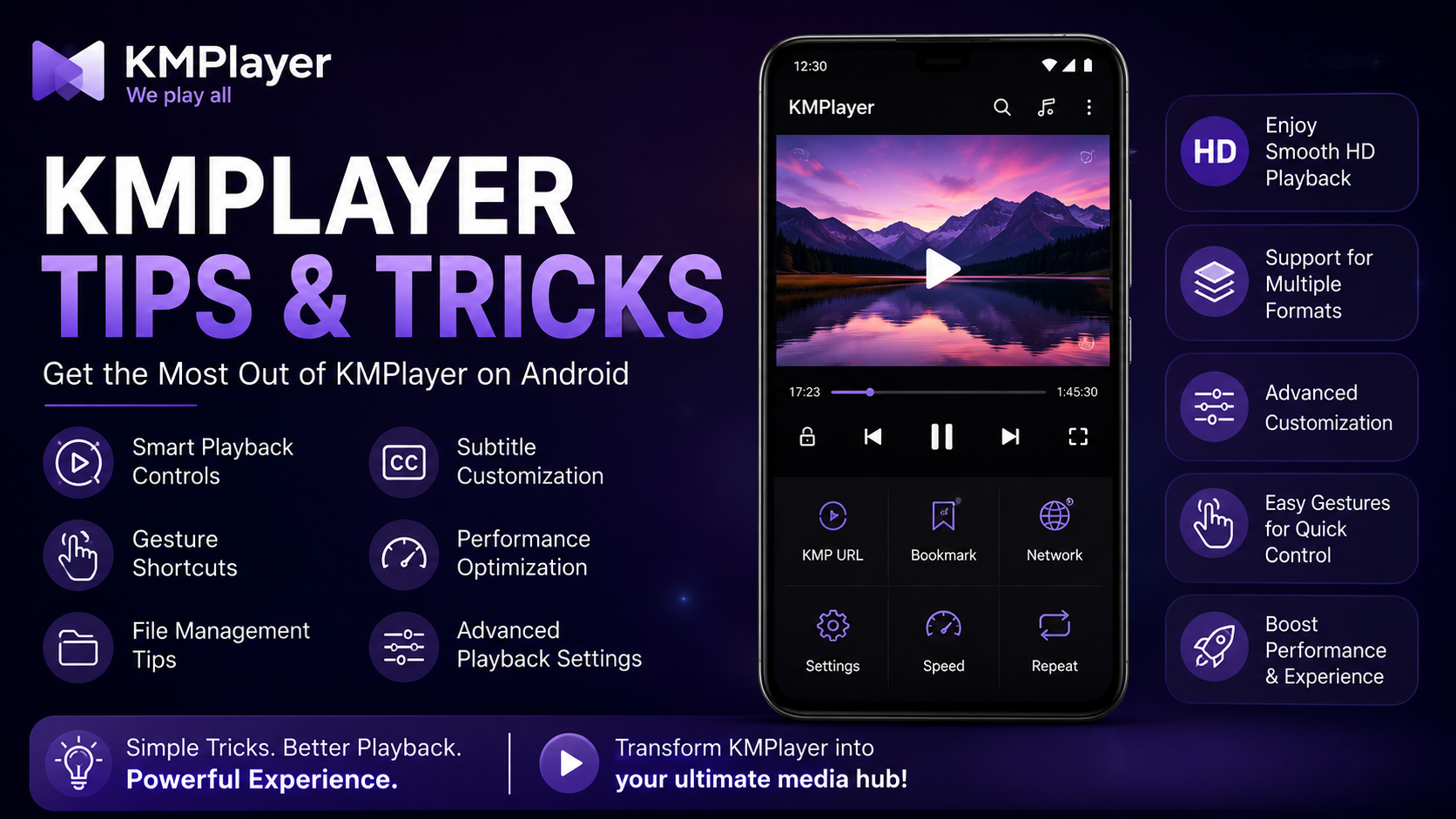
In this complete KMPlayer Tips & Tricks Guide for Android, you’ll discover practical techniques, hidden features, and smart optimizations that will help you enhance your viewing experience, improve performance, and use KMPlayer like a pro.
Whether you’re a beginner or a regular user, these tips will transform how you use KMPlayer every day.
Why Learn KMPlayer Tips & Tricks?
KMPlayer is packed with powerful features that often go unnoticed by most users. By learning a few simple tips and tricks, you can significantly improve your overall viewing experience. It helps you improve playback quality, save time while navigating videos, and customize your viewing experience according to your preferences. You can also use advanced features more efficiently, enhance performance on Android devices, and get the most out of your media library. Instead of using KMPlayer as just a basic video player, you can turn it into a fully optimized media hub.
Instead of using KMPlayer as a basic video player, you can turn it into a fully optimized media hub.
What You’ll Learn
In this guide, you will explore several important aspects of KMPlayer to enhance your usage. You’ll learn about smart playback controls, discover hidden features, and understand performance optimization tricks. Additionally, the guide covers subtitle customization, gesture shortcuts, file management tips, and advanced playback settings to help you unlock the full potential of the player.
Let’s dive into the most useful KMPlayer tips and tricks.
Tip 1: Use Gesture Controls for Faster Navigation
KMPlayer allows you to control playback using simple gestures, which makes navigation extremely fast and intuitive.
You can:
- Swipe left or right to seek forward or backward
- Swipe up or down on the left side to adjust brightness
- Swipe up or down on the right side to control volume
These gestures eliminate the need to tap multiple buttons, giving you a smoother and more immersive viewing experience.
Tip 2: Adjust Playback Speed Easily
Sometimes you may want to watch videos faster or slower.
KMPlayer lets you:
- Increase playback speed for tutorials or lectures
- Slow down videos for detailed scenes
You can easily adjust speed from the playback settings without affecting video quality.
This feature is especially useful for students and content learners.
Tip 3: Customize Subtitles for Better Readability
Subtitles are an essential part of video playback, and KMPlayer gives you full control over them.
You can:
- Change subtitle size
- Adjust color and font
- Sync subtitles with video timing
- Enable or disable subtitles instantly
Proper subtitle customization ensures better readability and a more comfortable viewing experience.
Tip 4: Use Background Play Mode
One of the most useful KMPlayer features is background playback.
This allows you to:
- Listen to audio while using other apps
- Play videos like music in the background
It’s perfect for podcasts, lectures, and music videos.
Tip 5: Organize Your Media Library Efficiently
A well-organized library makes it easier to find and play your content.
To keep things clean:
- Store videos in dedicated folders
- Avoid renaming files frequently
- Keep file names clear and consistent
KMPlayer automatically detects and organizes your files, but proper folder management improves accuracy.
Tip 6: Use Floating Screen Mode
Floating screen (pop-up player) is one of KMPlayer’s most powerful features.
With this feature, you can:
- Watch videos in a small window
- Use other apps simultaneously
- Multitask easily
This is ideal for users who want to browse or chat while watching content.
Tip 7: Enable Hardware Acceleration
For smoother playback, especially for HD and 4K videos, enabling hardware acceleration is essential.
It helps:
- Reduce lag
- Improve video rendering
- Optimize performance
Most modern Android devices support this feature, making playback much more efficient.
Tip 8: Use Equalizer for Better Audio Quality
KMPlayer includes built-in audio controls that let you enhance sound quality.
You can:
- Adjust bass and treble
- Improve voice clarity
- Customize audio output
This is particularly useful when using headphones or external speakers.
Tip 9: Lock Screen to Prevent Accidental Touch
While watching videos, accidental touches can interrupt playback.
KMPlayer allows you to:
- Lock the screen during playback
- Avoid unwanted pauses or changes
This feature is especially helpful when watching movies or long videos.
Tip 10: Resume Playback Automatically
KMPlayer remembers where you left off.
So when you reopen a video:
- It resumes from the last position
- Saves time searching for the exact point
This feature is perfect for long movies and series.
Tip 11: Explore Advanced Settings
KMPlayer provides a wide range of advanced settings that can improve your experience.
You can:
- Adjust video rendering options
- Change playback behavior
- Customize interface preferences
Exploring these settings helps you tailor the app exactly to your needs.
Tip 12: Keep KMPlayer Updated
Regular updates bring:
- Bug fixes
- Performance improvements
- New features
Always ensure you are using the latest version for the best experience.
Performance Optimization Tips
To keep KMPlayer running smoothly on Android, it’s important to follow a few simple performance optimization practices. Make sure your device has enough free storage available, as low storage can affect playback speed and stability. Closing background apps before playing videos helps free up RAM and improves performance. Restarting your phone occasionally can clear temporary glitches, while avoiding heavy apps running alongside KMPlayer ensures a smoother viewing experience. These small but effective optimizations can significantly enhance overall performance.
Best Practices for Smooth Playback
For the best playback experience, maintaining good usage habits is essential. Always use high-quality video files to ensure better clarity and smoother playback. Avoid playing corrupted or incomplete files, as they can cause buffering or errors. Storing your media in stable and accessible locations also helps prevent playback issues. Additionally, regularly organizing and maintaining your media library ensures consistent performance and a better overall experience with KMPlayer over time.
When Should You Explore More Features?
Once you are comfortable with the basic features of KMPlayer, it becomes worthwhile to explore its advanced capabilities. You should consider diving deeper when you want better control over playback settings, need more advanced subtitle customization, or are looking for multitasking features. Exploring additional options is also helpful if you aim to further improve performance. KMPlayer is designed to cater to both beginners and advanced users, making it easy to grow into more powerful features as your needs evolve.
Why KMPlayer Stands Out
KMPlayer stands out as more than just a regular media player due to its powerful and flexible feature set. It supports multiple video and audio formats, ensuring compatibility with a wide range of files. The player delivers smooth HD playback and offers advanced customization options to suit individual preferences. Its user-friendly interface makes navigation simple, while powerful playback tools provide greater control over the viewing experience. These features make KMPlayer an excellent choice for Android users who value both flexibility and performance.
What’s Next?
Now that you’ve learned the best KMPlayer tips and tricks, it’s time to go even deeper. You’ll discover advanced capabilities, lesser-known tools, and pro-level features that can take your experience to the next level.
Final Thoughts
KMPlayer is a feature-rich media player that offers far more than basic video playback. By using the tips and tricks covered in this guide, you can unlock its full potential and enjoy a smoother, faster, and more personalized experience.
From gesture controls and subtitle customization to performance optimization and multitasking features, KMPlayer gives you everything you need for a premium media experience on Android.
The more you explore, the better it gets.
Frequently Asked Questions (FAQs)
1) How do I improve video playback in KMPlayer?
You can improve playback by enabling hardware acceleration, closing background apps, and ensuring your device has enough free storage.
2) Can I watch videos while using other apps?
Yes, KMPlayer supports floating screen mode, allowing you to multitask easily.
3) How do I fix subtitle issues?
You can adjust subtitle timing, size, and font from the subtitle settings within the player.
4) Does KMPlayer support all video formats?
KMPlayer supports a wide range of video and audio formats, making it highly versatile.
5) Why is KMPlayer lagging on my phone?
Lag can occur due to low storage, outdated app versions, or too many background apps running.
6) What should I read after this guide?
You should continue with the KMPlayer Hidden Features Guide to unlock more advanced functionalities.
Continue Learning with Player SDK
Want to take your KMPlayer experience even further?
Player SDK is your go-to platform for everything related to media players. From installation guides and setup tutorials to troubleshooting, tips & tricks, and hidden features, we provide complete, easy-to-follow resources designed for both beginners and advanced users.
