If you've already installed KMPlayer on your Android device, the next step is setting it up properly for the best possible viewing experience. While KMPlayer works out of the box, optimizing its settings can significantly improve video quality, playback smoothness, subtitle synchronization, and overall usability.
In this detailed guide, you'll learn how to set up KMPlayer on Android like a pro. Whether you're a casual viewer or someone who watches high-resolution content daily, this setup guide will help you unlock the full potential of the app.
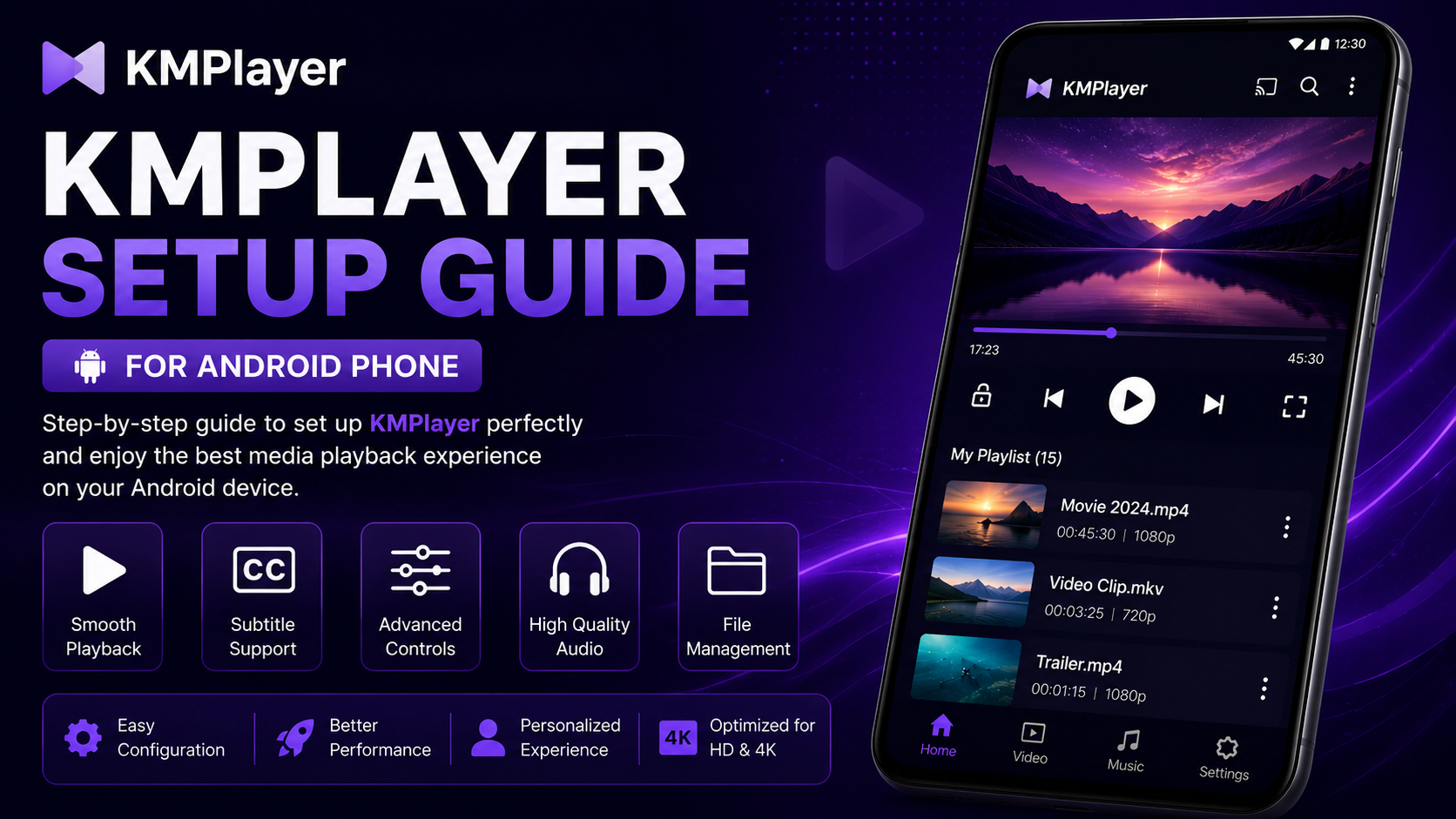
Why Proper Setup Matters in KMPlayer
Most users install a media player and start using it immediately without exploring the settings. However, KMPlayer is a feature-rich video player with powerful customization options. A proper setup ensures:
Setup Benefits:
- Smooth playback even for demanding HD and 4K videos
- Better audio clarity and equalizer balance
- Accurate subtitle synchronization and styling
- Reduced battery consumption through hardware acceleration
- A fully personalized viewing experience
Without initial configuration, you might miss out on these valuable advantages.
Initial Setup After Installation
When you open KMPlayer for the first time, it asks for storage and media permissions. These are necessary for the app to function properly. Grant access to storage so KMPlayer can scan your device for media files. Without this permission, your videos won't appear in the library.
After that, KMPlayer automatically scans your device and organizes videos into categories. This process usually takes a few seconds depending on your storage. Once completed, you'll see your complete video library on the home screen.
Understanding the KMPlayer Interface
Before diving into settings, it's important to understand the layout. The home screen displays your media files in a clean format with quick-access tabs for Videos, Music, Folders, and Playlists. When you play a video, on-screen gesture controls allow you to adjust brightness, volume, and seek playback smoothly without opening sub-menus.
1. Optimize Video Playback Settings
Go to the Settings section and open Playback Settings. Here, you should enable Hardware Acceleration. This allows your phone's GPU to handle video decoding, resulting in smoother playback and significantly less lag.
If your device supports high-resolution content, enable options related to HD and 4K playback. You can also adjust playback speed (keeping 1.0x as standard or customizing it based on your preference).
2. Configure Audio Settings
Audio quality is just as important as video. Inside the settings menu, navigate to Audio Settings and enable high-quality audio output if available. This improves clarity, especially when listening through headphones or external speakers.
You can also adjust Audio Delay (Audio Sync) if the sound doesn't match the video. This is particularly useful for downloaded or stream-recorded content.
3. Customize Subtitles
Subtitles are essential for watching foreign movies, anime, or tutorials. KMPlayer allows deep subtitle customization:
Subtitle Options:
- Font Size & Style: Increase text size for comfortable viewing on smartphone screens.
- Color & Background: Choose high-contrast colors (like yellow or white with outline/shadow) for clear visibility.
- Subtitle Synchronization: Adjust subtitle timing in milliseconds if text appears too early or late.
4. Set Up Gesture Controls
KMPlayer includes intuitive touch gesture controls that eliminate the need to fumble with tiny on-screen buttons:
Supported Gestures:
- Left-side vertical swipe: Adjust screen brightness
- Right-side vertical swipe: Increase or decrease audio volume
- Horizontal swipe: Seek backward or forward through the timeline
- Pinch-to-zoom: Scale or zoom video to fill the screen
5. Enable Picture-in-Picture (Floating Player)
KMPlayer's Floating Player mode lets you continue watching videos in a resizable, draggable mini-window while chatting, browsing web pages, or checking emails. Enable Floating Player / Picture-in-Picture in settings and grant the "Display over other apps" permission when prompted by Android.
6. Organize Your Media Library
A cluttered library slows down navigation. KMPlayer allows you to organize media efficiently:
Organization Features:
- Create custom playlists for movies, music videos, or courses
- Sort videos by date, title, size, or duration
- Hide private or unwanted system folders to keep your library clean
7. Configure Background Play
If you like listening to video podcasts, lectures, or music tracks, enable Background Play. This allows audio to continue playing seamlessly even when you minimize the app or turn off the smartphone screen, saving significant battery life.
8. Enable Network Streaming (Optional)
KMPlayer supports streaming directly via URLs. If you watch online content, cloud streams, or IPTV feeds, you can input network URLs directly in the app, turning KMPlayer into a versatile all-in-one multimedia hub.
Advanced Setup Tips for Better Performance
After completing the basic setup, optimize performance even further with these recommendations:
Performance Tweaks:
- Clear Cache Regularly: Clear cached media thumbnails from app settings to prevent sluggishness.
- Decoding Switch: If a specific video stutters with Hardware Decoding (HW), switch to Software Decoding (SW) for that file.
- Battery Optimization: Lower screen brightness slightly and disable unused background features during long trips.
Common Setup Mistakes to Avoid
Avoid These Habits:
- Disabling required storage permissions, which prevents KMPlayer from seeing your media
- Ignoring subtitle customization when viewing foreign-language content
- Leaving duplicate media and temporary junk files unmanaged across your storage
Benefits of Proper KMPlayer Setup
Once configured correctly, KMPlayer transforms into a high-performance, tailored media center. You'll notice buttery smooth playback, crisp audio, effortless gesture navigation, and total control over your entertainment library on Android.
Final Thoughts
Setting up KMPlayer on Android is not just about enabling a few options—it's about customizing the player to match your viewing habits. Once you spend a few minutes configuring playback, audio, subtitles, and gestures, you'll unlock a much smoother and more enjoyable media experience.
Frequently Asked Questions (FAQs)
1) How do I improve video quality in KMPlayer?
Enable hardware acceleration and adjust display settings in Playback Settings. Also ensure you are playing high-quality source files.
2) Why are subtitles not showing?
Check subtitle settings and ensure the subtitle file (.srt, .vtt, etc.) is in the same folder as the video and shares the same file name.
3) Can I use KMPlayer for streaming?
Yes, KMPlayer supports network streaming through direct URL input.
4) How do I fix audio delay?
Use the audio sync option in audio settings to adjust audio delay manually in milliseconds.
5) Is KMPlayer good for 4K videos?
Yes, with proper setup (hardware acceleration enabled) and a capable smartphone processor, KMPlayer handles 4K and UHD playback smoothly.
6) Does KMPlayer support background play?
Yes, you can enable background play from settings to listen to video audio even when the screen is locked or another app is open.
Take Your KMPlayer Experience Further with Player SDK
Setting up KMPlayer is just the beginning. If you really want to unlock its full capabilities and transform the way you watch, manage, and optimize media on your Android device, Player SDK is your trusted destination. Discover beginner tutorials, troubleshooting solutions, tips & tricks, hidden features, supported device guides, and complete media player resources designed specifically for Android users.
