KMPlayer is one of the most reliable and feature-rich media players available for Android, known for its smooth playback, wide format support, and advanced customization features. However, like any application, it can occasionally run into issues such as not opening, crashing, buffering, playback errors, missing files, subtitle problems, or slow performance.
The good news is that most KMPlayer issues are minor and can be fixed quickly without reinstalling the app or losing your media files.
In this complete troubleshooting guide, you'll learn how to identify common KMPlayer problems and fix them step by step so you can enjoy a smooth and uninterrupted media experience on your Android phone.
Why Troubleshooting KMPlayer Is Important
Even a well-optimized app like KMPlayer can face issues due to Android updates, storage limitations, outdated versions, or incorrect settings. Knowing how to troubleshoot helps you fix problems quickly and avoid unnecessary frustration.
It also improves playback performance, reduces crashes, and keeps your media experience stable. Once you understand the basics, managing KMPlayer becomes much easier.
Problem 1: KMPlayer Won't Open
Sometimes KMPlayer may fail to launch or close immediately after opening. This is often caused by temporary background conflicts, low device memory, or outdated software.
Start by restarting your Android phone. After that, check if other apps are running in the background and close them. If the issue continues, check for updates in the Google Play Store.
Most startup issues are resolved with a simple restart and update.
Problem 2: KMPlayer Keeps Crashing
If KMPlayer crashes while browsing or playing media, it is often due to outdated app versions, corrupted cache, or high memory usage.
Make sure you are using the latest version of the app. Restart your phone and clear temporary cache from your device settings (Settings → Apps → KMPlayer → Storage → Clear Cache).
Avoid running heavy apps alongside KMPlayer, especially on lower-end devices.
Problem 3: Videos Won't Play
Sometimes a video appears in your library but doesn't start playing.
This can happen if the file is corrupted, incomplete, or in an unsupported format. Try playing another video to see if the issue is with the app or the specific file.
If the problem is file-specific, replacing or re-downloading the video usually fixes the issue.
Problem 4: Buffering During Playback
Buffering can interrupt your viewing experience, especially when streaming or playing high-resolution content.
A stable internet connection is essential. Switch to Wi-Fi if you're using mobile data, and avoid running heavy downloads in the background while watching.
If buffering continues, restarting your router or lowering video quality can help.
Problem 5: Media Files Not Showing
KMPlayer automatically scans your device for media files, but sometimes videos or audio files may not appear in your library.
Check if storage permission is enabled. Ensure that your files are stored in accessible folders and not hidden inside system directories.
Keeping your files organized helps prevent this issue.
Problem 6: Subtitles Not Working Properly
Subtitle issues are common but easy to fix.
Make sure subtitles are enabled during playback. Check that the subtitle file matches the video file name. If subtitles are out of sync, adjust the timing using the built-in subtitle settings.
You can also change font size and style for better readability.
Problem 7: KMPlayer Feels Slow
Over time, KMPlayer may feel less responsive, especially if your device storage is nearly full.
Close background apps and free up storage space. Removing unnecessary files or unused media sources can improve performance. Restarting the app occasionally also helps.
Keeping KMPlayer updated ensures smoother performance.
Problem 8: Audio Not Syncing with Video
Sometimes audio may not match video playback, which can affect your viewing experience.
Restart the video and try another file to confirm the issue. KMPlayer allows you to adjust audio sync settings in milliseconds, which usually resolves the problem. If you are using Bluetooth headphones, reconnect them or switch to wired audio.
Problem 9: Storage Permission Issues
Without storage permission, KMPlayer cannot access your media files.
Go to your Android settings, open Apps, select KMPlayer, and allow storage permission. After enabling it, return to the app and refresh your media library.
This is a common issue, especially after installing or updating the app.
Problem 10: KMPlayer Not Updated
Using an outdated version of KMPlayer can lead to bugs and compatibility issues.
Open the Google Play Store, search for KMPlayer, and install any available updates. After updating, restart the app to ensure everything works properly.
Regular updates improve stability and performance.
Performance Optimization Tips
To keep KMPlayer running smoothly, make sure your device has enough free storage and that you're not running too many apps in the background. Keeping both your Android system and KMPlayer updated is essential.
Organizing your media files and avoiding unnecessary clutter also helps improve speed and responsiveness.
How to Prevent Future Issues
Preventing problems is always easier than fixing them later.
Keep KMPlayer updated regularly and maintain enough free storage on your device. Avoid downloading unsupported or corrupted media files. Restart your device occasionally to clear temporary issues.
Using the app with proper settings and maintenance ensures long-term stability.
When Should You Reinstall KMPlayer?
Reinstalling should be your last option.
You should only consider it if KMPlayer refuses to open after updates, keeps crashing repeatedly, or if app data becomes corrupted. Before reinstalling, try all basic troubleshooting steps.
In most cases, reinstalling is not necessary.
Final Thoughts
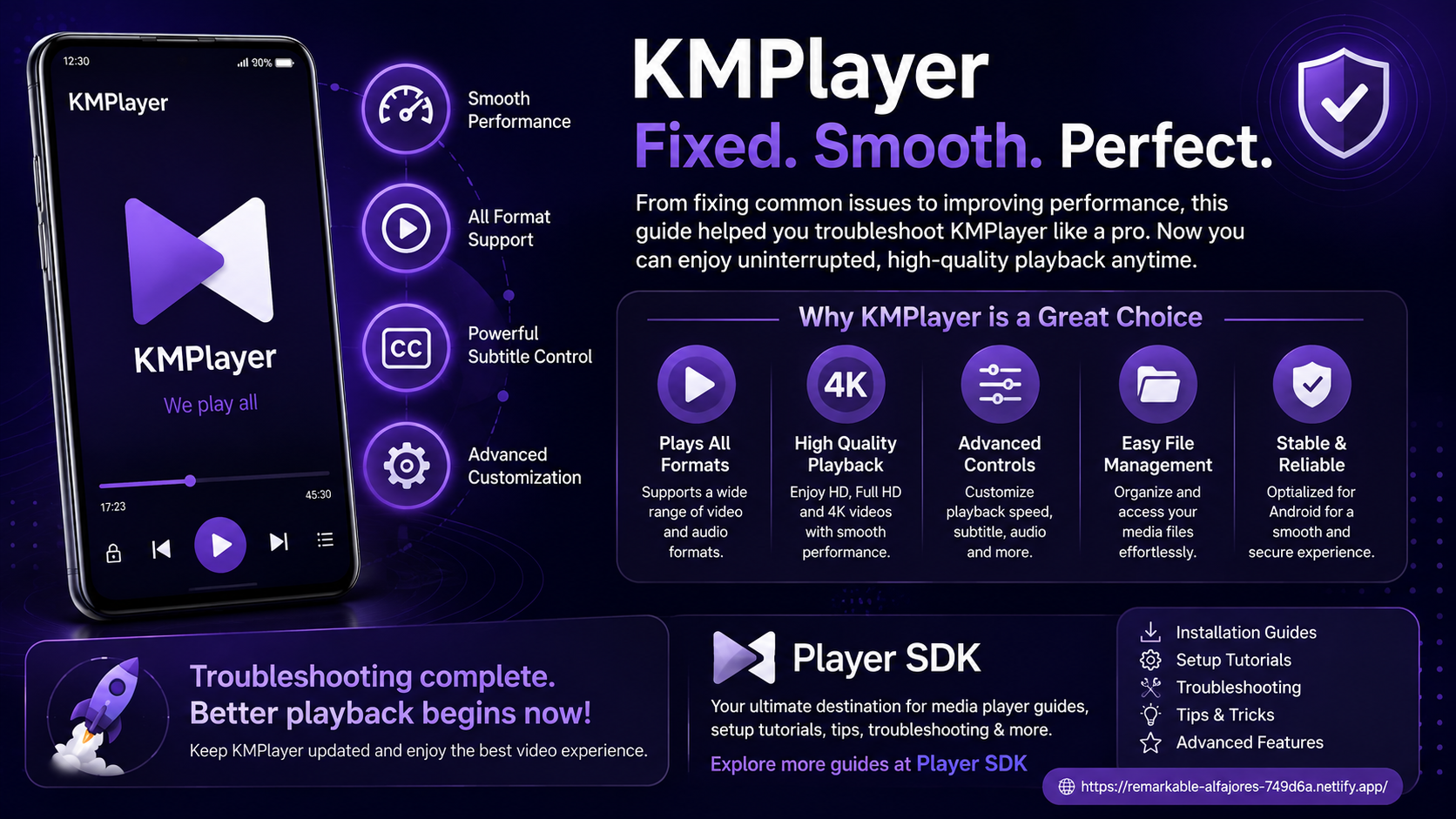
KMPlayer is a powerful and reliable media player, and most issues you encounter are minor. With the right troubleshooting steps, you can quickly resolve problems and continue enjoying your media without interruptions.
By keeping your app updated, managing storage properly, and following basic maintenance practices, you can ensure a smooth and stable experience on your Android device.
Frequently Asked Questions (FAQs)
1) Why won't KMPlayer open on my Android phone?
This is usually caused by temporary system issues, low storage, or outdated versions. Restarting your device and updating the app often fixes it.
2) Why are my videos not showing in KMPlayer?
Check storage permissions and confirm your files are in accessible folders. Refreshing the library may also help.
3) How do I fix buffering in KMPlayer?
Use a stable Wi-Fi connection, close background apps, and allow the video to buffer before playing.
4) Why are subtitles not working?
Ensure subtitles are enabled and match the video file. You can also adjust sync and appearance settings in subtitle preferences.
5) Should I reinstall KMPlayer to fix issues?
No, most problems can be solved with simple troubleshooting like updating the app, restarting your device, or adjusting settings.
6) What should I learn after troubleshooting?
Once your issues are fixed, you can improve your experience further by exploring advanced features, tips, and setup guides on Player SDK.
Continue Learning with Player SDK
Now that you know how to fix common KMPlayer issues, it's time to go beyond basic usage and improve your overall media experience. Player SDK is your complete resource for mastering media players on Android. From installation and setup guides to beginner tutorials, troubleshooting solutions, and advanced features, everything is designed to help you get the best performance out of your player.
Whether you're new to KMPlayer or already using it regularly, Player SDK helps you unlock smoother playback, better control, and a more efficient media experience.
