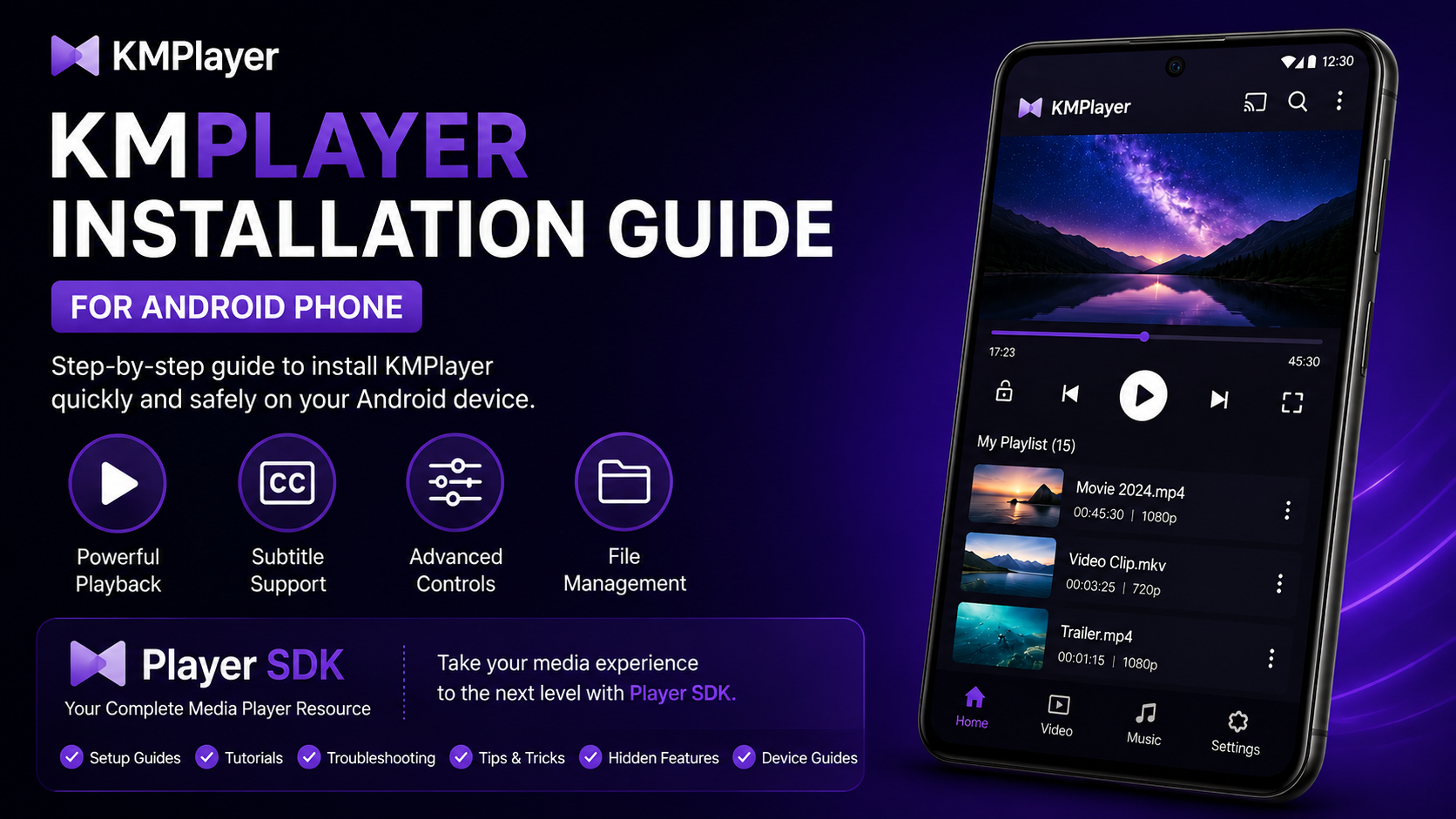
Looking for a reliable and feature-rich media player for your Android phone? KMPlayer is one of the most trusted video players available today. It supports a wide range of video formats, delivers high-quality playback, and offers advanced features like subtitle control, playback speed adjustment, and gesture-based controls—all in one powerful application.
Installing KMPlayer is simple and beginner-friendly, but following the correct steps ensures the app works smoothly from the very beginning. Whether you're installing it for the first time or helping someone else, this guide will walk you through the complete process.
In this complete KMPlayer installation guide for Android, you'll learn how to safely download the app, install it correctly, grant required permissions, and confirm everything is working before moving on to setup and customization.
Why Choose KMPlayer?
KMPlayer has gained popularity among Android users due to its powerful playback engine and smooth performance. It is designed for users who want more control over their video experience without compromising simplicity.
Key advantages include:
- Support for multiple video and audio formats (MP4, MKV, AVI, FLV, and more)
- Smooth HD, Full HD, and 4K playback capabilities
- Advanced subtitle customization and synchronization
- Playback speed control and audio adjustments
- Gesture-based brightness and volume controls
- Clean and intuitive user interface
- Regular updates for enhanced security and performance
Whether you are watching movies, streaming downloaded content, or playing personal videos, KMPlayer delivers a consistent and high-quality viewing experience.
Before You Begin
Before installing KMPlayer, make sure your Android device meets a few basic requirements to avoid common installation issues:
Requirements:
- An Android smartphone running Android 5.0 or later
- A stable internet connection (Wi-Fi or mobile data)
- Sufficient free storage space (at least 100 MB for installation and cache)
- An active Google Account signed into the Google Play Store
Ensuring these basics are in place will make the installation process smooth and error-free.
Step 1: Open Google Play Store
Unlock your Android phone and open the Google Play Store. The Play Store is the safest and most reliable platform to install Android applications. It ensures that the app you download is verified, secure, and updated regularly.
Avoid downloading KMPlayer from unknown third-party websites, as unofficial versions may cause security risks or performance issues.
Step 2: Search for KMPlayer
Tap on the search bar at the top of the Play Store and type KMPlayer. Look for the official application in the search results.
Before proceeding, verify that the app name is correct, the developer is authentic (Pandora TV / KMPlayer), and the app has good ratings with millions of downloads. This step is important to ensure you are installing the genuine version.
Step 3: Tap Install
Once you find the correct app, tap the Install button. The Google Play Store will automatically begin downloading the application, checking compatibility with your device, installing the required files, and preparing the app for first launch.
The time required for installation depends on your internet speed and device performance.
Step 4: Wait for Installation to Complete
Do not interrupt the installation process. Avoid closing the Play Store, turning off your internet connection, or restarting your phone during installation.
Wait until the Install button changes to Open. This confirms that KMPlayer has been successfully installed on your device.
Step 5: Open KMPlayer
Tap Open directly from the Play Store, or find the KMPlayer icon on your home screen or app drawer. The application will launch and begin its first-time setup process.
Step 6: Allow Required Permissions
During the first launch, KMPlayer will request access to your device storage and media files. Granting these permissions is essential for the app to detect and play videos stored on your phone.
Without these permissions, your media files may not appear inside the application. If you accidentally deny permissions, you can enable them later through your Android Settings → Apps → KMPlayer → Permissions.
Step 7: Let KMPlayer Scan Your Media
After permissions are granted, KMPlayer will automatically scan your device for supported video and audio files. This process may take a few moments depending on the amount of data stored on your phone. Once the scan is complete, your media library will be ready to browse.
Step 8: Verify Installation
To ensure everything is working correctly, play a test video file. Check whether:
Verification Checklist:
- The video plays smoothly without stutter
- Audio output is clear and properly synchronized
- Playback controls respond accurately
- Subtitles appear correctly if available
If everything works as expected, KMPlayer has been installed successfully and is ready for everyday use.
Common Installation Problems
Although KMPlayer installation is usually straightforward, some users may encounter minor issues:
Troubleshooting Common Issues:
- Download fails: Often due to a weak internet connection, insufficient storage, or temporary Play Store errors. Restart your internet connection or free up space.
- App does not install: Could be due to OS compatibility or an interrupted download. Update your Android version or try restarting your device.
- Videos do not appear: Check that storage and media permissions are enabled in Android settings.
- App crashes on launch: Restart your phone or clear the Google Play Store cache.
Tips for a Smooth Installation
For the best experience, always install KMPlayer from the official Google Play Store. Keep your internet connection stable during download, ensure sufficient storage space, and grant all required permissions during the first launch. Testing playback immediately after installation also helps confirm everything is functioning correctly.
Why Installing from Google Play Matters
Installing KMPlayer from the Google Play Store ensures that you are getting the official and secure version of the app. It also provides automatic updates, better compatibility with your device, and protection against malicious software. Using trusted sources significantly improves your overall experience and keeps your device safe.
What's Next?
Now that KMPlayer is installed on your Android phone, the next step is to configure it for the best performance. You can explore settings like playback controls, subtitle customization, audio adjustments, and interface personalization to enhance your viewing experience.
Final Thoughts
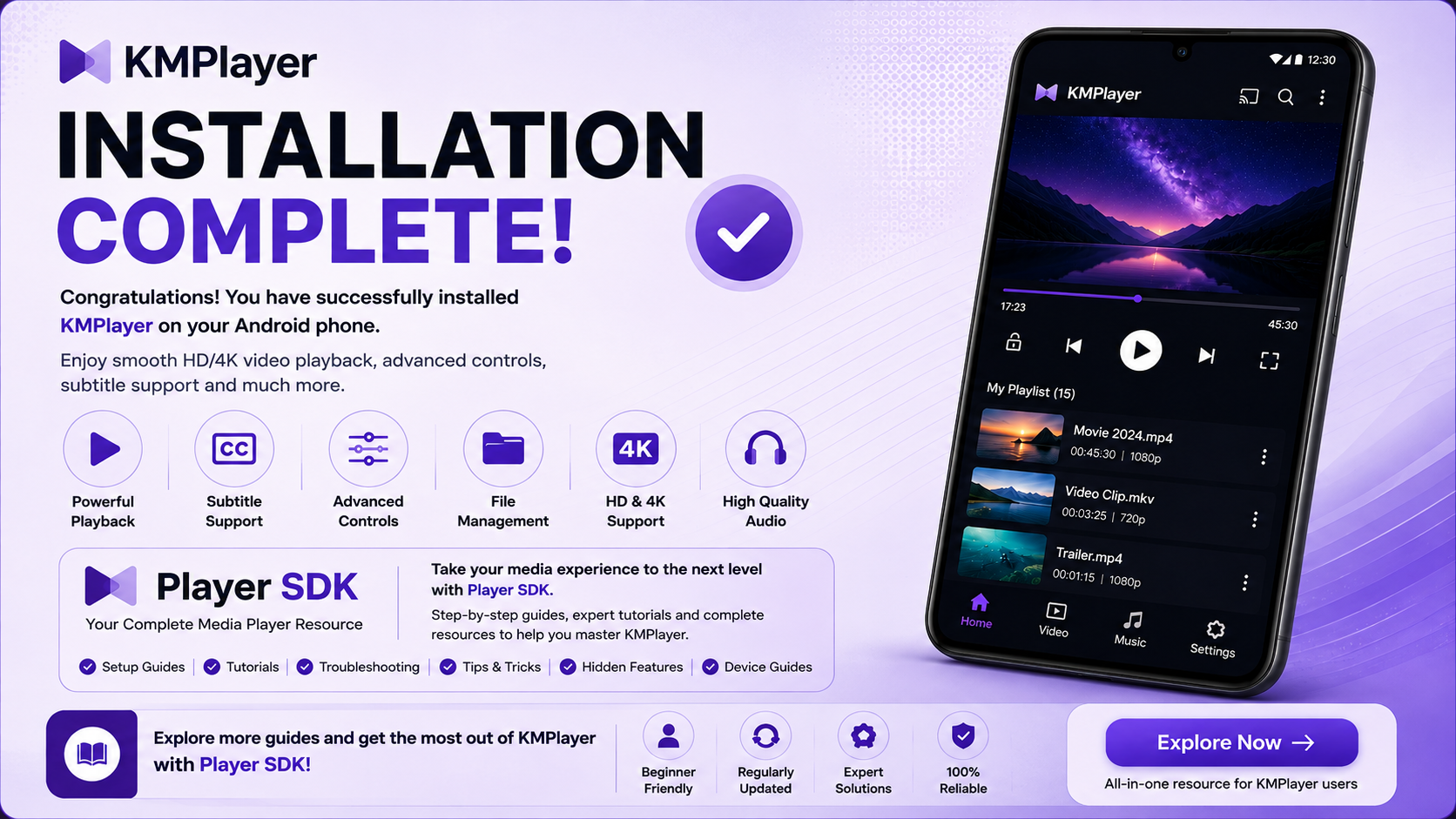
Installing KMPlayer on your Android phone is a quick and straightforward process that takes only a few minutes. By following the correct steps, granting the necessary permissions, and verifying playback after installation, you ensure the app is ready to deliver a smooth and powerful media experience.
With its advanced features, wide format support, and user-friendly interface, KMPlayer stands out as a reliable choice for everyday media playback.
Frequently Asked Questions (FAQs)
1) Is KMPlayer free to install?
Yes, KMPlayer is free to download and install from the Google Play Store.
2) Why should I install KMPlayer from Google Play?
The Play Store provides the official version, automatic updates, and enhanced security compared to third-party sources.
3) Why can't KMPlayer detect my videos?
This usually happens if storage permissions are not granted. Enable permissions from your Android Settings → Apps → KMPlayer → Permissions.
4) Does KMPlayer support HD and 4K videos?
Yes, KMPlayer supports HD, Full HD, and 4K playback depending on your device capability.
5) How long does installation take?
Most installations complete within a few minutes, depending on your internet speed and device performance.
6) What should I do after installation?
After installing KMPlayer, you should explore the settings and customize playback options for the best experience.
Continue Learning with Player SDK
Your KMPlayer installation is complete—now take your media experience to the next level with Player SDK. Discover setup guides, beginner tutorials, troubleshooting solutions, tips & tricks, hidden features, supported device guides, and complete media player resources designed specifically for Android users.
Whether you're just getting started or want to unlock advanced features of KMPlayer, Player SDK provides step-by-step guidance to help you get the most out of your media player.
