Looking for a powerful yet easy-to-use media player for your Android phone? KMPlayer is one of the top choices for video and music playback, supporting high-resolution content including HD, Full HD, and 4K.
If you've just installed KMPlayer and don't know where to start, this guide will help you understand its core features, navigate the interface, play your first video, and adjust important settings for the best possible experience.
In this complete KMPlayer Beginner's Guide for Android, you'll learn everything you need to get the best media playback experience from day one.
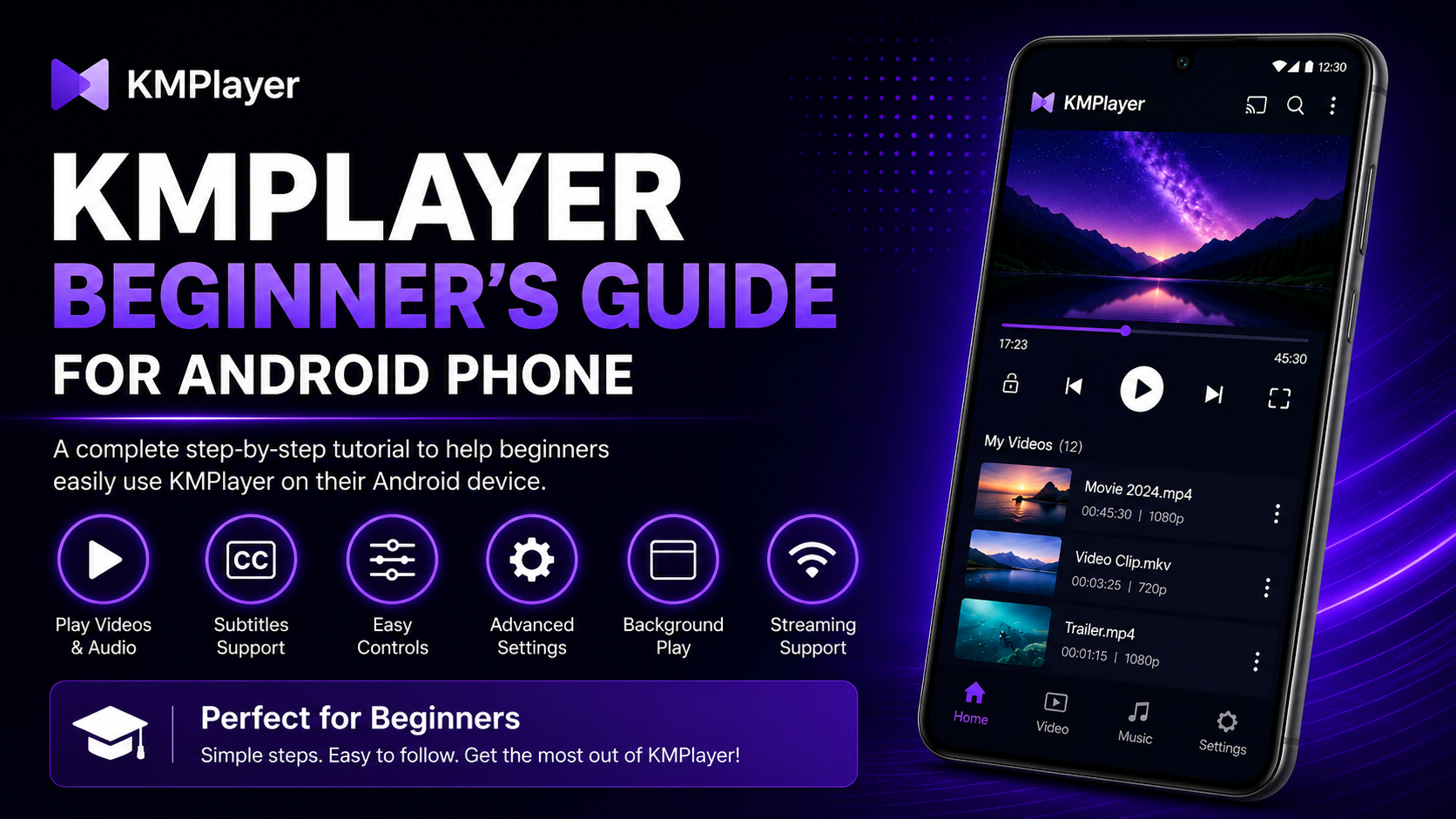
Why Choose KMPlayer?
KMPlayer stands out because it combines advanced playback features with a clean, beginner-friendly interface.
Key Advantages Include:
- Broad format support (MP4, MKV, AVI, MOV, FLV, MP3, AAC, and more)
- Smooth HD and 4K playback capabilities
- Intuitive gesture controls for volume, brightness, and seeking
- Comprehensive subtitle support with full customization
- Background playback and floating window (Picture-in-Picture) mode
- Built-in media organization and file management
Whether you're watching movies, listening to music, or streaming online content, KMPlayer delivers a smooth, dependable experience.
What You'll Learn in This Guide
Guide Overview:
- Navigating the KMPlayer interface and tabs
- Playing videos and using on-screen controls
- Mastering gesture shortcuts for fast navigation
- Enabling and customizing subtitles
- Organizing media files and creating playlists
- Using Floating Player and Background Play for multitasking
- Optimizing playback performance for HD/4K videos
Before You Start
Before using KMPlayer, make sure your device is prepared for a smooth experience:
Preparation Checklist:
- Grant required storage and media permissions upon first launch
- Ensure your video files are saved in accessible folders
- Keep Android updated to ensure hardware decoder compatibility
Getting Familiar with the KMPlayer Interface
When you open KMPlayer for the first time, you'll notice a clean and organized layout. The main sections include:
Interface Sections:
- Video Tab: Displays all detected video files stored on your internal storage and SD card.
- Music Tab: Organizes local audio tracks, albums, and songs.
- Folder View: Allows direct directory navigation through your Android file system.
- Recently Played: Quick access to recently watched movies and tutorials.
- Settings Menu: Customize playback, audio sync, subtitles, and gestures.
Playing Your First Video
Follow these steps to start watching:
- Open the KMPlayer application.
- Navigate to the Video or Folder tab.
- Select any video file from the list.
- Tap to begin playback immediately.
Once playback starts, KMPlayer automatically utilizes optimized decoding settings for crisp visuals and responsive audio.
Understanding Playback Controls & Gestures
KMPlayer offers intuitive controls that make watching content enjoyable:
Basic On-Screen Controls:
- Play and Pause toggle
- Timeline scrubber for quick seeking
- Audio track and subtitle selection buttons
- Aspect ratio and screen-fit controls
- Lock screen button to prevent accidental touches
You can also control playback effortlessly using touch gestures:
Gesture Shortcuts:
- Swipe up/down on left side: Adjust screen brightness
- Swipe up/down on right side: Increase or decrease volume
- Swipe left/right on screen: Seek backward or forward through the video
- Pinch on screen: Zoom in or out to fit the display
How to Use Subtitles
Subtitles are essential for foreign movies, shows, and educational content. KMPlayer provides rich subtitle support:
Enabling Subtitles:
- Play your video.
- Tap the screen to reveal playback controls.
- Tap the Subtitle icon.
- Select an embedded subtitle track or choose "Open Subtitle" to load an external (.srt) file.
You can also customize subtitle font size, color, background contrast, and timing synchronization directly from the playback menu.
Managing Your Media Files
KMPlayer also serves as a convenient media organizer. Inside the app, you can:
Media Management Features:
- Browse videos and music by category or folder
- Create custom playlists for movies, shows, or workout tracks
- Delete unwanted or duplicate media files to free up device storage
- Rename media files for easy organization
Adjusting Playback Settings
To get the best performance out of KMPlayer, customize a few important settings:
Recommended Settings:
- Enable Hardware Acceleration (HW): Offloads decoding to the phone GPU for smoother 4K playback and less battery consumption.
- Audio Sync: Adjust audio delay if speech doesn't match lips in downloaded files.
- Playback Speed: Adjust speed from 0.5x to 4.0x for lectures and podcasts.
Using Background Play & Floating Mode
KMPlayer includes powerful multitasking features:
Multitasking Options:
- Background Play: Continue listening to video audio when the app is minimized or when the phone screen is locked.
- Floating Player (Picture-in-Picture): Watch videos in a resizable, floating window while browsing websites or replying to messages.
Exploring Advanced Features
Once you are comfortable with basic playback, explore KMPlayer's advanced capabilities:
Advanced Capabilities:
- Built-in Equalizer with sound presets (Rock, Pop, Bass Boost, Vocal)
- A-B Repeat mode to loop specific video segments (great for learning)
- Network streaming via direct URL input
- Timer function to automatically stop playback after a set duration
Best Practices for Beginners
Tips for New Users:
- Explore settings early to discover custom preferences.
- Use gesture controls for faster navigation during playback.
- Keep the app updated via the Google Play Store for new features and bug fixes.
- Organize your media into dedicated folders for fast browsing.
Final Thoughts
KMPlayer is a versatile, dependable media player that offers everything from simple tap-to-play playback to advanced customization. By taking a few minutes to explore its interface, gesture shortcuts, and subtitle tools, beginners can quickly master the app and enjoy a superior multimedia experience on Android.
Frequently Asked Questions (FAQs)
1) Is KMPlayer easy for beginners to use?
Yes. KMPlayer features an intuitive interface with simple playback controls and gesture navigation that anyone can learn quickly.
2) How do I load subtitles in KMPlayer?
Tap the subtitle icon during video playback and select an embedded track or browse for an external .srt file stored on your phone.
3) Can KMPlayer play background audio?
Yes. Enable background playback in settings to listen to video audio when the app is minimized or when the screen is locked.
4) Does KMPlayer support gesture controls?
Yes. Swipe vertically on the left for brightness, vertically on the right for volume, and horizontally to seek forward or backward.
5) Why are some videos not showing in KMPlayer?
Ensure storage permissions are granted in Android Settings → Apps → KMPlayer → Permissions, and refresh the media library inside the app.
6) What should I learn after this beginner guide?
Continue exploring KMPlayer with the KMPlayer Setup Guide and KMPlayer Tips & Tricks Guide on Player SDK.
Continue Learning with Player SDK
Expand your knowledge with Player SDK, your trusted destination for installation tutorials, setup guides, beginner resources, troubleshooting tips, hidden features, and supported device guides for all leading Android media players.
