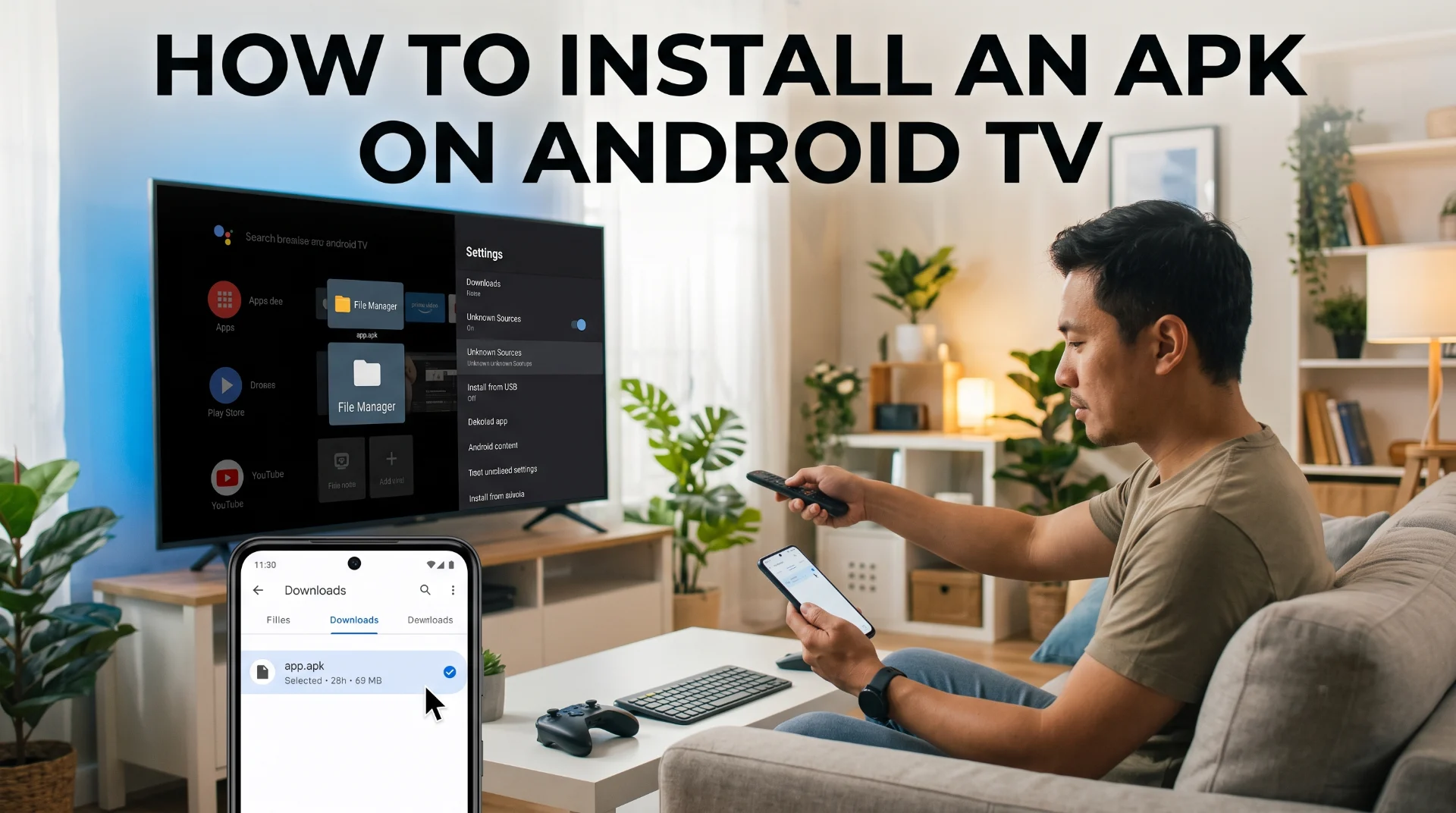
Android TV lets you install applications through Google Play, but sometimes an app may not be available in the Play Store for your device or region. In those cases, you may need to install an APK manually.
This process is commonly called sideloading.
An APK is the Android application package used to install an Android application. Before installing one, make sure you obtained it from a source you trust.
Important: Only install applications from legitimate and trusted sources. An APK downloaded from an unknown website can contain unwanted or malicious software.
What You Need
Before starting, you will need:
- An Android TV device or compatible Android TV box
- An APK file for the application you want to install
- A way to transfer the APK to your TV
- A file manager capable of opening APK files
- Internet access if the app requires online services
Step 1: Download the APK
Download the APK from the application's official website or another source you trust.
Check that:
- The APK is intended for Android.
- The application supports your Android TV device.
- The download is complete.
- You have not accidentally downloaded an unrelated file.
If the developer provides multiple APK versions, check the device and Android-version requirements before choosing one.
Step 2: Transfer the APK to Your TV
There are several ways to get the APK onto Android TV.
Option 1: USB Drive
Copy the APK file to a USB drive.
Connect the USB drive to your Android TV device and open it using a compatible file manager.
Option 2: Network Transfer
You can also transfer the APK over your local network using a file-transfer application that supports Android TV.
Option 3: Download Directly on the TV
If your TV has a browser or compatible download application, you can download the APK directly to the device.
Step 3: Allow the Required Installation Permission
Depending on your Android TV version and manufacturer, the setting may appear under different menus.
You may see an option such as:
Settings → Security & Restrictions → Unknown Sources
On newer Android versions, permission can also be granted to the specific application attempting to install the APK.
The exact menu can vary between Android TV devices and software versions.
Step 4: Open the APK
Open your file manager and locate the APK.
Select it.
Android TV should display an installation screen showing the application and the permissions it requests.
Review the information before continuing.
Step 5: Install the Application
Select Install and wait for the installation to finish.
Once complete, select Open to launch the application or return to the home screen and locate it in your installed applications.
Pro Tip
If an application installs successfully but does not appear on the Android TV home screen, check:
Settings → Apps → See all apps
Some Android applications are designed for phones and may not provide an Android TV launcher interface.
Warning
Not every Android APK is compatible with Android TV.
A phone application may install successfully but still have:
- No TV-friendly interface
- No remote-control navigation
- Incorrect screen layout
- Missing TV-specific features
- Compatibility problems
Common APK Installation Problems
"App Not Installed"
Possible causes include:
- Incompatible Android version
- Incorrect APK architecture
- Existing conflicting version
- Corrupted APK
- Insufficient storage
APK Opens but Cannot Be Installed
Check whether the application has permission to install unknown applications.
App Installs but Does Not Work
The application may not support Android TV or your device's hardware.
Final Thoughts
Installing an APK on Android TV is relatively straightforward once the file has been transferred to the device. The most important step is obtaining the application from a trustworthy source and verifying that it supports your device.
