Using AceStar on an Android phone gives you access to a multi-platform player with M3U and Xtream support, multiple playlists, device synchronization, Picture-in-Picture, casting, recording, parental controls, an advanced video player, and AI-powered discovery features. AceStar also supports synchronization of watch progress and favorites across compatible devices.
Like any streaming setup, however, AceStar depends on several components working together. The Android application must function correctly, your internet connection must remain stable, and your connected M3U or Xtream source must be available.
This means a playback problem does not automatically mean AceStar itself is broken.
If one channel fails while the rest of your library works, the individual stream may be responsible. If no playlist loads, the source or connection details deserve attention. If the application does not launch at all, the Android app or device should be investigated first.
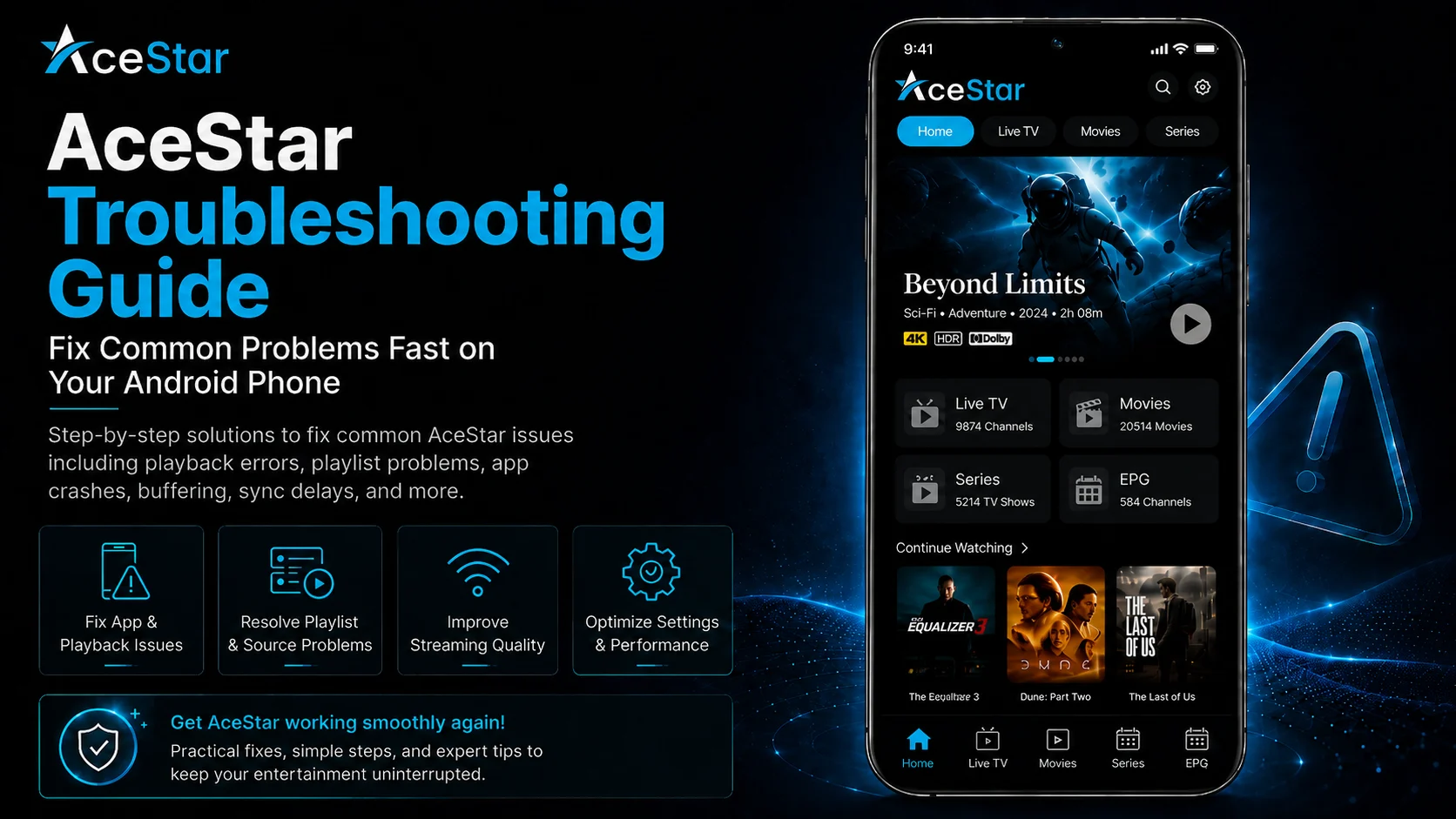
This complete AceStar Troubleshooting Guide for Android Phone explains how to identify and fix common AceStar problems without unnecessarily deleting playlists or rebuilding a working setup.
Why AceStar Troubleshooting Should Be Systematic
The fastest way to troubleshoot AceStar is to identify which part of the setup is failing.
AceStar's official workflow is based on connecting an account, adding an M3U playlist or Xtream Codes, syncing devices, and then streaming.
Each of those components can experience a different type of problem.
For example, an M3U URL entered incorrectly can prevent a playlist from loading even when the AceStar app itself works perfectly. A weak internet connection can cause buffering even when both the application and playlist are correctly configured.
Testing one component at a time prevents unnecessary changes.
Common AceStar Problems and First Checks
| Acestar Problem | Best First Check |
|---|---|
| App won't open | Restart AceStar and Android |
| M3U playlist won't load | Verify the complete playlist URL |
| Xtream login fails | Recheck server and credentials |
| One stream won't play | Test several other streams |
| Everything buffers | Check your network connection |
| Device Sync seems delayed | Confirm the same AceStar account |
| Casting doesn't work | Test normal phone playback first |
| PiP isn't working | Check app/device support and Android behavior |
| Library is slow | Allow a large playlist time to load |
| 4K playback freezes | Test a lower-quality stream |
Problem 1: AceStar Won't Open on Android
If AceStar suddenly refuses to open, begin with the simplest fix.
Close the application completely and launch it again.
If it still doesn't start, restart your Android phone and retry.
You should also make sure you're using a current official AceStar Android installation. AceStar's official Downloads page currently provides its Android application as an APK, lists Android 6.0+, and currently shows version 1.0.0 at approximately 28 MB. These details may change with later releases.
If you reinstall AceStar, obtain the APK from the official AceStar download source rather than an unknown third-party website.
Problem 2: Your M3U Playlist Won't Load
AceStar officially supports M3U playlists, so if your M3U source doesn't load, check the playlist information before reinstalling the application.
Review the entire M3U URL.
Long URLs are easy to enter incorrectly. A missing character, extra space, or incomplete copy can prevent the source from connecting.
Whenever possible, copy the original information provided by your authorized source instead of manually typing it.
Next, verify that your Android phone has internet access.
If AceStar opens normally but only one M3U source fails, the playlist itself or its external service may need attention.
Problem 3: Xtream Codes Aren't Working
AceStar also officially supports Xtream Codes for connecting compatible sources.
If AceStar doesn't accept your Xtream configuration, carefully review the information provided by your source.
Check the server information, username, password, and any other required details displayed by the current AceStar interface.
Watch for capitalization mistakes and spaces accidentally copied before or after credentials.
If the same details worked previously but suddenly stop connecting, verify that the external source is still active before modifying AceStar.
Reinstalling the player cannot correct invalid or inactive account details.
Problem 4: One Channel or Video Doesn't Play
One failed stream is not enough evidence to conclude that AceStar has stopped working.
Test several other media items.
If other channels, movies, or series begin playing normally, the original stream may simply be unavailable or experiencing a source-side problem.
This is one of the most important AceStar troubleshooting checks because it can save you from unnecessarily deleting a completely functional playlist.
Leave your working configuration alone and test the affected media again later.
Problem 5: Nothing in Your Library Plays
If your library loads but every stream fails, expand your troubleshooting.
First confirm that your Android phone has a working internet connection.
Then test your connected source. If you legitimately use multiple playlists, switch to another one.
AceStar officially supports managing and switching between multiple playlists.
If another playlist works, the first source deserves more attention.
If nothing plays across multiple known-working sources, restart AceStar and your Android phone before changing advanced player settings.
Problem 6: AceStar Keeps Buffering
Buffering usually means the player is not receiving video data consistently enough for continuous playback.
Test several different streams.
If every stream buffers, check your Wi-Fi or mobile connection. Move closer to your router when using Wi-Fi and pause other bandwidth-intensive activity if possible.
If only one stream buffers while the rest play smoothly, that particular media source may be responsible.
Avoid immediately modifying AceStar's advanced video-player options.
Network and source checks should usually come first.
Problem 7: 4K Playback Keeps Freezing
AceStar describes its Advanced Video Player as optimized for 4K streaming.
However, 4K optimization does not mean every Android phone, network, or external stream will provide flawless 4K playback.
Try another high-quality stream and compare it with HD playback.
If HD works smoothly while a demanding 4K stream repeatedly freezes, your basic AceStar configuration may still be completely functional.
Actual performance can depend on the Android device, connection quality, and original media source.
Smooth HD playback is often preferable to frequently interrupted higher-resolution video.
Problem 8: AceStar Library Takes Too Long to Load
Large libraries can contain substantial amounts of live TV, movies, series, and other source information.
Give AceStar time to finish retrieving and organizing your connected library before repeatedly closing the application.
This is particularly important immediately after adding or refreshing a large M3U or Xtream source.
Use a stable connection during loading.
If the library eventually appears and playback works correctly, the longer loading time may simply be related to the size of your source rather than an application failure.
Problem 9: Device Sync Isn't Working as Expected
AceStar officially provides Device Sync and says watch history and playback progress can synchronize across devices. Its setup flow also references synchronization of Favorites across screens.
If your Android viewing activity isn't appearing on another supported AceStar device, first make sure both devices are using the appropriate AceStar account.
Next, allow some time for updated information to appear and make sure both devices have working internet connections.
Test synchronization using a simple action, such as opening or progressing through a familiar item.
Avoid rebuilding your playlists immediately when only synchronization appears affected.
Problem 10: Favorites Don't Appear on Another Device
Because AceStar's official workflow describes Favorites syncing across screens, missing Favorites can be investigated separately from playback problems.
Confirm you're using the same relevant AceStar account and connected environment.
If playback works on both devices but Favorites don't immediately match, reopen or refresh AceStar before making more significant changes.
Also make sure you're viewing the expected playlist.
When multiple sources are involved, the library you're browsing can affect what content is available to Favorite.
Problem 11: Picture-in-Picture Isn't Working
AceStar lists PiP Mode as a feature that allows viewers to keep video in a floating player while using other applications.
If PiP doesn't work, first confirm that regular playback works correctly.
Then test the PiP controls available in your current AceStar Android version.
Because Picture-in-Picture also interacts with the Android environment, behavior may differ between Android versions and device manufacturers.
Don't change your M3U or Xtream configuration because PiP alone isn't functioning. If normal playback works, the source connection has already passed an important test.
Problem 12: Casting From Android to TV Doesn't Work
AceStar officially advertises casting from mobile to TV.
If casting fails, start by playing the same media directly on your Android phone.
If it won't play on the phone either, solve the playback or source problem first.
If phone playback works normally, then investigate the casting environment.
Make sure the devices involved are properly connected and that the receiving device is available for the casting method supported by your current AceStar setup.
Restarting the casting session can also resolve temporary connection issues.
Problem 13: Recording Doesn't Work
AceStar lists Recording as a feature for recording live content for later viewing.
If recording isn't behaving as expected, first establish that the live stream itself plays normally.
Then review the recording controls presented by your current AceStar version.
Available storage and the behavior of the connected media can also matter when working with recorded video.
Avoid treating a recording-specific problem as evidence that your complete AceStar installation is broken.
Normal playback and recording should be tested separately.
Problem 14: Subtitles Aren't Appearing
AceStar's official Advanced Video Player section specifically mentions Subtitle Settings.
If subtitles don't appear, open the available subtitle controls while playing the affected media and check whether a subtitle track is available.
Try another movie or episode as well.
The presence of subtitle controls does not necessarily mean every source provides subtitles for every item.
If subtitles work with one title but not another, the issue may involve the available media information rather than AceStar's complete player.
Problem 15: AI Search Isn't Showing Useful Results
AceStar provides AI Smart Search & Discovery, including mood-based searching with examples such as Happy, Sad, Exciting, and Relaxing. It also advertises AI-generated movie and series summaries.
If AI Search doesn't provide the results you expected, first confirm that your compatible library has loaded correctly.
Try a simpler mood or search request.
Remember that discovery tools work around the media environment available to the platform; they cannot make an unavailable title suddenly exist in your connected source.
Test normal browsing as well to verify that your library itself is functioning.
Problem 16: Parental Controls Aren't Restricting Content
AceStar officially includes Parental Control and Screen Time Management, including daily or weekly viewing limits for children.
If restrictions aren't working as expected, return to the current parental-control area and confirm that your selected controls are still enabled.
Check whether the media you're testing falls within the restriction you've configured.
For shared Android devices, it can also be useful to combine AceStar's controls with suitable Android-level device protections.
Don't change the complete source simply because one parental-control rule isn't producing the expected result.
Problem 17: AceStar Works on Wi-Fi but Not Mobile Data
If AceStar works over Wi-Fi but stops streaming when you switch to cellular data, check the Android phone's network settings and confirm the app is allowed to use mobile data.
Also test the quality of your cellular connection.
Streaming video, especially demanding high-resolution media, requires a more consistent connection than basic browsing.
If playback works again as soon as you reconnect to Wi-Fi, the player and source may still be configured correctly.
For longer viewing sessions, a stable network usually produces the most predictable experience.
Problem 18: Problems Started After an AceStar Update
If the application behaves differently after installing a newer build, don't immediately delete your playlists.
Restart AceStar and the Android phone first.
Then test a familiar source and several streams.
Because AceStar is available across multiple platforms and continues to maintain dedicated download versions, the interface and behavior can evolve between releases.
If an option appears to be missing, inspect the updated interface before assuming that the feature has been removed.
When Should You Reinstall AceStar?
Reinstallation is best treated as a later troubleshooting step.
Consider it if AceStar itself repeatedly fails to launch or remains unstable after you've restarted the application and Android phone and confirmed that you're using the official Android package.
Before reinstalling, make sure you retain any legitimate account, M3U, or Xtream details you'll need afterward.
AceStar's Android app is currently distributed through the official downloads page as an APK for Android 6.0+.
Remember that reinstalling AceStar will not repair an inactive external source or a single unavailable stream.
Best Practices for Preventing AceStar Problems
Keep your configuration organized and avoid changing several settings at once.
Maintain private copies of your legitimate connection information, use reliable internet connectivity, and test multiple streams before concluding that the entire player has failed.
If you manage multiple authorized playlists, give them clear names. AceStar specifically supports multiple playlist management, making good organization useful both for everyday viewing and troubleshooting.
Most importantly, preserve a configuration that already works.
Common Troubleshooting Mistakes
The biggest mistake is treating every streaming failure as an AceStar application problem.
Users may delete a complete M3U playlist because one channel fails, reinstall the player because an Xtream account is inactive, or change numerous video settings when the actual issue is network-related.
Another mistake is troubleshooting several components simultaneously.
Use a simple sequence instead: check AceStar, check the playlist, check several streams, and check the network.
That approach usually identifies the failing area much faster.
Why Understanding AceStar Troubleshooting Matters
AceStar combines several features into one platform: M3U and Xtream connectivity, multiple playlists, Device Sync, PiP, casting, recording, parental controls, AI Search, customization, and an advanced 4K-optimized player.
Knowing how those features relate to your Android phone and external media source makes problems much easier to diagnose.
You don't need to rebuild the entire setup every time one feature stops behaving normally.
Identify the affected component first, then apply the smallest appropriate fix.
What's Next?
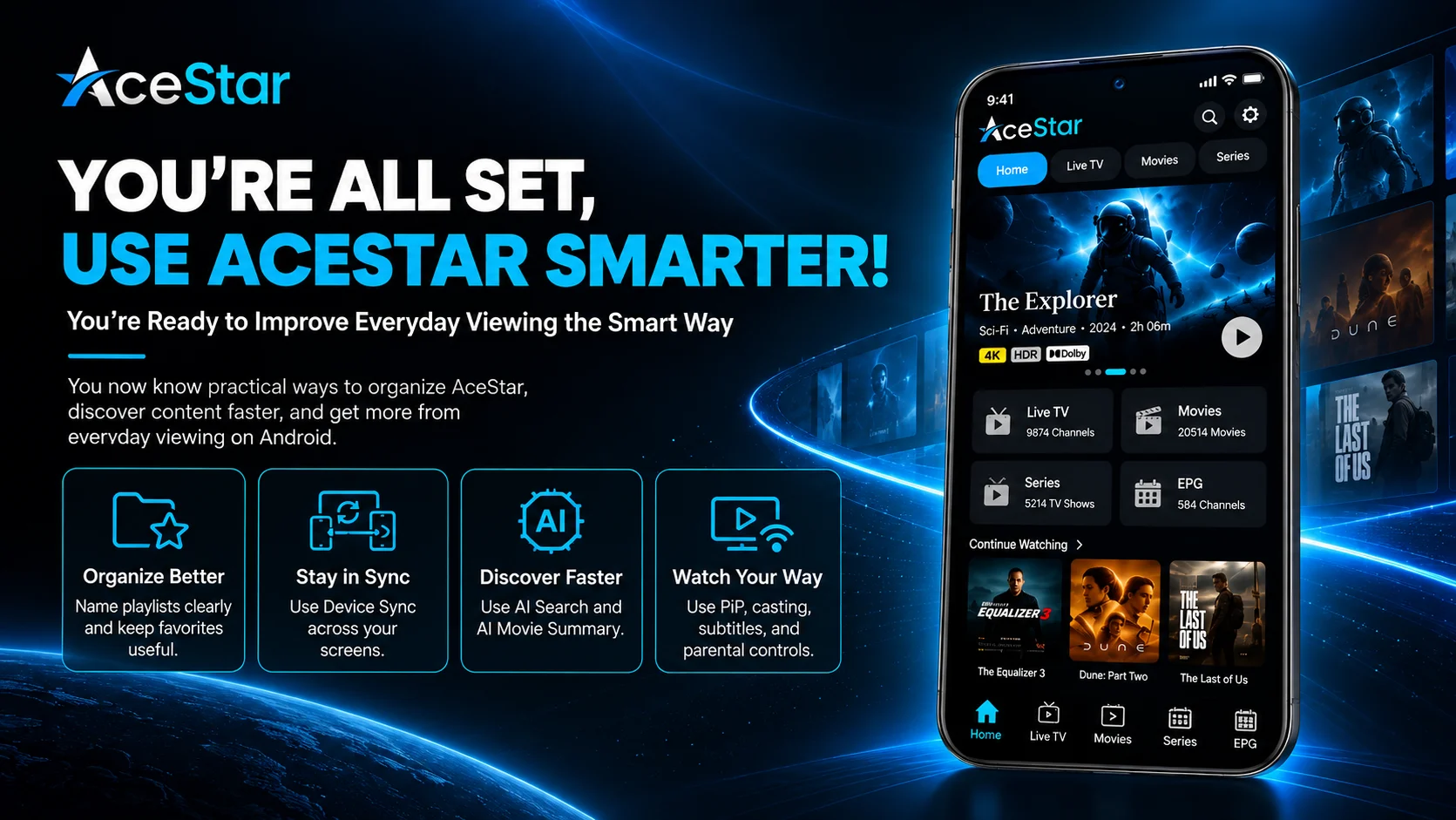
Now that you know how to diagnose common AceStar Android problems, the next step is improving your everyday viewing workflow.
Continue with the:
AceStar Tips & Tricks Guide for Android Phone
The next guide will cover practical ways to manage multiple playlists, use Device Sync more efficiently, improve everyday navigation, make better use of PiP and casting, organize your viewing experience, and get more value from AceStar's available tools.
Final Thoughts
Troubleshooting AceStar on an Android phone becomes easier when you separate the player from the connected source and network.
If AceStar doesn't launch, investigate the app and Android environment. If an M3U or Xtream source doesn't load, check the connection information and source. If only one stream fails, test others before changing anything. If everything buffers, investigate your network.
The same logic applies to AceStar features such as Device Sync, PiP, casting, recording, subtitles, parental controls, and AI-powered discovery.
AceStar officially supports all of these broader capabilities, but each should be tested separately rather than treating every issue as a complete player failure.
A systematic approach protects your working setup and gets you back to viewing much faster.
Frequently Asked Questions (FAQs)
1) Why is my AceStar M3U playlist not loading?
Check that the complete M3U URL has been entered correctly, verify your internet connection, and confirm that your authorized external source is active. AceStar officially supports M3U playlists.
2) Why are my Xtream Codes not working in AceStar?
Review the server and login details supplied by your source and make sure there are no typing errors or unnecessary spaces. AceStar officially supports Xtream Codes as a connection method.
3) Why does AceStar keep buffering?
Test several streams and check your network. If every stream buffers, connectivity deserves attention. If only one stream is affected, the individual source may be responsible.
4) Why isn't AceStar Device Sync working?
Make sure you're using the appropriate AceStar account across the devices you're trying to synchronize and confirm that both have internet access. AceStar officially supports synchronization of watch history and progress, with Favorites sync also referenced in its setup flow.
5) Does AceStar support casting and picture-in-picture?
Yes. AceStar officially lists both casting and PiP mode among its viewing features.
6) Should I reinstall AceStar if one channel doesn't work?
Usually not. Test several other streams first. If they work normally, your AceStar installation and playlist connection may still be functioning correctly.
7) What should I read after this troubleshooting guide?
Continue with the AceStar Tips & Tricks Guide for Android Phone to learn practical ways to improve navigation, playlist organization, multi-device viewing, and your everyday AceStar experience.
Continue Learning with Player SDK
Continue your AceStar journey with Player SDK, your resource for installation guides, setup guides, beginner guides, troubleshooting, tips & tricks, hidden features, and device-specific media player tutorials.
Now that you know how to diagnose common AceStar problems, continue with the AceStar Tips & Tricks Guide for Android Phone to make everyday playback, playlist management, device synchronization, and navigation more efficient.
