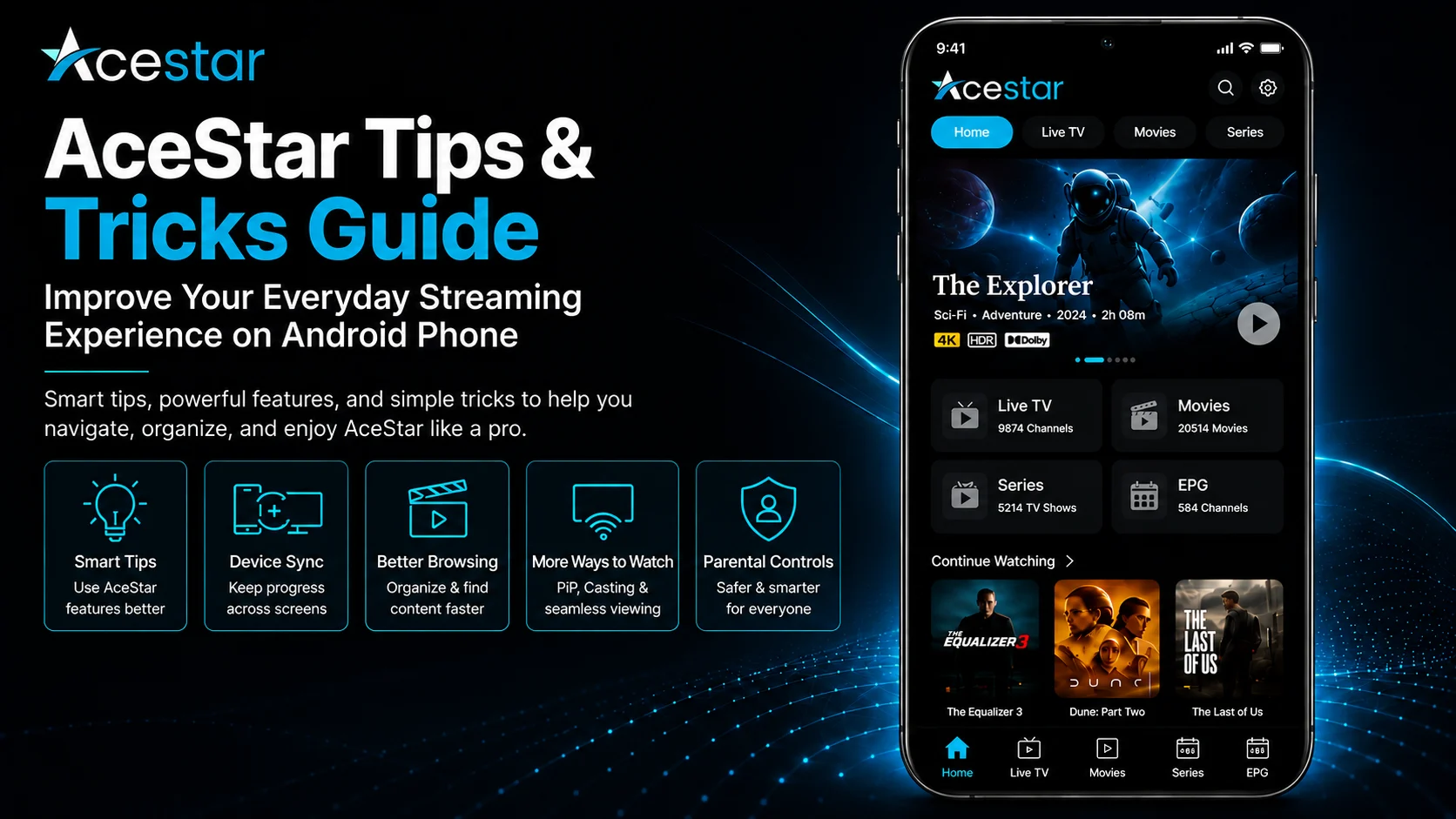
Once AceStar is installed and configured on your Android phone, everyday viewing becomes much easier when you know how to use its tools efficiently. AceStar is more than a basic playlist player: its official platform includes multiple playlist management, device sync, picture-in-picture, casting, recording, customizable content rows, parental controls, screen-time management, an advanced video player optimized for 4K streaming, and AI-powered discovery features.
The best AceStar experience does not come from changing every option immediately. A better approach is to keep your working setup stable while improving how you organize playlists, browse your library, move between devices, discover content, and handle playback on your Android phone.
AceStar officially supports users connecting their own M3U playlists or Xtream Codes, and its workflow is built around connecting an account, adding a source, synchronizing devices, and starting playback.
This AceStar Tips & Tricks Guide for Android Phone focuses on practical techniques that can make everyday navigation and viewing more convenient without turning your setup into something unnecessarily complicated.
Why Use AceStar Tips & Tricks?
A large streaming library can quickly become difficult to navigate. You may have live TV, movies, series, multiple playlists, favorites, and viewing activity across several devices.
AceStar includes tools designed to make that experience more manageable. Its Device Sync can synchronize watch history and playback progress, multiple playlist support lets you switch between sources, PiP keeps video visible while other apps are being used, and casting lets compatible playback move from mobile to a television.
AceStar also offers AI Movie Summary and mood-based AI Search, giving you alternatives to repeatedly scrolling through a large library when you are not sure what to watch.
Learning when to use each feature can save time and make the player feel considerably more organized.
Quick AceStar Tips for Android
| AceStar Tip | Main Benefit |
|---|---|
| Organize Multiple Playlists | Makes different sources easier to manage |
| Use Device Sync | Keeps progress connected across supported screens |
| Customize Home Rows | Brings important sections closer |
| Use AI Search | Finds content based on mood |
| Check AI Movie Summary | Helps choose what to watch faster |
| Use PiP | Keeps video visible while multitasking |
| Cast to TV | Moves compatible viewing to a larger screen |
| Use Parental Controls | Improves shared-device management |
Tip 1: Let Your Library Finish Loading
When opening AceStar, allow your connected M3U or Xtream library enough time to populate before rapidly switching between sections.
The amount of content visible inside AceStar depends on the source you connect. Larger sources containing substantial movies, series, or live TV information can naturally create a busier viewing environment.
Giving the application time to finish loading before you start browsing makes navigation smoother and avoids repeatedly reopening sections that are still populating.
If AceStar itself is working and your source eventually appears normally, there is usually no need to rebuild the configuration simply because a large library required additional loading time.
Tip 2: Give Multiple Playlists Clear Names
AceStar officially supports multiple playlists, allowing users to manage and switch between several compatible sources.
If you use more than one authorized M3U or Xtream source, keep them easy to identify.
A descriptive playlist name is far more useful than several generic entries that look almost identical.
Good organization becomes particularly valuable when you want to switch sources quickly. It also helps you understand which library you are currently browsing without repeatedly opening connection settings.
Start with one working source, then add additional playlists gradually rather than creating a cluttered list immediately.
Tip 3: Use Device Sync Across Your Screens
AceStar's Device Sync is designed to synchronize watch history and playback progress across supported devices. Its official setup flow also states that watch history and Favorites can synchronize across screens.
This is especially useful if your Android phone is not your only AceStar device.
You might begin watching something on mobile and later continue through another supported AceStar platform.
To make synchronization more useful, keep the appropriate AceStar account consistent across the devices involved.
Rather than treating Android as an isolated player, think of it as one screen within the broader AceStar experience.
Tip 4: Organize Your Home Screen Around What You Actually Watch
AceStar promotes Homepage Layout Control, including the ability to customize rows and reorder sections around movies, series, and live TV. It also lists Custom Row functionality for organizing content sections.
Where these controls are available in your current account and app version, use them based on your actual viewing habits.
If you primarily watch live TV, make that area easier to reach. If movies are your priority, avoid making yourself navigate through several unrelated sections every time.
A useful home screen should reduce navigation rather than simply look different.
Use the default layout for a while first, then reorganize it after you understand which sections you access most frequently.
Tip 5: Use AI Search When You Don't Know What to Watch
Traditional searching works well when you already know the exact title you want.
AceStar's AI Search takes a different approach. The official platform describes mood-based searches such as "Happy," "Sad," "Exciting," and "Relaxing," with AI suggesting movies and series based on emotional tone.
This is useful when you know what kind of viewing experience you want but do not have a particular title in mind.
Instead of spending a long time manually browsing categories, try one of the mood-based discovery options available in your current AceStar interface.
Use AI Search as a discovery tool alongside normal library browsing rather than as a replacement for every type of search.
Tip 6: Check AI Movie Summary Before Starting Something New
AceStar also provides AI Movie Summary, which its official site describes as a way to get a quick overview of a movie or series before watching.
This can be particularly useful when your connected library contains many titles and you are choosing between several options.
Rather than opening and backing out of multiple items, review the available summary first.
It can reduce browsing time and help you decide whether something fits what you want to watch.
Naturally, the titles available to explore still depend on the compatible content contained in your connected source.
Tip 7: Use Reel Discovery for Faster Browsing
AceStar promotes a Reel Experience built around AI-curated short previews. The platform describes genre-based reels, behavior-based suggestions, and the ability to move from a preview into full content.
This provides another way to explore a large library.
Instead of navigating traditional category lists, you can use the reel-style experience when available to quickly sample potential viewing choices.
This approach is particularly useful when you are browsing casually rather than looking for one specific title.
Use traditional sections when you know what you want and discovery tools when you want inspiration.
Tip 8: Use Picture-in-Picture for Android Multitasking
AceStar officially includes Picture-in-Picture (PiP) Mode, designed to keep video visible in a floating player while another application is being used.
On an Android phone, this can be convenient when you need to briefly check another app without completely abandoning your current viewing session.
Get normal playback working before using PiP.
If standard playback works but PiP behaves differently, focus on the PiP environment rather than changing your playlist.
Android versions and device behavior can also influence the final experience, so follow the controls available on your particular phone.
Tip 9: Test Playback on the Phone Before Casting
AceStar includes casting, allowing compatible content to be streamed from mobile to TV.
Before casting something, play it directly on your Android phone.
This gives you a simple baseline.
If the video works normally on the phone but has trouble after casting, you immediately know the original source and basic player connection were already working.
That is much more useful than trying to diagnose source, phone, network, and casting problems at the same time.
Casting is best treated as an extension of an already working playback session.
Tip 10: Make Better Use of Favorites
AceStar's official connection flow states that Favorites automatically sync across screens as part of its multi-device experience.
Use Favorites for content you genuinely access frequently.
Avoid saving everything simply because you might watch it later. An oversized Favorites collection becomes another large library to browse.
A focused list can give you quicker access to your regular viewing choices and becomes even more useful when the same Favorites environment follows you across supported AceStar screens.
Review it periodically and keep it relevant.
Tip 11: Use a Stable Network for 4K Streaming
AceStar describes its Advanced Video Player as optimized for 4K streaming and also includes subtitle settings.
For demanding video, your network still matters.
The player's 4K optimization cannot compensate for an unstable connection or a stream that is not being delivered consistently.
If high-resolution media repeatedly stalls while another stream plays smoothly, compare different media before changing the entire AceStar configuration.
For longer Android viewing sessions, stable Wi-Fi is usually preferable when available.
The goal should be smooth playback rather than simply choosing the highest resolution label.
Tip 12: Explore Subtitle Settings When Available
AceStar specifically lists Subtitle Settings as part of its Advanced Video Player.
When compatible subtitle information is available for the media you are watching, explore the subtitle controls presented by the current player.
If one title does not provide the subtitle option you expected, test another before assuming the AceStar player itself has a problem.
Subtitle availability can depend on the media and source information as well as the player.
Learning where the subtitle controls are located before you actually need them makes everyday viewing more convenient.
Tip 13: Use Parental Controls on Shared Devices
AceStar includes parental control tools and screen time management. The official site describes screen-time controls for setting daily or weekly viewing limits for children.
If the Android phone or broader AceStar setup is shared within a household, review these controls after your main playback configuration is stable.
Set restrictions according to your own household requirements.
For a stronger shared-device setup, AceStar's player controls can also be used alongside appropriate Android-level family and security settings.
Tip 14: Use Recording for Content You Plan to Watch Later
AceStar lists Recording among its enhanced viewing features and describes it as the ability to record live content for later viewing.
Where recording is available in your current Android configuration, use it selectively for content you actually plan to return to.
Before relying on recording, make sure normal playback of the relevant live source works correctly.
This keeps basic streaming and recording-related behavior separate and makes the player easier to manage.
The exact controls may evolve between AceStar versions, so follow the interface available on your current installation.
Tip 15: Avoid Changing Everything at Once
AceStar provides a substantial set of controls, including layouts, custom rows, player features, parental tools, AI discovery, and multi-device functionality.
That does not mean every option needs immediate adjustment.
Keep a working configuration as your baseline.
Make one meaningful change, use AceStar for a while, and decide whether it actually improves the experience.
This is especially valuable with layout and viewing preferences. Changing several areas simultaneously makes it difficult to determine which adjustment made navigation better or worse.
A simple setup is often the easiest setup to maintain.
Tip 16: Know What AceStar Controls and What Your Source Controls
AceStar's official workflow asks users to connect their own M3U playlist or Xtream Codes, while the company describes the platform as enabling users to stream their own content.
This distinction is important in everyday use.
AceStar provides the player viewing tools, synchronization, discovery features, and interface. Your connected source supplies the media available through that configuration.
If one item becomes unavailable while the rest of the library works, avoid changing your entire player.
Understanding the division between AceStar and the source helps you maintain a much cleaner setup.
Best Practices for Everyday AceStar Use
Keep your playlists organized, protect your M3U and Xtream credentials, and use the appropriate AceStar account when you want device sync and favorites synchronization across supported screens.
Use AI Search and AI Movie Summary when you want help discovering what to watch, while relying on your regular Movies, Series, and Live TV sections when you already know where you want to go. AceStar currently promotes all of these viewing and discovery capabilities as part of its platform.
For Android playback, use a reliable network, test normal video before PiP or casting, and keep your working configuration simple.
Common AceStar Usage Mistakes
One mistake is adding multiple playlists before learning how the first source behaves.
Another is trying to customize every row, setting, and viewing option immediately.
Users can also waste time browsing a massive library manually when AceStar provides AI-powered discovery and synchronized Favorites to make navigation more efficient.
Finally, avoid assuming every missing or unavailable media item is controlled by AceStar. The connected M3U or Xtream source remains an important part of the overall viewing experience.
Why These AceStar Tips Matter
AceStar's strength comes from combining playback with broader tools for organization, discovery, customization, and multi-device viewing.
Multiple playlists help keep sources organized. Device sync helps maintain continuity between supported screens. PiP and casting extend Android viewing beyond standard full-screen playback, while AI Search, Movie Summary, and Reel Discovery provide different ways to navigate large libraries.
Using these features with a stable, organized setup makes AceStar much more convenient than randomly experimenting with every option.
What's Next?
Now that you know how to use AceStar more efficiently on Android, continue with the
AceStar Hidden Features Guide for Android Phone
The next guide will focus on additional AceStar capabilities and interface features that deserve a closer look, while avoiding repetition of the everyday tips covered here.
Final Thoughts
Getting more from AceStar on an Android phone is mainly about using the right feature at the right time.
Organize multiple playlists carefully, use Device Sync and Favorites across your supported screens, customize the home experience around what you actually watch, and explore AI Search, AI Movie Summary, and Reel discovery when you want help choosing content.
Use Picture-in-Picture for multitasking and Casting when you want to move compatible viewing onto a larger screen. For demanding streams, remember that AceStar's 4K-optimized player still benefits from a reliable network and appropriate source quality.
Most importantly, preserve a working setup and make improvements gradually.
That approach keeps AceStar organized, easier to navigate, and more comfortable for everyday Android viewing.
Frequently Asked Questions (FAQs)
1) What are the best AceStar tips for Android users?
Start by keeping playlists clearly organized, using Device Sync and Favorites, customizing key home-screen sections, and using AceStar's AI Search and Movie Summary tools for faster content discovery.
2) Can AceStar manage multiple playlists?
Yes. AceStar officially supports multiple playlist management and compatible M3U and Xtream sources.
3) Can I continue my AceStar viewing on another device?
AceStar's Device Sync is designed to synchronize watch history and playback progress across supported devices, and its official workflow also references synchronized favorites.
4) What does AceStar AI Search do?
AceStar AI Search supports mood-based discovery, with examples such as Happy, Sad, Exciting, and Relaxing, and can suggest movies and series based on emotional tone.
5) Does AceStar support Picture-in-Picture and casting on mobile?
AceStar officially lists both PiP Mode and Casting as part of its enhanced viewing experience.
6) Does AceStar support recording?
Yes. AceStar currently lists Recording as a feature for recording live content and watching it later.
7) Does AceStar support 4K streaming?
AceStar describes its Advanced Video Player as optimized for 4K streaming. Actual playback still depends on the connected media, network conditions, and device capabilities.
8) What should I read after this AceStar Tips & Tricks Guide?
Continue with the AceStar Hidden Features Guide for Android Phones to explore additional AceStar capabilities and learn more about what the platform can do.
Continue Learning with Player SDK
Continue your AceStar journey with Player SDK, your resource for installation guides, setup guides, beginner guides, troubleshooting, tips & tricks, hidden features, and device-specific media player tutorials.
Now that you've improved your everyday AceStar workflow, continue with the AceStar Hidden Features Guide for Android Phone to explore more of the platform's capabilities and get even more from your Android viewing experience.
