After installing AceStar on your Android phone, the next step is to configure the player with your account and a compatible streaming source. AceStar’s official setup flow is straightforward: download the app, connect your account, add an M3U playlist or Xtream Codes, sync your devices, and start streaming.
AceStar is built as a multi-platform player, allowing users to stream their own compatible content across Android, iOS, smart TVs, desktop platforms, and the web. The platform also includes features such as multiple playlist management, device synchronization, picture-in-picture, casting, recording, parental controls, an advanced video player optimized for 4K, and AI-powered search and discovery.
However, the most important thing to understand before setup is that AceStar is the player platform, not the source of your content. You need your own compatible M3U playlist or Xtream-based source that you are authorized to access. AceStar’s official website specifically describes the player as allowing users to stream their own content.
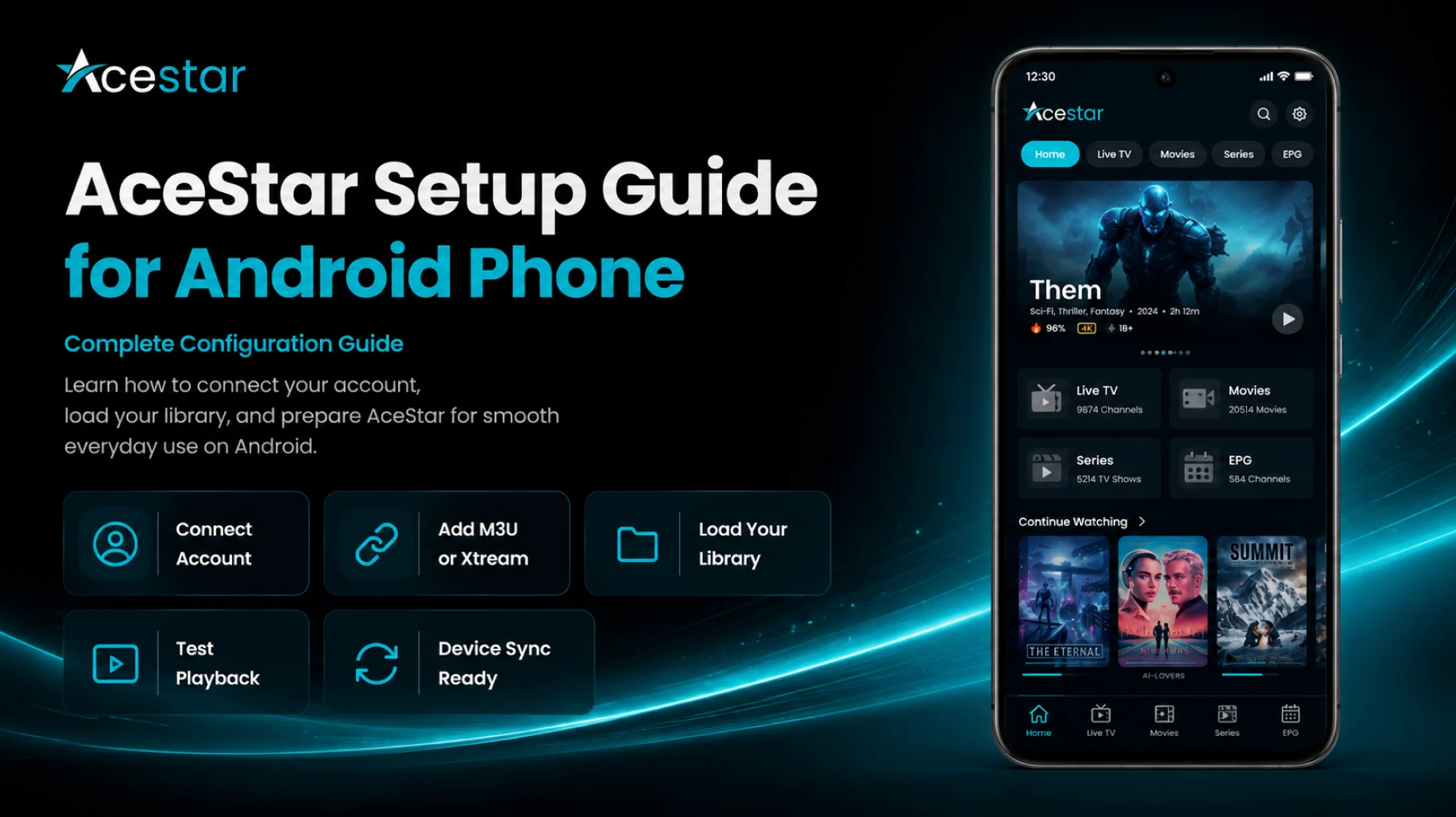
This complete AceStar Setup Guide for Android Phone walks you through connecting your account, adding your source, loading the library, checking playback, understanding device sync, and preparing AceStar for regular use.
Why Proper AceStar Setup Matters
Installation only places the AceStar application on your Android phone. Setup is what turns that installed application into a usable media player.
A proper configuration confirms that your account works, your M3U or Xtream source is connected correctly, the library can load, and your first stream can play successfully.
It also creates a useful baseline for later troubleshooting.
If AceStar opens correctly and your playlist loads successfully before you change advanced settings, you have a known working configuration. If a problem appears later, it becomes easier to determine whether the issue is related to the player, your source, the network, or a setting you changed.
AceStar also supports synchronization of watch history, playback progress, and favorites across devices, making correct account setup particularly useful if you plan to use the player on more than one supported screen.
What You’ll Configure in AceStar
| Setup Stage | What You'll Do |
|---|---|
| First Launch | Confirm AceStar opens correctly |
| Account Connection | Sign in to your AceStar account |
| Source | Add M3U playlist or Xtream Codes |
| Library Loading | Allow your media information to populate |
| Playback Test | Check your first compatible stream |
| Device Sync | Prepare watch history and Favorites syncing |
| Player Features | Review the main viewing tools |
| Final Check | Confirm AceStar is ready for everyday use |
Step 1: Launch AceStar on Your Android Phone
Open AceStar from your Android app drawer or home screen.
If you followed the Installation Guide, the application should already be installed from AceStar’s official Android APK. The current official downloads page lists AceStar for Android as version 1.0.0, approximately 28 MB, with Android 6.0 or newer required. These details can change with future releases, so the current downloads page should always take priority.
Allow the application to finish loading before moving through the interface.
During setup, avoid changing unrelated options immediately. First establish that the account and source work correctly.
Step 2: Connect Your AceStar Account
AceStar’s official workflow places the Connect Account immediately after installation. The website explains that users log in and then add their M3U playlist or Xtream Codes.
Use the account credentials associated with your AceStar service.
Enter them carefully and keep them private.
Once you're signed in, the account becomes important for more than basic access. AceStar promotes multi-device functionality, including synchronization of watch history, progress, and Favorites across supported devices.
If you plan to use AceStar later on a smart TV, computer, web browser, or another supported device, using the same appropriate account is what makes that connected experience useful.
Step 3: Prepare Your Source
Before adding anything, have your compatible source information ready.
AceStar officially supports both M3U playlists and Xtream Codes.
If your authorized provider gives you an M3U playlist, keep the complete playlist URL available. If you were supplied Xtream-based credentials instead, have the corresponding server and account information ready.
Avoid typing long URLs manually whenever you can securely copy them. A missing character, incorrect password, extra space, or wrong server address can prevent the source from connecting.
Treat all playlist links and login details as private account information.
Step 4: Add an M3U Playlist
If your source uses an M3U playlist, choose the appropriate playlist-adding option shown in your current AceStar version.
Enter a recognizable name for the source when the interface provides that option.
Then paste the M3U URL exactly as provided by your authorized service.
Review it before continuing.
AceStar supports multiple playlists, so clear naming becomes increasingly helpful if you later connect more than one source. The platform specifically promotes the ability to manage and switch between multiple playlists.
For your first setup, however, get one playlist working properly before adding more.
Step 5: Add Xtream Codes
If your source uses Xtream Codes, select the relevant connection method instead of M3U.
Follow the fields displayed in your version of AceStar and enter the information provided by your source.
Xtream-based configurations generally depend on the supplied server and account credentials being entered accurately.
Double-check spelling, capitalization, numbers, symbols, and spaces before saving the connection.
AceStar’s official setup instructions explicitly identify Xtream Codes as one of its supported connection methods alongside M3U playlists.
Don't convert a working source from one connection method to another unnecessarily. Use the format actually provided to you.
Step 6: Allow the Library to Load
After connecting your M3U or Xtream source, give AceStar enough time to retrieve and organize the available library information.
The loading time can vary significantly depending on the size of your source, your network connection, and the amount of information being supplied.
Large libraries containing live TV, movies, series, and other metadata naturally require more processing than smaller sources.
Avoid repeatedly closing the application because the library hasn't appeared instantly.
A stable Wi-Fi connection is particularly useful during the initial loading stage.
Once the main library appears, start exploring it without immediately changing its organization.
Step 7: Explore Movies, Series, and Live TV
AceStar’s homepage customization tools are designed around content areas including Movies, Series, and Live TV. The platform allows rows to be customized and reordered within its broader interface capabilities.
What you actually see depends on the information supplied through your connected source.
One playlist may contain several live TV categories and an extensive VOD library, while another may contain a much smaller selection.
AceStar presents the compatible information received through the source; it does not mean every user will see an identical library.
For the setup stage, your goal is simply to make sure your expected categories and media appear.
Step 8: Test Your First Stream
Choose a media item you are authorized to access and start playback.
Give the stream a few moments to connect.
Check whether the video starts normally, audio is present, and playback remains stable.
AceStar promotes an advanced video player optimized for 4K streaming, along with subtitle controls.
However, the player alone cannot guarantee 4K quality. The actual result also depends on the media source, Android phone capabilities, network performance, and the quality being delivered by the original stream.
For your first test, prioritize reliable playback rather than immediately searching for the highest resolution available.
Step 9: Test More Than One Media Item
Don't judge your complete AceStar configuration based on a single channel or video.
Test several different media items.
If most of them work but one fails, the issue may be specific to that individual stream.
If nothing plays, investigate your network and connected source before changing advanced AceStar options.
This simple testing approach helps separate player problems from source-side problems and keeps you from rebuilding a working configuration unnecessarily.
Step 10: Understand AceStar Device Sync
One of AceStar’s more important platform features is Device Sync.
The official site says watch history and playback progress can sync across devices, and its setup flow states that watch history and Favorites automatically sync across screens.
This becomes valuable if you use AceStar on more than your Android phone.
For example, you may begin watching on mobile and later use another supported AceStar platform while maintaining a more connected viewing experience.
During initial Android setup, you don't need to configure every other device immediately. Just make sure you're using the correct AceStar account so that you're prepared for device synchronization later.
Step 11: Review Multiple Playlist Support
AceStar supports managing and switching between multiple playlists.
This is useful if you legitimately maintain more than one compatible source.
However, don't overload your first setup with several playlists before confirming that the original one functions correctly.
Once your first source loads and plays normally, additional authorized sources can be added gradually.
Give each one an identifiable name and avoid duplicate connections.
Good playlist organization can make both navigation and future troubleshooting easier.
Step 12: Explore Picture-in-Picture and Casting Later
AceStar lists Picture-in-Picture (PiP) and Casting among its viewing features. PiP is designed to keep video visible in a floating player while another app is being used, while casting allows content to be sent from mobile to a television.
You don't need to configure these during your initial source setup.
First confirm normal playback on the phone itself.
Once standard playback works consistently, you can explore PiP, casting, and other viewing options without confusing feature-specific behavior with basic setup problems.
Step 13: Know About Recording
AceStar also lists recording of live content among its platform features.
Availability and practical behavior can depend on the current AceStar version, device environment, and media you're using.
For a new Android setup, focus first on streaming successfully.
Recording is better explored after you're already comfortable with basic playback and understand the applicable permissions, storage considerations, and source limitations.
Step 14: Review Parental and Screen-Time Controls
AceStar provides both Parental Control and Screen Time Management features. Its website describes screen-time tools for setting daily or weekly viewing limits for children and parental controls intended to create a more family-friendly viewing environment.
If the Android phone is shared with younger users, these features are worth configuring after basic playback works.
Choose restrictions appropriate for your household and protect relevant controls with secure access settings where available.
You can explore these options in more detail once the essential player setup is complete.
Step 15: Explore AI Search After Your Library Is Ready
AceStar differentiates itself with AI-powered search and discovery.
Its official site describes AI Search that can recommend movies and series using moods such as “Happy,” “Sad,” “Exciting,” or “Relaxing,” as well as AI-generated movie and series summaries.
These tools are more useful after your compatible media library has loaded correctly.
During setup, first establish basic browsing and playback.
Later, you can use AceStar’s AI tools to explore your available content in ways that go beyond traditional title-based navigation.
Step 16: Keep the Default Setup Stable
Once your AceStar account is connected, the library loads, and several streams work correctly, you have established a successful baseline.
Don't immediately change every layout, playback, or customization option.
AceStar offers homepage layout control, custom rows, themes, fonts, and other customization features.
Explore them gradually.
Making one change at a time lets you understand what each option actually affects and makes it much easier to reverse an adjustment if you don't like the result.
What If Your M3U or Xtream Source Doesn't Load?
Start by checking the information you entered.
For M3U, verify the complete playlist URL. For Xtream, carefully review the supplied connection details.
Then check whether your Android phone has a working internet connection and whether your authorized source is currently active.
If AceStar itself opens and allows you to reach the source-management area, repeated application reinstallation usually shouldn't be the first troubleshooting step.
Separate app problems from source problems before making major changes.
Best Practices After AceStar Setup
Keep your AceStar account and source credentials private. Use a stable network when loading large media libraries and testing high-resolution streams.
Get one source working before adding multiple playlists, and test several streams before concluding that the complete setup has failed.
Once everything is stable, gradually explore device sync, PiP, casting, recording, parental controls, custom layouts, and AceStar’s AI-powered discovery tools. These capabilities are all part of AceStar’s broader platform offering.
Common AceStar Setup Mistakes
One common mistake is expecting content to appear simply because AceStar has been installed.
AceStar’s own workflow requires users to connect an account and add an M3U playlist or Xtream Codes before streaming.
Another mistake is adding several playlists before confirming the first one works.
Users may also modify layout and advanced player options before they've tested ordinary playback.
The simplest approach is usually the best: account first, source second, library third, playback test fourth, and customization afterward.
Why Proper AceStar Setup Matters
A correct setup lets you take advantage of AceStar as more than a simple Android player.
Once your account and authorized source are connected, AceStar can provide a multi-device experience with playlist management, synchronized viewing progress and favorites, an advanced player, PiP, casting, recording, parental controls, customizable layouts, and AI-powered content discovery.
But every advanced feature works better when the underlying source connection is stable.
That's why establishing a reliable basic setup should always come first.
What's Next?
Now that AceStar is configured on your Android phone, the next step is becoming familiar with everyday navigation and playback.
Continue with the:
AceStar Beginner Guide for Android Phone
The Beginner Guide will explain how to navigate movies, series, and live TV, manage playlists, understand player controls, use Favorites and device sync, explore AI Search and recognize the difference between AceStar, your network, and your connected media source.
Final Thoughts
Setting up AceStar on an Android phone follows a clear workflow.
Connect your AceStar account, add your compatible M3U playlist or Xtream Codes, allow the library to load, and test several media items before changing advanced settings. This matches AceStar’s official setup sequence of connecting an account, adding a source, syncing devices, and starting playback.
Once your basic configuration works, AceStar offers much more to explore, including multiple playlists, device synchronization, PiP, casting, recording, parental controls, 4K-optimized playback, customizable layouts, AI Movie Summary, and mood-based AI Search.
Keep your source credentials secure, use only content you're authorized to access, and build your configuration gradually.
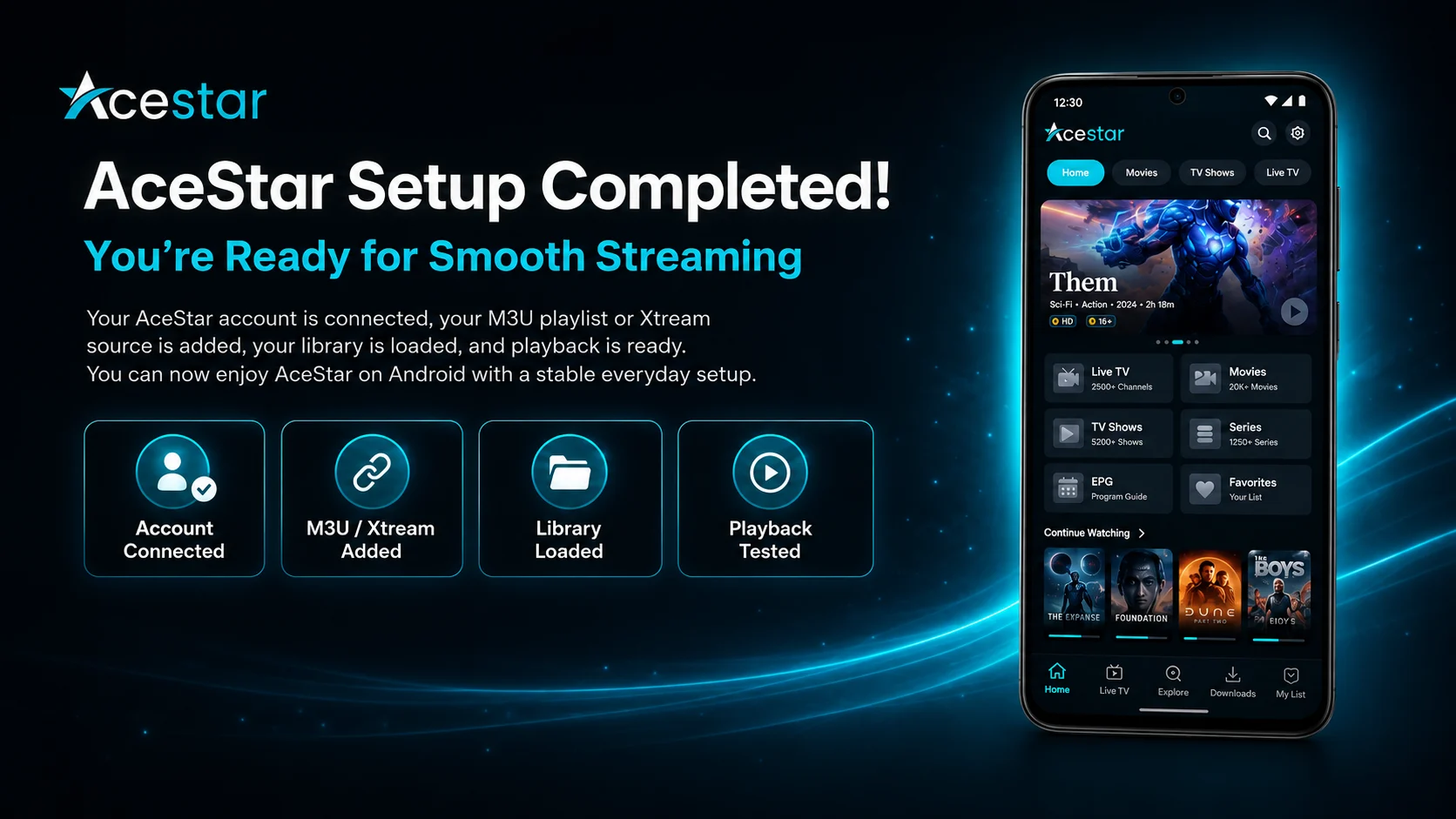
With the essential setup complete, AceStar is ready for regular Android viewing.
Frequently Asked Questions (FAQs)
1) How do I set up AceStar on an Android phone?
After installing AceStar, connect your account and add your compatible M3U playlist or Xtream Codes. AceStar’s official flow then moves into device synchronization and streaming.
2) Does AceStar support M3U playlists?
Yes. AceStar officially lists M3U playlists as one of the connection methods supported by its player.
3) Can I use Xtream Codes with AceStar?
Yes. AceStar’s official setup instructions specifically support adding Xtream Codes alongside M3U playlists.
4) Can AceStar manage multiple playlists?
Yes. AceStar lists multiple playlist management as a supported feature, allowing users to manage and switch between compatible playlists.
5) Does AceStar sync between devices?
AceStar states that watch history and progress can sync across devices, while its setup workflow also references automatic synchronization of watch history and favorites across screens.
6) Does AceStar support 4K playback?
AceStar describes its advanced video player as optimized for 4K streaming. Actual viewing quality still depends on the media source, network conditions, and capabilities of the device being used.
7) What should I read after this AceStar Setup Guide?
Continue with the AceStar Beginner Guide for Android Phone to learn everyday navigation, playlist usage, playback controls, favorites, device sync, AI search, and other essential AceStar functions.
Continue Learning with Player SDK
Continue your AceStar journey with Player SDK, your resource for installation guides, setup guides, beginner guides, troubleshooting, tips & tricks, hidden features, and device-specific media player tutorials.
Now that AceStar is configured on your Android phone, continue with the AceStar Beginner Guide for Android Phone to learn the interface, manage your media more efficiently, explore AceStar’s viewing tools, and become comfortable using the player every day.
