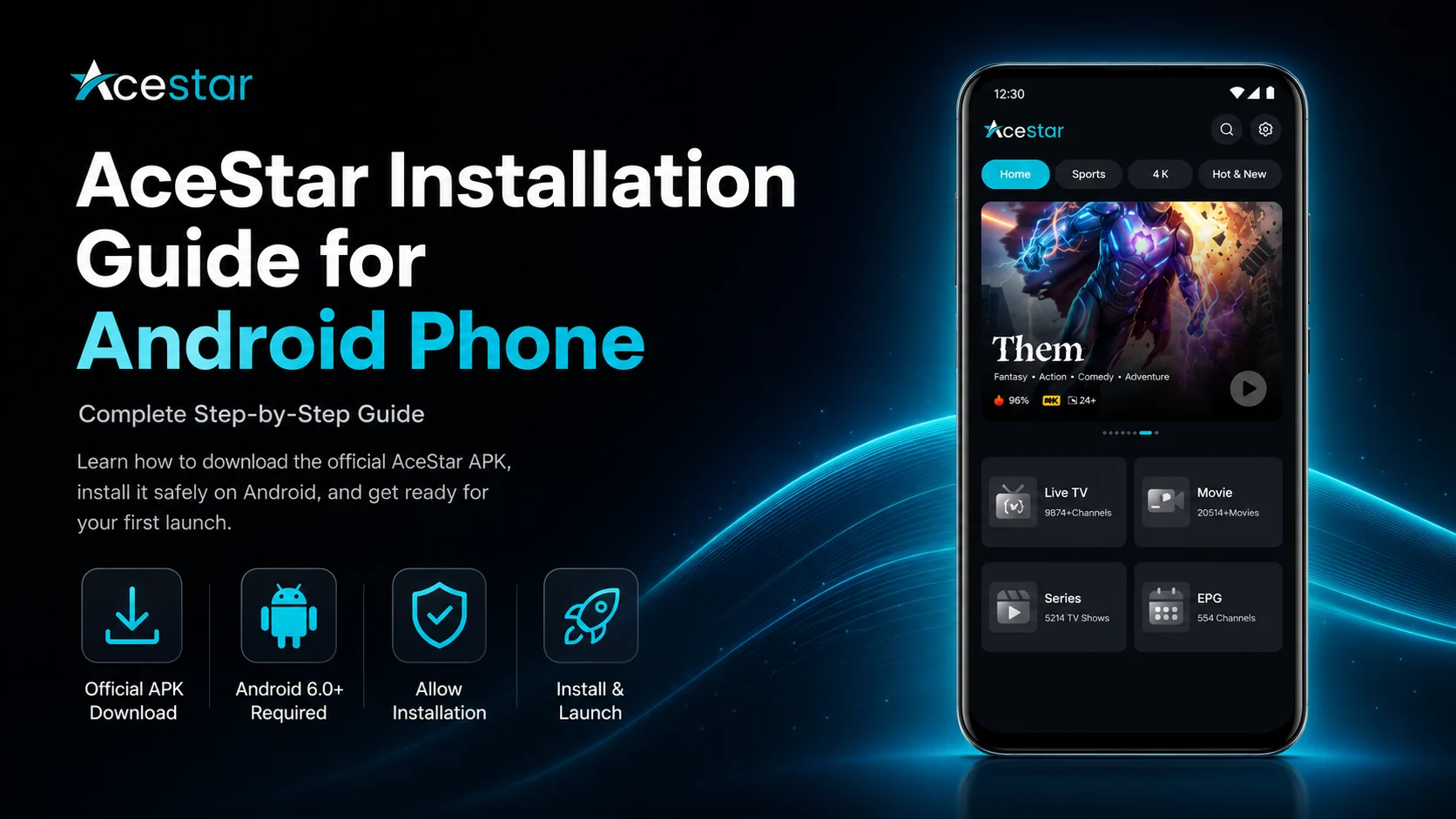
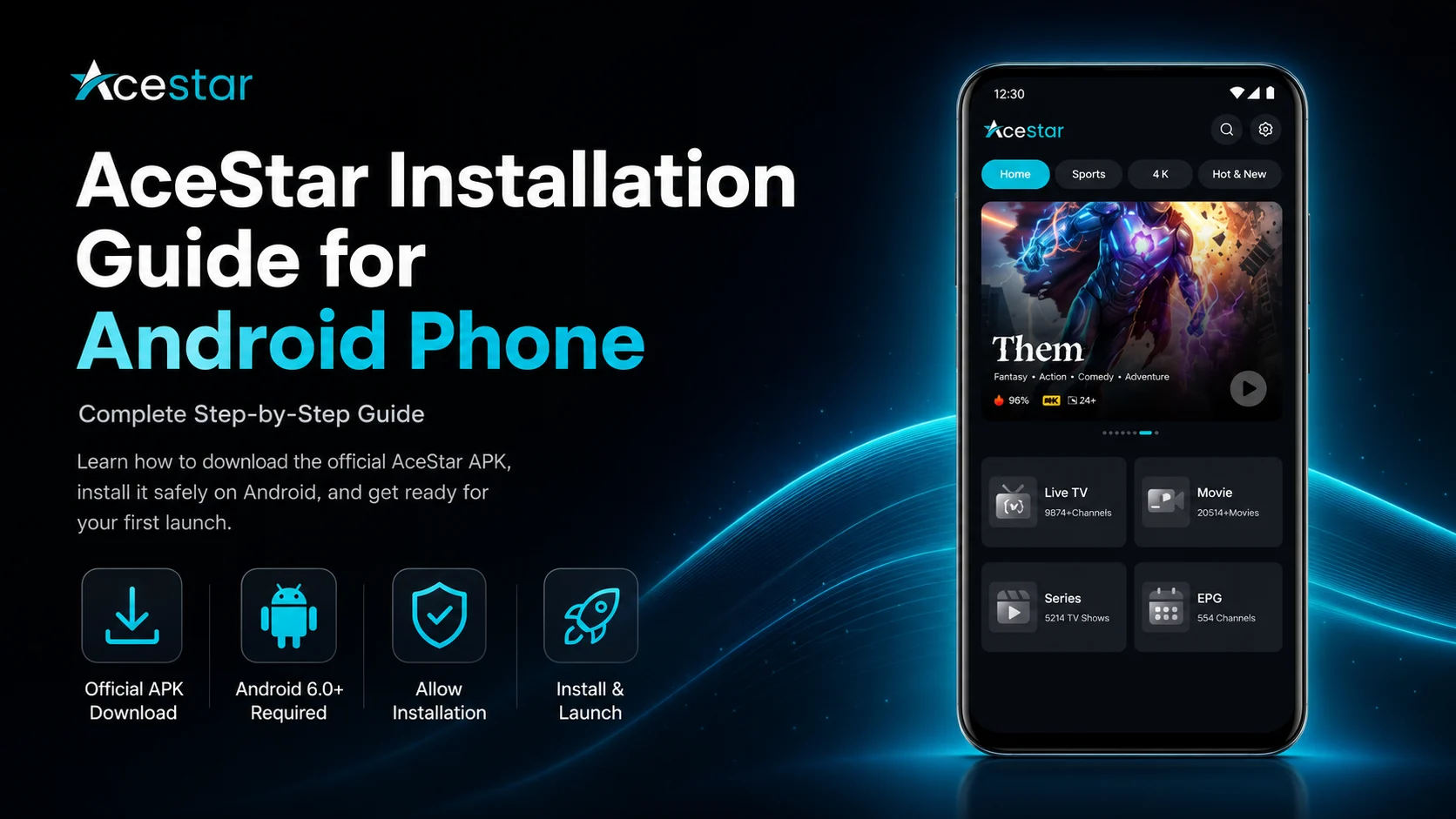
Installing AceStar on an Android phone is the first step toward using its multi-platform player experience on mobile. AceStar is designed to let users connect their own compatible streaming sources and access them through a modern interface with features such as multiple playlist management, device synchronization, picture-in-picture, casting, parental controls, EPG-related viewing tools, AI-powered discovery, and an advanced video player.
Unlike many Android applications that are installed directly from Google Play, AceStar currently provides its Android version as a downloadable APK from the official AceStar website. The current official downloads page lists AceStar for Android as version 1.0.0, approximately 28 MB, with Android 6.0 or later required. These details can change with future releases, so always check the official downloads page before installing.
AceStar should also be understood as a player platform rather than a provider of channels or pre-loaded media. The official website describes a workflow in which users install the player, connect their account, and add their own M3U playlist or Xtream Codes.
This complete AceStar Installation Guide for Android Phone explains how to download the official APK, prepare Android for installation, install the application safely, launch it for the first time, and get ready for the next setup stage.
Why Install AceStar on an Android Phone?
Android phones are well suited to mobile media playback because they're portable, support modern video formats, and can switch between Wi-Fi and cellular connections.
AceStar extends that experience with a player designed to work across multiple device categories. Its official site lists support for Android, iOS, smart TVs, desktop systems, web browsers, and other platforms, with device synchronization intended to keep viewing activity more consistent across screens.
On Android, the player can serve as your portable access point to compatible playlists and authorized sources.
AceStar also promotes an advanced player optimized for high-quality streaming, along with features including multiple playlists, PiP, casting, recording, AI Search, AI Movie Summary, Favorites synchronization, and customizable viewing experiences.
For this guide, however, we'll focus only on installation. Playlist configuration and everyday player features should be handled after the app has been installed successfully.
What You'll Complete in This Guide
| Installation Stage | What You'll Do |
|---|---|
| Compatibility Check | Confirm Android version and available storage |
| Official Download | Get the AceStar APK from the official site |
| Android Permission | Allow installation from the downloading source |
| APK Installation | Install AceStar on your Android phone |
| First Launch | Confirm the application opens correctly |
| Initial Review | Understand the player before configuration |
| Account Preparation | Get ready to connect your AceStar account |
| Source Preparation | Prepare an authorized M3U or Xtream source |
Step 1: Check Your Android Version
Before downloading AceStar, confirm that your Android phone meets the current system requirements.
AceStar's official downloads page currently lists Android 6.0 and above as the requirement for its Android application. The page currently shows the Android download as version 1.0.0 with an approximate size of 28 MB.
To check your phone, open Android Settings and look for an area such as About Phone, Software Information, or Android Version.
The exact menu name varies between Samsung, Google Pixel, OnePlus, Xiaomi, Motorola, and other manufacturers.
If your phone runs an older unsupported Android version, avoid trying to force-install the application through modified packages.
Step 2: Check Available Storage
AceStar's current Android APK is relatively small, but your device should have more free space than the download size alone.
Android requires additional storage for application data, temporary files, updates, and normal system processes.
Open your phone's storage settings and make sure you have reasonable free space available.
If your storage is nearly full, remove unnecessary downloads, duplicate media, old APK files, or applications you no longer use before beginning.
Maintaining free storage can also help your phone remain responsive once you start loading larger libraries.
Step 3: Open the Official AceStar Downloads Page
Use your Android browser and visit the official AceStar website, then open its Downloads section.
The official downloads page currently provides dedicated versions for several platforms, including Android, iOS, Windows, macOS, Samsung TV, LG TV, and the web player.
Locate AceStar for Android.
You should see the Android compatibility information along with a Download APK option.
Using the official AceStar download source is important. Avoid downloading similarly named APK packages from random third-party websites because you may not know whether those files have been altered.
Step 4: Download the AceStar APK
Tap Download APK on the AceStar Android listing.
Your browser may display a warning before downloading an APK because Android treats applications installed outside its normal trusted app store flow differently.
Confirm the download only when you're sure you're using the official AceStar website.
Wait for the APK file to finish downloading.
Depending on your browser, you may see the download progress directly on screen or in Android's notification area.
Don't try to open an incomplete download.
Step 5: Allow APK Installation When Android Requests It
Because AceStar's official Android download is currently distributed as an APK, Android may require you to authorize installation from the browser or file manager you're using.
Android protects users from accidental installation of applications from outside trusted app stores and requires user opt-in for these installations. On Android 8.0 and later, permission is generally granted to the specific source attempting the installation, such as your browser, rather than through one universal switch.
When prompted, follow Android's on-screen instructions to allow the installation.
The exact menu wording varies by Android version and manufacturer. You may see something similar to "Install unknown apps" or "Allow from this source."
Only enable this for the trusted application you're using to open the official AceStar APK.
Step 6: Install AceStar
Once Android allows the installation, open the downloaded AceStar APK.
Android should display an installation screen.
Tap Install and wait while the package is added to your device.
The process normally takes only a short time, although performance varies between phones.
When the installation finishes, you should see an option such as "Open" or "Done."
Choosing Done lets you return to Android and launch AceStar later from your app drawer. Choosing Open starts the application immediately.
Step 7: Consider Disabling the Installation Permission Again
If you temporarily allowed your browser or file manager to install applications from outside your usual app store, you can return to Android settings afterward and disable that permission.
Android allows users to change the permission for a particular installation source at any time.
This isn't an AceStar-specific requirement, but it's a useful Android security habit.
You can always enable the permission again later if a future official AceStar update requires another APK installation.
Step 8: Launch AceStar for the First Time
Open AceStar from the Home Screen or Android app drawer.
Give the application a moment to initialize.
Your objective during this first launch isn't to customize every player feature or immediately build your library.
First confirm that AceStar opens correctly and that you can navigate its initial interface without repeated crashes or installation errors.
If the application reaches its starting screen normally, the main installation process is complete.
Step 9: Review Any Requested Permissions
AceStar may request Android permissions depending on the features available in the current release and the way you use the application.
Read every permission request rather than approving everything automatically.
Android's permission system allows applications to request access when certain protected features or data are needed, and some permissions can be managed later through Android Settings.
If a particular AceStar feature later requires access you previously declined, you can review the app's permissions through your phone's application settings.
Menu names can differ across Android manufacturers.
Step 10: Understand What AceStar Provides
Before adding any source, understand the relationship between AceStar and your media.
AceStar describes itself as a powerful player that allows users to stream their own content across supported platforms. Its official connection workflow tells users to download the app, connect an account, and add an M3U playlist or Xtream Codes before streaming.
In other words, installing AceStar doesn't automatically populate the application with live TV, movies, or series.
You'll need a compatible media source that you're authorized to use.
This distinction is important because an empty library immediately after installation doesn't mean the application has failed.
Step 11: Prepare Your AceStar Account
AceStar's official workflow includes connecting your account before adding your playlist.
If you've already created an AceStar account, keep your login information ready.
If account creation or activation is required in your current flow, follow the current instructions shown by AceStar.
Don't share your login information publicly or expose it in screenshots.
Once your account is connected, you'll be ready to move into the actual source configuration process.
Step 12: Prepare Your M3U or Xtream Source
AceStar officially supports adding M3U playlists and Xtream Codes as part of its player workflow.
Prepare the connection details supplied by your authorized or media service before starting the next guide.
An M3U configuration may involve a playlist URL, while an Xtream-based source can involve account and server information.
You don't need to configure these details during the installation stage.
Simply make sure you have the correct information available and keep it private.
Step 13: Confirm AceStar Was Installed Successfully
A successful AceStar installation should meet a few simple conditions.
The application should appear in your Android app list, launch normally, display its initial interface, and respond when you navigate through the available screens.
Don't use the absence of channels as a test of whether installation succeeded.
Media becomes relevant during the account and playlist setup stage.
If AceStar opens correctly, you've completed the Android installation successfully.
What If the AceStar APK Won't Install?
If Android refuses to install the APK, first confirm that your device meets AceStar's current Android requirement.
Next, confirm that the APK finished downloading correctly and that Android has permission to install packages from the browser or file manager you're using.
If installation still fails, delete the incomplete APK and download a fresh copy from the official AceStar downloads page.
Also verify that your phone has sufficient free storage.
Avoid repeatedly downloading packages from unrelated sources just because the official file didn't install on the first attempt.
What If AceStar Won't Open After Installation?
If the APK installs but the application doesn't open properly, restart your Android phone and try again.
Make sure your Android software is reasonably current for the device and check whether you downloaded the current AceStar Android build from the official site.
If the problem continues, reinstalling the official APK can be considered after removing a potentially incomplete installation.
Remember that a login or playlist problem is different from an installation problem.
If the app itself opens successfully, move on to setup troubleshooting rather than repeatedly reinstalling it.
Best Practices After Installing AceStar
Keep AceStar installation files and updates limited to trusted official sources.
Protect your AceStar account and any future M3U or Xtream credentials, maintain adequate free storage, and use a reliable internet connection when you begin configuring your library.
Don't change every setting immediately after installation.
AceStar offers numerous features, but a simple working baseline makes it easier to learn the player and troubleshoot later.
Common AceStar Installation Mistakes
A major mistake is searching random APK websites before checking AceStar's official download page.
Another is expecting content to appear immediately after installing the application.
Users can also confuse APK-installation permission with normal AceStar app permissions. They're separate: one allows Android to install the APK from your selected source, while the other concerns permissions the installed application may request.
Finally, avoid configuring multiple playlists before you've confirmed that the application itself works correctly.
Why Proper AceStar Installation Matters
A clean installation gives you a reliable foundation for everything that follows.
Once you know AceStar was downloaded from its official source, installed on a compatible Android version, launches normally, and has appropriate Android permissions, future problems become easier to diagnose.
If a playlist later fails, you can focus on the source or configuration instead of wondering whether the original installation was incorrect.
That's why it's worth completing the installation stage carefully before moving into advanced player features.
What's Next?
Now that AceStar is installed on your Android phone, the next step is connecting your account and adding your compatible streaming source.
Continue with the:
AceStar Setup Guide for Android Phone
The Setup Guide will cover connecting your account, adding an M3U playlist or Xtream Codes, allowing the library to load, testing your first stream, and preparing AceStar for regular mobile viewing.
Final Thoughts
Installing AceStar on an Android phone is slightly different from installing a standard Play Store application because the current official Android version is provided as an APK. AceStar's official downloads page currently lists Android 6.0+ compatibility and provides a direct Android APK download.
Start by checking your device compatibility and available storage, download the APK only from AceStar's official website, follow Android's security prompt for installing the package, and confirm that the application launches correctly.
Once AceStar opens successfully, keep your account information and authorized M3U or Xtream source ready.
You can then move on to configuration and begin exploring the broader AceStar experience.
Frequently Asked Questions (FAQs)
1) How do I install AceStar on an Android phone?
Open AceStar's official Downloads page from your Android browser, select the Android version, download the APK, authorize installation from that trusted source when Android requests it, and install the package. The official downloads page currently lists Android 6.0 or newer as the requirement.
2) Is AceStar available as an Android APK?
Yes. AceStar's current official downloads page provides an Android Download APK option.
3) What Android version does AceStar require?
The current AceStar downloads page lists Android 6.0 and above for its Android application. Requirements may change in future releases, so check the current official listing before downloading.
4) Why does Android ask permission before installing AceStar?
Android restricts application installations from outside trusted app stores until the user explicitly allows the installation source. On Android 8.0 and later, this permission is generally managed per source.
5) Does AceStar include channels after installation?
AceStar describes itself as a player for streaming user-supplied content. Its official workflow requires users to connect an account and add an M3U playlist or Xtream Codes before streaming.
6) Can AceStar use M3U and Xtream Codes?
Yes. AceStar's official website specifically lists support for adding M3U playlists and Xtream Codes.
7) What should I read after the installation guide?
Continue with the AceStar Setup Guide for Android Phone to connect your AceStar account, add your authorized M3U or Xtream source, load your media library, and test playback.
Continue Learning with Player SDK
Continue your AceStar journey with Player SDK, your resource for installation guides, setup guides, beginner guides, troubleshooting, tips & tricks, hidden features, and device-specific media player tutorials.
Now that AceStar is installed on your Android phone, continue with the AceStar Setup Guide for Android Phone to connect your account, add your compatible M3U or Xtream source, test playback, and prepare the player for everyday use.
