Once you have installed and configured AceStar on your Android phone, it is easy to fall into a simple routine: open the app, choose something from your connected library, start playback, and close the player when you are finished.
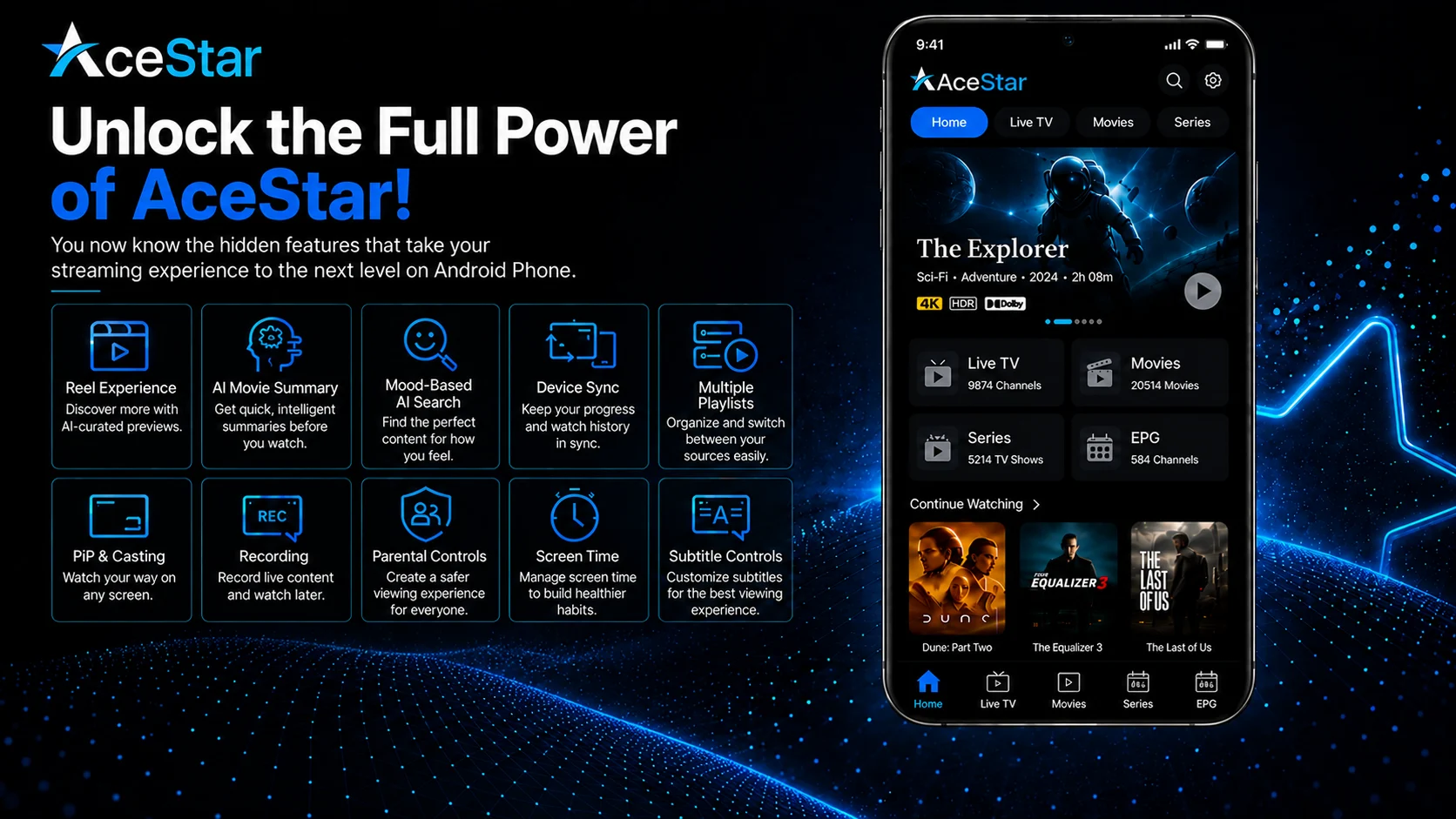
However, AceStar is designed as more than a basic playlist player. The official AceStar platform includes AI-powered discovery, Reel-style previews, Device Sync, multiple playlists, Picture-in-Picture, casting, recording, parental controls, screen-time management, custom content rows, subtitle controls, and an advanced video player optimized for 4K streaming.
Some of these capabilities are easy to overlook on mobile, while others are part of the wider AceStar platform and may depend on your account, plan, current application version, or platform configuration.
AceStar also does not provide the content itself. Its official workflow asks users to connect an account and add their own M3U playlist or Xtream Codes, while its Terms of Use state that users are responsible for ensuring external URLs, APIs, services, and resources are authorized and legally permitted.
This AceStar Hidden Features Guide for Android Phone explores the capabilities worth looking for once you already understand installation, setup, everyday usage, and troubleshooting.
Why Explore AceStar Hidden Features?
A feature does not have to be literally secret to be overlooked.
Many users spend most of their time inside movies, series, or live TV and never investigate the broader AceStar experience. That can mean missing useful discovery tools, synchronization features, viewing modes, content controls, and personalization options.
Understanding these capabilities can also help you recognize what AceStar itself controls and what comes from your connected media source.
For example, AceStar can provide AI-assisted discovery and a sophisticated playback environment, but your actual available movies, series, channels, and other source data still depend on the compatible content connected to your account.
AceStar Features Worth Exploring
| Acestar Feature | Why It Matters |
|---|---|
| Reel Experience | Provides short-form content discovery |
| AI Movie Summary | Helps evaluate a title before watching |
| Mood-Based AI Search | Finds content through emotional themes |
| Device Sync | Keeps history and progress connected |
| Multiple Playlists | Lets compatible sources stay organized |
| PiP & Casting | Expands mobile viewing options |
| Recording | Saves supported live content for later |
| Screen Time & Parental Controls | Adds household viewing controls |
Finds content through emotional themes
Hidden Feature 1: Reel-Style Content Discovery
One of AceStar's most distinctive features is its Reel Experience.
Instead of browsing only through traditional rows and category lists, AceStar describes a short-video discovery system where users can scroll through AI-curated previews and move from a preview into the full available content with a single action.
AceStar also describes behavior-based recommendations that update in real time and genre-based reels that allow users to browse previews category by category.
For Android users, this provides a browsing style that feels closer to modern short-form mobile applications than a traditional interface.
It can be especially useful when you want to discover something new rather than search for one exact title.
Hidden Feature 2: AI Movie Summary
Opening multiple movies or series simply to understand what they are about can make browsing a large library slow.
AceStar's AI Movie Summary is designed to reduce that friction.
According to AceStar, AI-generated summaries provide quick overviews of movies and series before playback, helping viewers decide what they want to watch more quickly.
This becomes particularly useful when several titles look interesting but you do not want to open each one individually.
Rather than treating the feature as a replacement for all available source information, use it as another decision-making layer when browsing your compatible library.
Hidden Feature 3: Search by Mood Instead of Title
Traditional media search expects you to know a name, actor, genre, or keyword.
AceStar's AI Search takes a different approach.
Its official platform specifically gives examples such as Happy, Sad, Exciting, and Relaxing, with AI suggesting movies and series according to emotional tone.
This can be particularly useful when your question is not “What movie do I want?” but rather “What kind of movie do I feel like watching?”
On a large connected library, that changes search from a simple title-finding tool into a discovery feature.
The results you can actually watch will naturally depend on the media available through your configured AceStar environment.
Hidden Feature 4: Device Sync Goes Beyond Basic Login
Using the same account on several devices is useful, but AceStar's Device Sync is designed to do more than simply authenticate you.
The platform states that watch history and playback progress can sync across devices. Its official setup flow also says that watch history and Favorites automatically synchronize across screens.
This means your Android phone can function as one part of a broader AceStar setup rather than as an isolated player.
You might begin viewing something while away from your television and later continue through another supported AceStar device.
For users who regularly switch between phone, TV, desktop, or web playback, this is one of the platform's most useful capabilities.
Hidden Feature 5: AceStar Works Across a Wide Device Ecosystem
Device sync matters because AceStar supports a broad range of platforms.
Its official website lists Samsung Tizen TV, LG webOS TV, Android/Google TV, Apple TV, Windows, iOS and Android mobile, web browsers, and macOS.
For an Android user, this means you are not necessarily building a phone-only configuration.
A single AceStar environment can potentially be part of a multi-screen setup where viewing activity follows you between supported platforms.
That broader ecosystem is easy to overlook if you initially installed AceStar simply because you wanted an Android player.
Hidden Feature 6: Multiple Playlists Can Separate Different Sources
AceStar officially supports multiple playlists, allowing compatible sources to be managed and switched within the platform.
The obvious benefit is convenience, but there is another useful aspect: separation.
If you legitimately maintain multiple authorized M3U or Xtream sources, keeping them distinct makes it easier to understand which media belongs to which source.
It also becomes useful when diagnosing problems. If one playlist stops responding while another continues working, you immediately know that AceStar and your Android connection are still capable of loading another source.
The number of playlists available can also depend on the AceStar plan; the current pricing page shown on AceStar's homepage distinguishes limited playlist/device counts on Basic from unlimited playlist and device support on higher tiers.
Hidden Feature 7: Picture-in-Picture Turns AceStar Into a Floating Player
AceStar includes Picture-in-Picture (PiP) Mode, which is designed to keep compatible video visible in a floating player while another application is being used.
This feature is especially relevant on an Android phone because mobile users frequently move between applications.
Instead of completely abandoning playback to check another app, PiP can provide a smaller viewing window while you multitask.
Actual behavior can depend on Android, your device, and the current AceStar application environment, so explore the option available on your installation rather than assuming every Android phone displays PiP identically.
Hidden Feature 8: Casting Extends Android Playback to a TV
AceStar also lists casting as part of its enhanced viewing experience and describes the ability to stream content from mobile to a television.
This effectively allows your Android phone to become a starting point for larger-screen playback when your environment supports the feature.
The useful part is that you can first find or begin compatible content on your phone and then move the viewing experience to a TV.
For troubleshooting, always confirm that the stream works on the Android phone first. If normal mobile playback is successful but casting fails, you have already narrowed the problem to the casting stage rather than your complete playlist.
Hidden Feature 9: Live Recording Is Built Into the Platform
AceStar lists recording among its enhanced viewing features, with the ability to record live content and watch it later.
This feature can be easy to miss if you normally treat the application as a live player.
Where recording is available in your Android configuration, it gives supported live viewing another layer of flexibility.
Before relying on it, make sure the original live stream works normally and review the recording controls shown by your current AceStar version.
Storage, source behavior, platform configuration, and current app capabilities can all influence the practical recording experience.
Hidden Feature 10: Subtitle Settings Are Part of the Advanced Player
AceStar's Advanced Video Player is not advertised only around resolution.
The official platform specifically mentions subtitle settings alongside its 4K optimization.
If subtitles are available with compatible media, inspect the player controls rather than assuming the source does not support them simply because they were not visible immediately.
Subtitle availability still depends on the media being played.
If one movie has no usable subtitle option but another does, the difference may come from the source or media information rather than a player-wide problem.
Hidden Feature 11: 4K Optimization Is Part of the Player Design
AceStar describes its Advanced Video Player as designed for performance, stability, and user comfort and optimized for 4K streaming.
That is an important player capability, but it is also important to interpret it correctly.
4K optimization does not turn every source into 4K.
Your source must deliver appropriate video, your Android phone must be capable of handling the playback requirements, and your connection must remain stable enough to carry the stream.
The overlooked advantage here is flexibility: AceStar gives you a player designed for demanding playback, while you can still prioritize stable viewing when a particular stream or connection cannot maintain the highest quality.
Hidden Feature 12: Screen Time Management Goes Beyond Parental Locking
Many players provide some form of parental protection, but AceStar separately lists Screen Time Management.
The official site describes the ability to set daily or weekly viewing limits for kids.
That is different from simply restricting access to selected content.
Parental control focuses on creating a safer viewing environment, while screen time management focuses on how long viewing can continue.
For households using AceStar across shared devices, these tools can complement Android's own family and device controls.
Hidden Feature 13: Custom Rows Can Reshape Content Navigation
AceStar lists Custom Row functionality for creating and organizing content sections. It also advertises Homepage Layout Control that can customize rows and reorder Movies, Series, and Live TV sections.
This is worth distinguishing from ordinary playback settings.
Depending on your AceStar configuration and account access, these customization capabilities may be part of the broader platform or white-label environment rather than an individual mobile-user control.
AceStar also promotes color and font customization and a complete white-label/custom app solution aimed at streaming businesses.
So if you do not see every customization option inside the Android app itself, that does not necessarily mean the feature advertised by AceStar is missing; some controls belong to the wider platform configuration.
Hidden Feature 14: AceStar Is Also a White-Label Platform
A major capability users can overlook is that AceStar is not positioned only as an end-user player.
Its official website promotes a white label & custom app solution, allowing streaming businesses to create ready-to-use applications carrying their own brand identity and customized user experience.
This helps explain why the platform includes controls such as homepage layout customization, colors, fonts, custom rows, and broader CMS-oriented functionality.
For an Android viewer, you may simply experience the resulting interface. For providers and businesses, AceStar's wider platform is designed to support branded deployments.
Understanding this distinction prevents confusion between Android viewing controls and platform-level customization tools.
Hidden Feature 15: Your Media Source and AceStar Remain Separate
Perhaps the most important feature to understand is not a button at all.
AceStar's official workflow is Download App → Connect Account → Add M3U Playlist or Xtream Codes → Sync Devices → Start Streaming.
AceStar also states that it provides a player that allows users to stream their own content, while its Terms of Use make users responsible for ensuring external URLs, APIs, services, and resources are authorized and legally permitted.
That separation explains why media availability can change without the AceStar application itself being broken.
The player controls the viewing environment; your connected source determines much of the media available within it.
Best Practices When Exploring AceStar's Advanced Features
Start from a configuration that already loads and plays content correctly.
Explore one capability at a time. Test AI Search before restructuring your library, verify normal playback before experimenting with PiP or casting, and make sure a live stream works before testing recording.
Also remember that AceStar combines end-user features with broader platform and white-label capabilities. An option shown on the main website may therefore depend on the account, plan, platform, or implementation you're using.
Keep your AceStar login and M3U or Xtream information private, and only connect external sources you're authorized to use.
Why AceStar's Advanced Features Matter
AceStar's strongest capabilities become clearer when you look beyond ordinary playlist playback.
AI Search and Movie Summary help with discovery. The Reel Experience introduces short-form browsing. Device sync creates continuity between screens. PiP and casting expand how Android playback can be used, while recording adds another option for supported live media.
Screen time management and parental control address household viewing, while playlist management, custom rows, and broader customization tools make AceStar adaptable to different environments.
Together, these features explain why AceStar positions itself as a Smart Platform for Every Screen rather than simply a basic Android media player.
Final Thoughts
Exploring the hidden features of AceStar on an Android phone reveals how much broader the platform is than basic M3U or Xtream playback.
The Reel Experience provides short-form discovery, the AI Movie Summary helps you evaluate titles quickly, and the mood-based AI Search gives you a different way to find something to watch. Device Sync keeps viewing progress connected across supported screens, while PiP, casting, recording, subtitle controls, and 4K optimization expand the playback experience.
AceStar also includes screen-time management, parental controls, multiple playlist support, layout customization, and a wider white-label platform for businesses.
Just remember that AceStar remains the player environment. Your connected M3U or Xtream source supplies the compatible media, and you are responsible for using authorized external resources.
Once you understand that relationship, AceStar's advanced capabilities become much easier to use effectively.
Frequently Asked Questions (FAQs)
1) What are the main hidden features of AceStar on Android?
AceStar officially includes AI Movie Summary, mood-based AI Search, Reel-style discovery, Device Sync, multiple playlists, Picture-in-Picture, Casting, Recording, subtitle controls, screen-time management, parental controls, and an advanced player optimized for 4K streaming.
2) What is the AceStar Reel Experience?
AceStar describes its Reel Experience as AI-curated short previews that users can browse and then open into full available content. It also includes behavior-based suggestions and genre-oriented reels.
3) Can AceStar synchronize viewing between devices?
Yes. AceStar says Device Sync can synchronize watch history and playback progress, while its official setup workflow also mentions Favorites synchronization across screens.
4) Does AceStar support Picture-in-Picture and casting?
Yes. AceStar officially lists PiP Mode for floating playback while using other applications and Casting for moving compatible content from mobile to TV.
5) Can AceStar record live content?
AceStar lists Recording as an enhanced viewing feature and describes it as allowing live content to be recorded and watched later. Practical availability can depend on the current platform configuration.
6) What does AceStar AI Search do?
AceStar AI Search allows mood-oriented discovery using examples such as happy, sad, exciting, and relaxing, after which AI can suggest movies and series based on emotional tone.
7) Does AceStar provide channels?
AceStar positions itself as a player that lets users stream their own content. Users connect their own M3U playlist or Xtream Codes and are responsible for ensuring the external resources they use are authorized and legally permitted.
Continue Learning with Player SDK
Continue exploring Player SDK, your resource for installation guides, setup guides, beginner guides, troubleshooting, tips & tricks, hidden features, and device-specific media player tutorials.
Use the Player SDK to explore AceStar on other supported platforms, compare different media players, understand advanced playback capabilities, and find the player experience that best fits your devices and authorized media sources.
