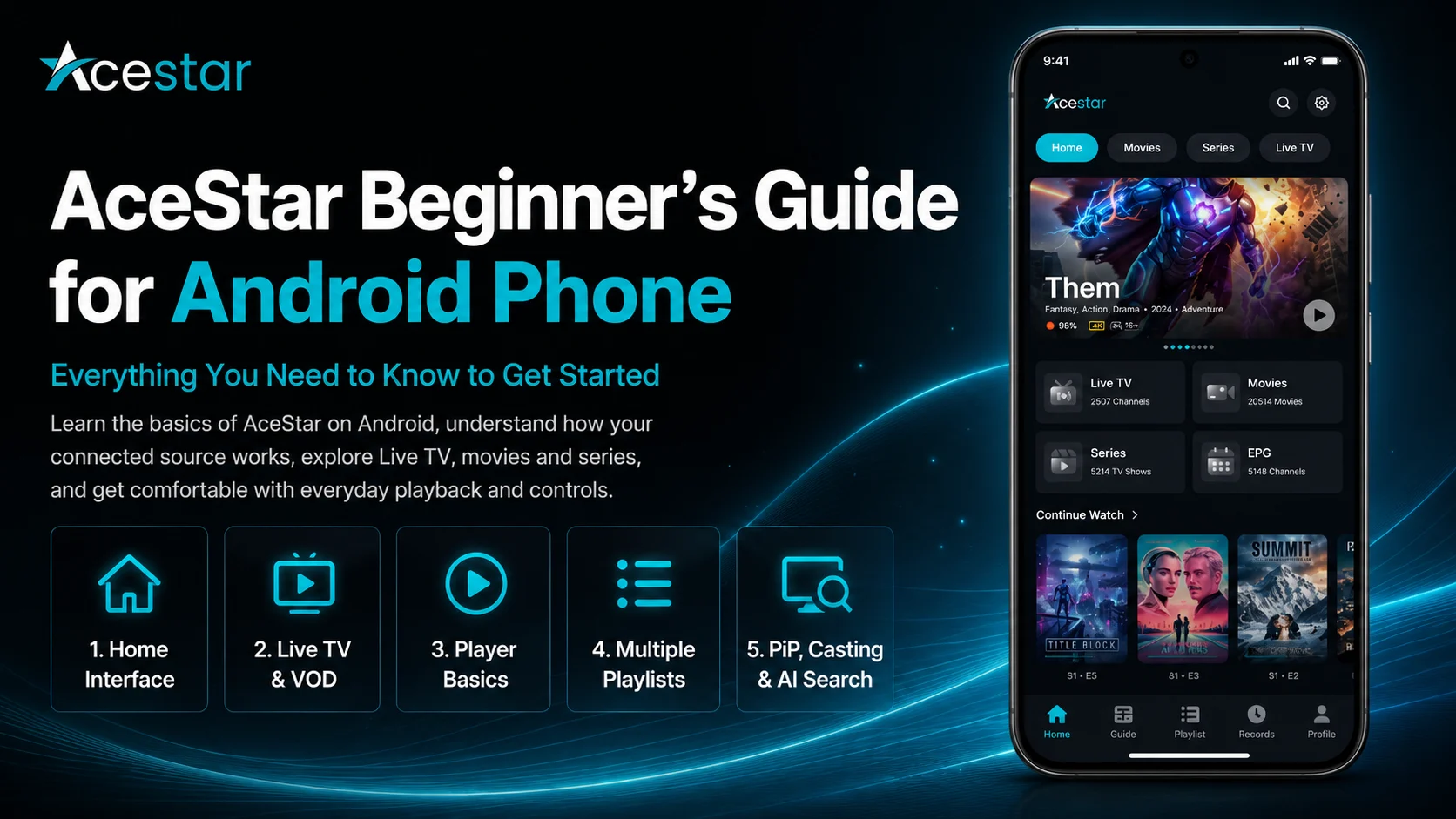
After installing and setting up AceStar on your Android phone, the next step is learning how to use the player comfortably for everyday viewing. AceStar is designed as a multi-platform player with support for your own compatible M3U playlists and Xtream Codes, along with features such as multiple playlists, device synchronization, picture-in-picture, casting, recording, parental controls, customizable layouts, an advanced video player, and AI-powered content discovery.
For a beginner, however, the best approach isn't to use every feature immediately. Start by understanding the interface, learning how your connected source affects what you see, testing normal playback, organizing frequently watched content, and becoming familiar with AceStar's everyday controls.
It's also important to understand that AceStar is a player platform, not a source of pre-loaded channels or movies. AceStar's own website describes the platform as allowing users to stream their own content and directs users to connect an M3U playlist or Xtream Codes before streaming.
This complete AceStar Beginner's Guide for Android Phone explains the essentials you need to become comfortable with AceStar without making your setup unnecessarily complicated.
Why Learn the AceStar Basics First?
AceStar includes many advanced capabilities, but a beginner benefits most from first understanding how the player, playlist, network, and Android phone work together.
Your M3U or Xtream source provides compatible media information. AceStar organizes that source through its player interface. Your internet connection delivers the stream, while your Android phone handles the application and playback.
Once you understand those separate layers, everyday use becomes much easier.
It also makes troubleshooting more logical. If AceStar opens and most content plays but one stream doesn't, you know the entire application probably hasn't failed. Likewise, if your connected library doesn't load at all, you can investigate the source or connection instead of immediately changing video settings.
AceStar Beginner Essentials
| Feature Area | What It Helps You Do |
|---|---|
| Interface | Navigate your available media |
| M3U & Xtream | Connect compatible sources |
| Multiple Playlists | Manage more than one authorized source |
| Advanced Player | Watch compatible SD, HD, and high-quality streams |
| Device Sync | Keep progress and Favorites connected across devices |
| PiP & Casting | Expand how you watch on Android |
| Home Interface Navigate your available media M3U & Xtream Connect compatible sources Multiple Playlists Manage more than one authorized source Advanced Player Watch compatible SD, HD, and high-quality streams Device Sync Keep progress and Favorites connected across devices PiP & Casting Expand how you watch on Android AI Search Discover available movies and series differently Parental Controls Manage viewing on shared devices | Discover available movies and series differently |
| Parental Controls | Manage viewing on shared devices |
Start With the AceStar Home Screen
Open AceStar on your Android phone and allow your connected library to finish loading before moving quickly between screens.
AceStar's official platform highlights customizable home-screen organization across movies, series, and live TV, including the ability to customize rows and reorder sections.
What actually appears on your home screen will also depend on your connected media source.
One playlist may provide extensive live television categories, while another may focus more heavily on movies or series. Category names and available media can therefore differ between AceStar users.
As a beginner, focus first on identifying the major sections and learning how to return to the main screen.
Understand Your M3U or Xtream Source
AceStar officially supports adding M3U playlists and Xtream Codes as part of its connection workflow.
You normally configured one of these during setup.
The important beginner lesson is that the media source and AceStar are separate.
If a channel, movie, category, or other item isn't supplied by your connected source, AceStar cannot create it simply because the player is installed.
This distinction also applies to organization and availability.
If your source changes its categories or removes a particular media item, the AceStar library you see can change accordingly.
Always use compatible sources and content that you're authorized to access.
Explore Live TV
If your connected playlist provides live TV, open the corresponding area and browse the available categories.
Select a channel and allow playback for a few moments to begin.
Don't judge your entire AceStar setup based on one stream.
If the first channel doesn't play, test two or three others. When several other streams work normally, the issue may be specific to that individual channel rather than AceStar itself.
This simple habit will save you a considerable amount of unnecessary troubleshooting later.
Browse Movies and Series
AceStar's platform is designed around movies, series, and live TV areas, with home-layout controls that can organize these content sections.
If your connected source includes movies or series, explore those areas to become familiar with their navigation.
Select an available title and review the information displayed by your current AceStar version. For series, you may need to move through seasons and episodes before beginning playback.
Remember that the actual library depends on your source.
AceStar provides the interface and viewing tools, but the titles and source-provided media information can vary between playlists.
Learn the AceStar Video Player
AceStar describes its video player as an advanced video player optimized for 4K streaming, with subtitle settings among its advertised controls.
Start a familiar stream and tap the screen to reveal the available playback controls.
Learn the basic functions before exploring more advanced options. Become comfortable starting and pausing playback, navigating the current video, entering or leaving full-screen viewing, and returning to your library.
If subtitles are available for the media you're watching, explore the relevant subtitle options provided by the player.
Don't change several playback settings simultaneously. Keeping the initial configuration simple gives you a reliable baseline.
Understand What 4K Optimization Means
AceStar promotes its player as optimized for 4K streaming, but that doesn't mean every video automatically plays in 4K.
The original media source must supply the appropriate quality, your Android device needs to support the playback requirements, and your network must deliver the stream consistently.
If a demanding high-resolution stream buffers while another stream works smoothly, don't immediately assume the player is defective.
Compare several media items and consider your Wi-Fi or mobile connection.
For everyday viewing, stable playback is generally more valuable than simply selecting the highest resolution available.
Learn Multiple Playlist Management
AceStar officially supports multiple playlists, allowing users to manage and switch between different compatible sources.
This feature is useful if you legitimately use more than one M3U or Xtream source.
For beginners, however, one working playlist is enough to learn the player.
After you're comfortable with AceStar, you can add another authorized source and give it a clear name so you know which library you're browsing.
Multiple playlists can also help with troubleshooting. If one source stops working while another continues normally, AceStar itself may still be functioning correctly.
Understand Device Sync
AceStar is designed to work across multiple platforms, including Android and iOS mobile devices, Android/Google TV, Apple TV, Samsung Tizen, LG webOS, Windows, macOS, and modern web browsers.
Its official site says watch history and playback progress can sync across devices, while its setup workflow also describes Favorites synchronization across screens.
For an Android beginner, this means your phone doesn't necessarily need to be an isolated AceStar device.
If you later use AceStar on another supported screen with the appropriate account, synchronization can provide a more connected viewing experience.
Use Picture-in-Picture When Multitasking
AceStar includes Picture-in-Picture (PiP) Mode, which the platform describes as allowing video to continue in a floating player while you use other applications.
This can be particularly useful on an Android phone.
For example, you may want to keep compatible playback visible while briefly checking another application.
Actual behavior can depend on your Android version, device configuration, and current AceStar implementation, so use the controls available in the version installed on your phone.
Get ordinary full-screen playback working first before experimenting with PiP.
Explore Casting to a Larger Screen
AceStar also advertises casting from mobile to TV.
This can make your Android phone a convenient starting point when you want to move compatible media onto a larger display.
Before using casting, first make sure the media plays correctly on the phone itself.
If ordinary playback works but casting doesn't, you then know the problem is likely specific to the casting environment rather than your entire playlist.
Network conditions and compatible receiving devices can also affect the experience.
Understand AceStar Recording
Another official AceStar capability is recording live content for later viewing.
This is worth knowing about, but beginners don't need to make it part of their first viewing session.
Recording behavior can involve factors such as the current application version, source availability, device storage, and relevant playback conditions.
First become comfortable with normal live playback.
Once you understand the basics, you can explore recording more carefully without confusing a recording-specific problem with ordinary playback.
Discover AI Movie Summary
One of AceStar's more distinctive features is the AI Movie Summary.
AceStar describes this feature as providing quick AI-generated overviews of movies and series to help users decide what to watch without spending as much time browsing.
After your library is loaded, look for the AI-related tools available in your current version.
Use Movie Summary as an additional discovery tool rather than expecting it to replace the information supplied by your media source.
For large libraries, this can make choosing what to watch more convenient.
Try AceStar AI Search
AceStar also provides AI Search, with the official website specifically describing searches based on moods such as “Happy,” “Sad,” “Exciting,” and “Relaxing.” The system can then suggest movies or series according to emotional tone.
This is different from traditional title-based searching.
If you already know exactly what you want, standard browsing may be faster. But when you aren't sure what to watch, AI Search gives you another way to explore the compatible library available through your setup.
It's one of AceStar's standout discovery features and is worth trying once you're comfortable with basic navigation.
Understand the Reel Experience
AceStar also promotes a Reel Experience designed around short, AI-curated previews. Users can browse brief previews and move from a reel into the full available content.
AceStar describes this as a discovery-focused experience with behavior-based recommendations and genre-oriented reels.
For a beginner, think of it as another way to explore a large library rather than navigating only through traditional categories.
Its usefulness will naturally depend on the content available through your configuration and the functionality presented in your current AceStar version.
Use Parental Controls on Shared Devices
AceStar officially includes Parental Control functionality and also advertises Screen Time Management, which can be used to set daily or weekly viewing limits for children.
These features are particularly relevant if your Android phone or broader AceStar setup is shared within a household.
Review them after you've confirmed that ordinary playback works.
Use suitable restrictions for your household and combine player controls with appropriate Android security or family-management settings where necessary.
Customize the Home Screen Gradually
AceStar offers extensive customization, including homepage layout control, custom rows, color themes, and fonts.
These options can help make the interface more personal or easier to navigate.
However, beginners should avoid rebuilding the entire layout immediately.
Use AceStar in its working state for a while first.
Once you know which sections you access most often, reorganizing rows and adjusting the interface becomes much more purposeful.
Make one change at a time so you always know how each adjustment affects your experience.
Know Whether the Player, Source, or Network Is the Problem
This is one of the most valuable skills for a new AceStar user.
If AceStar opens, your playlist loads, and most streams play correctly, one failed media item is unlikely to mean the entire player needs reinstalling.
If the application opens but your source won't load, verify the M3U or Xtream details and network connection.
If everything plays but frequently buffers, investigate your Wi-Fi or mobile connection and test multiple streams.
If AceStar itself repeatedly fails before reaching the library, the application or Android environment deserves more attention.
Separating these layers prevents random configuration changes.
Keep Your Source Details Secure
Your M3U playlist or Xtream credentials can contain private account or server information.
Don't post them publicly, send them through untrusted channels, or leave them visible in screenshots.
If you need help with AceStar, hide URLs, usernames, passwords, and other sensitive details before sharing an image.
AceStar's Terms of Use also place responsibility on users for the external URLs, APIs, and resources they connect and for ensuring their use is authorized and legally permitted.
Keeping legitimate connection details private is therefore both a security and account-management best practice.
Best Practices for New AceStar Users
Keep your first AceStar configuration straightforward. Learn one playlist before adding several sources, test multiple media items when one doesn't work, and avoid changing numerous player options at the same time.
Use a stable Wi-Fi connection when loading large libraries or testing demanding streams. Keep your account and source details private.
Once basic navigation feels familiar, gradually explore AceStar's more advanced capabilities, such as device sync, PiP, casting, recording, home-screen customization, AI Movie Summary, AI Search, Reel discovery, parental controls, and screen-time management. These are all capabilities currently highlighted by AceStar's official platform.
Common Beginner Mistakes
The first common mistake is assuming AceStar supplies the content itself. Its official workflow requires users to connect their own M3U playlist or Xtream Codes before streaming.
Another mistake is changing settings immediately when one channel doesn't work.
Users can also make navigation unnecessarily difficult by adding several playlists before learning the first one or by trying every advanced feature before verifying basic playback.
Finally, don't assume that a missing title, category, or media item must be an AceStar problem. Much of the available library ultimately depends on the connected source.
Why AceStar Is Useful for Android Beginners
AceStar combines traditional player functionality with a broader multi-platform experience.
Its official feature set includes playlist management, synced watch progress, PiP, casting, recording, parental controls, custom layouts, 4K-optimized playback, AI-powered search and summaries, and reel-style content discovery.
That gives beginners room to start simply and gradually use more advanced functionality as they become comfortable.
The key is understanding the basic workflow first: open AceStar, let your source load, browse available media, test playback, and only then start customizing the experience.
What's Next?
Now that you're comfortable with the basic AceStar Android Phone workflow, the next step is learning what to do when playback or configuration doesn't work as expected.
Continue with the:
AceStar Troubleshooting Guide for Android Phone
The Troubleshooting Guide will cover M3U and Xtream connection problems, playlists that won't load, buffering, streams that fail to play, app performance problems, device-sync issues, casting problems, and other common AceStar situations.
Final Thoughts
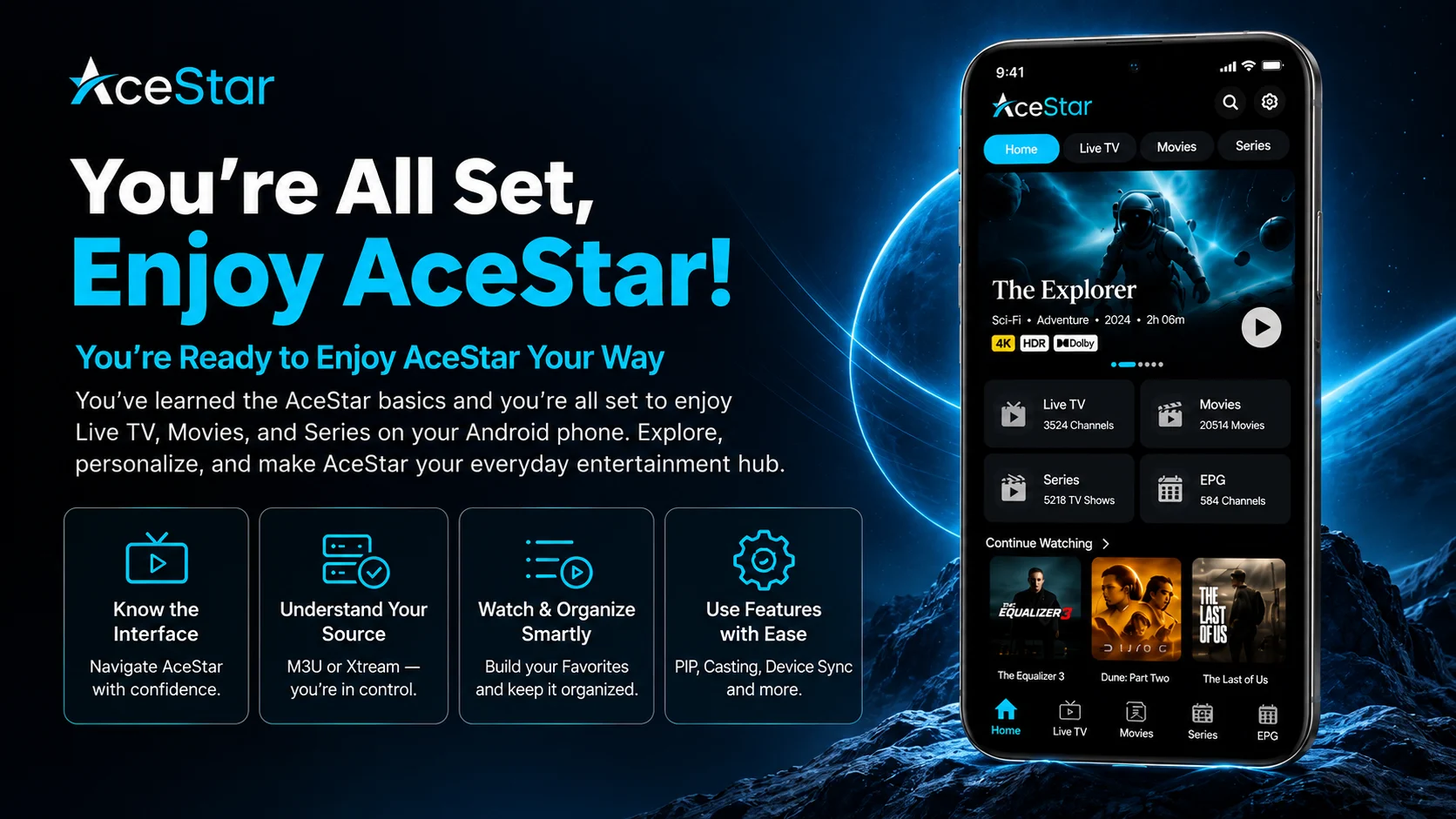
Learning how to use AceStar on an Android phone is easier when you don't try to master every feature at once.
Begin with the home interface, understand how your M3U or Xtream source relates to the player, browse Live TV, Movies, and Series, and become comfortable with AceStar's advanced video player.
Once basic playback works, explore multiple playlists, device sync, picture-in-picture, casting, recording, parental controls, screen-time management, customizable layouts, AI movie summary, AI search, and reel discovery. AceStar currently advertises all of these as part of its wider platform experience.
Most importantly, keep your working configuration stable and protect your source credentials.
With these basics understood, you're ready to use AceStar more confidently and diagnose common problems when they occur.
Frequently Asked Questions (FAQs)
1) What is AceStar on Android?
AceStar is a multi-platform player designed to let users stream their own compatible content. Its official workflow supports connecting an account and adding an M3U playlist or Xtream Codes.
2) Does AceStar provide channels or movies?
AceStar positions itself as a player for streaming users' own content rather than as a source of pre-loaded media. You need a compatible source that you're authorized to use.
3) Can I use multiple playlists in AceStar?
Yes. AceStar officially advertises multiple-playlist management, allowing compatible playlists to be managed and switched within the platform.
4) Does AceStar work across multiple devices?
Yes. AceStar currently lists support for Android/iOS mobile, Android/Google TV, Apple TV, Samsung Tizen, LG webOS, Windows, macOS, and web browsers. Device Sync is designed to synchronize watch history and playback progress, with Favorites synchronization also described in AceStar's setup workflow.
5) What is AceStar AI Search?
AceStar's AI Search can suggest movies and series based on mood-oriented searches such as "Happy," "Sad," "Exciting," or "Relaxing."
6) Does AceStar support Picture-in-Picture and casting?
Yes. AceStar advertises PiP Mode for floating playback while using other apps and Casting for sending compatible content from mobile to a TV.
7) Can AceStar play 4K content?
AceStar describes its advanced player as optimized for 4K streaming. Actual playback quality still depends on the source, network conditions, media itself, and Android device capabilities.
8) What should I read after the AceStar Beginner's Guide?
Continue with the AceStar Troubleshooting Guide for Android Phone to learn how to diagnose playlist, network, playback, app, synchronization, and casting problems.
Continue Learning with Player SDK
Continue your AceStar journey with Player SDK, your resource for installation guides, setup guides, beginner guides, troubleshooting, tips & tricks, hidden features, and device-specific media player tutorials.
Now that you understand the AceStar basics, continue with the AceStar Troubleshooting Guide for Android Phone to learn how to identify common problems, determine whether an issue comes from AceStar, your Android phone, your network, or your connected source, and keep your viewing experience running smoothly.
